Introduction
Creating presentations that truly capture attention is harder than ever. Whether you’re pitching a business idea, presenting data to stakeholders, or teaching complex concepts, static slides often fail to keep audiences engaged. Prezi addresses this challenge with an AI-powered presentation platform designed to transform ideas, documents, and prompts into visually compelling presentations without requiring design expertise.
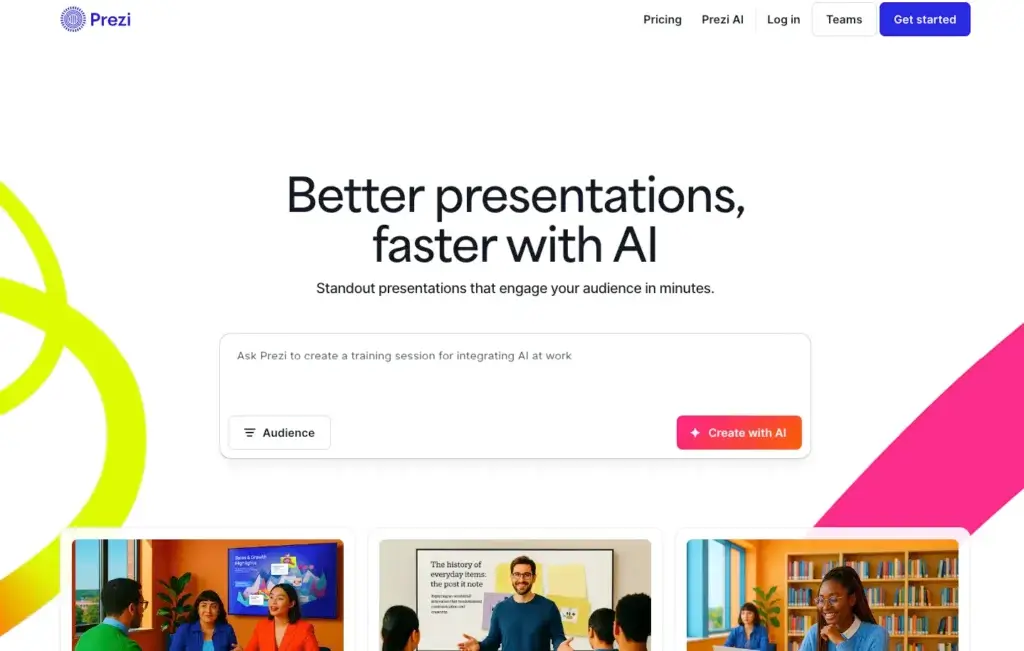
One of Prezi’s most important innovations is Prezi AI, which allows you to generate complete presentations in seconds. By simply entering a topic, uploading content, or providing an outline, Prezi AI automatically builds a structured, visually organized presentation that helps communicate your message clearly. This dramatically reduces preparation time while ensuring your presentation looks professional and engaging.
In this guide, you will gain a comprehensive understanding of Prezi’s latest features, pricing structure, and pros and cons. You will also learn how to use Prezi AI effectively, discover who benefits most from the tool and see how it compares to competing platforms.
Software Specification
Prezi’s Core Features
Dynamic canvas presentation format
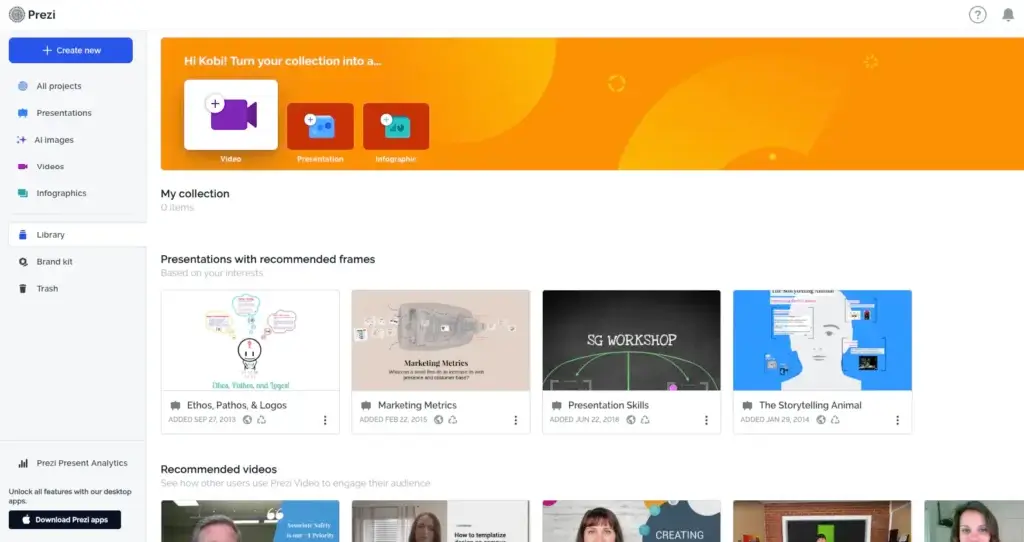
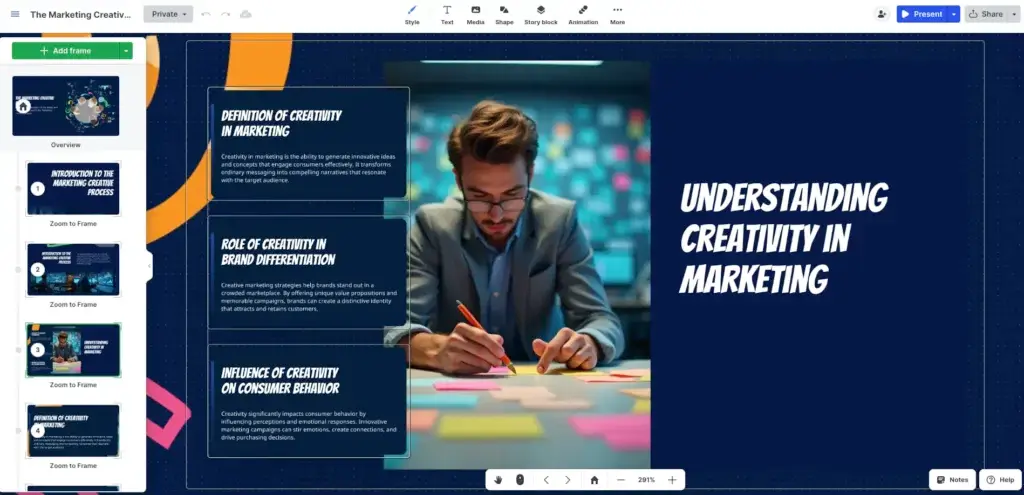
Prezi’s signature feature is its dynamic canvas, which allows you to visually organize your content within a single structured view rather than separating ideas across static slides. You create connected frames that guide viewers through your presentation along a clear visual path, helping them understand how concepts relate to each other. This approach makes it easier to present complex topics, reinforce key points, and maintain context throughout the presentation. By visually connecting ideas and guiding audiences smoothly between topics, Prezi helps improve engagement, clarity, and overall audience understanding compared to traditional slide-based presentation tools.
AI‑powered presentation creation
The AI layer transforms content creation. Enter a topic, paste text or upload files (PDF, PowerPoint or Word), and Prezi AI generates a custom outline. It organizes the content into a narrative flow with a beginning, middle and end. You can reorder or delete points before generating the visual design. Once your outline is ready, AI suggests color palettes, layouts and imagery that align with the mood or audience you specify (e.g., business, education, creative). You can refine text with options like lengthen, shorten, simplify or make more professional. For visuals, AI can search a library of millions of stock images or generate custom images with generative AI.
Prezi Video integration
Prezi Video makes remote presentations more engaging by placing you on screen with your slides. You select which frames to display next to you as you speak, and you can switch between camera‑only view and content view seamlessly. Recording options let you save videos in full HD and share them asynchronously. During live meetings, Prezi Video acts as a virtual camera, allowing you to present inside Zoom, Microsoft Teams, Google Meet, Webex, and other platforms without screen sharing. This integration reduces “Zoom fatigue” because viewers see a human face and not just slides.
Infographics and data visualization
Prezi Design empowers you to create interactive charts, graphs, and infographics. You can import data directly from spreadsheets or databases, visualize it with bar charts, scatter plots, timelines, geographic maps and more, then embed these visuals into your presentations or share them as standalone documents. Advanced plans include live data features that update charts automatically when the underlying data changes, making Prezi useful for dashboards and reports. For storytelling with data, you can animate chart elements to draw attention to trends and highlight insights.
Collaboration and sharing options
Prezi supports real‑time collaboration so multiple team members can edit a presentation simultaneously. You can assign collaborators with different permission levels (editor or viewer) and share links with password protection. Live Prezi allows remote co‑presenters to control the flow, making it easy to host webinars or trainings with multiple speakers. Premium and business plans include analytics that reveal how viewers interact with your content: you can track who watched the presentation, which sections they viewed, and how much time they spent. These metrics inform future improvements and help with lead generation in sales contexts.
Customization and branding tools
A polished look is essential for professional presentations. Prezi’s design options let you customize color schemes, fonts, shapes and backgrounds. You can create branded templates with your company’s logo and save them for reuse across different presentations. Plus and Premium subscribers gain access to Smart Branding, which automatically extracts brand colors and fonts from your website or uploaded media and applies them across your presentation. You can also insert icons, GIFs, videos and audio clips to enhance your slides. For accessibility, you can enable right‑to‑left script support and choose high‑contrast color palettes for viewers with visual impairments.
Multi‑platform access
You can work on Prezi from any modern browser without installing software. There is also a desktop application for Windows and macOS that enables offline editing and presenting—useful when internet connectivity is unreliable. Mobile apps (iOS and Android) allow you to view and present but do not yet support editing. Presentations can be shared via direct links, embedded on websites or downloaded as PDF files. However, note that exporting to PowerPoint (.pptx) is not supported. Video files can be downloaded for offline sharing or uploaded to platforms such as YouTube and Vimeo.
Pros and Cons
Advantages and Disadvantages
Positive
✅ Engaging and memorable presentations
✅ AI‑powered productivity
✅ Customization and branding
✅ Variety of formats
Negative
❌ Learning curve
❌ Limited mobile editing
❌ Performance on heavy presentations
Pros
✅ Engaging and memorable presentations
Prezi’s dynamic canvas allows you to visually organize and connect ideas within a single presentation space, rather than relying on disconnected static slides. The guided visual path creates clear context, helping audiences understand how concepts relate to each other and making complex topics easier to follow. This approach improves engagement and retention, making Prezi especially effective for storytelling, education, and strategic business presentations.
✅ AI-powered productivity
Prezi AI accelerates the creation process by generating structured outlines, visual layouts, AI-written text refinements, and custom images from a simple prompt or uploaded file. Instead of starting from a blank canvas, you begin with a complete draft that you can refine. This significantly reduces preparation time while maintaining design quality.
✅ Customization and branding
Smart branding tools allow you to apply brand colors, logos, and consistent themes across presentations. Higher-tier plans include brand kits and advanced design controls, helping businesses maintain professional consistency across departments.
✅ Variety of formats
Beyond traditional presentations, Prezi supports infographics, interactive reports, and recorded videos. This makes it suitable for marketing teams, educators, consultants, and internal communications, all within a single platform. You are not locked into one presentation format.
Cons
❌ Learning curve
If you are accustomed to linear slide tools like PowerPoint or Google Slides, Prezi’s spatial canvas may initially feel unfamiliar. Understanding zoom paths, framing, and visual hierarchy requires practice. Most users need several hours of hands-on use before becoming fully comfortable.
❌ Limited mobile editing
While you can present from mobile devices, editing and full creation capabilities are limited to desktop or browser environments. If mobile-first content creation is important to your workflow, this may be restrictive.
❌ Performance on heavy presentations
Large canvases with many high-resolution images, animations, or embedded videos can slow down performance, especially in browser mode. The desktop application typically handles resource-intensive projects more smoothly.
User Experience
Intuitive But Different Interface
Prezi’s user experience stands out immediately because it replaces traditional slides with a zoomable canvas. Instead of moving linearly from slide to slide, you design a visual landscape and guide your audience through it.
If you are used to PowerPoint or Google Slides, this structure may feel unfamiliar at first. However, once you understand frames and paths, the workflow becomes logical and even creative. It encourages storytelling rather than bullet-point stacking.
AI-Assisted Workflow
Prezi AI improves the overall experience by removing the blank-page problem. You enter a prompt or upload a file, and the platform generates a structured outline and visual layout for you. You still refine and adjust the design, but the heavy lifting is done upfront. This makes the experience feel guided instead of overwhelming, especially for non-designers.
Design Freedom vs Structure
The canvas gives you more creative flexibility than slide-based tools. You can place elements freely and build relationships visually. The tradeoff is that you must think about hierarchy and spacing more carefully. Tools like Canva or Google Slides may feel more structured, while Prezi feels more open and dynamic.
Performance and Collaboration
Prezi performs smoothly for most projects, especially in the desktop app. Large, media-heavy presentations may slow down in browser mode. Collaboration works well for small teams, but it does not yet match the real-time precision and permission controls of Google Slides or Canva.
Audience Experience
From the viewer’s perspective, Prezi presentations are often more engaging because of movement and spatial context. Prezi Video adds another layer by keeping you visible alongside your content during virtual meetings.
However, excessive zooming can be distracting if not used carefully, so thoughtful design is important.
Best Use Cases
Who Should Use Prezi
Different user groups derive unique benefits from Prezi. Consider your objectives when evaluating whether this tool suits your needs.
Educators and trainers
Teachers and trainers often need to explain complex subjects that involve relationships, processes, and structured information. Prezi’s dynamic canvas helps present concepts such as biological systems, historical timelines, and mathematical models in a visually connected way, making them easier for students to understand. By guiding learners through content with a clear visual path, Prezi improves comprehension and helps reinforce how ideas relate to each other. This visual approach supports more interactive teaching, allowing instructors to navigate smoothly between topics while maintaining context. Prezi Video further enhances remote and hybrid learning by keeping instructors visible alongside their content, creating a more engaging and effective learning experience.
Sales and marketing professionals
Sales pitches must capture attention quickly and adapt to prospects’ questions. Prezi’s dynamic navigation allows sales professionals to jump between product features, case studies and pricing details in response to buyer interests. Presentations created with Prezi have been reported to increase persuasiveness—Harvard research mentioned by Prezi claims a 21.9 percent improvement over traditional slides. Prezi Video keeps presenters visible during remote pitches, strengthening rapport and trust. Sales teams can also use Prezi analytics to track engagement and identify which leads showed high interest.
Consultants and storytellers
Consultants and business strategists often convey complex narratives, such as market analyses or organizational change frameworks. Prezi’s spatial canvas helps illustrate relationships between market forces, industry trends and business strategies. Because you can set up a central hub with branches leading to subtopics, consultants can tailor their narratives to client priorities. Prezi AI accelerates deck creation by transforming reports or proposals into visually appealing narratives, freeing consultants to focus on analysis instead of design.
Remote teams and video presenters
Remote work is here to stay, and Prezi Video solves the problem of engaging virtual audiences. By placing presenters on screen with their slides, Prezi reduces the monotony of screen sharing and keeps participants focused. Internal training sessions, webinars and all‑hands meetings benefit from this format. The ability to download videos also facilitates asynchronous training and onboarding. Teams that rely heavily on video conferencing will find Prezi Video a valuable tool.
Creative professionals and event speakers
Artists, designers, keynote speakers and event organizers look for distinctive ways to engage audiences. Prezi’s cinematic zooming and story‑driven layouts create lasting impressions at conferences and virtual events. Creative professionals can integrate their own images, videos and soundtracks, while Prezi’s open canvas offers freedom to design unique visual experiences. For events where a typical slide deck might not stand out, Prezi provides an opportunity to differentiate and deliver memorable performances.
Compare with Others
Alternatives to Prezi
The market for AI‑powered presentation tools is growing rapidly. To help you decide whether Prezi meets your needs, the table below compares it with three popular alternatives: PowerPoint (with Microsoft Copilot), Canva and Gamma.
| Feature Type | Prezi | PowerPoint + Copilot | Canva | Gamma |
| AI Capabilities | Outline and design suggestions; text rewriting; custom image generation; unlimited credits on Plus plans | Copilot offers text summaries, slide generation and design suggestions in PowerPoint; integrated into Microsoft 365 subscription | Magic Write for copy; generative design suggestions; limited AI slide generation; optional add‑on for AI image creation | Automated deck creation from notes; simple card‑based slides; AI translation and summarization |
| Visual Style | Dynamic canvas with zooming effects; cinematic storytelling | Traditional linear slides with templates; slide transitions available | Linear slide decks with extensive template library; drag‑and‑drop design | Scrollable document‑style presentations; focus on speed rather than visual impact |
| Offline Access | Desktop app for offline editing and presenting; mobile viewer | Desktop client available; offline editing possible if installed | Browser‑based; offline editing via mobile app limited | No offline mode |
| Collaboration | Real‑time co‑editing; share links; viewer analytics (Premium) | Real‑time co‑authoring via OneDrive/SharePoint; robust version control | Real‑time collaboration with comments; brand kits for teams | Basic collaboration; limited team tools |
| Video Integration | Prezi Video keeps presenter on screen with content; record and live present | PowerPoint supports screen recording and video embedding; no integrated video‑on‑camera feature | Canva Video allows slide videos and screen recording; no live co‑presenting on camera | No built‑in video presenting tools |
When to choose another tool
PowerPoint + Copilot – If your organization is standardized on Microsoft Office and requires strict compatibility with .pptx files, PowerPoint remains a practical choice. Copilot adds AI assistance for summarizing content and generating draft slides, helping users create presentations faster. However, PowerPoint still relies primarily on static slides, while Prezi’s dynamic canvas visually connects ideas and guides audiences through content more naturally. PowerPoint is the better option if deep Microsoft 365 integration and traditional slide workflows are essential.
Canva – Canva is ideal for creating visually consistent slides, marketing assets, and branded content quickly. Its template library is extensive, and its AI tools help streamline design and content creation. While Canva focuses on slide-based presentation structure, Prezi’s dynamic canvas allows presenters to visually organize and connect ideas in a more engaging and structured way. Canva excels at design simplicity and team brand management, while Prezi offers stronger tools for delivering interactive and visually connected presentations.
Gamma – Gamma automatically generates decks from a prompt and produces simple card‑style presentations. It’s appropriate when speed is more important than intricate visuals. Gamma also translates slides into different languages automatically. However, it lacks advanced design control, offline access and video integration. Use Gamma for brainstorming or when you need a quick first draft with minimal editing.
Pricing & Plans
Find the Right Fit for Your Team
Prezi offers a range of plans tailored to individuals, educators and businesses. All paid plans begin with a 14‑day free trial. Prices below reflect the annual billing rates, which offer lower monthly costs than month‑to‑month subscriptions.
Individual plans
Basic (Free) – Ideal for users who want to experiment with Prezi’s core capabilities. You can create presentations, videos and infographics using the online editor. AI usage is limited to 500 credits per month, which covers AI presentation generation with up to ten talking points, PDF/PPT import, AI‑generated images and AI text transformation. You also get limited storage and access to basic templates.
Standard ($7/month) – The first paid tier for personal use. It includes all Basic features plus enhanced privacy settings, unlimited projects, access to a larger library of icons and story blocks, and the ability to control sharing with revocable links. AI usage remains 500 credits per month.
Plus ($19/month) – Designed for expert presenters who need more advanced features. In addition to Standard capabilities, Plus includes unlimited AI credits, import of PowerPoint slides, premium images and templates, video upload and recording options, voice‑over, personal brand kits, offline access via the desktop app, export to PDF, portable presentations, presenter view and remote presenting. You also gain advanced design features in Prezi Design, including live data connectors and interactive maps.
Premium ($29/month) – Targeted at professionals who require analytics and top‑tier support. It includes everything in Plus and adds Prezi Analytics for viewer insights, advanced online training, dedicated phone support and priority customer service. Teams using Premium can better measure engagement and gather leads from shared presentations.
Educational plans
Prezi offers discounted plans for students, teachers and educational institutions. These plans require a valid school email address.
Edu Plus ($4/month) – Equivalent to the Plus plan but at a reduced cost for students and educators. You get unlimited AI usage, offline access, PDF export, portable presentations, voice‑over features and the ability to create and save custom color themes.
Edu Pro ($8/month) – Adds the analytics and advanced integrations found in Premium, making it suitable for teachers who need to track student engagement or integrate Prezi with learning management systems.
Edu Teams ($19/month per user) – Designed for school departments and educational institutions. It includes collaboration tools, advanced analytics, custom brand kits and secure single sign‑on (SSO). Teams can manage multiple users under a single administrator account.
Business and team plans
Prezi Business – Aimed at companies that need centralized billing, team collaboration and advanced customer support. Business plans include all Premium features plus team spaces, brand kits, custom templates, role‑based permissions, SSO and onboarding support. Teams with ten or more licenses can request custom designs from Prezi’s professional design team.
The following table summarises key features of the main plans:
| Plan | Price (month, billed annually) | AI Credits | Key Benefits |
| Basic | Free | 500 credits | Create presentations, videos and infographics; limited templates; share via link; online editing only |
| Standard | $7 | 500 credits | Unlimited projects; privacy controls; more icons and story blocks; revocable links |
| Plus | $19 | Unlimited | Unlimited AI; premium templates; PowerPoint import; voice‑over; offline access; PDF export; portable presentations; advanced design features |
| Premium | $29 | Unlimited | Everything in Plus plus analytics, advanced training and phone support |
| Edu Plus | $4 | Unlimited | All Plus features at educational price; create and save custom color themes |
| Edu Pro | $8 | Unlimited | All Edu Plus features with analytics and advanced integrations |
| Edu Teams | $19/user | Unlimited | Edu Pro features plus collaboration tools, SSO and team management |
| Business | Custom | Unlimited | Centralized billing, team spaces, role‑based permissions, brand kits, advanced support |
How to Use Prezi
A Step-by-Step Guide
Conclusion
Final Thoughts
Prezi has established a strong position in the presentation software market with its dynamic canvas, which helps presenters visually connect ideas and guide audiences more effectively than traditional slide-based tools. With the addition of Prezi AI, users can quickly turn ideas or documents into professional presentations, significantly reducing preparation time. Its integrated video features also enhance virtual presentations by keeping presenters visible alongside their content. Combined with competitive pricing and scalable plans, Prezi is a compelling choice for individuals, educators, and businesses.
However, Prezi is not a universal replacement for traditional slide tools. The learning curve, potential motion sickness, and lack of PowerPoint export may make it unsuitable for some audiences. If your organization relies heavily on PowerPoint or needs lightning‑fast automatic deck generation, alternatives like PowerPoint with Copilot or Gamma may be more appropriate. For visually driven, interactive presentations where narrative flow is crucial, Prezi shines.
If you are an educator, sales professional, consultant or speaker seeking to stand out and make complex ideas memorable, Prezi is worth considering. Use AI to jump‑start your presentation creation, customize the design to match your brand, and practice with Prezi Video to deliver compelling presentations in person or online. Whether you choose Prezi or another tool, the principles of strong storytelling, thoughtful design, and audience empathy remain at the heart of impactful presentations.
Have more questions?
Frequently Asked Questions
What is Prezi?
Prezi is a presentation software platform that uses a zoomable, non-linear canvas instead of traditional slide-by-slide decks. It helps you create more visual, interactive, and story-driven presentations for business, education, training, and remote meetings.
How is Prezi different from PowerPoint?
Prezi is different from PowerPoint because it uses a zoomable canvas rather than a fixed linear slide structure. This lets you move between topics visually, show relationships between ideas, and create a more dynamic presentation experience.
Does Prezi have AI features?
Yes. Prezi AI can help you create presentation outlines, generate presentation drafts from prompts or uploaded files, suggest layouts, refine text, and create AI images. This makes it easier to build professional presentations faster.
Is Prezi free to use?
Yes. Prezi offers a free Basic plan that lets you create presentations, videos, and infographics. However, paid plans unlock more privacy controls, unlimited projects, offline access, PDF export, presentation recording, analytics, and expanded AI usage.
Who is Prezi best for?
Prezi is best for educators, trainers, consultants, sales teams, marketers, and speakers who want to create more engaging and visual presentations. It is especially useful when you need to explain relationships between ideas or present complex topics clearly.
Can I import PowerPoint slides into Prezi?
Yes. Prezi allows you to import PowerPoint files and convert them into Prezi presentations. This is helpful if you already have slide content but want to turn it into a more interactive, zoomable presentation experience.
Can I export Prezi to PowerPoint?
No. Prezi does not currently support exporting presentations as PowerPoint files. You can export some presentations as PDFs, but this removes the zooming, motion, and interactive elements that make Prezi unique.
What is Prezi Video?
Prezi Video is a feature that lets you appear on screen alongside your presentation content during recorded videos or live meetings. It is useful for remote presentations, webinars, online training, and virtual sales calls.
Is Prezi good for business presentations?
Yes. Prezi can be a strong option for business presentations, especially sales pitches, strategy decks, training sessions, webinars, and client presentations. Its visual canvas and AI tools help you create more engaging and memorable presentations.
What are the main disadvantages of Prezi?
The main disadvantages of Prezi are its learning curve, potential motion sensitivity from zooming transitions, limited mobile editing, no PowerPoint export, and possible performance issues with large media-heavy presentations.