
Introduction
If you want your business apps to work together without relying on a developer every time you need a new workflow, Zapier is still one of the strongest automation platforms to consider. It connects your everyday tools, moves data between them, and helps you reduce repetitive manual work through automated workflows called Zaps.
This Zapier review for 2026 will help you decide whether the platform is the right fit for your business. You will learn how Zapier works, what has changed with its AI features, how pricing and task limits work, where it performs best, and where alternatives like Make, n8n, Microsoft Power Automate, and Workato may be better options.
Zapier is no longer just a simple app connector. It now positions itself as an AI orchestration platform that combines Zaps, Tables, Forms, Canvas, MCP, AI agents, and thousands of app integrations. That makes it more powerful than before, but also more important to understand before you commit to a paid plan.
| Category | Zapier Review Summary |
| Best For | Small businesses, marketing teams, sales teams, operations teams, agencies, and non-technical users |
| Main Strength | Very broad app coverage and an easy no-code automation builder |
| Main Weakness | Task-based pricing can become expensive when workflows run often |
| Best Alternative | Make for visual workflow control, n8n for technical teams, Power Automate for Microsoft users |
| Overall Recommendation | Best for teams that value speed, ease of use, AI automation, and broad SaaS connectivity |
What Is Zapier?
Zapier is a no-code workflow automation platform that connects your business apps and automates actions between them. Instead of manually copying information from one tool to another, you can create a workflow that reacts to a trigger and performs one or more actions automatically.
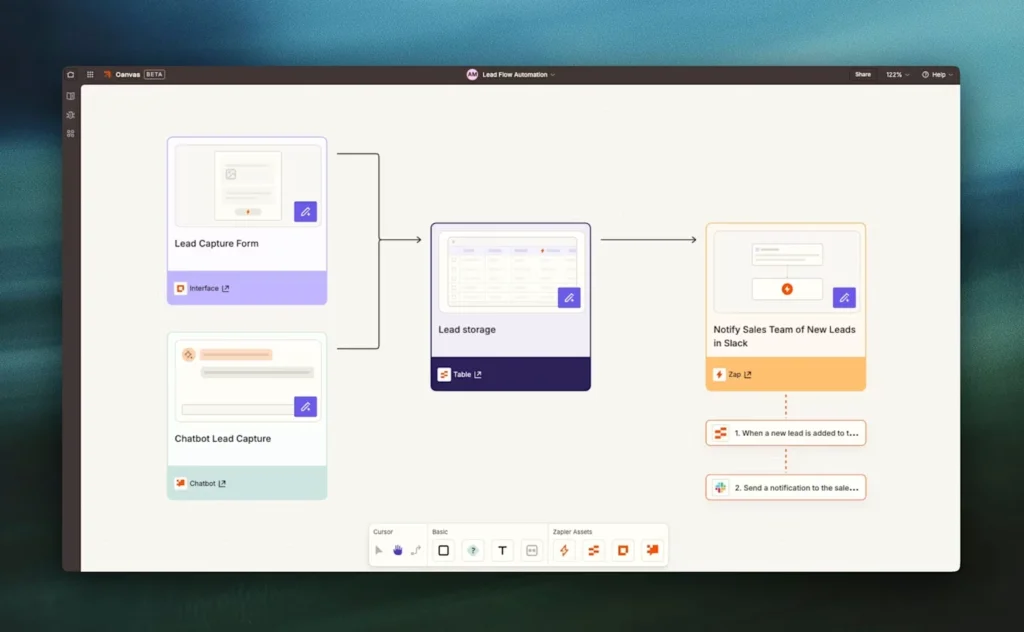
For example, when a new lead submits a form, Zapier can add the lead to your CRM, notify your sales team in Slack, create a task in your project management software, and send a follow-up email. That entire workflow can run without manual input once it is configured.
The platform is especially useful if your team already works across multiple SaaS tools. Marketing, sales, support, HR, finance, and operations teams can use Zapier to connect systems that do not communicate well natively.
How Zapier Works
Zapier workflows are called Zaps. Each Zap starts with a trigger and then performs one or more actions. The trigger is the event that starts the workflow, and the action is what Zapier does after that event happens.
- Trigger: The event that starts the automation, such as a new form response, new email, new payment, or new CRM contact.
- Action: The task Zapier performs, such as creating a spreadsheet row, sending a message, updating a record, or generating an AI summary.
- Zap: The full automated workflow that connects the trigger and action steps.
- Task: A successful action that counts toward your monthly task limit.
This task-based model is one of the most important parts of Zapier pricing. A simple Zap with one action may use one task each time it runs. A multi-step Zap with five successful actions may use five tasks every time it runs.
Software Specification
Zapier’s Core Features
Zapier is popular because it makes automation accessible to people who are not developers. At the same time, it includes advanced tools for teams that need more logic, governance, AI capabilities, and customization.
Multi-Step Zaps and Conditional Logic
Paid plans let you build multi-step Zaps that perform several actions from one trigger. This is where Zapier becomes much more valuable than a basic app connector.
You can add filters, paths, delays, and formatting steps to control how data moves through your workflow. For example, you can route enterprise leads to a sales manager, smaller leads to a nurture campaign, and support requests to different teams based on urgency.
This makes Zapier useful for lead routing, onboarding, customer support, approval workflows, reporting, and operational processes that need more than one simple action.
9,000+ App Integrations
One of Zapier’s biggest strengths is its integration ecosystem. The platform connects with thousands of apps across CRM, marketing, project management, productivity, finance, ecommerce, analytics, communication, AI, and customer support.
That means you can connect tools like Gmail, Slack, HubSpot, Salesforce, Google Sheets, Typeform, Airtable, Notion, Trello, Asana, Shopify, Stripe, and many more. For most teams, Zapier’s app coverage is the main reason to choose it over smaller automation platforms.
The important caveat is that integration depth can vary. Some apps include many triggers and actions, while others only support basic events. Before upgrading, you should check whether your most important apps support the exact workflow actions you need.
No-Code Workflow Builder and Templates
Zapier’s builder is designed for non-technical users. You choose an app, select a trigger, connect your account, map fields, test the step, and then add actions.
The workflow builder is straightforward enough for beginners, and Zapier also provides templates for common automations. These templates are helpful when you want to automate lead capture, task creation, email notifications, customer follow-ups, file management, or spreadsheet updates.
For more advanced users, the builder also supports webhooks, code steps, custom actions, field mapping, version history, and custom error notifications on paid plans.
Zapier Tables, Forms, and Canvas
Zapier has expanded beyond simple automations. With Tables, Forms, and Canvas, you can build more complete internal workflows inside the Zapier ecosystem.
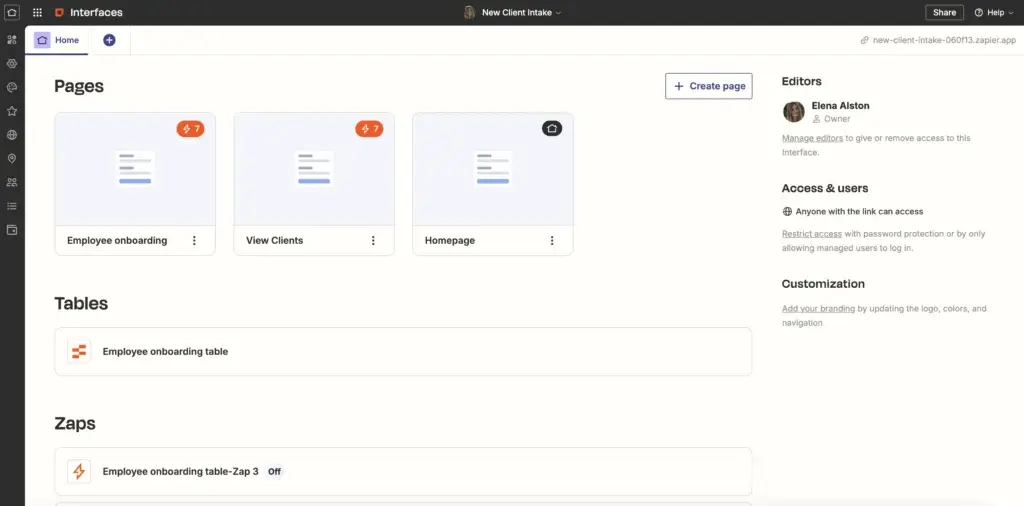
- Zapier Tables: Store structured data that can power workflows, approvals, lead routing, and internal processes.
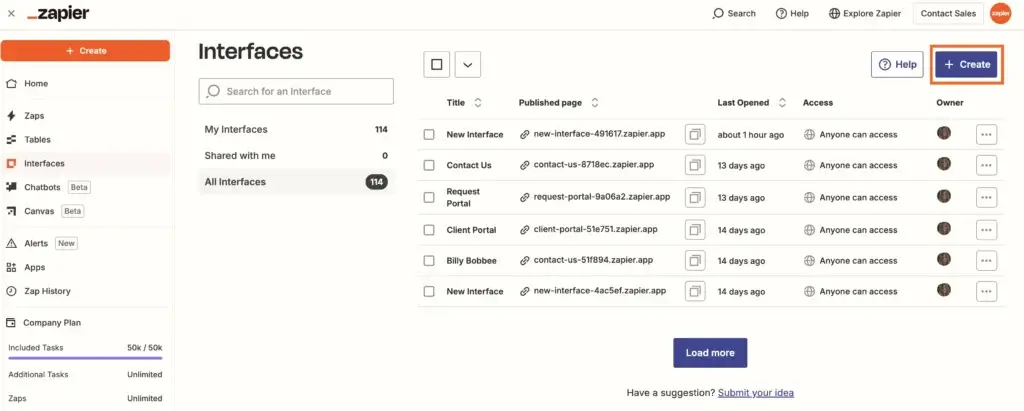
- Zapier Forms: Build forms and lightweight interfaces that collect information and trigger automations.
- Zapier Canvas: Map workflows visually, document business processes, and plan automation systems before building them.
This is an important shift. Zapier is now closer to a lightweight operations platform than a basic automation connector. You can collect data, store it, automate next steps, and visualize the process in one connected system.
AI Features: Copilot, Agents, MCP, Canvas, and AI Actions
Zapier has invested heavily in AI automation. These features are designed to help you create workflows faster, connect AI tools to business apps, and build smarter systems that can summarize, classify, route, and act on data.
- Zapier Copilot: Helps you build Zaps using natural language, generate code steps, map fields, and troubleshoot workflow issues.
- Zapier Agents: Lets you create AI-powered teammates that can work toward defined goals, use connected apps, and perform actions with oversight.
- Zapier MCP: Connects AI assistants to Zapier’s app ecosystem so they can take action across business tools.
- AI Actions: Allows you to use AI inside Zaps for summarization, classification, drafting, enrichment, and routing.
- Canvas: Helps teams visualize AI systems and automation flows before deploying them.
These AI features are useful, but they should be tested carefully. For sensitive workflows, it is better to add approval steps, human review, clear permissions, and limited app access rather than letting AI actions run without oversight.
Webhooks, Custom Actions, and Code Steps
Zapier is primarily a no-code platform, but it does provide flexibility for technical users. Webhooks allow you to send and receive data from apps that may not have a native Zapier integration. Code steps let you use JavaScript or Python for custom logic, data transformation, and API calls.
This flexibility is helpful when you need to clean messy data, connect a niche tool, or build a workflow that goes beyond standard triggers and actions. However, if your team needs heavy custom logic, self-hosting, or full control over infrastructure, n8n or a custom integration may be a better long-term fit.
Team Collaboration and Governance
Zapier’s Team and Enterprise plans are built for collaboration. You can use shared workspaces, shared app connections, folders, role-based permissions, SAML SSO, and admin controls to manage automations across a team.
This matters because automations can become business-critical. If one person builds every workflow from a personal account, your company may lose visibility and control. Team features help centralize ownership, reduce credential sharing, and make automation safer at scale.
Pros and Cons
Advantages and Disadvantages
Positive
✅ Easy no-code builder
✅ 9,000+ app integrations
✅ Strong AI automation tools
✅ Useful for many departments
Negative
❌ Costs rise with task volume
❌ Free plan is limited
❌ Some integrations are shallow
❌ Complex Zaps need maintenance
Zapier is one of the easiest automation tools to adopt, but it is not perfect for every team. The biggest question is not whether Zapier can automate your work. The better question is whether it can automate your work at the right cost, with the right level of control.
✅ Pros
- Easy no-code builder: Zapier is one of the most beginner-friendly automation platforms. You can create useful workflows without writing code, reading API documentation, or involving engineering.
- Large integration library: With thousands of supported apps, Zapier is usually the first platform to check when you need to connect two SaaS tools.
- Strong AI automation direction: Copilot, Agents, MCP, AI Actions, and Canvas make Zapier more relevant for teams that want to operationalize AI, not just test AI tools in isolation.
- Useful built-in tools: Filters, Paths, Formatter, Delay, Schedule, Webhooks, and Tables help you build workflows that are more practical than a basic trigger-to-action automation.
- Good for non-technical teams: Marketing, sales, support, HR, and operations teams can build many automations without waiting for developer resources.
- Team and enterprise controls: Shared app connections, permissions, SAML SSO, admin controls, and observability features make Zapier more suitable for larger organizations.
❌ Cons
- Task-based pricing can get expensive: Zapier is affordable for light automation, but costs can rise quickly when workflows run often or include many action steps.
- Free plan limitations: The Free plan is useful for testing, but the 100-task limit, single-user setup, and two-step Zap limit make it too restrictive for most active business workflows.
- Integration depth varies: Zapier may support an app, but that does not always mean it supports every trigger, action, field, or edge case your workflow requires.
- Complex workflows need governance: As you build more Zaps, you need naming conventions, folders, ownership rules, and regular audits to avoid automation sprawl.
- AI workflows require careful review: AI-powered actions can save time, but sensitive workflows should include human approval steps and clear permission boundaries.
- Less technical control than developer-focused tools: Zapier is easier than n8n or custom APIs, but it is not always ideal for teams that want self-hosting, version-controlled workflows, or deep backend logic.
Pricing
How Much Does Zapier Cost?
Zapier pricing is based mainly on the plan you choose and the number of tasks you use each month. The platform includes Free, Professional, Team, and Enterprise plans, with higher tiers unlocking more collaboration, governance, support, and usage options.
Before choosing a plan, it is important to understand how tasks work. Zapier can look inexpensive at first, but a workflow that runs hundreds or thousands of times per month can quickly consume your monthly allowance.
| Plan | Starting Price | Best For | Key Features |
| Free | $0/month | Testing simple automations | 100 tasks/month, two-step Zaps, single user, Zaps, Tables, Forms, Copilot, and basic automation tools |
| Professional | From $19.99/month, billed annually | Solo users and small teams building production workflows | Multi-step Zaps, premium apps, webhooks, unlimited access to Zaps, Tables, and Forms, email support, and live chat on higher task tiers |
| Team | From $69/month, billed annually | Teams managing shared automations | 25 users, shared Zaps and folders, shared app connections, SAML SSO, permissions, and Premier Support |
| Enterprise | Custom pricing | Larger organizations with governance needs | Unlimited users, advanced admin controls, app controls, annual task limits, observability, and technical account support |
How Zapier Task Usage Works
A task is counted when Zapier successfully completes an action. If a Zap only sends one Slack message, that run usually consumes one task. If it creates a CRM contact, sends an email, creates a task, and updates a spreadsheet, that run may consume four tasks.
Some built-in Zapier tools may not count toward task usage, depending on the tool and plan. Filters, Paths, Formatter, and Delay are commonly used to control workflows without unnecessarily increasing task volume. MCP tool calls are different, because successful Zapier MCP tool calls use tasks from your plan.
| Example Workflow | Runs Per Month | Actions Per Run | Estimated Monthly Tasks |
| New lead form to CRM and Slack | 300 | 2 | 600 |
| Customer ticket to AI summary, Slack, and task | 500 | 3 | 1,500 |
| Order to invoice, warehouse alert, CRM update, and email | 750 | 4 | 3,000 |
| AI assistant using two MCP tool calls | 400 | 2 MCP calls | 1,600 tasks |
The practical takeaway is simple: estimate task usage before choosing a plan. Zapier is excellent for automating repetitive work, but you should calculate how often each Zap runs and how many action steps it performs.
For small workflows, Zapier can be very cost-effective. For high-volume workflows, Make, n8n, or a custom integration may provide better economics depending on your technical resources.
Who Should Use Each Zapier Plan?
The Free plan is best for testing Zapier or running a very simple personal workflow. It is not the right plan for serious business automation because the 100-task limit is easy to reach.
The Professional plan is the best starting point for most individuals, small businesses, and agencies. It unlocks multi-step Zaps, premium apps, and webhooks, which are essential for real workflow automation.
The Team plan is worth considering when multiple people need to build, manage, and share automations. The shared workspace and app connections are important if you want to avoid automations being tied to one person’s account.
The Enterprise plan is mainly for larger companies that need stronger governance, admin controls, observability, technical support, annual task limits, and broader security requirements.
Common Use Cases
What Is Zapier Good For?
Zapier works best when you need to move information between tools, standardize repetitive actions, or reduce manual admin work across teams. It is especially strong for workflows that are important but not complex enough to justify custom development.
Marketing Automation
Marketing teams can use Zapier to automate lead capture, campaign operations, content distribution, and reporting. For example, a new Typeform response can create a HubSpot contact, add the lead to a Google Sheet, notify a Slack channel, and start an email sequence.
Zapier is also useful for campaign handoffs. When a lead reaches a certain score, you can route it to sales, create a follow-up task, and notify the right account owner automatically.
Sales and CRM Workflows
Sales teams can use Zapier to reduce CRM admin work. You can create contacts from form submissions, update deal stages from payment events, send follow-up reminders, and route leads by company size, region, or source.
This is especially valuable when your CRM does not connect deeply with every form, spreadsheet, webinar, or enrichment tool your team uses.
IT Service Management and Support Desk Automation
Support and IT teams can use Zapier to route tickets, send escalation alerts, update records, and trigger follow-up actions. For example, a high-priority support ticket can create a Slack alert, assign a task, and notify a manager.
Zapier can also help with simple internal service workflows, such as onboarding requests, access requests, incident alerts, or recurring maintenance reminders.
HR Onboarding and Operations
HR teams can use Zapier to automate onboarding workflows. When a new hire form is submitted, Zapier can create tasks, send welcome emails, add the employee to a training list, notify payroll, and schedule reminders for managers.
This reduces missed steps and gives HR a more consistent process without requiring a full HR workflow system.
Ecommerce and Customer Support
Ecommerce teams can use Zapier to connect storefronts, payment tools, help desks, spreadsheets, inventory tools, and email platforms. When a customer places an order, Zapier can update a spreadsheet, notify fulfillment, create an invoice, and send a follow-up email.
With AI steps, teams can also summarize customer messages, classify ticket types, and route inquiries based on urgency or topic.
Project Management and Productivity
Zapier works well with project management tools like Trello, Asana, ClickUp, Jira, and monday.com. You can create tasks from emails, form submissions, calendar events, CRM updates, or support tickets.
This helps teams reduce manual task creation and keep project boards updated without switching between tools all day.
Cross-Platform Data Synchronization
Many teams use Zapier to keep data consistent across spreadsheets, CRMs, databases, email tools, and project management platforms. This is useful when you do not need a full data integration platform but still need reliable information flow.
The key limitation is that Zapier should not replace a proper database or data warehouse for complex data operations. It is best for workflow automation, not heavy analytics infrastructure.
UX and Support
Ease of Use and Support Options
Zapier is one of the easiest automation platforms to learn. The workflow builder is clean, the setup process is guided, and most common automations can be created by selecting apps, mapping fields, and testing each step.
The beginner experience is strong because Zapier explains triggers, actions, account connections, test data, and field mapping inside the workflow builder. Copilot also helps by letting you describe what you want in plain language and turning that idea into a draft automation.
That said, the user experience becomes more demanding as workflows grow. Large Zaps with many branches, filters, and field mappings require careful testing. If you manage dozens of Zaps, you should use folders, naming conventions, documented ownership, and regular audits.
Support by Plan
- Free Plan: Best for self-service support through documentation and the community.
- Professional Plan: Includes email support, with live chat available on higher task tiers.
- Team Plan: Includes Premier Support, shared workspaces, and stronger collaboration support.
- Enterprise Plan: Adds more advanced support options, including technical account support depending on the agreement.
Tips for Getting More Value from Zapier
- Estimate task usage first: Map each workflow and calculate how many actions it will run each month.
- Use filters strategically: Prevent unnecessary actions by only continuing workflows when conditions are met.
- Keep naming consistent: Use clear names like “Lead Form – HubSpot – Slack Alert” so workflows are easy to manage.
- Test with real examples: Field mapping errors are easier to catch when you test workflows with realistic records.
- Add human review for sensitive AI actions: Use approvals before AI-generated content, routing, or decisions affect customers.
- Review task spikes monthly: Usage can grow quietly as more teams depend on your automations.
Compare with Others
Alternatives to Zapier
Zapier is one of the best choices for ease of use and app coverage, but it is not always the best automation platform for every business. Your ideal alternative depends on workflow complexity, budget, technical skill, governance needs, and whether your team prefers no-code or developer-friendly automation.
| Tool | Best For | Main Advantage Over Zapier | Main Limitation |
| Make | Visual workflow builders and operations teams | More visual control over complex scenarios | Higher learning curve for beginners |
| n8n | Technical teams and developers | Self-hosting, code flexibility, and deeper control | Requires more technical knowledge |
| Microsoft Power Automate | Microsoft 365 and enterprise environments | Strong Microsoft ecosystem and RPA capabilities | Less intuitive for non-Microsoft workflows |
| Workato | Large enterprises and governed automation programs | Enterprise-grade integration, governance, and scale | Often too advanced and expensive for small teams |
| Activepieces | Open-source automation users | Open-source flexibility and self-hosting options | Smaller integration ecosystem than Zapier |
Zapier vs Make
Zapier is easier for beginners and usually faster for simple workflows. Make is better when you want a highly visual workflow builder with more control over data paths, scenarios, and complex operations.
If your priority is speed and simplicity, choose Zapier. If your priority is visual logic and cost control at higher workflow volume, Make deserves serious consideration.
Zapier vs n8n
Zapier is better for business users who want no-code automation and the widest app ecosystem. n8n is better for technical teams that want self-hosting, code-level customization, and more control over infrastructure.
If your marketing or operations team owns automation, Zapier will likely be easier. If your engineering or data team owns automation, n8n may be more flexible.
Zapier vs Microsoft Power Automate
Power Automate is a strong choice for companies already using Microsoft 365, Dynamics, SharePoint, Teams, Azure, and desktop automation. It also includes robotic process automation capabilities for desktop and legacy systems.
Zapier is usually easier for connecting many third-party SaaS tools outside the Microsoft ecosystem.
Zapier vs Workato
Workato is built more directly for enterprise integration and automation at scale. It is better suited to organizations that need deep governance, IT oversight, and complex business process automation across departments.
Zapier is usually better for smaller teams, marketing operations, sales operations, agencies, and business users who want faster implementation without a heavy enterprise setup.
Security and Compliance
What About Security?
Zapier takes security seriously, which is important because automation platforms often connect to sensitive business systems. The platform includes security and compliance controls such as encryption, two-factor authentication, SAML SSO on higher plans, SOC 2 Type II, SOC 3, GDPR, and CCPA-related controls.
For business users, the main security risk is not only Zapier itself. It is how your team connects apps, shares credentials, grants permissions, and builds automations. A poorly governed Zap can move sensitive data to the wrong place just as easily as it can save time.
For that reason, you should apply least-privilege access, use shared app connections carefully, review active Zaps regularly, remove unused app connections, and assign ownership for business-critical workflows.
AI workflows need additional care. If you use AI Actions, Agents, or MCP-connected tools, add human review for sensitive actions such as sending customer communications, updating financial records, changing CRM data, or exposing private internal information.
AI
Latest AI Innovations
Zapier’s biggest recent change is its shift from workflow automation to AI orchestration. Instead of only helping you connect apps, Zapier now helps you connect apps, data, forms, AI tools, agents, and human review steps into broader automation systems.
This matters because many companies are struggling to move from AI experiments to useful AI workflows. A chatbot alone does not update your CRM, route a ticket, create a task, send a report, or check a spreadsheet. Zapier’s value is that it can connect AI outputs to actual business actions.
Zapier Copilot
Copilot helps you build workflows by describing what you want in plain language. It can suggest steps, create draft Zaps, help with field mapping, generate code steps, and troubleshoot errors.
This is useful for beginners, but you should still review every step. AI can speed up setup, but it should not replace testing, especially when workflows affect customers, billing, support, or sales data.
Zapier Agents
Zapier Agents lets you create AI-powered teammates that can work toward a defined goal. For example, you might create an agent that reviews new leads, summarizes important details, checks connected data sources, and sends a daily update.
Agents are promising for recurring operational work, but they work best when you give them clear goals, limited permissions, and specific guardrails.
Zapier MCP
Zapier MCP is one of the most important additions for AI automation. It lets AI tools connect to Zapier’s app ecosystem, giving AI assistants the ability to perform actions across connected business apps.
This can make AI assistants more useful because they are no longer limited to answering questions. They can help trigger real workflows. Still, MCP should be used carefully because action-taking AI needs clear boundaries, strong authentication, and a clear understanding of task usage.
Zapier Forms, Tables, and Canvas
Forms, Tables, and Canvas make Zapier more complete. Forms collect information, Tables store workflow data, and Canvas helps teams design the process visually.
For small teams, this can reduce the need for extra form builders, lightweight databases, and process-mapping tools. For larger organizations, it creates a more connected foundation for AI-enabled automation.
Conclusion
Final Thoughts
Zapier remains one of the best automation platforms in 2026 if your priority is ease of use, broad app connectivity, fast setup, and AI-enhanced workflow automation. It is especially valuable for small businesses, agencies, marketing teams, sales teams, support teams, and operations teams that want to automate repetitive work without relying heavily on developers.
The platform’s biggest strength is its balance between simplicity and capability. You can start with a basic two-step Zap and gradually build more advanced workflows using filters, paths, webhooks, tables, forms, AI actions, agents, and MCP.
However, Zapier is not always the cheapest or most flexible option. If your workflows run at high volume, require complex branching, or need self-hosted infrastructure, alternatives like Make or n8n may be more suitable. If you are a large enterprise with strict governance requirements, Workato or Microsoft Power Automate may also be worth evaluating.
For most non-technical teams that want to automate work quickly and connect a wide range of SaaS tools, Zapier is still a top-tier choice. Just make sure you estimate task usage, test workflows carefully, and put governance in place before automations become mission-critical.
Have more questions?
Frequently Asked Questions
What is Zapier?
Zapier is a no-code workflow automation platform that connects apps and automates repetitive tasks. You can use it to move data between tools, create records, send notifications, update spreadsheets, route leads, and build AI-powered workflows without writing code.
Is Zapier free?
Yes. Zapier has a Free plan with 100 tasks per month, two-step Zaps, one user, and access to core automation features. It is useful for testing simple workflows, but most business users will need a paid plan for multi-step Zaps, premium apps, and higher task limits.
How much does Zapier cost?
Zapier has a Free plan, a Professional plan starting at $19.99 per month when billed annually, a Team plan starting at $69 per month when billed annually, and custom Enterprise pricing. Costs increase based on task volume and plan features.
What counts as a Zapier task?
A Zapier task is usually counted when an action step completes successfully. For example, creating a CRM contact, sending a Slack message, or updating a spreadsheet row can each count as one task. Multi-step workflows can use several tasks each time they run.
Do Zapier Filters, Paths, Formatter, and Delay count as tasks?
Many built-in Zapier tools, such as Filters, Paths, Formatter, and Delay, are commonly used to control workflows without adding task usage in the same way as third-party app actions. However, you should always check Zapier’s current task rules because usage policies can change.
What is Zapier MCP?
Zapier MCP, or Model Context Protocol, lets AI tools connect to Zapier’s app ecosystem and perform actions across connected business apps. It is designed to help AI assistants move beyond answering questions and take approved actions in real workflows.
What are Zapier Agents?
Zapier Agents are AI-powered teammates that can work toward defined goals using connected apps and data sources. They can help with tasks such as summarizing leads, checking information, routing work, and preparing updates, but sensitive workflows should include human review.
Is Zapier secure?
Zapier includes security and compliance features such as encryption, two-factor authentication, SAML SSO on higher plans, SOC 2 Type II, SOC 3, GDPR, and CCPA-related controls. Your own setup also matters, so you should manage permissions, app connections, and workflow ownership carefully.
What is the best Zapier alternative?
The best Zapier alternative depends on your needs. Make is strong for visual workflow control, n8n is better for technical teams that want self-hosting and customization, Microsoft Power Automate is best for Microsoft-heavy organizations, and Workato is stronger for enterprise automation governance.
Is Zapier worth it for small businesses?
Yes, Zapier is worth it for many small businesses that want to automate repetitive work without hiring developers. It is especially useful for lead management, notifications, CRM updates, onboarding, support routing, and reporting. The main thing to watch is task usage as your workflows grow.