Introduction
Managing projects and schedules across a team isn’t just about keeping a list of tasks. You need a central hub where everyone can see what needs doing, who’s responsible, and when work is due. Paper planners and basic to‑do lists can’t match the flexibility or collaboration offered by modern digital tools. That’s where an online planner comes in. These platforms combine calendars, task tracking, and communication features into a unified workspace, helping your team stay aligned, meet deadlines, and adapt to change.
In this guide, you’ll discover the best online planners for teams and professionals. Each tool offers a different balance of features, pricing, and complexity. By the end, you’ll know which solution fits your team’s size, workflow, and budget.
What to Look for in an Online Planner
Choosing the right planner means evaluating features that match your team’s needs. Before reviewing each tool, here are key factors to consider:
- Collaboration: A planner should allow you and your teammates to edit tasks and timelines in real-time, with built-in chat or comments to keep conversations in context.
- Views and flexibility: Look for multiple views such as lists, boards, calendars, or timelines. Different views make it easier to visualize work from various angles.
- Integration: The tool should connect with other apps you use, email, cloud storage, CRM or development tools, to avoid information silos.
- Automation: Automations like reminders, recurring tasks, or AI scheduling reduce manual work and help you stick to deadlines.
- Ease of use: Short learning curves and intuitive interfaces help ensure quick adoption. A steep learning curve can delay your team’s productivity.
- Pricing and scalability: Consider the cost per user, free tiers, and whether the platform scales with your team’s size without locking essential features behind costly plans.
Keeping these criteria in mind will help you determine which planner fits your workflow.
ClickUp

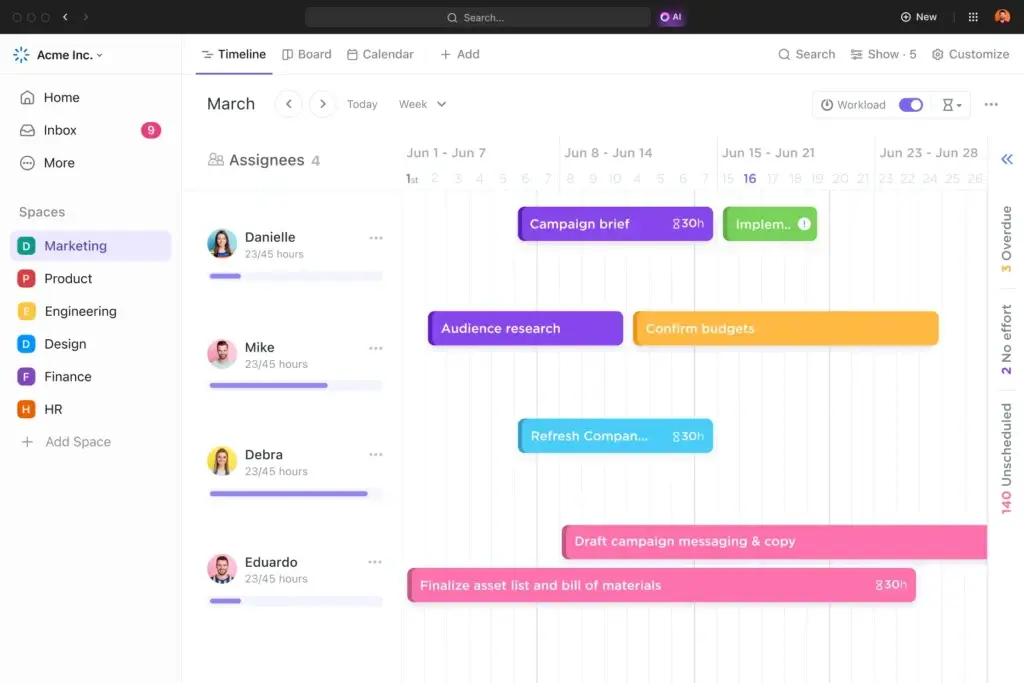
✅ All-in-One Workspace: Tasks, docs, goals, and chat in a single platform.
✅ Deep Customization: Views, statuses, and fields tailored to complex workflows.
✅ Advanced Reporting: Dashboards track progress, workload, and performance.
Overview
ClickUp positions itself as an all‑in‑one work platform, combining project management, documentation, and communication. Its hierarchical structure, Workspaces → Spaces → Folders → Lists → Tasks, mirrors how teams operate. ClickUp offers over 15 view types, including Kanban, Gantt, calendar, timeline, and workload views. Paid plans include unlimited storage, dashboards, and integrations. The platform also features built‑in chat and collaboration tools that link conversations to tasks.
Key features:
- Flexible hierarchy that scales from individual projects to entire departments.
- 15+ customizable views (Kanban, Gantt, calendar, list, timeline, workload).
- Built‑in ClickUp Chat for context‑rich conversations; channels can be linked to tasks and documents.
- AI‑powered automations to assign tasks, trigger actions, and build multi‑step workflows.
- Unlimited storage, integrations, and dashboards on paid plans.
Pros and Cons
Pros:
- Consolidates project management, chat, documentation, and automation into one platform, reducing app sprawl.
- Offers unlimited storage and many features at competitive pricing.
- Automation builder allows natural‑language commands to create complex workflows.
- Enterprise‑grade security, including SOC 2 Type II and HIPAA options.
Cons:
- Flexibility can lead to complexity; setup may feel overwhelming without a clear structure.
- Some teams might find the all‑in‑one approach excessive if they only need simple task management.
- Occasional UI clutter; learning curve for advanced features.
- Implementation can take several weeks for mid‑sized companies.
Pricing and Best Use Cases
ClickUp’s free tier includes unlimited tasks and members but limits views and storage. Paid plans start at around $7 per user per month. Its comprehensive feature set suits companies seeking to replace multiple tools with one system: marketing agencies, product teams, and growing startups. If you prefer minimalism or have very small teams, the complexity may outweigh the benefits.
monday.com

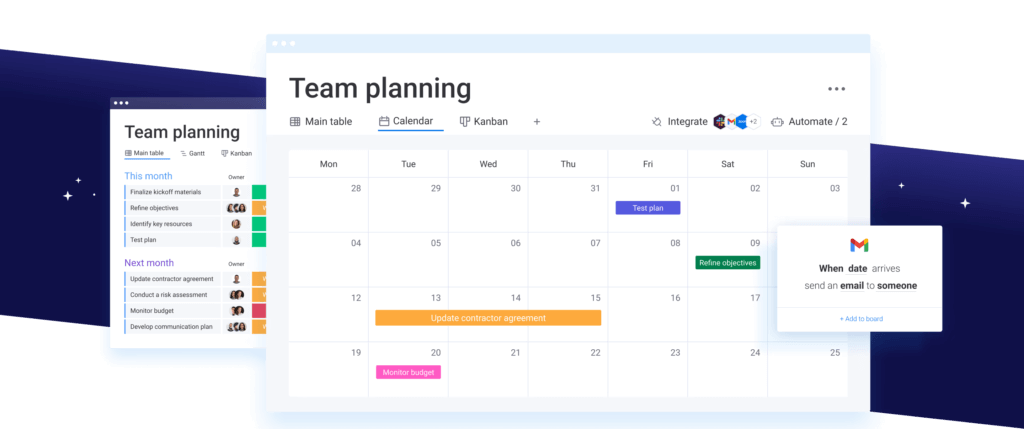
✅ Highly Visual Planning: Boards, timelines, and calendars that make plans instantly clear.
✅ Flexible for Any Team: Custom workflows for marketing, product, ops, and client work.
✅ Powerful Automation: Rule-based automation reduces manual updates and follow-ups.
Overview
monday.com is a visual work management platform that organizes tasks into boards. Each board contains items (individual work units) with customizable columns for tracking status, dates, assignees, and other properties. The platform offers multiple views, including table, Kanban, timeline, calendar, and chart, so your team can visualize work in the format that makes the most sense for them. You can automate repetitive processes, integrate with hundreds of apps, and create dashboards for high‑level insights.
Key features:
- Visual boards with customizable columns and sub‑items for detailed tracking.
- Multiple views: main table, Kanban, timeline, calendar, and chart.
- Automations for status changes, reminders, and notifications.
- Integration with tools like Slack, Google Workspace, Salesforce, and more.
- Templates for project management, marketing campaigns, CRM, and more.
Pros and Cons
Pros:
- Highly visual and intuitive interface suitable for teams new to project management software.
- Extensive customization: boards, columns, and workflows can be tailored to your processes.
- Supports both small teams and enterprise setups with multiple departments.
- Mobile apps with full functionality.
Cons:
- Advanced automations and dashboards have a learning curve.
- Monthly costs can add up for large teams.
- Some integrations are surface‑level and may not sync data bidirectionally.
- Reporting features lag behind dedicated analytics tools.
Pricing and Best Use Cases
monday.com offers a free plan with limited seats and basic boards. Paid plans start around $8 per user per month and scale up to enterprise packages. It’s best for teams wanting an adaptable, visually appealing workspace, marketing departments, product teams, creative agencies, and operations groups who need to track projects and collaborate in one place. It may not be ideal if your workflows are simple or your budget is extremely tight.
Miro

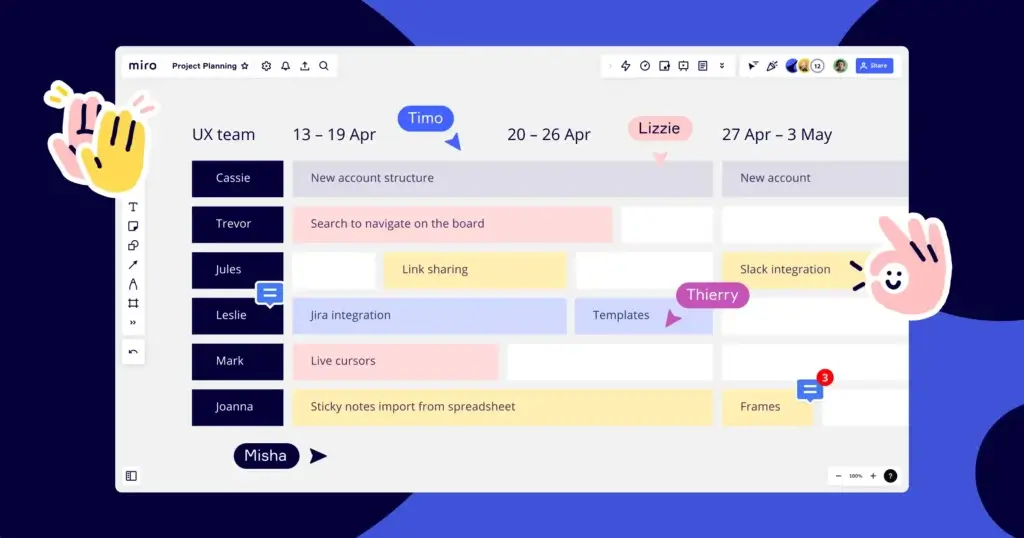
✅ Visual Collaboration at Scale: Infinite canvas for planning, mapping, and ideation.
✅ Real-Time Team Alignment: Live cursors, comments, and workshops keep teams engaged.
✅ Planning-to-Execution Bridge: Turn ideas into structured plans and flows.
Overview
Miro is a visual collaboration platform that began as a digital whiteboard. It’s ideal for brainstorming, design thinking, and agile planning. Core features include real‑time collaboration on an infinite canvas, a vast template library, and customizable workspaces. You can also turn boards into slide decks for presentations, track engagement with analytics, and access standout capabilities like Talktrack and AI‑accelerated templates.
Key features:
- Infinite canvas with real‑time collaboration; teams can draw, map, and brainstorm together.
- Extensive template library for roadmaps, flowcharts, retrospectives, and more.
- Customizable workspaces and presentation mode for sharing boards.
- Analytics to monitor board engagement and activity.
- Standout features like Talktrack walkthroughs and AI‑powered templates.
- Integrations with over 250 apps, including Jira, Asana, Slack, Google Drive, and Zoom.
Pros and Cons
Pros:
- User‑friendly interface with drag‑and‑drop functionality; easy to onboard new users.
- Infinite canvas encourages free‑form brainstorming and complex diagramming.
- Strong template library and integrations support many collaborative use cases.
- Presentation mode transforms boards into slides for stakeholder updates.
Cons:
- Tracking progress on detailed boards can be challenging.
- Requires a stable internet connection; offline access is limited.
- Large, complex boards may lag.
- Primarily a visual collaboration tool; not ideal for simple task lists or heavy data management.
Pricing and Best Use Cases
Miro offers a free tier with three editable boards. Paid plans start at around $8 per user per month and include private boards and advanced integrations. Miro is best for design and product teams, agile organizations, remote workforces, and educators who need visual collaboration. Teams that require simple task lists or offline functionality may prefer another planner.
Notion
✅ Unified Planning Hub: Tasks, docs, and databases in one flexible workspace.
✅ Custom Databases: Build planners exactly how your team thinks and works.
✅ Strong Knowledge Management: Plans and context live together, not in silos.
Overview
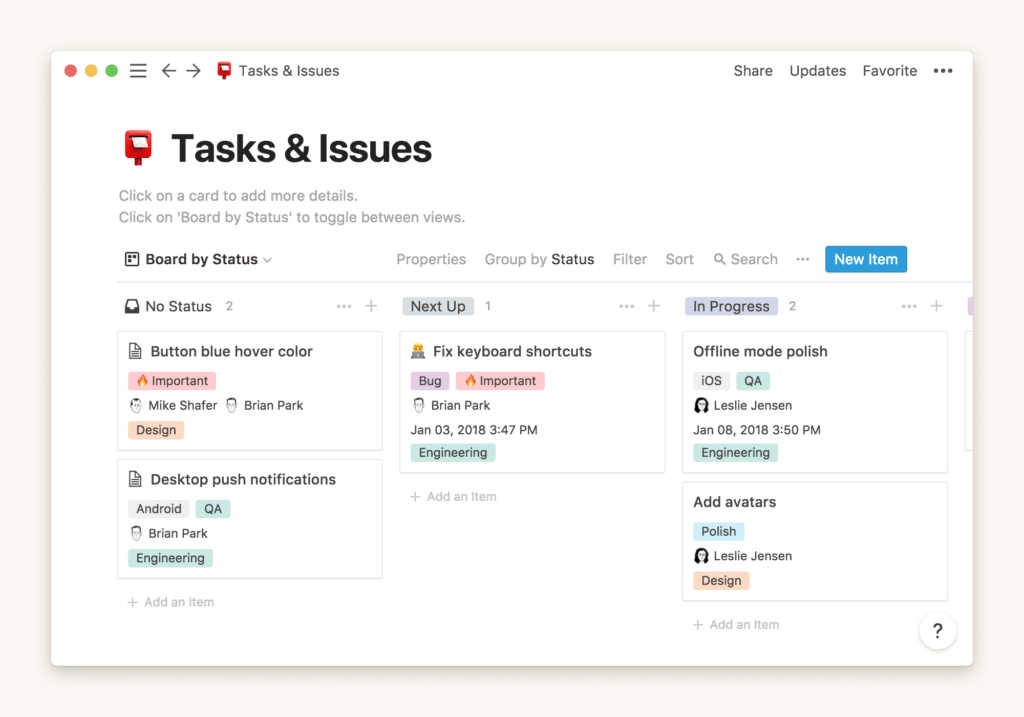
Notion is a modular productivity platform that combines notes, databases, and project management into one customizable workspace. Users can build a Wiki to centralize knowledge, with hierarchical pages and rich content like text, images, and embedded files. Databases offer flexible views: tables, boards, lists, calendars, and galleries, and support properties such as dates, tags, and person fields. Notion also provides project templates, AI features, and calendar integrations.
Key features:
- Wiki pages with nested subpages, linking, and collaborative editing.
- Databases that can be viewed as tables, boards, lists, calendars, or galleries.
- Native templates for project management, content calendars, and roadmaps.
- Notion AI for content generation, media search, and translation.
- Integrated calendar to schedule tasks; supports drag‑and‑drop scheduling and syncs with external calendars.
- Integrations with Google Drive, Slack, and other third‑party tools.
Pros and Cons
Pros:
- Highly customizable interface: build pages, dashboards, and databases to match your workflow.
- Variety of templates accelerates setup for common projects.
- Modular system allows mixing notes, tasks, databases, and calendars on one page.
- Notion AI helps generate drafts, summarize content, and translate text.
Cons:
- Performance can slow down with large databases or heavy content.
- Steep learning curve for new users due to its open‑ended nature.
- Limited offline functionality; depends on internet connectivity.
- Some advanced project management features are basic compared to specialized tools.
Pricing and Best Use Cases
Notion offers a generous free plan for individuals with unlimited blocks. Team plans start around $8 per user per month. Notion is ideal if you need a single system for documentation, note‑taking, knowledge sharing, and light project management. It suits startups, content teams, and knowledge‑centric organizations that value flexibility over strict structure. Those who need detailed resource management or robust scheduling may find Notion lacking.
Reclaim.ai

✅ AI-Powered Scheduling: Automatically plans tasks around meetings and priorities.
✅ Focus Time Protection: Defends deep work blocks from calendar overload.
✅ Smart Time Analytics: Insights into workload balance and productivity trends.
Overview
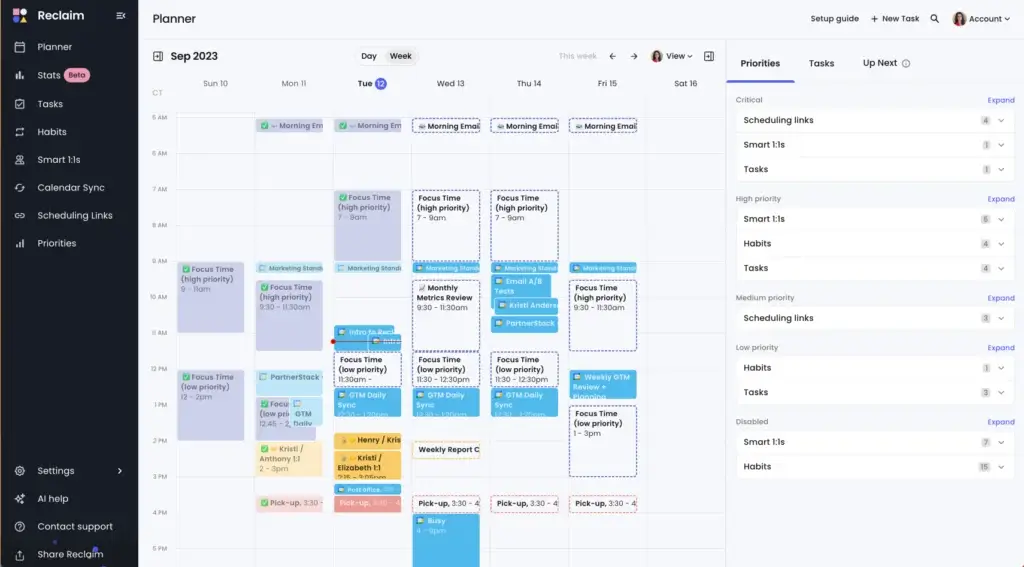
Reclaim.ai is an AI‑driven calendar tool that helps you automate scheduling, time blocking, and task prioritization. It works by connecting to Google Calendar or Outlook and dynamically inserting tasks, meetings, habits, and breaks to protect focus time. The tool uses a priority system (P1–P4) to decide what gets scheduled first. Smart Scheduling picks the best meeting time by checking everyone’s availability and automatically reschedules if conflicts arise.
Key features:
- Smart Scheduling and auto‑rescheduling based on availability and priorities.
- Priority system (P1–P4) for tasks, habits, and meetings.
- Habits with flexible time windows that automatically adjust when your day changes.
- Task scheduling that places to‑dos in your calendar and syncs with apps like Todoist, Asana, ClickUp, and Jira.
- Smart meetings and one‑on‑ones that account for time zones, focus hours, and vacations.
- Calendar sync to merge work and personal calendars while keeping details private.
- Focus Time blocks with Slack “Do Not Disturb” integration and analytics to monitor deep work.
- Buffer time and no‑meeting days to prevent overload.
- Time tracking and analytics dashboard showing how you spend your hours.
Pros and Cons
Pros:
- Saves hours of manual scheduling by automatically adjusting tasks and meetings.
- Integrates with major project management apps and calendars.
- Protects focus time and balances meetings, habits, and tasks.
- Offers data insights into productivity patterns.
Cons:
- No dedicated mobile app; mostly web and browser‑based.
- Best experience is with Google Calendar; Outlook integration requires extra setup.
- Occasional scheduling glitches or missing advanced features.
- Does not replace full project management, primarily a calendar tool.
Pricing and Best Use Cases
Reclaim.ai has a free tier that includes one calendar sync and basic scheduling links. Paid plans start at about $12 per user per month, adding unlimited habits, scheduling links, and full analytics. Reclaim.ai is perfect for individuals or teams who need to protect focus time and manage meetings efficiently. It’s particularly useful for remote workers, freelancers, consultants, and small teams that juggle multiple calendars. You’ll still need a separate tool for task management and file sharing.
Connecteam

✅ Mobile-First Planning: Built for frontline and deskless teams on the go.
✅ Shift and Task Scheduling: Simple planning for hourly and operational teams.
✅ Team Communication Tools: Announcements, chat, and updates in one app.
Overview
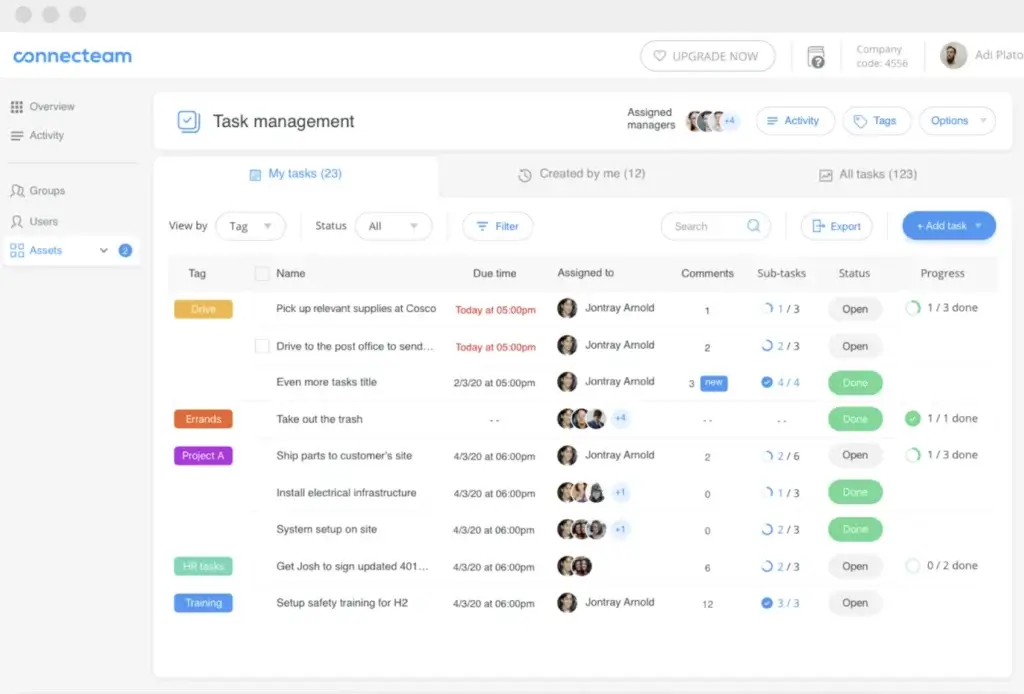
Connecteam is designed to simplify employee management, scheduling, and communication, especially for deskless or shift‑based workforces. It’s an all‑in‑one platform that includes task management, time tracking, scheduling, chat, training module,s and document storage.
Key features:
- Task management with assignments and progress tracking.
- Time tracking through an intuitive mobile time clock streamlines payroll.
- Employee scheduling with mobile access for shift changes and notifications.
- Built‑in chat and announcements to centralize communication.
- Training and onboarding modules with content delivery and tracking.
- Document management for storing forms and policies in one place.
Pros and Cons
Pros:
- Comprehensive suite for managing deskless and shift‑based teams.
- Mobile‑first design offers excellent usability for workers on the go.
- Simple onboarding with walkthroughs and tutorial videos.
- Free plan for small teams; affordable pricing for larger teams.
Cons:
- No native payroll functionality.
- Reporting features are basic and may not satisfy larger organizations.
- Lacks advanced HR features such as performance management.
- Primarily focused on workforce management; not a full project management suite.
Pricing and Best Use Cases
Connecteam’s free tier covers up to 10 users. Paid plans start at approximately $29 per month for 30 users. The tool is ideal for industries like retail, hospitality, construction, and healthcare, in any environment where employees are mobile or remote. For office‑based knowledge workers with complex projects, another planner may offer more flexibility.
Taskade

✅ Lightweight Team Planning: Fast setup for tasks, checklists, and outlines.
✅ Real-Time Collaboration: Live editing, chat, and shared workspaces.
✅ AI Assistance: Task generation and planning support powered by AI.
Overview
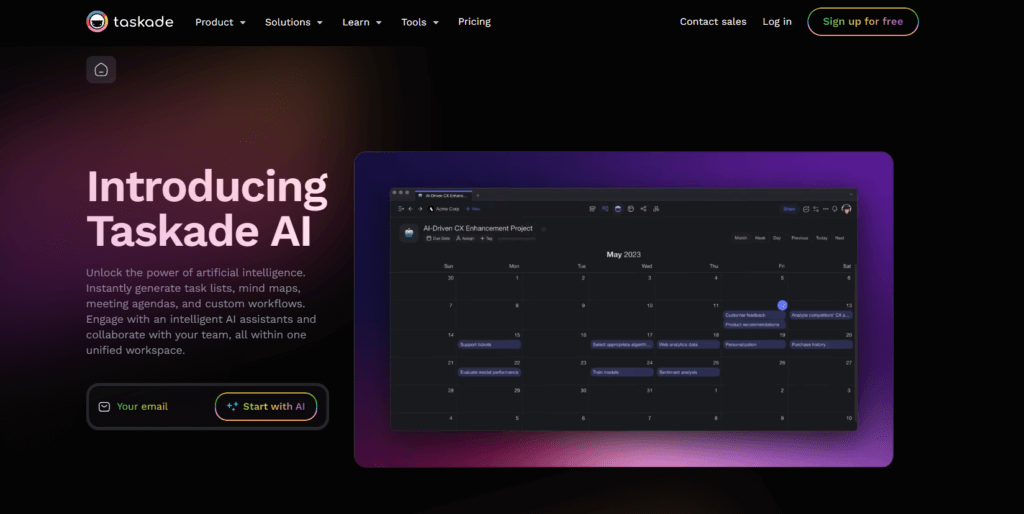
Taskade combines task management, note‑taking, and real‑time collaboration into a unified workspace. It supports flexible project views and AI‑powered features like smart task generation and writing assistance. Taskade’s intuitive design allows users to create tasks, subtasks, and checklists, collaborate via chat or video, automate workflows, and visualize projects with Kanban boards and Gantt charts.
Key features:
- Real‑time collaboration through live editing, chatת and video conferencing.
- Simple, intuitive interface that gets teams up and running quickly.
- Flexible project views (list, board, calendar, mind map) with drag‑and‑drop organization.
- AI automation to generate tasks and streamline workflows.
- Project tracking with Gantt charts and Kanban boards.
- Resource management via AI agents that help allocate work and manage workloads.
- Google Calendar integration to sync due dates and schedules.
Pros and Cons
Pros:
- Real‑time collaboration keeps teams aligned and reduces communication gaps.
- Intuitive design speeds up adoption; suitable for small teams and creative projects.
- Flexible views support different planning styles.
- AI automation adds convenience for recurring tasks and idea generation.
- Affordable pricing with a free tier and low entry cost.
Cons:
- Limited customization for complex projects.
- Learning curve for mastering all features.
- Occasional technical glitches may disrupt workflows.
- Reporting and permission controls are basic compared to enterprise tools.
Pricing and Best Use Cases
Taskade’s free plan offers unlimited tasks and projects. Paid plans start around $4 per user per month. It’s best for freelancers, small teams, creative agencies, and startups that need lightweight collaboration and AI assistance without the overhead of larger platforms. Enterprises requiring detailed permissions or complex project structures might need a more robust solution.
Backlog by Nulab

✅ Clear Task and Milestone Planning: Simple structure for predictable delivery.
✅ Built-In Collaboration: Comments, file sharing, and version control.
✅ Developer-Friendly Workflows: Strong fit for software and technical teams.
Overview
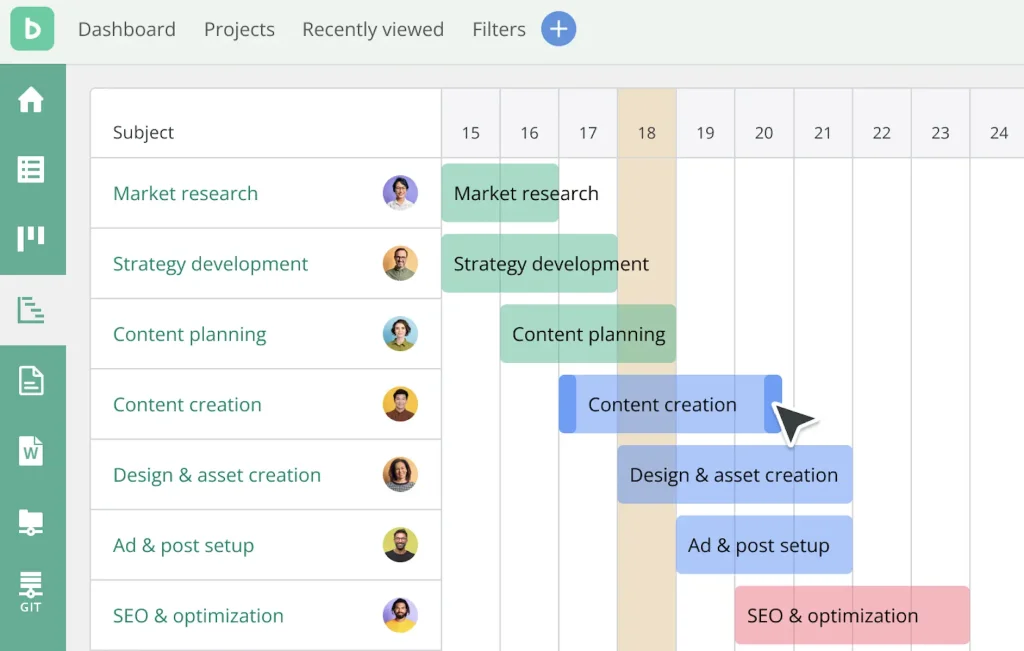
Backlog combines project management with issue tracking and version control. It’s particularly suited for software development teams but flexible enough for general project use. Core features include task tracking, file sharing, discussion threads, and Gantt charts to visualize project timelines. Teams can organize work into projects, tasks, and subtasks and monitor milestones to ensure deadlines are met.
Key features:
- Task tracking with assignments, deadlines, and status updates.
- Project management with organized spaces for tasks, files, and discussions.
- Collaboration tools, including built‑in chat and comments.
- File sharing within tasks and projects to centralize assets.
- Milestone tracking and visual timeline views, such as Gantt charts.
- Subtask management for breaking down complex work.
- Version control integration (Git and SVN) for development teams.
- Integrations with Slack, Jira, and other tools through webhooks and APIs.
Pros and Cons
Pros:
- Combines task management, bug tracking, and version control in one tool.
- Intuitive interface reduces training time and suits teams new to project software.
- Strong collaboration features help reduce email chains and centralize discussions.
- Flexible enough for software teams, creative agencies, and IT departments.
Cons:
- Performance can decline with larger projects.
- Mobile app lacks full functionality.
- Reporting and customization options are limited compared to competitors.
- Pricing scales based on user tiers; costs increase as team size grows.
Pricing and Best Use Cases
Backlog offers a free plan for small teams. Paid plans start around $35 per month for up to 30 users. It’s an excellent choice for software development and IT teams needing integrated bug tracking and version control. Non‑technical teams that focus mainly on tasks and collaboration without code management may prefer lighter tools.
Comparison Table
To help you quickly compare these planners, here’s a high‑level overview of each tool’s focus and starting price:
| Tool | Best For | Starting Price* |
| monday.com | Visual project tracking and customizable workflows | $8/user/month |
| ClickUp | All‑in‑one platform consolidating projects, chat and docs | $7/user/month |
| Miro | Visual collaboration, brainstorming and agile planning | $8/user/month |
| Notion | Flexible documentation, knowledge bases and light PM | $8/user/month |
| Reclaim.ai | AI scheduling and time blocking | $12/user/month |
| Connecteam | Mobile workforce management and scheduling | $29/month (30 users) |
| Taskade | Lightweight AI collaboration for small teams | $4/user/month |
| Backlog | Task and bug tracking with version control | $35/month (30 users) |
Choosing the Right Online Planner
The best online planner depends on your team’s workflow, size and priorities. If you value visual workflows and customization, monday.com offers an intuitive interface with powerful automations. For teams that want to consolidate chat, documents and project tracking, ClickUp delivers a comprehensive all‑in‑one solution. When brainstorming and visual collaboration are central to your process, Miro provides an infinite canvas and robust template library.
If you need a flexible knowledge management system with project capabilities, Notion blends note‑taking, databases and light project management. To protect focus time and automate scheduling, Reclaim.ai adds intelligent time blocking and calendar sync. For mobile teams and shift workers, Connecteam streamlines schedules, time tracking and communications. Smaller teams seeking fast, AI‑assisted collaboration will appreciate Taskade’s simplicity, while development teams needing bug tracking and version control can rely on Backlog.
Conclusion
Choosing the best online planner involves balancing features, usability and price. Whether you need visual task tracking, AI‑driven scheduling or lightweight collaboration, there’s a solution tailored to your needs. Use this guide as a starting point: identify your team’s workflows, test free plans and weigh the pros and cons listed here. With the right online planner, you’ll simplify coordination, reduce stress and reclaim time to focus on meaningful work.
Frequently Asked Questions
What is an online planner?
An online planner is a digital platform that combines calendars, task lists and collaboration tools. Unlike paper planners or basic to-do apps, online planners update in real time, allowing your team to track progress, communicate and adjust schedules from any device.
Do online planners replace traditional project management software?
Many online planners offer core project management features such as task assignments, timelines and dashboards. However, they might lack advanced resource planning or portfolio management found in enterprise solutions. Determine whether your needs lean toward simple coordination or complex project governance.
Which online planner is best for small teams or freelancers?
For small teams and freelancers, Taskade and Notion are great options. Taskade’s intuitive interface and low price point make it ideal for quick collaboration, while Notion’s flexibility lets you create custom systems for tasks, notes and databases without heavy costs.
Can I use more than one online planner?
Yes, some organizations pair tools for different purposes, for example, using Reclaim.ai for time blocking alongside monday.com for task tracking. Ensure that any combination doesn’t create data silos and that integrations keep information synchronized.
Are there free plans available?
Most of the tools listed offer free tiers. monday.com, ClickUp, Miro, Notion, Reclaim.ai, Connecteam and Taskade all provide entry-level plans with limited features. Backlog’s free plan is typically restricted to a small number of users. Free plans are useful for testing before committing to a paid tier.
How secure are online planners?
Security varies by provider, but reputable platforms use encryption, access controls and industry certifications. For example, ClickUp offers SOC 2 Type II compliance, and monday.com complies with GDPR and enterprise security standards. Always review a tool’s security documentation to ensure it meets your organization’s requirements.
Will an online planner integrate with my existing tools?
Most modern planners provide integrations with popular apps. monday.com, ClickUp and Miro integrate with hundreds of services, including Slack, Google Workspace and Salesforce. Reclaim.ai syncs with Google Calendar and connects to task apps like Asana and ClickUp. Check the integration lists of each tool before making a choice.
What are the main drawbacks of online planners?
Common drawbacks include learning curves, performance issues with large projects and the need for internet connectivity. Tools like Notion can become sluggish with large databases, while Miro requires a reliable connection to avoid lag. Understand these limitations to determine whether they will impact your team.
How do AI features improve online planning?
AI can automate scheduling, generate content and streamline workflows. Reclaim.ai automatically finds meeting times and reschedules tasks. Taskade uses AI to create tasks and generate written content. Notion AI offers drafting, search and translation capabilities. These features save time and reduce manual effort, though they may require experimentation to fit your workflow.
Which tool offers the best value for money?
Value depends on your team size and requirements. monday.com and ClickUp provide robust functionality at reasonable prices for mid-sized teams. Taskade’s low cost suits small groups, while Reclaim.ai offers specialized scheduling features at a moderate price. Connecteam and Backlog may seem pricier per user but include industry-specific capabilities (workforce management or version control) that justify the cost if you need them.