
Introduction
Microsoft To Do is one of the simplest task management apps available, but that simplicity is exactly why it still matters in 2026. While many productivity platforms now compete on AI, complex dashboards, automations, and multi-view project management, Microsoft To Do focuses on something more basic: helping you capture tasks, plan your day, and stay organized across devices.
If you already use Outlook, Microsoft 365, Teams, or Planner, Microsoft To Do can be more useful than it first appears. It connects personal tasks, flagged emails, Outlook tasks, and assigned Planner work into a lightweight daily task hub.
That does not mean it is the best task management software for every use case. It is not built for advanced project management, team reporting, Gantt charts, workflow automation, or deep collaboration. But if you want a clean to-do list app that is free, easy to use, and tightly connected to Microsoft’s ecosystem, it remains a strong option.
What is Microsoft To Do?
Microsoft To Do is a free task management and to-do list app from Microsoft. You can use it to create task lists, plan daily priorities, set reminders, add due dates, create recurring tasks, break tasks into steps, and sync your work across web, Windows, iOS, and Android devices.
The app is especially useful if you manage tasks from Outlook. Microsoft To Do syncs with Outlook Tasks, and flagged emails in Outlook can appear as tasks in To Do when the connection is enabled. This makes it easier to turn emails into follow-up actions without copying details manually.
Microsoft To Do also connects with Microsoft Planner through the “Assigned to me” list, which can show tasks assigned to you from Planner. That makes it helpful for users who want one place to check personal tasks and assigned work from Microsoft 365.
If you want to compare it with broader options, take a look at our guide to the best task management software.
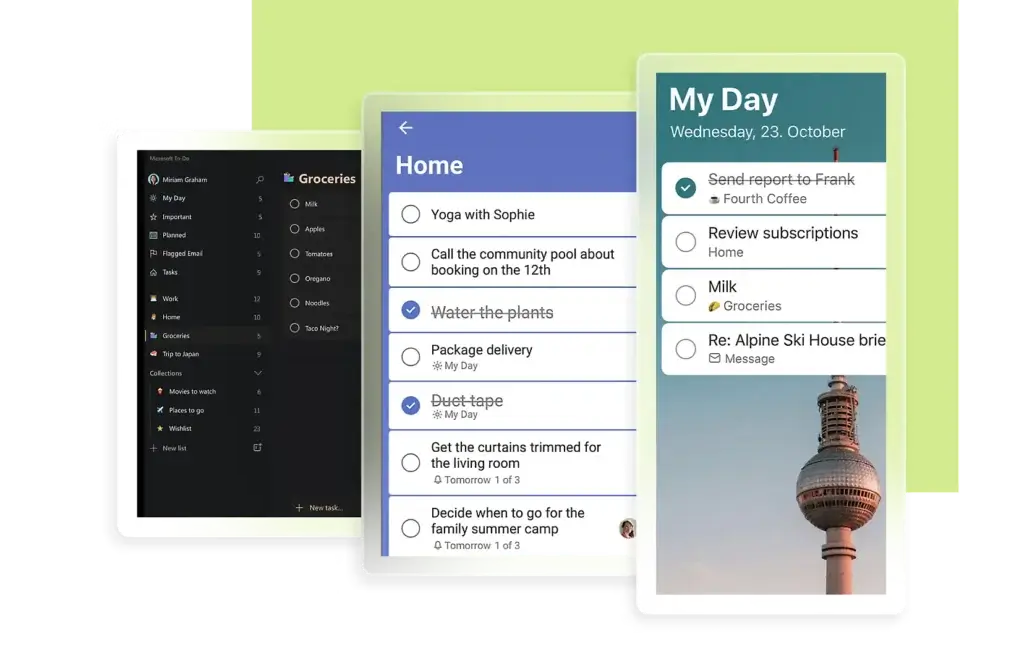
Software specification
Core Features of Microsoft To Do
Microsoft To Do is not trying to be a full project management platform. Its strength is practical daily task management, especially for users who already work inside Microsoft 365.
The app works best when you use it as a personal productivity layer over Outlook, Planner, and your own task lists. It helps you decide what needs attention today without forcing you into a heavy project management workflow.
1. My Day for daily task planning
My Day is the most important part of Microsoft To Do. It gives you a clean daily planning view where you can choose the tasks you want to focus on today.
This is useful because not every task with a due date deserves your attention immediately. My Day helps you separate your actual daily priorities from everything else sitting in your lists.
2. Lists for personal and work organization
You can create separate lists for work tasks, personal errands, client follow-ups, content ideas, shopping lists, recurring admin work, or any other area of life and work.
This is where Microsoft To Do feels very approachable. You do not need to understand projects, spaces, folders, statuses, or custom fields. You create a list, add tasks, and start organizing.
3. Due dates, reminders, and recurring tasks
Microsoft To Do supports due dates, reminders, and repeat schedules. You can set tasks to repeat daily, on weekdays, weekly, monthly, yearly, or with a custom recurrence.
This makes the app useful for routines such as weekly reports, monthly invoicing reminders, follow-up calls, personal habits, or repeated household tasks.
4. Steps, notes, importance, tags, and categories
Each task can include more detail than a simple title. You can add steps, mark tasks as important, write notes, and use tags to make tasks easier to identify.
Steps are especially useful for breaking larger tasks into smaller actions. For example, “publish blog post” can become a checklist that includes editing, uploading images, adding internal links, checking schema, and updating metadata.
5. Outlook Tasks integration
One of Microsoft To Do’s biggest advantages is its integration with Outlook Tasks. Tasks stored in Microsoft To Do can also appear in Outlook Tasks when you use the same Microsoft account.
This is valuable if Outlook is already the center of your workday. Instead of managing tasks in a completely separate app, you can keep your personal action list connected to your email and calendar environment.
6. Flagged email as tasks
Microsoft To Do can also show flagged Outlook emails as tasks. When enabled, flagged emails appear in a dedicated list, and the task includes a preview of the email text plus a way to open the original message in Outlook.
This is one of the most practical features for business users. Many tasks start as emails, and this feature helps you avoid losing important follow-ups in your inbox.
7. Assigned to me from Microsoft Planner
If you use Microsoft Planner, tasks assigned to you can appear in Microsoft To Do under “Assigned to me.” This helps centralize work that comes from team plans and personal lists.
It is important to understand the limitation. Microsoft To Do is not a replacement for Planner. It is better viewed as a personal task inbox for work assigned to you from Planner, not as a full board or plan management interface.
8. Shared lists and basic task assignment
Microsoft To Do allows you to share lists with other people. In shared lists, you can assign tasks to list members, which makes it useful for lightweight collaboration.
This works well for household tasks, simple team checklists, event planning, and basic shared responsibilities. It is not built for advanced team workflows, but it is useful for small shared lists.
9. File attachments
You can add files to tasks for extra context. Microsoft supports file uploads in To Do, with a file upload limit of 25 MB per task.
This is helpful when a task needs a document, screenshot, image, PDF, or other supporting file. For more complex file collaboration, however, you will likely still rely on OneDrive, SharePoint, or Teams.
10. Cross-platform sync
Microsoft To Do works across web, Windows, iOS, and Android. Your lists and tasks sync across devices, which makes it practical for users who switch between desktop and mobile during the day.
Overall, Microsoft To Do’s feature set is strongest for personal task capture, daily planning, Outlook follow-ups, and Microsoft 365 task visibility. If you need dashboards, reporting, project views, or automation, you will need a more advanced tool.
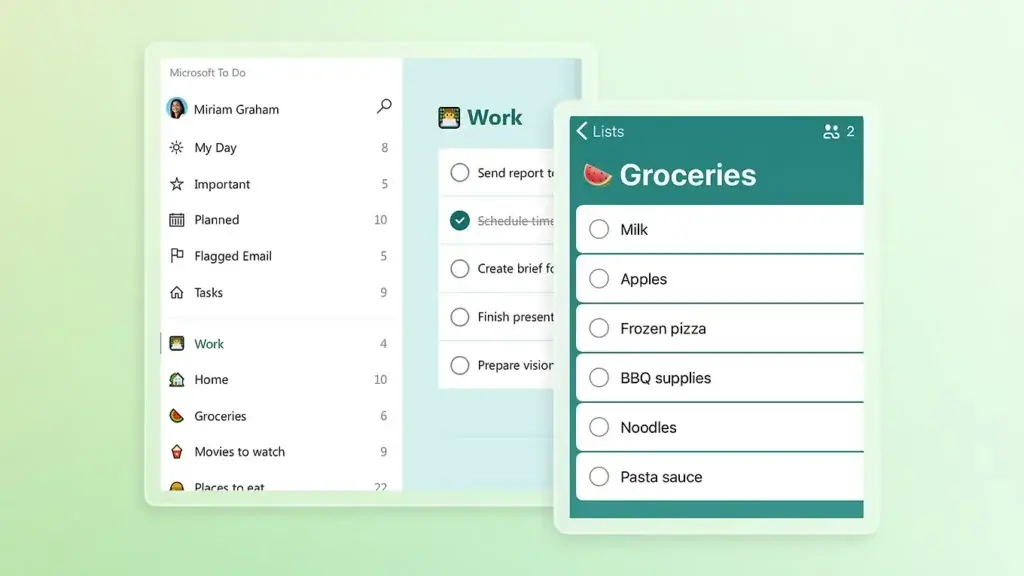
Pros and Cons
Advantages and Disadvantages
Positive
✅ Free and easy to use
✅ Strong Outlook and Microsoft 365 integration
✅ Good daily planning with My Day
✅ Works across web, desktop, and mobile
Negatives
❌ Not built for advanced project management
❌ Limited reporting and workflow automation
❌ Collaboration is basic compared with team tools
❌ Outlook task feature support is not complete
Microsoft To Do’s biggest advantage is its clarity. It does not overload you with fields, complex settings, or project management terminology. That makes it easy to recommend for users who want to become more organized without spending days configuring software.
Its biggest weakness is also connected to that simplicity. Once you need complex task dependencies, workload management, analytics, custom workflows, or structured team collaboration, Microsoft To Do starts to feel too limited.
Pros:
- Free and easy to use: Microsoft To Do is available for free and has a very low learning curve. Most users can start creating lists and tasks within minutes.
- Strong Outlook and Microsoft 365 integration: The app works especially well for people who already use Outlook, Microsoft 365, Planner, and Teams.
- Good daily planning with My Day: My Day helps you focus on the tasks that matter now instead of staring at every overdue or upcoming task at once.
- Works across web, desktop, and mobile: Microsoft To Do syncs across devices, which makes it useful for workdays that move between laptop, phone, and browser.
Cons:
- Not built for advanced project management: You will not get Gantt charts, dependencies, portfolio views, resource planning, or advanced project dashboards.
- Limited reporting and workflow automation: Microsoft To Do is not the right tool if you want automation rules, analytics, custom fields, or complex approval workflows.
- Collaboration is basic compared with team tools: Shared lists are useful, but they cannot replace platforms such as Planner, Asana, ClickUp, monday.com, or Trello for structured teamwork.
- Outlook task feature support is not complete: Microsoft states that To Do does not display every Outlook Tasks feature, including some details such as start and end dates, multiple priority levels, and categories.
In short, Microsoft To Do is excellent when you want simple personal productivity inside the Microsoft ecosystem. It is less suitable when your task management needs start to look like project management.
User Experience
User Interface and Daily Planning
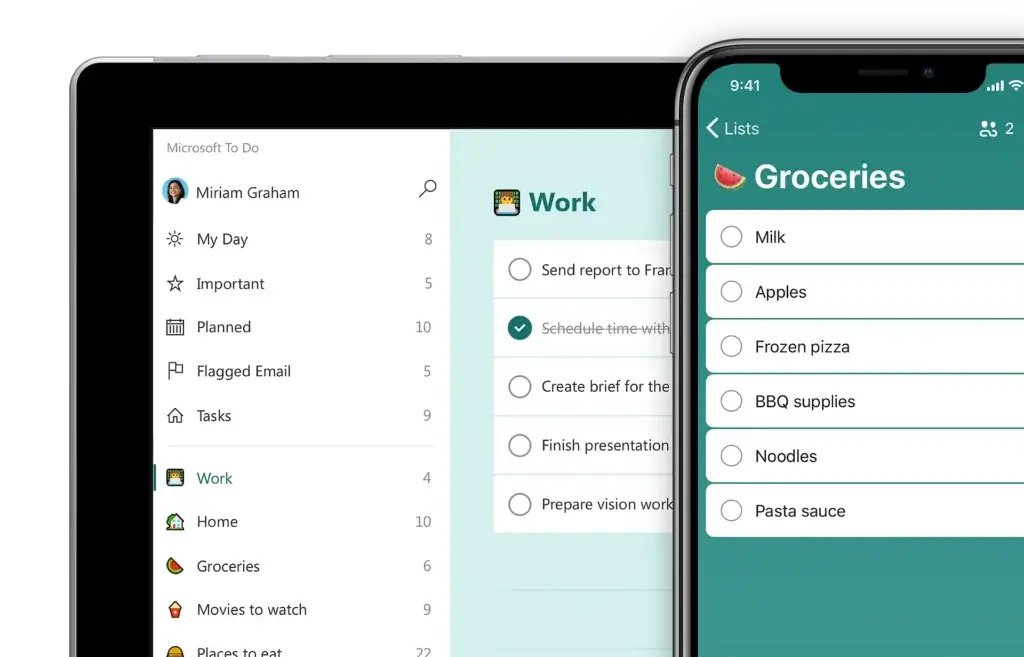
Microsoft To Do has one of the cleanest user experiences in the task management category. It is not flashy, but it is clear, fast, and easy to understand.
The interface is built around lists, smart lists, and task details. That makes it easy to see what you need to do, what is due soon, what is important, and what you want to focus on today.
Simple enough for everyday users
One reason Microsoft To Do works well is that it does not ask users to think like project managers. You can add a task, set a reminder, add a due date, and move on.
That makes it suitable for professionals who want organization without overhead. It is also a good fit for users who tried more advanced tools and found them too complicated for everyday task tracking.
My Day keeps the experience focused
My Day is the feature that makes Microsoft To Do feel different from a plain checklist. Instead of treating every task as equally urgent, you can build a daily plan from your lists, upcoming tasks, and suggestions.
This works well for users who have many tasks but only need to act on a few today. It creates a more focused workflow and helps reduce the feeling of task overload.
Smart lists improve navigation
Microsoft To Do includes smart lists such as Important, Planned, Assigned to me, and Flagged email. These views help you find tasks without manually opening each list.
Planned is useful for date-based planning. Important helps you separate high-priority tasks. Assigned to me helps you see work coming from Planner. Flagged email helps you turn Outlook follow-ups into tasks.
Mobile apps are practical
The mobile apps are useful for quick capture and reminders. You can add tasks from your phone, check a shopping list, review your daily plan, or mark tasks complete when you are away from your desk.
This matters because many lightweight tasks happen outside your main work environment. A good to-do list app needs to work quickly on mobile, and Microsoft To Do generally succeeds there.
Where the experience falls short
The simplicity of Microsoft To Do becomes a limitation when you need more structure. There are no advanced project views, no Kanban boards, no timeline, no detailed workload view, and no real reporting layer.
The app also feels less powerful if you are not using Microsoft products. While it is still a good free to-do list, its strongest advantage comes from Outlook, Planner, and Microsoft 365 integration.
Pricing and Plans
How much does Microsoft To Do cost?
Microsoft To Do is free for personal use. You can use it with a Microsoft account and sync tasks across supported devices.
For business users, Microsoft To Do is available through eligible Microsoft 365 subscriptions. In that environment, administrators can manage user access and licensing through Microsoft 365 admin settings.
This makes pricing one of Microsoft To Do’s biggest advantages. Unlike many modern task management apps, it does not push you into a paid plan for basic reminders, recurring tasks, cross-device sync, or shared lists.
Microsoft To Do pricing overview
| Plan | Best For | Cost | Main Highlights |
| Personal Microsoft account | Individuals and personal productivity | Free | Lists, My Day, reminders, recurring tasks, Outlook.com task sync, mobile and web access |
| Microsoft 365 business or education account | Teams already using Microsoft 365 | Included with eligible Microsoft 365 plans | Outlook Tasks sync, Planner Assigned to me, Exchange Online storage, admin-managed access |
| Advanced project management | Teams needing boards, timelines, reporting, and project workflows | Requires another tool | Use Microsoft Planner, Project, or third-party task management software for deeper work management |
For most users, the pricing answer is simple: use Microsoft To Do if you want a free, lightweight task manager. If you already pay for Microsoft 365, it becomes even more attractive because it fits into tools you may already use daily.
The main cost is not financial. The real tradeoff is capability. Microsoft To Do costs less than most competitors, but it also does less than most dedicated project management systems.
Security and Compliance
Security and Microsoft 365 Data Handling
Security is one area where Microsoft To Do benefits from being part of the Microsoft 365 ecosystem. The app uses Exchange Online for data storage and synchronization, so your To Do tasks are stored as tasks in your Exchange Online mailbox.
Microsoft states that To Do data is encrypted at rest on Exchange servers and encrypted in transit between the app and your browser or device. For business users, this is important because task data is not stored in a small standalone productivity app with unclear infrastructure.
Data storage
Microsoft To Do stores task data in Exchange Online. This means it sits alongside other Exchange-backed data such as email, calendar events, contacts, and notes.
For Microsoft 365 organizations, this can simplify governance because To Do is tied to an existing Microsoft service layer rather than a separate third-party task database.
Encryption
Microsoft documents encryption at rest on Exchange servers and encryption in transit to and from the To Do app. Device-level protection may also depend on your own configuration, such as local device encryption or remote wipe policies.
This does not make Microsoft To Do a specialized security tool, but it gives it a stronger baseline than many consumer-grade checklist apps.
Compliance considerations
Microsoft says the To Do web app has gone through audits such as SOC 2 Type 1. However, Microsoft also notes that To Do is not explicitly mentioned in certain Online Service Terms or HIPAA Business Associate Agreements, while the underlying Exchange Online service is represented.
That distinction matters. For most business task management, Microsoft To Do is likely acceptable inside a Microsoft 365 environment. For regulated workflows, legal processes, healthcare operations, or highly sensitive data, you should confirm the latest Microsoft documentation with your compliance team.
Admin control
Organizations using eligible Microsoft 365 plans can manage Microsoft To Do access at the user level. This gives IT teams more control than they would usually have with a standalone consumer task app.
Overall, Microsoft To Do has a credible security foundation because it relies on Exchange Online. Still, it should be used as a task management app, not as a system for storing confidential records, regulated case files, or sensitive operational data without proper review.
Microsoft To Do alternatives
What to consider before you choose
Microsoft To Do is a strong free option, but it is not always the best choice. The right alternative depends on whether you want better personal productivity, stronger collaboration, project views, or task automation.
Microsoft To Do vs Todoist
Todoist is the better choice if you want a more polished standalone task manager with stronger natural language input, labels, filters, and productivity-focused organization.
Microsoft To Do is better if you want a free app that connects naturally with Outlook and Microsoft 365. Todoist is usually better for users who want more power without moving into full project management software.
Microsoft To Do vs TickTick
TickTick is stronger for personal productivity because it includes features such as habit tracking, calendar views, and more advanced planning options.
Microsoft To Do is simpler and more business-friendly for Microsoft users. TickTick is better if you want a richer personal productivity system.
Microsoft To Do vs Any.do
Any.do is a strong option for users who want a clean personal task app with calendar-style planning and a consumer-friendly experience.
Microsoft To Do is better if Outlook and Microsoft 365 matter to your workflow. Any.do may feel more attractive if you want a personal planner that is less tied to one software ecosystem.
Microsoft To Do vs Google Tasks
Google Tasks is the closest alternative for users who live in Gmail and Google Calendar. It is simple, fast, and tightly integrated with Google Workspace.
Microsoft To Do is generally more capable than Google Tasks for list organization, shared task planning, and Outlook-based workflows. Google Tasks is better if your work already happens mainly inside Gmail.
Microsoft To Do vs Microsoft Planner
Microsoft Planner is better for team-based work. It gives teams boards, plans, buckets, assignments, and more structure for collaborative project tracking.
Microsoft To Do is better for personal task management. The two tools work best together: Planner manages team work, while To Do helps you track what is assigned to you and what you need to complete today.
If you are still comparing options, our roundup of the best task management tools gives you a broader side-by-side view.
Conclusion
Final thoughts
Microsoft To Do is not the most advanced task management app, and it is not trying to be. Its value comes from being simple, free, reliable, and connected to Microsoft 365.
If you use Outlook every day, Microsoft To Do can become a practical command center for personal tasks, flagged emails, reminders, recurring work, and Planner assignments. It helps you stay organized without adding another complex platform to your workflow.
However, you should not choose Microsoft To Do if you need structured project management. It does not replace Planner, Project, Asana, ClickUp, monday.com, or other full work management systems. It is best used as a personal task layer, not a complete project operating system.
Is Microsoft To Do Worth It?
Microsoft To Do is worth using if you want a free, simple, and Microsoft-friendly to-do list app. It is especially useful for people who already rely on Outlook and Microsoft 365.
It stands out for its:
- Free access for personal task management.
- Clean daily planning through My Day.
- Useful Outlook integration for tasks and flagged emails.
- Microsoft 365 compatibility for business users.
The main reason to skip it is that it may be too basic. If you want task dependencies, automations, dashboards, workload views, or team reporting, choose a more advanced task management platform.
Who Should Choose Microsoft To Do?
- Outlook users who want to turn emails into tasks.
- Microsoft 365 users who need a lightweight personal task hub.
- Individuals who want a free and simple daily planner.
- Professionals who need recurring reminders and personal checklists.
- Teams that use Planner and want assigned tasks visible in one place.
Who Should Consider Alternatives?
- Teams that need advanced project management views.
- Managers who need reporting, workload planning, or portfolio visibility.
- Users who want habit tracking, calendar blocking, or advanced productivity tools.
- Organizations that need custom workflows, automations, and approvals.
- Non-Microsoft users who prefer Google, Apple, or independent productivity ecosystems.
Frequently Asked Questions
Have more questions?
What is Microsoft To Do used for?
Microsoft To Do is used for creating task lists, planning your day, setting reminders, tracking recurring tasks, organizing personal work, and managing Outlook-related follow-ups.
Is Microsoft To Do free?
Yes. Microsoft To Do is free for personal use with a Microsoft account. Business users can access it through eligible Microsoft 365 subscriptions.
Does Microsoft To Do work with Outlook?
Yes. Microsoft To Do integrates with Outlook Tasks, and flagged Outlook emails can appear as tasks in To Do when the flagged email list is enabled.
Can Microsoft To Do show Planner tasks?
Yes. Tasks assigned to you in Microsoft Planner can appear in the Assigned to me list in Microsoft To Do, which helps you review personal and assigned work in one place.
Is Microsoft To Do good for teams?
Microsoft To Do is useful for shared lists and lightweight collaboration, but it is not a full team project management platform. Teams that need boards, timelines, and reporting should consider Planner or another work management tool.
Does Microsoft To Do support recurring tasks?
Yes. Microsoft To Do supports recurring tasks with daily, weekday, weekly, monthly, yearly, and custom repeat options.
Can you attach files to Microsoft To Do tasks?
Yes. Microsoft To Do supports file attachments, with uploads limited to 25 MB per task.
How secure is Microsoft To Do?
Microsoft To Do stores and syncs data through Exchange Online. Microsoft states that To Do data is encrypted at rest on Exchange servers and encrypted in transit to and from the app.
What are the main limitations of Microsoft To Do?
Its main limitations are the lack of advanced project management views, limited reporting, basic collaboration, and no deep workflow automation.
What are the best Microsoft To Do alternatives?
The best alternatives include Todoist for standalone task management, TickTick for personal productivity, Any.do for simple planning, Google Tasks for Gmail users, and Microsoft Planner for team work management.