
Introduction
Remote recording has become the norm for podcasters, video creators, and marketing teams who want to collaborate without sacrificing quality. When you host guests across different time zones, network stability and audio drift can make or break your show. SquadCast is designed to solve those challenges by providing a browser‑based recording studio with local capture, progressive uploads, and an intuitive interface. In this in‑depth SquadCast review, you’ll learn how the platform works, its standout features, pricing plans, and how it compares with competitors like Riverside and Descript. By the end, you’ll know whether it fits your content creation workflow.
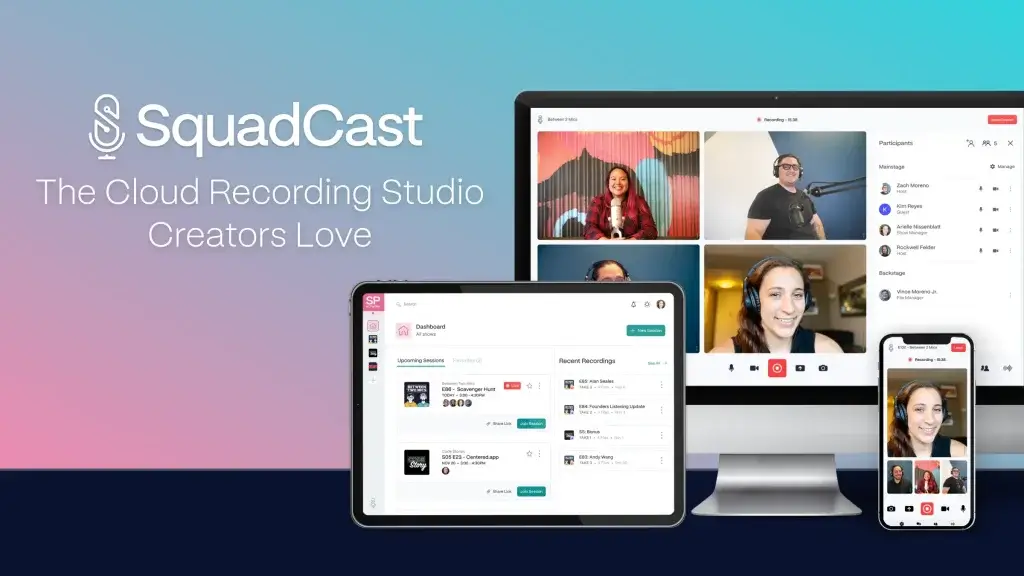
Recording and Production
Key Features for Recording and Production
SquadCast’s core mission is to give you studio‑quality recordings regardless of where you or your guests are located. That mission shapes its recording features.
Local multi‑track recording
Traditional video conference tools like Zoom compress audio over the internet, which introduces glitches and muddy sound. SquadCast takes a local‑first approach: each participant’s audio and video are captured directly on their device and then progressively uploaded to the cloud. This means your exports preserve the original resolution even if someone’s connection lags. Separate tracks also give you the flexibility to remove background noise or adjust levels during editing.
- Locally captured audio avoids compression and preserves high fidelity.
- Separate tracks for each speaker simplify post‑production adjustments.
- Progressive uploads ensure files are saved even if someone loses connection.
Progressive uploads and backups
Progressive uploads are SquadCast’s signature feature. The platform continuously saves your audio and video in small chunks as you record, uploading them in real time to the cloud. If power goes out or a browser crashes, the locally recorded segments remain intact and the upload resumes once the participant reconnects. For podcasters who invest hours coordinating guest schedules, this safety net is invaluable.
- Real‑time backups reduce the risk of losing recordings.
- Recording sessions don’t fail even if someone drops off.
- Cloud backups give you multiple recovery points for peace of mind.
Separate audio and video files
Every plan includes separate audio and video tracks for each participant. You can download WAV, MP3, MP4, or WebM files after the session ends. Because tracks are isolated, you can mute coughs, cut out cross‑talk, or sync video precisely to the final audio. This separation also helps when repurposing your podcast into audiograms or video clips for social media.
Green Room and guest experience
Your guests don’t need to install software or create an account. Before a session starts, they enter a Green Room where they can test their camera, select audio devices, and adjust lighting. As the host, you can check everyone’s setup without recording. The browser‑based interface works in Chrome, Firefox, Edge, Opera, and Brave, and a mobile‑friendly design makes it easy for guests to join from smartphones.
- Guests join by clicking a link; no downloads or sign‑ups required.
- The Green Room allows equipment checks and reduces on‑air glitches.
- The interface is intuitive for first‑time users, making your show look professional.
Team roles and backstage participants
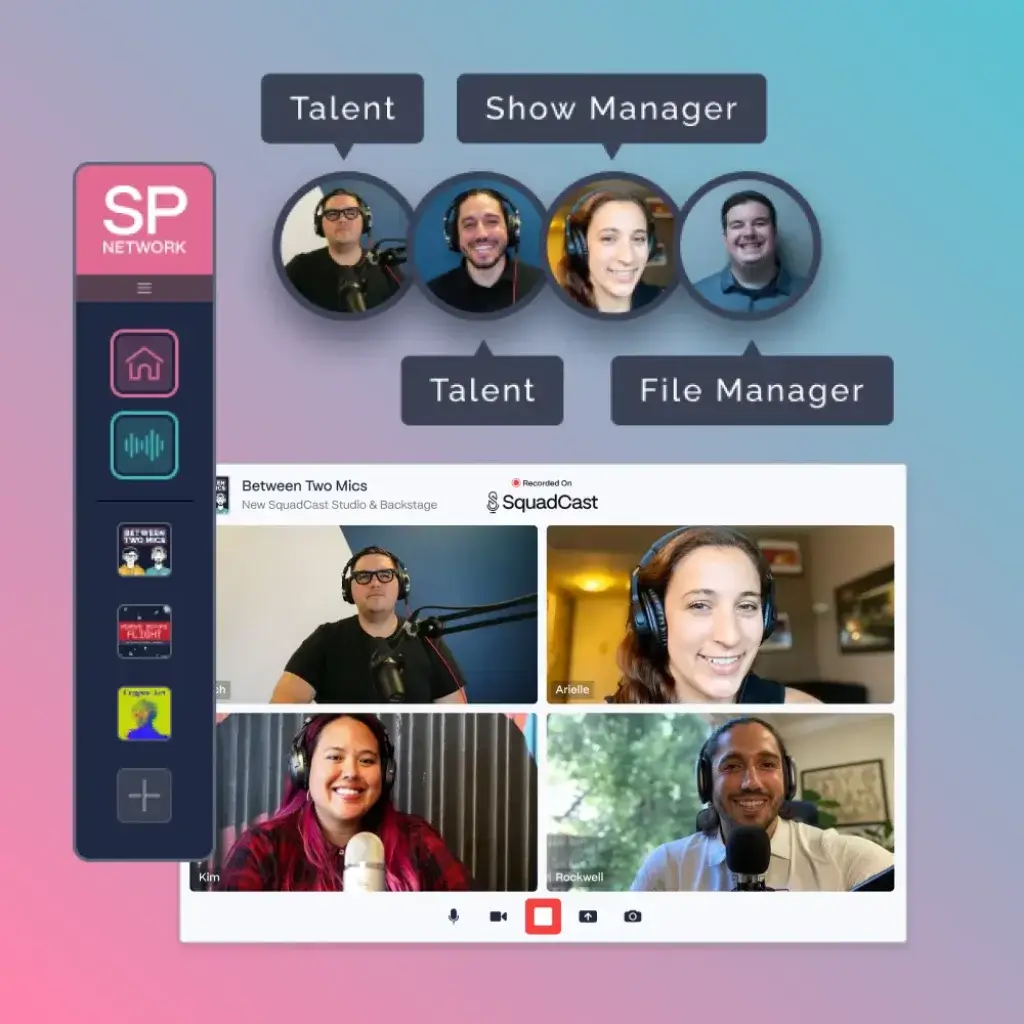
For collaborative shows, SquadCast lets you assign roles. The host leads the session; producers and show managers can join silently in Backstage mode to monitor chat or troubleshoot without appearing on camera. File managers can access and download recordings after the session. This structure helps larger teams coordinate interviews smoothly.
Quality controls and audio drift elimination
Uncompressed 48 kHz audio files and video up to 1080p (4K on higher tiers) give you broadcast‑level quality. Because files are recorded locally, there’s no audio drift, the gradual desynchronization between video and audio that often plagues long recordings. You can export at lower resolutions if file size is a concern.
Flexible file formats and downloads
After you end a session, SquadCast provides separate files for each speaker and a mixed track for quick previews. Files are available in WAV and MP3 for audio and MP4 or WebM for video. You can also generate transcripts and captions, which we’ll cover in the editing section.
Integrated Editing and AI
AI‑Powered Editing Features
SquadCast is more than a recording tool; it now includes editing and AI capabilities through its integration with Descript. All plans come with some level of transcript, text‑based editing, and AI features.
Descript integration
Descript is a powerful editing platform that treats audio and video like text. When you connect your SquadCast account, recordings automatically appear in Descript. You can edit content by deleting words from the transcript, adding music and effects, and publishing directly to podcast hosts or social platforms. This integration removes the friction of downloading files and re‑uploading them to a separate editor.
- Upload recordings to Descript with one click.
- Edit by manipulating the transcript instead of the waveforms.
- Publish finished episodes or video clips without leaving your browser.
Transcription and captions
Accurate transcripts help you edit faster and make your content accessible. The Free plan includes one hour of transcript per editor per month, while paid plans offer between 10 and 40 hours, depending on the tier. Captions can be burned into videos for platforms like YouTube or exported as separate files for accessibility compliance.
AI tools for polishing
Descript’s AI suite enhances audio quality and automates tedious tasks. Depending on your plan, you get features like:
- Filler word removal: automatically deletes ums, ahs, and repeated phrases.
- Studio Sound: cleans up background noise and improves vocal clarity.
- Green Screen: removes your background on video without a physical green screen.
- Create Clips: automatically generates highlights and short clips for social media.
- Draft social posts: suggests copy for promoting your episodes.
- Eye Contact: an AI filter that subtly adjusts your gaze to simulate eye contact with the camera.
Higher tiers unlock unlimited uses of these tools and additional capabilities like overdubbing, which lets you correct mispronounced words by typing the correct text and having the AI re‑speak it in your voice.
Pros and Cons
Advantages and Limitations
Positive
✅ High‑fidelity recording
✅ Progressive uploads
✅ Separate tracks
✅ Intuitive interface
Negative
❌ Limited live streaming
❌ Recording limits on lower tiers
❌ Watermarks on the Free plan
❌ AI features vary by plan
✅ Pros
- High‑fidelity recording: Local audio and video capture deliver clear, professional sound.
- Progressive uploads: Built‑in backups prevent data loss during network interruptions.
- Separate tracks: Individual files for each participant simplify editing and repurposing.
- Intuitive interface: Browser‑based studio requires no downloads for guests.
- Backstage mode: Silent participants can assist without appearing on camera.
- Descript integration: Seamless transition from recording to editing and publishing.
- Rollover hours: Unused recording time rolls over, providing flexibility.
- Security: SOC 2 Type 1 certification demonstrates strong data protection.
❌ Cons
- Limited live streaming: SquadCast doesn’t stream sessions live to social platforms like YouTube, so you’ll need another tool if live broadcasting is essential.
- Recording limits on lower tiers: The Free and Hobbyist plans restrict monthly recording hours, so frequent podcasters may need to upgrade.
- Watermarks on the Free plan: Video exports on the free tier include branding.
- AI features vary by plan: Full AI editing power is available only on higher tiers.
- No built‑in hosting: You still need a podcast hosting service to distribute your episodes.
Pricing and Plans
How much does SquadCast cost?
SquadCast offers four main plans, billed monthly or annually. Annual billing saves up to 35%. Here’s a snapshot of what each plan includes.
| Plan | Price (annual/monthly) | Key Features |
| Free | $0 | 1 recording hour/editor/month, 1 show, 10 participants, 1 integration, separate audio & video tracks, video & screen recording, 1 hour/month transcription, exports up to 720p with watermark, limited AI trial |
| Hobbyist | $16 annually / $24 monthly per person | 10 recording hours/editor/month, 5 shows, 10 participants, 2 integrations, 10 hours transcription, unlimited exports up to 1080p, Basic AI suite (20 uses/month), 30 minutes AI speech, limited stock library |
| Creator | $24 annually / $35 monthly per person | 30 recording hours/editor/month, unlimited shows, 10 participants, unlimited integrations, Master Audio with Dolby Voice, 30 hours transcription, unlimited 4K exports, full Basic & Advanced AI suite, 120 minutes AI speech, unlimited stock library, advanced export options |
| Business | $50 annually / $65 monthly per person | 40 recording hours/editor/month, unlimited shows, 10 mainstage participants, unlimited integrations, Master Audio with Dolby Voice, 40 hours transcription, unlimited 4K exports, full professional AI suite, 300 minutes AI speech, regenerate & overdub unlimited, free basic seats for collaboration, priority support |
Recording time that you don’t use rolls over each month, up to twice the amount included in your plan. Extra hours can be purchased at $5 per hour. All customers get unlimited recording sessions and storage, HD video, separate files, local WAV/MP3 downloads, and API access for integrations.
Value comparison
While the Free plan is generous for occasional podcasters, it includes watermarks and limited AI features. The Hobbyist plan suits hobbyists or small teams who publish a couple of episodes per month. For professional podcasters and creators who want 4K exports and unlimited AI features, the Creator plan offers the best balance of cost and features. The Business tier caters to teams producing multiple shows with heavy editing needs and benefits from priority support.
Best Use Cases
Who Should Use SquadCast
SquadCast appeals to different types of creators, from solo podcasters to marketing teams. Here are scenarios where the platform shines:
Remote interviews and panel discussions
If you host an interview‑style show, reliable audio is essential. SquadCast’s local recording ensures that your conversations sound crisp even if a guest’s internet stutters. Up to 10 participants can be on the main stage, with another 10 in Backstage, so you can manage panels or roundtables without overcrowding.
Multi‑host podcasts and co‑creators
Podcasts with multiple hosts often struggle with scheduling and remote coordination. SquadCast’s team workspaces, role assignments, and search functions allow you to organize sessions by show, tag recordings, and reuse guest invitations. Rollover recording hours also help if episodes run longer than expected.
YouTube and video content
Video podcasts are growing in popularity, and the ability to record HD video alongside audio makes SquadCast appealing for creators repurposing content on YouTube. On the Creator and Business plans, you can export 4K video and use AI tools like Green Screen and Eye Contact to polish visuals. The separate video tracks allow you to switch camera angles and create dynamic clips.
Educational webinars and courses
While SquadCast doesn’t live stream, its high‑quality recording makes it a good choice for recorded webinars, online courses, or coaching sessions. You can share your screen, capture slides, and create evergreen content to publish later. Post‑production editing in Descript helps cut out pauses or fill in missing information.
Voice over and audiobooks
Authors and voice actors can use SquadCast’s uncompressed audio to record audiobooks or voice-overs remotely. Because the software is browser‑based, you can invite directors or editors to monitor sessions in Backstage mode without interrupting performance.
Set Up and Best Practices
Best Practices for Using SquadCast
To get the most out of SquadCast, follow these setup tips and workflow recommendations.
Prepare your environment
Choose a quiet space with minimal background noise. Use a high‑quality external microphone and headphones to reduce echo. Even though guests aren’t required to use headphones, encouraging them to do so improves audio clarity and prevents feedback.
Test equipment in the Green Room
Before recording, ask guests to join the session a few minutes early. The Green Room lets everyone select microphones, cameras, and ensures proper framing. As the host, you can coach guests on lighting and posture before moving to the main stage.
Optimize network connections
Local recording reduces reliance on internet stability, but a solid connection helps with real‑time communication. A wired Ethernet connection is ideal; if that’s not possible, ensure Wi‑Fi is strong. Disabling video on slower networks conserves bandwidth and prevents lag.
Use Backstage roles effectively
Producers or assistants can join sessions in Backstage mode. They can handle chat, monitor levels, and note time stamps without appearing on camera. Assign roles in advance to avoid confusion.
Organize shows and sessions
Create separate shows within your account for different podcasts or series. Use tags and favorites to keep track of episodes, and add artwork and descriptions to each recording so you can find them later. Rollover hours encourage batching interviews; schedule multiple recordings in one day to maximize your monthly allowance.
Integrate with editing and hosting tools
After recording, push your files to Descript for editing. Once edited, export the final audio and video, then upload them to your hosting platform (e.g., Buzzsprout, Libsyn, Anchor) or directly to video sites. SquadCast doesn’t host podcasts itself, so setting up your distribution pipeline is necessary.
Competitors
Alternatives to SquadCast
SquadCast is a strong choice for high-quality remote recording, but it is not always the best fit for every workflow. Your needs may lean more toward live streaming, built-in hosting, advanced editing, or an all-in-one production pipeline.
This section compares SquadCast with four leading alternatives frequently evaluated by podcasters and content teams: Riverside, StreamYard, Podbean, and Descript. Each tool approaches podcast creation differently, which makes the right choice highly dependent on how you plan to record, edit, distribute, and repurpose content.
Quick Comparison: SquadCast vs Top Alternatives
| Feature Type | SquadCast | Riverside | StreamYard | Podbean | Descript |
| Primary Focus | Remote studio-quality recording | Recording + live streaming | Live streaming & broadcasting | Podcast hosting & monetization | Editing-first podcast workflow |
| Local Recording | Yes, audio and video per participant | Yes, audio and video per participant | No | No | Depends on recording source |
| Max Video Quality | Up to 4K (paid plans) | Up to 4K | Up to 1080p | Up to 1080p | Up to 4K (import-based) |
| Live Streaming | No | Yes | Yes (core feature) | Limited | No |
| Built-in Editing | Via Descript integration | Yes, browser-based editor | Basic layout tools | Basic audio tools | Yes, advanced text-based editor |
| Podcast Hosting | No | Optional | No | Yes | No |
| Best For | Interview-focused podcasts | Video-first creators | Live shows and webinars | Hosting and monetization | Fast editing and repurposing |
SquadCast vs Riverside
Riverside is often the closest alternative to SquadCast. Both platforms record locally to preserve audio and video quality, even with unstable internet connections.
Riverside stands out if you want live streaming, built-in editing, and a video-first workflow. SquadCast, on the other hand, remains more focused on reliable remote recording and producer-style session control.
Choose Riverside if video distribution and live streaming are core to your strategy. Choose SquadCast if recording reliability and clean multitrack files matter most.
SquadCast vs StreamYard
StreamYard is designed for live broadcasting, not studio-grade recording. It excels at real-time streaming to platforms like YouTube, LinkedIn, and Facebook, with branding overlays and audience engagement tools.
SquadCast is a better fit for podcasts that prioritize post-production quality over live interaction. If your show is recorded, edited, and published later, StreamYard will feel limiting.
Use StreamYard for live shows and webinars. Use SquadCast for professional podcast production.
SquadCast vs Podbean
PodBean is a podcast hosting platform first, with recording as a secondary feature. It includes distribution, monetization, analytics, and audience growth tools, making it attractive for podcasters who want everything in one place.
SquadCast does not offer hosting, but its recording quality is significantly higher. Many creators use SquadCast for recording and Podbean for hosting, rather than choosing one over the other.
If you want an all-in-one hosting solution, Podbean makes sense. If audio quality is your top priority, SquadCast delivers better results.
SquadCast vs Descript
Descript takes a completely different approach. It is built around editing, not recording. Its text-based editor, overdub voice cloning, and content repurposing tools are among the best available.
SquadCast integrates directly with Descript, which makes them complementary rather than direct competitors. You record in SquadCast, then edit and publish in Descript.
If you already record elsewhere and want faster editing, Descript alone may be enough. If you want both high-quality recording and fast editing, using SquadCast with Descript is a strong combination.
How to Choose the Right SquadCast Alternative
The best alternative depends on your production goals:
- Choose Riverside if you want recording, editing, and live streaming in one platform.
- Choose StreamYard if your podcast is primarily live.
- Choose Podbean if hosting, monetization, and analytics matter most.
- Choose Descript if editing speed and content repurposing are your main focus.
SquadCast remains one of the strongest options for remote podcast recording, especially when paired with a dedicated editor or hosting platform.
Conclusion
Final thoughts
⭐ Overall Rating: 8.0/10
SquadCast has carved out a niche as a remote recording studio that emphasizes quality and ease of use. Its local‑first recording, progressive uploads, and Descript integration make it a strong choice for podcasters, educators, and video creators who want reliable audio and seamless editing. While the absence of live streaming and the need for separate hosting may steer some toward other platforms, SquadCast excels at what it was built for: capturing studio‑grade conversations from anywhere.
If your priority is high‑fidelity audio and a smooth workflow from recording to editing, SquadCast deserves a spot on your shortlist. Evaluate your recording frequency and desired features to choose the right plan, and follow the setup tips in this guide to produce professional‑sounding episodes that engage your audience.
Have more questions
Frequently Asked Questions
What is SquadCast used for?
SquadCast is a browser-based recording studio for podcasters, video creators, and marketers. It lets you capture high-quality audio and video remotely, save separate tracks for each participant, and integrate with editing tools like Descript.
How does SquadCast record conversations?
The platform records each participant locally on their device. Audio and video files are progressively uploaded to the cloud, ensuring that you retain the highest quality and minimizing the risk of data loss if connections drop.
Do guests need to download software or create an account?
No. Guests join by clicking a link and entering their name. They can test their equipment in the Green Room and participate without signing up or installing apps.
How many people can join a session?
You can have up to 10 main stage participants plus 10 backstage participants on all plans. This is sufficient for most interview shows and panel discussions.
Does SquadCast include live streaming?
Currently, SquadCast focuses on recording and does not live-stream sessions. If you need to broadcast live, you’ll need a separate streaming tool.
What file formats are available?
After recording, you can download separate or mixed tracks in WAV or MP3 for audio and MP4 or WebM for video. Higher-tier plans support exports up to 4K resolution.
How do the AI features work?
Through its Descript integration, SquadCast offers AI tools for removing filler words, enhancing audio, generating captions, creating clips and more. Access to these features depends on your subscription tier.
Can I upload my recordings directly to my podcast host?
SquadCast does not host podcasts, but you can download your finished files and upload them to any hosting platform. The Descript integration helps streamline editing before distribution.
What happens if I run out of recording time?
If you reach your monthly recording limit during a session, SquadCast notifies you but doesn’t interrupt the recording. You can purchase additional hours for $5 per hour, and unused time rolls over up to twice your plan allowance.
Is SquadCast secure?
Yes. The platform is SOC 2 Type 1 certified and prioritizes data privacy. Recordings are stored securely in the cloud, and you can control team roles to manage access.