Introduction
StreamYard is a browser‑based streaming studio that combines live video, podcast recording, and webinar hosting in one platform. Instead of juggling complex software, you open a browser, sign in, and start broadcasting. Guests join via a link on their computer or phone, no downloads, no technical headaches. The platform records each participant’s audio and video locally on their device, so even poor internet connections won’t ruin your recording. This ease of use makes StreamYard appealing to podcasters, marketers, educators, event organizers, and social media teams who want to reach audiences on multiple platforms without fuss.
In this review, you’ll learn how StreamYard works, what sets it apart for podcasts and live streaming, and how its pricing compares to alternatives. I’ll also share practical tips for getting the most out of the software and answer common questions. Whether you’re producing an interview show or planning a webinar, this guide will help you decide if StreamYard fits your workflow.
Key StreamYard Features
Software Specification
Live Video Streaming and Multistreaming
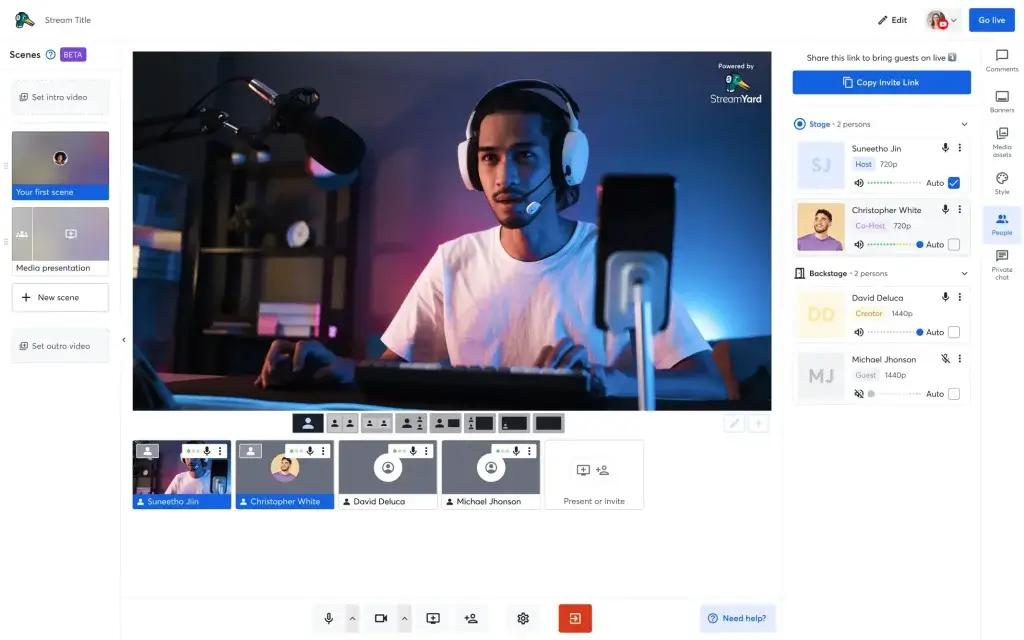
StreamYard’s primary purpose is live streaming. Once you enter the studio and click “Go Live,” your feed is sent to all selected destinations. The interface displays a small preview of the outgoing stream along with guest windows and your control panel. You can switch layouts, single host, split screen, grid view, or picture‑in‑picture, without interrupting the broadcast. The software supports Full HD (1080p) streaming on paid plans and even 4K local recordings on the advanced plan.
Streaming Destinations and Limits
Paid users can connect up to eight destinations per broadcast, including Facebook profiles, pages, and groups, YouTube channels, LinkedIn profiles or events, X (Twitter), Twitch, Brightcove, and Kick. You can also stream to custom RTMP endpoints such as your own website. Free accounts can stream to one destination, while Core plans allow three simultaneous destinations.
Video Quality
The Core plan supports Full HD (1080p) streams, while the Advanced plan unlocks 4K local recordings for crystal‑clear playback. A stable internet connection is required for high‑resolution streaming; however, if a guest’s connection drops, the local recording feature preserves their feed at full quality.
Virtual Backgrounds and Branding
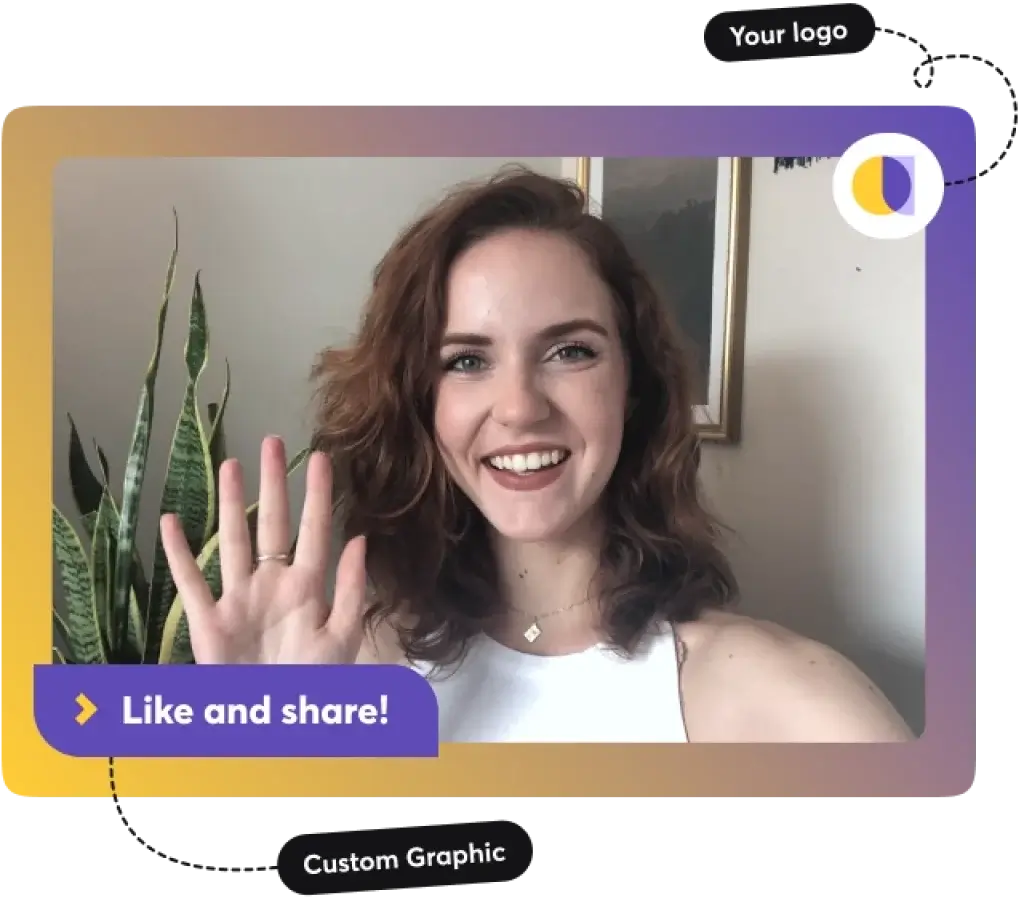
You can replace your background with an image or video by using a green screen, which adds a professional touch to remote presentations. Branding controls allow you to upload logos, overlays, and short videos (intros/outros), change color schemes, and display banners or scrolling tickers. These elements help reinforce your brand identity during live sessions.
Podcast Recording and Audio Quality
While StreamYard is widely known for live video, it also doubles as a podcasting solution. The platform records each participant’s audio and video locally on their device and uploads these files automatically at the end of the session. This means you get separate, high‑quality tracks for each speaker, even if someone’s internet connection is unstable. Local recordings are essential for professional podcasts because they allow you to clean up background noise, adjust levels, and cut mistakes during editing without sacrificing quality.
Once recorded, you can download audio‑only files for podcast editing or video files for republishing on YouTube or other channels. On paid plans, you can record unlimited hours; free accounts allow two hours of local recording per month.
Guest Experience
For guests, joining a StreamYard podcast requires nothing more than a link and a browser. They can connect via laptop or smartphone, select their mic and camera, and enter the recording studio in seconds. On your end, you can enable echo cancellation, adjust individual audio levels, and mute participants as needed. The ability to spotlight a speaker or share screens helps you create an engaging video podcast without complex editing.
Pre‑Recorded Streaming and Scheduling
StreamYard isn’t limited to live broadcasts. The platform lets you record or upload videos and schedule them to stream at a future time. This “premiere” style broadcast allows you to appear live without being behind the mic. You can record content in the studio using the “Record Only” mode or upload MP4/MOV files. Once uploaded, you choose a date and time, select your destinations, and schedule the premiere. When the time arrives, the video plays automatically on all linked platforms.
Scheduling pre‑recorded streams is useful when your audience spans multiple time zones or when you want to repurpose webinars and training sessions without going live again. You can also schedule a series of uploads to maintain a consistent publishing schedule.
Content Repurposing and Short‑Form Videos
After your live stream or recording ends, StreamYard gives you several ways to repurpose the content. You can download both video and audio files and use them for podcasts, online courses, or long‑form videos. The built‑in Repurpose tool allows you to trim clips and create short videos for social media. You can produce vertical or square clips up to 60 seconds long for Facebook Reels, LinkedIn, YouTube Shorts, Instagram, and TikTok. For longer content, you can export segments up to two hours to Facebook pages, LinkedIn profiles, or full YouTube channels. This makes it easy to maximize the reach of a single broadcast across multiple formats.
On‑Air Webinars and Virtual Events
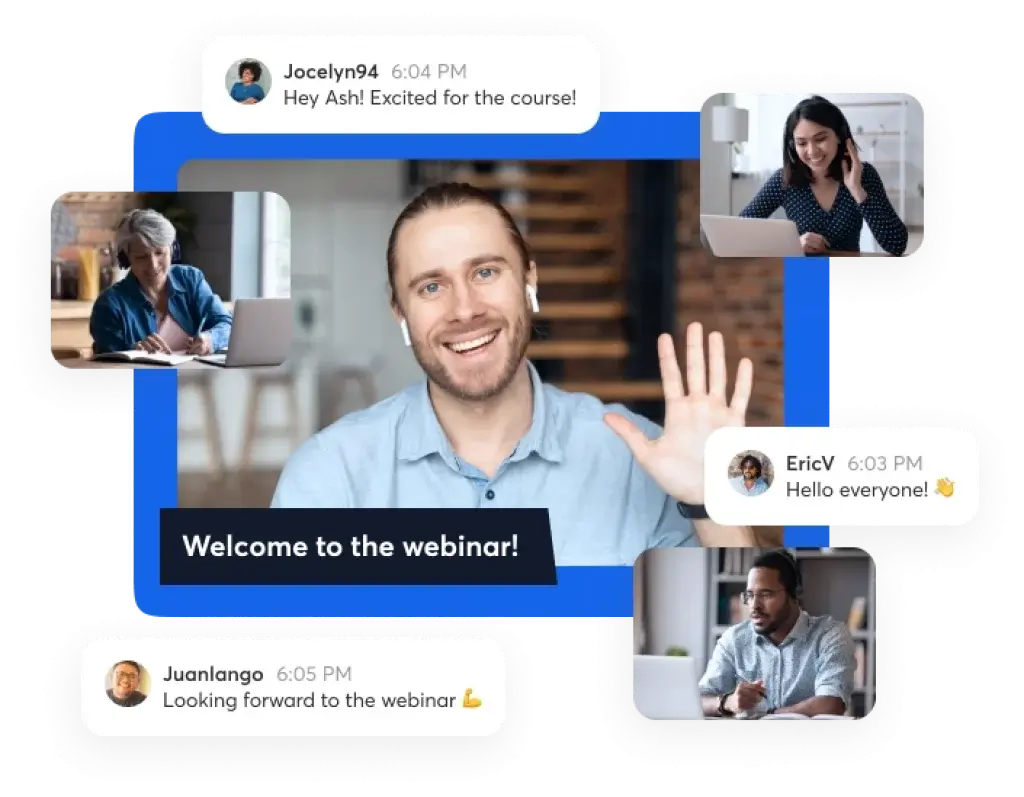
StreamYard includes a native webinar platform called StreamYard On‑Air. It allows you to host webinars directly within your browser without relying on third‑party tools. On‑Air webinars support registration pages, email reminders, and a private chat for attendees. You can embed the webinar player on your website for a white‑label experience, giving you full control over the branding. Depending on your plan, On‑Air webinars accommodate from 250 to more than 10,000 viewers. This range makes StreamYard suitable for everything from small workshops to large virtual conferences.
During a webinar, you have access to all the studio features: multistreaming (if enabled in your plan), branding tools, screen sharing, pre‑recorded video playback, and audience engagement features. You can moderate comments, run Q&A sessions, and switch layouts to spotlight speakers. Advanced plans unlock a green room for presenters to prepare before going live and additional seats for team members.
Audience Engagement Tools
Engaging viewers is crucial for successful live streaming and webinars. StreamYard integrates audience interaction features such as:
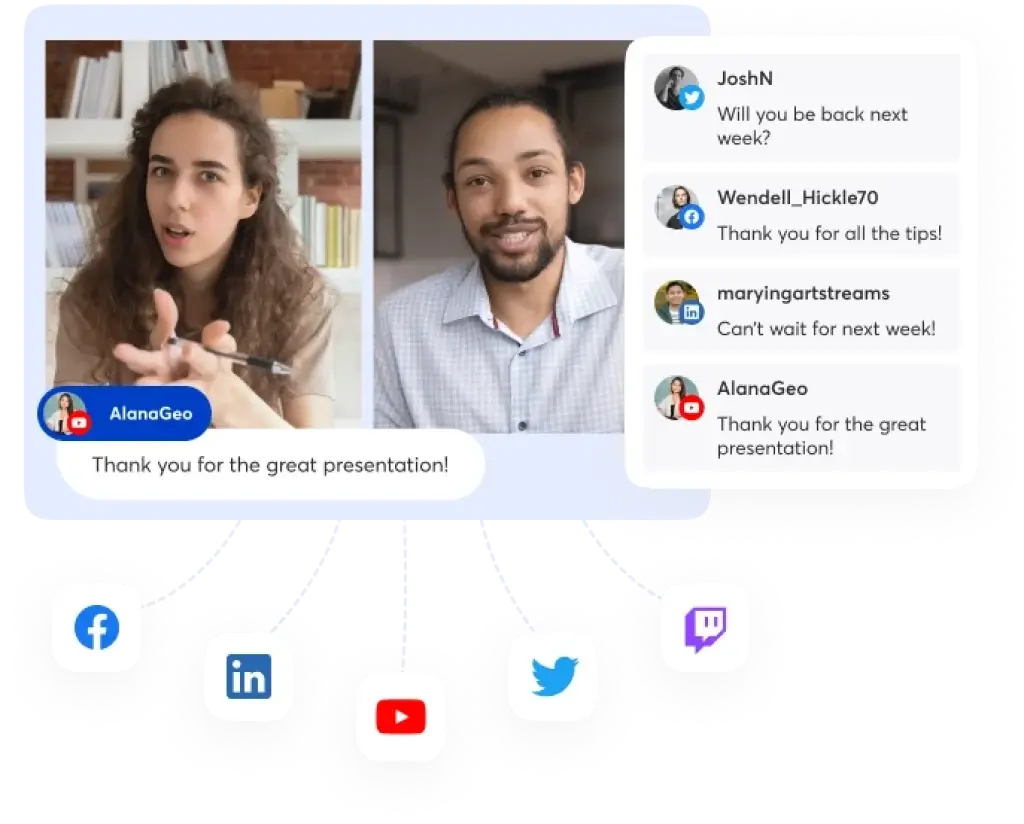
- Comment Highlighting – Pull comments from Facebook, YouTube, X, and other platforms onto the screen to respond in real time.
- On‑Screen Banners – Create banners with key messages or calls to action that appear at the bottom of the screen.
- Private Chat – Communicate with guests or co‑hosts behind the scenes without the audience seeing.
- Polls and Q&A – For webinars, you can conduct polls to gather feedback or run structured Q&A sessions.
- Scrolling Tickers – Use a ticker to display breaking news, promotions, or URLs during your broadcast.
These features keep viewers engaged and make your broadcasts feel dynamic and professional.
Team Collaboration and Roles
Large organizations or production teams often need multiple people working behind the scenes. StreamYard’s Teams and Business plans offer additional seats and role‑based permissions. You can assign roles such as host, co‑host, and moderator, granting different levels of control over the broadcast. This allows producers to manage layouts and participants while the host focuses on the conversation. Business plans also add spaces, separate areas for different shows or departments, and extended storage of up to 700 hours.
Pros and Cons
Advantages and Limitations
Positive
✅ Beginner‑Friendly Interface
✅ Browser‑Based Convenience
✅ High‑Quality Local Recordings
✅ Multistreaming and Flexible Destinations
Negative
❌ Limited Free Plan
❌ Advanced Features Behind Paywall
❌ Basic Editing and Analytics
❌ Price Increases
Every platform has strengths and weaknesses. Here’s a balanced look to help you decide if StreamYard is right for you.
✅Pros
- Beginner‑Friendly Interface – The uncluttered layout makes it easy to create polished live streams without a steep learning curve.
- Browser‑Based Convenience – No downloads or installations. Guests and hosts join via a link, reducing technical barriers.
- High‑Quality Local Recordings – Separate audio and video files are recorded on each participant’s device, preserving quality even with spotty internet.
- Multistreaming and Flexible Destinations – Stream to up to eight destinations simultaneously and integrate with custom RTMP endpoints.
- Custom Branding – Upload logos, overlays, backgrounds, banners, and adjust colors to match your brand.
- Repurposing Tools – Trim clips into short videos or full‑length segments for social media and download audio for podcasts.
- On‑Air Webinars – Host webinars with registration pages and embed them on your own site; scale from 250 to over 10,000 viewers.
- Team Collaboration – Assign roles, invite producers, and manage multiple shows with spaces on Business plans.
❌Cons
- Limited Free Plan – The free version carries a StreamYard watermark and only streams to one destination.
- Advanced Features Behind Paywall – 4K recordings, large webinars, and high viewer limits require Professional or higher tiers.
- Basic Editing and Analytics – StreamYard offers limited in‑studio editing and lacks built‑in analytics; you must download files for detailed edits and use platform analytics for metrics.
- Price Increases – Some users report significant price hikes after ownership changes and feel that cheaper alternatives offer similar functionality.
- Customer Support Criticism – A few reviewers mention unresponsive support and automated emails.
- Learning Curve for RTMP – Custom RTMP streaming requires basic technical knowledge
Pricing and Plans
How much does StreamYard cost?
StreamYard offers several plans tailored to different needs. Below is a simplified comparison of the core tiers. Prices may vary, so always check the official site for the latest details.
| Plan | Price | Key Limits & Benefits |
| Free | $0/mo | StreamYard watermark, stream to 1 destination, 6 on‑screen participants, 2 seats, 2 h/month of local recordings |
| Core | $25/mo | No watermark, 3 destinations, 10 on‑screen participants, unlimited streaming & recordings, 50 h storage |
| Professional | $49/mo | 1080p streaming, On‑Air webinars for 250 viewers, extra camera, 12 backstage participants, multistream to 8 destinations |
| Premium | $99/mo | On‑Air webinars for 1 000 viewers, 15 backstage participants, 10 seats, pre‑recorded streams up to 4 h |
| Growth | $299/mo | On‑Air webinars for 10 000 viewers, greenroom, pre‑recorded streams up to 8 h |
| Business | Contact sales | 10 000+ webinar viewers, custom spaces, extra roles, 10+ seats, 700 h storage |
The free plan is generous enough for testing, but it includes a StreamYard watermark and restricts you to a single destination. The Core plan removes branding and adds multistreaming to three destinations, while Professional and higher plans unlock HD streaming, larger webinars, and more collaborators. Growth and Business tiers cater to enterprises hosting large events.
Best Use Cases
Who Should Use StreamYard?
StreamYard is versatile, but it shines in specific scenarios:
- Podcasters – If you host interviews or round‑table discussions remotely, StreamYard’s local recording feature preserves audio quality. You can invite guests with a link and receive separate tracks for editing.
- Content Creators and Social Media Managers – Going live on multiple platforms at once saves time and increases reach. Repurposing tools simplifies content creation across channels.
- Educators and Coaches – Run interactive workshops, classes or Q&A sessions without needing your students to download an app. On‑Air webinars provide registration and private chat features for teaching.
- Businesses and Marketers – Use StreamYard for product launches, webinars, town halls or live demos. Branding tools help maintain a professional look and feel.
- Non‑technical Hosts – If you want to focus on your message rather than mastering streaming software, StreamYard’s intuitive interface makes it accessible.
On the other hand, if you need complex scene transitions, advanced video effects, or deeply customized overlays, software like OBS or vMix may be better suited. StreamYard intentionally prioritizes ease of use over granular control.
Set Up
Getting Started with StreamYard
Account Setup and Interface
Creating an account is straightforward. You sign up using your email or Google account and receive a six‑digit code to log in. There are no passwords to remember, which speeds up onboarding. Once inside, you’re greeted by a clean dashboard with options to create a broadcast, record only, or schedule a pre‑recorded stream. Navigating the studio is intuitive, menus are clearly labeled, and pop‑ups explain key functions. If you’re used to platforms like Zoom, you’ll find StreamYard feels less cluttered and more focused on the broadcast itself.
From the studio you can:
- Select your camera, microphone, and screen for sharing.
- Adjust branding elements like colors, logos, and overlays.
- Invite guests by copying a link and sending it via email or messaging.
- Monitor comments from all connected platforms in one feed.
- Switch layouts or spotlight a speaker with a click.
This workflow lets you focus on content rather than technical setup, which is especially helpful when you’re hosting live shows alone.
Guest Invitations and Participation
StreamYard simplifies guest management. To bring someone on your show, you generate a unique link. They open it in their browser, select their camera and microphone, and enter the backstage. There’s no need for them to install software, which removes friction when working with busy executives or clients. You can host up to six on‑screen participants on the free plan and up to fifteen backstage participants on higher tiers, allowing you to manage panels or webinars with ease. Producers can move guests on and off screen, change layouts, and control who is visible to the audience at any time.
The Multistreaming Advantage
One of StreamYard’s main draws is multistreaming: the ability to broadcast to multiple platforms at once. With a single stream, you can reach Facebook, YouTube, Instagram, LinkedIn, X (Twitter), Twitch, and several other destinations. Paid plans allow multistreaming to up to eight platforms simultaneously, while the free plan streams to one destination. You can even send the same broadcast to multiple Facebook pages or YouTube channels without restriction. If you need to stream to a platform that isn’t directly supported, custom RTMP settings let you push your feed anywhere – from your own website to niche platforms like Vimeo or Dacast.
For social media managers, this feature is a game-changer. Rather than going live separately on each network or using multiple tools, you set up once and go live everywhere. StreamYard also collects comments from all linked platforms into a unified feed, making it easy to read and respond without switching tabs.
Interface Highlights and Accessibility
StreamYard’s studio is designed to be accessible to non‑technical users. Key interface highlights include:
- Theme Templates – StreamYard offers pre‑designed themes for lower thirds, banners, and comment displays. These themes help your broadcast look polished without a graphic designer.
- Dark Mode – Extended streaming sessions can strain your eyes. Dark mode reduces glare and helps with concentration.
- Reusable Studios – If you host recurring shows or webinars, you can save branding, layouts, and destinations as a reusable studio. This reduces setup time between episodes.
- Mobile Compatibility – While best experienced on a desktop, you can join or host streams from a mobile browser. This is handy when traveling, though some features are limited.
Best Practices
Best Practices for Using StreamYard
Plan Your Broadcast
Before going live, outline your show. Consider your goals, segment structure, and call‑to‑action. Preparing slides, questions, and graphics in advance helps maintain flow and ensures you hit key points. Use the private chat to coordinate with co‑hosts or producers during the stream.
Optimize Audio and Video
Clear audio makes or breaks a stream. Use a dedicated microphone and headphones to prevent echo. Enable “echo cancellation” in your audio settings and adjust individual guest volumes. Position your camera at eye level, use natural or soft lighting, and tidy the background. StreamYard supports virtual backgrounds if you use a green screen.
Customize Your Brand Identity
Upload a transparent logo to the top right corner of the screen and set a brand color that matches your website or social media. Create an opening video and a closing outro to add professionalism. Use banners to introduce topics or display calls to action, and scrolling tickers to share links or announcements. These small touches elevate your broadcast without significant design work.
Engage Your Audience
Ask viewers to comment or ask questions. Monitor the unified comment feed and highlight notable messages on screen. For webinars, run polls to gather feedback and use Q&A segments to address viewer concerns. Recognizing participants by name strengthens the community and encourages interaction.
Repurpose Efficiently
After the broadcast, download the audio files and import them into your podcast editor. Use the Repurpose tool to create short clips for social media, focus on key takeaways, quotes, or funny moments. Publish these clips to Instagram Reels, TikTok, or YouTube Shorts. Longer segments can be trimmed into tutorials or evergreen content for your YouTube channel. Repurposing extends the life of your content and reaches audiences who prefer different formats.
Competitors
Alternatives to StreamYard
StreamYard is a strong choice for browser-based live streaming and simple podcast workflows. Still, depending on how you create content, you may need deeper audio control, advanced editing, or wider distribution tools.
Below is a comparison of StreamYard against four of its most searched alternatives: Riverside, Restream, PodBean, and Descript.
StreamYard vs Riverside: Live Streaming vs Studio-Quality Podcasting 🎙️
Riverside is often considered when audio and video quality are non-negotiable. While StreamYard focuses on simplicity and live engagement, Riverside prioritizes local recording quality.
StreamYard works best when your priority is live broadcasting to multiple platforms. Riverside is a stronger fit when you want pristine podcast recordings that can later be edited and repurposed.
Key differences:
- StreamYard excels in live audience interaction and multistreaming
- Riverside delivers higher-quality local audio and video tracks
- Riverside includes built-in transcription and post-production tools
- StreamYard is easier for non-technical live hosts
Best for:
- Choose StreamYard for live shows, interviews, and webinars
- Choose Riverside for professional podcasts and video interviews
You can find more information about Riverside in this comprehensive review and on their official website.
StreamYard vs Restream: Simplicity vs Platform Reach 🌐
Restream is built primarily for multistreaming at scale. If reaching the widest number of platforms matters most, Restream stands out.
StreamYard, on the other hand, offers a more guided studio experience with built-in branding and guest management tools.
Key differences:
- Restream supports more streaming destinations
- StreamYard offers better on-screen branding and layouts
- StreamYard requires less setup and learning
- Restream is better for advanced creators managing many channels
Best for:
- StreamYard for polished live shows with guests
- Restream for large-scale multichannel broadcasting
You can find more information about Restream in this comprehensive review and on their official website.
StreamYard vs PodBean: Live Video vs Podcast Distribution 🎧
PodBean is not a live streaming platform in the traditional sense. It focuses on podcast hosting, distribution, and monetization.
If your workflow centers on recording, hosting, and monetizing audio podcasts, PodBean is a better long-term solution. StreamYard is more suitable when video is part of your content strategy.
Key differences:
- PodBean handles podcast hosting and syndication
- StreamYard focuses on live video and video podcasts
- PodBean supports monetization tools like ads and premium content
- StreamYard does not host podcast RSS feeds
Best for:
- StreamYard for live video podcasts
- PodBean for traditional audio podcast publishing
You can find more information about Podbean in this comprehensive review and on their official website.
StreamYard vs Descript: Live Production vs AI-Powered Editing ✂️
Descript approaches podcasting from a post-production angle. It replaces traditional editing timelines with text-based editing and AI tools.
StreamYard is ideal for live creation, while Descript is built for refining and repurposing recorded content.
Key differences:
- Descript offers text-based audio and video editing
- StreamYard focuses on live streaming and recording
- Descript includes overdub, filler-word removal, and transcription
- StreamYard has minimal post-production editing features
Best for:
- StreamYard for real-time shows and webinars
- Descript for editing, repurposing, and polishing content
You can find more information about Descript in this comprehensive review and on their official website.
StreamYard Alternatives Comparison Table
| Feature | StreamYard | Riverside | Restream | PodBean | Descript |
| Primary Use Case | Live streaming & video podcasts | High-quality podcast recording | Large-scale multistreaming | Podcast hosting & monetization | Podcast & video editing |
| Local Audio Recording | Yes | Yes (studio-quality) | No | No | Yes |
| Live Audience Interaction | Strong | Limited | Moderate | No | No |
| Multistreaming | Up to 8 destinations | Limited | 30+ platforms | No | No |
| Built-In Editing | Basic trimming | Light editing | None | None | Advanced AI editing |
| Podcast Hosting | No | No | No | Yes | No |
| Ease of Use | Very easy | Easy | Moderate | Easy | Moderate |
Which StreamYard Alternative Should You Choose?
Your choice depends on where live streaming fits into your workflow:
- Choose StreamYard if live video, audience interaction, and simplicity matter most
- Choose Riverside if audio and video quality are your top priority
- Choose Restream if platform reach and multistreaming scale matter most
- Choose PodBean if you need podcast hosting and monetization
- Choose Descript if editing and repurposing content is your main focus
Conclusion
Final thoughts
⭐ Overall Rating: 8.4/10
StreamYard has become one of the most popular browser‑based streaming studios for good reasons. You can go live, record podcasts, host webinars, and repurpose content all from a single interface. Guests join via a link, local recordings preserve quality, and multistreaming sends your message to multiple platforms simultaneously. Branding tools, pre‑recorded streaming, and repurposing features add professionalism and efficiency. Pricing tiers cover everyone from hobbyists to enterprises, though some users note the cost of advanced features and occasional support issues.
If you’re looking for an accessible, all‑in‑one streaming solution that balances simplicity and functionality, StreamYard is an excellent choice. Its combination of live streaming, podcast recording, and webinar hosting makes it versatile for creators, educators, and businesses. Evaluate your needs, test the free plan, and upgrade when you require more destinations or higher resolutions.
Have more questions
Frequently Asked Questions
Can I use StreamYard for podcasting without video?
Yes. You can choose the Record Only mode to capture audio and video locally. After recording, simply download the audio tracks and edit them in your podcast software. Having separate tracks for each participant makes post-production easier.
Does StreamYard work on mobile devices?
You and your guests can join via mobile browsers such as Chrome or Safari. However, some features, like screen sharing and advanced branding, are limited on mobile. For hosting, a desktop provides the best experience.
How many guests can I have on screen?
The free plan allows up to six on-screen participants. Paid plans increase this to ten on the Core plan, twelve backstage on the Professional plan, and fifteen backstage on Premium and higher tiers. Backstage participants can join without being visible until you bring them on screen.
Is there a way to test my stream before going live?
Yes. You can create an unlisted broadcast on YouTube or set your destination to “Record Only.” This lets you test audio, video, and overlays without broadcasting publicly. You can also schedule a private On-Air webinar to rehearse with your guests.
Can I monetize my streams with StreamYard?
StreamYard doesn’t include built-in monetization, but you can monetize through platform features such as YouTube’s Super Chat, Facebook Stars, or third-party integrations. Use call-to-action banners and tickers to promote products, services, or donation links during your stream.
Does StreamYard provide analytics?
StreamYard itself doesn’t offer in-depth analytics. You’ll need to review performance on each destination platform (YouTube, Facebook, LinkedIn, etc.) to see viewer counts, engagement metrics, and watch time. For webinars, StreamYard On-Air includes basic attendee reports.
What happens if a guest’s internet connection fails?
StreamYard records each participant locally on their device. If someone’s connection drops momentarily, the local file continues recording, so you still get a clean track. When the connection resumes, the recording uploads seamlessly.
Can I stream to Instagram through StreamYard?
Yes, StreamYard supports Instagram as one of its native destinations on paid plans. You’ll need to connect your Instagram account and choose it when setting up your broadcast.
Is there a time limit for live streams?
Each destination platform sets its own limit. For example, Facebook sessions are capped at eight hours, YouTube at twelve hours, and LinkedIn at four hours. StreamYard itself doesn’t impose a limit beyond your plan’s storage and recording allowances.
What makes StreamYard different from Zoom or Teams?
Zoom and Microsoft Teams are designed for video conferencing and internal meetings. StreamYard focuses on broadcasting and content creation. It offers multistreaming, professional branding, audience engagement features, and local recordings, making it more suitable for live shows, podcasts, and webinars.