
Introduction
Managing your inbox can quietly become one of the biggest productivity drains in your day. Newsletters pile up, promotional emails bury important messages, and old notifications make it harder to find what actually matters.
That is where Clean Email becomes useful.
Clean Email is an inbox cleanup and email management tool built to help you bulk delete emails, unsubscribe from unwanted senders, create automated cleanup rules, and keep your mailbox organized without switching email providers.
Unlike a traditional email client, Clean Email does not try to replace Gmail, Outlook, Yahoo, iCloud, or your work email app. Instead, it connects to your existing mailbox and gives you a dedicated workspace for decluttering, organizing, and automating repetitive inbox tasks.
In this Clean Email review, you will learn:
- How Clean Email works and who it is best for
- Its strongest features, including Smart Folders, Screener, Auto Clean, and Unsubscriber
- Clean Email pricing, free plan limits, and paid plan value
- Pros, cons, privacy considerations, and user experience
- How Clean Email compares with SaneBox, Mailstrom, Unroll.Me, and built-in Gmail or Outlook tools
My opinion: Clean Email is one of the strongest inbox cleanup tools for users who want practical automation, privacy-conscious email organization, and fast bulk cleanup. It is not the best fit if you need a full email client or advanced enterprise administration, but for overloaded personal and professional inboxes, it can save a noticeable amount of time.
Overview
Clean Email Review: Quick Summary
Clean Email is best for users who want to clean a messy inbox, unsubscribe from newsletters, automate repetitive cleanup tasks, and manage email clutter across multiple accounts.
Its strongest features are Smart Folders, Cleaning Suggestions, Auto Clean rules, Unsubscriber, Screener, Sender Settings, and Privacy Monitor. Together, these features make Clean Email more than a simple unsubscribe app. It is closer to an inbox maintenance system.
The main limitation is that Clean Email is not a complete email client. You can send, reply, and forward inside the app, but its real value is cleanup and organization, not replacing your main mailbox experience.
| Review Category | Rating | Notes |
| Ease of Use | 9/10 | Simple onboarding, clear dashboard, and easy bulk actions |
| Bulk Cleanup | 9.5/10 | Excellent for deleting, archiving, labeling, and moving large email groups |
| Automation | 9/10 | Auto Clean, Sender Settings, and Screener help prevent future clutter |
| Privacy | 8.5/10 | Strong privacy positioning, metadata-based processing, and no advertising model |
| Pricing | 8.5/10 | Very strong annual value, especially for one account or family use |
| Best For | Individuals and professionals | Ideal for users with overloaded inboxes, newsletters, and multiple accounts |
How Does It Work
What Is Clean Email?
Clean Email is an email cleaner and inbox management tool that connects to your existing mailbox and helps you organize emails in bulk. It works with major email providers such as Gmail, Outlook, Yahoo, AOL, iCloud, Fastmail, and IMAP-supported accounts.
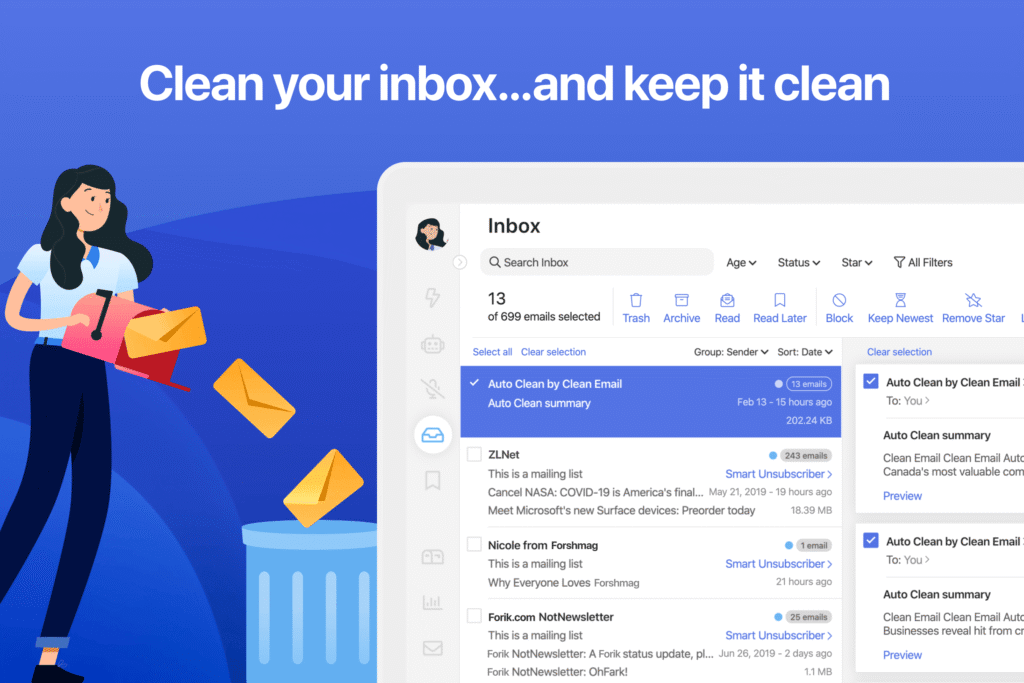
The workflow is simple. You connect your mailbox, Clean Email scans email headers and metadata, then it groups similar messages into useful views. From there, you can delete, archive, move, label, unsubscribe, block, screen, or automate actions across many emails at once.
Getting Started is Easy
After you sign in, Clean Email connects to your mailbox using secure account access methods such as OAuth where supported. You do not need to change your email address, migrate your inbox, or stop using your existing email app.
This is important because Clean Email works as a companion tool. You can keep using Gmail, Outlook, Apple Mail, or another email client while using Clean Email for deeper cleanup and automation.
Smart Folders and Cleaning Suggestions
Clean Email organizes emails into Smart Folders and Cleaning Suggestions. These are grouped views that make it easier to review messages by category, sender, age, size, or email type.
- Old emails that are likely safe to archive or delete
- Emails from social networks or shopping sites
- Large emails that may be using storage space
- Newsletters and mailing lists that you rarely open
- Messages from specific senders or domains
Instead of searching manually and selecting messages one by one, you can take action on entire groups. This is where Clean Email feels much faster than native Gmail or Outlook filters for large cleanup jobs.
Quick Clean, Auto Clean, and Ongoing Maintenance
Quick Clean is useful when you want to make fast progress. It surfaces groups of emails that are often easy to clean, such as old notifications, newsletters, or messages from low-priority senders.
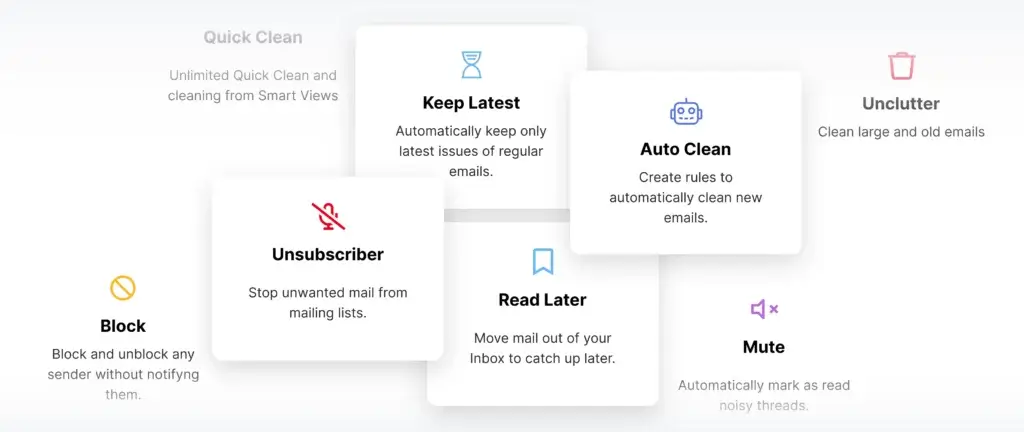
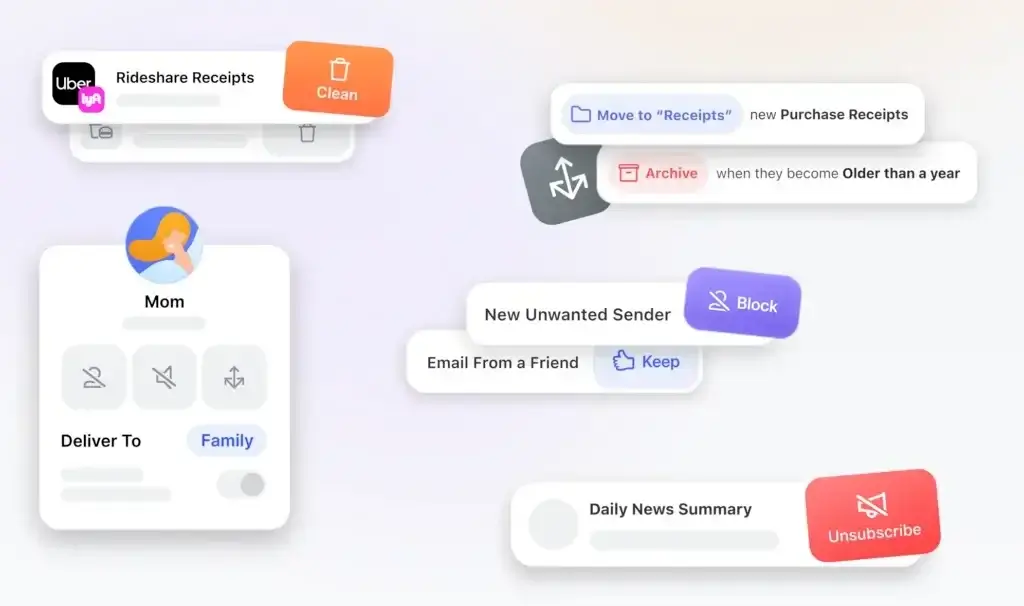
Auto Clean is the feature that makes Clean Email more valuable over time. You can create rules that automatically archive, delete, move, mark as read, or manage incoming messages based on sender, age, folder, or category.
For example, you can automatically archive social media notifications after a few days, keep only the newest message from a sender, or send newsletters to Read Later instead of your main inbox.
Unsubscriber, Screener, and Sender Control
Clean Email includes a bulk Unsubscriber that lets you manage mailing lists from one screen. If a sender does not respect unsubscribe requests, Clean Email can also block or redirect future emails.
Screener is another valuable feature. It holds emails from first-time senders until you decide whether to allow or block them. This is useful if your inbox is filled with cold outreach, automated messages, and unwanted newsletters.
Sender Settings add more granular control. You can mute a sender, block a sender, move future messages to a specific folder, automatically delete older messages, or keep only the newest email from that sender.
Privacy Monitor and Security Controls
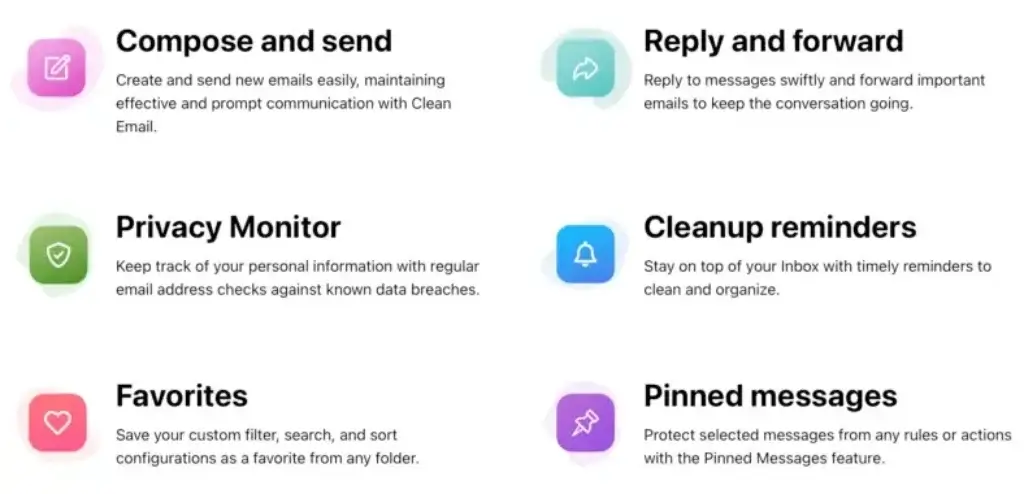
Clean Email also includes Privacy Monitor, which checks whether your email address appears in known data breaches. It is not a replacement for a password manager, multi-factor authentication, or security software, but it is a useful extra layer for users who want better email hygiene.
From my experience, this privacy angle matters. Email cleanup tools require mailbox access, so users need to know how their data is handled before connecting an account.
Available on Web, Mobile, and Mac
Clean Email is available through the web, iOS, Android, and macOS. There is no need to install a separate Windows desktop app because the web version works from a browser.
That said, if you prefer a traditional Windows desktop application, this may still feel like a limitation. For most users, the browser and mobile apps are enough.
Software Specification
Clean Email Core Features
Clean Email’s feature set is designed around one goal: helping you clean your inbox once, then prevent the same clutter from coming back.
Here are the features that matter most.
Smart Folders and Email Bundles
Smart Folders are the foundation of Clean Email. They automatically group emails into practical categories, so you can review large batches of messages without manually building complex searches.
You can use Smart Folders to find old emails, social updates, online shopping messages, subscriptions, finance emails, travel emails, or messages with large attachments.
This is especially helpful if you are trying to reduce email storage, clean years of accumulated messages, or understand where your inbox clutter comes from.
Cleaning Suggestions
Cleaning Suggestions help you decide what to clean next. Instead of leaving you with a blank dashboard, Clean Email identifies groups of messages that may be worth deleting, archiving, or organizing.
This makes the tool easier for beginners. You do not need to know advanced search operators or create filters from scratch. Clean Email gives you a starting point.
Bulk Delete, Archive, Move, and Label
Bulk actions are where Clean Email delivers the fastest value. You can delete, archive, move, label, mark as read, star, or apply other actions to thousands of messages at once.
This is much faster than cleaning emails manually inside Gmail or Outlook, especially if you are dealing with years of newsletters, sales emails, social updates, and expired notifications.
Unsubscriber Tool
The Unsubscriber tool lets you view mailing lists and subscriptions in one place. You can unsubscribe from unwanted senders individually or in bulk.
Clean Email can also help when a sender does not provide a proper unsubscribe link or keeps emailing you after you unsubscribe. In those cases, you can block, mute, or redirect future emails.
Screener for First-Time Senders
Screener helps you control who gets into your inbox. When a new sender contacts you for the first time, Clean Email can hold that message until you decide whether to allow or block the sender.
This is useful for reducing cold outreach and unwanted promotional emails. However, you should check Screener regularly so you do not delay legitimate first-time emails from clients, vendors, or login systems.
Auto Clean Rules
Auto Clean lets you create rules that run automatically in the background. You can use it to archive old emails, move newsletters, delete recurring promotions, or keep specific folders from getting overloaded.
My recommendation is to start with low-risk rules. For example, archive social notifications after seven days before creating more aggressive delete rules.
Sender Settings and Keep Newest
Sender Settings give you control at the sender level. You can decide what should happen to future emails from a specific person, company, newsletter, or domain.
One of the most useful options is Keep Newest. This allows you to keep only the latest email from a sender while automatically removing older messages. It is ideal for delivery updates, daily newsletters, promotions, and status alerts.
Read Later, Pause, and Mute
Read Later is useful when you want to save newsletters or long-form emails without letting them distract you in your main inbox. Pause can temporarily stop selected messages from appearing, while Mute helps reduce noise from senders you do not want to fully block.
These features are practical if you do not want every cleanup action to be permanent. Not every email should be deleted. Some should simply be moved out of your way.
Privacy Monitor
Privacy Monitor checks whether your email address has appeared in known breaches. If it finds an issue, you can take action by changing passwords, enabling two-factor authentication, or reviewing account security.
This feature does not make Clean Email a full cybersecurity platform, but it adds useful context for users who care about privacy and account protection.
Send, Reply, and Forward
Clean Email now includes basic send, reply, and forward functionality. This makes the app more practical when you find a message that requires action during cleanup.
Still, I would not position Clean Email as a full email client. It is better described as an inbox cleaner and automation layer with some lightweight email handling features.
Pros and Cons
Clean Email Advantages and Disadvantages
Clean Email is a strong product, but it is not perfect for every user. Its biggest advantage is the combination of bulk cleanup and automation. Its biggest limitation is that it is not a complete email workspace.
Positive
✅ Fast setup and easy onboarding
✅ Excellent bulk email cleanup
✅ Useful Smart Folders and Cleaning Suggestions
✅ Strong Auto Clean automation
✅ Bulk unsubscribe and sender control
✅ Privacy-conscious business model
Negative
❌ Not a full email client replacement
❌ Auto Clean needs careful setup
❌ Initial sync can take time on large inboxes
❌ Windows users rely on the web app
❌ Multi-account pricing may not suit everyone
❌ Enterprise email restrictions may require admin approval
Pros
- Fast setup: You can connect a mailbox quickly and start cleaning without complex configuration.
- Excellent bulk cleanup: Clean Email is especially useful when you need to process thousands of old messages.
- Helpful inbox grouping: Smart Folders and Cleaning Suggestions make cleanup less overwhelming.
- Strong automation: Auto Clean and Sender Settings help stop clutter from coming back.
- Better newsletter control: Unsubscriber, Pause, Read Later, Block, and Mute give you more options than a basic unsubscribe link.
- Privacy-first positioning: The platform is subscription-based and does not rely on advertising or selling user data.
Cons
- Not a full email client: Clean Email is mainly for cleanup and organization, not daily email communication.
- Automation requires judgment: Aggressive delete rules can cause problems if you create them too quickly.
- Large inboxes may take longer to scan: The first cleanup can be slower if you have tens of thousands of emails.
- No native Windows desktop app: Windows users should expect to use the browser version.
- Multi-account users should compare plans: The annual plans are strong value, but the right plan depends on how many inboxes you manage.
- Some business accounts may have restrictions: Company-managed Microsoft 365 or Exchange environments may require admin permission.
Overall, Clean Email is best for users who want control, automation, and better inbox hygiene. It is less ideal if you need a collaborative team inbox, shared help desk, or advanced enterprise email governance.
User Experience
Clean Email User Interface and Experience
Clean Email feels approachable because it does not force you to think like an email administrator. The interface is built around practical cleanup actions, not complex technical settings.
When you first connect your mailbox, the dashboard guides you toward grouped emails, cleanup suggestions, unsubscribe options, and automation opportunities. This makes it easier to make progress even if your inbox has been neglected for years.
What You Notice First
The dashboard is clean and focused. You are not overwhelmed with too many menus, and the most important actions are easy to find.
- Smart Folders are grouped clearly
- Bulk actions are visible and easy to apply
- Unsubscriber is simple to understand
- Auto Clean rules are available when you are ready to automate
- Mobile apps make inbox cleanup easier away from your desk
Learning Curve
Basic cleanup is easy. You can start by reviewing old emails, newsletters, and large messages. The learning curve appears when you start building automation rules.
That is not necessarily a weakness. In my opinion, any tool that can automatically archive, delete, or move messages should require some careful setup. The better approach is to start slowly, review the results, then expand your rules over time.
User Feedback Patterns
Across user review platforms and app listings, the most common positive themes are time saved, easier bulk cleanup, helpful unsubscribe tools, and reduced inbox stress.
The most common complaints are around pricing, initial sync time, free plan limitations, and the need to understand Auto Clean before relying on it heavily.
That is a realistic pattern. Clean Email is most valuable when you actively use its cleanup and automation features. If you only need to unsubscribe from one or two newsletters, it may feel more powerful than necessary.
Pricing and Packages
How Much Does Clean Email Cost?
Clean Email offers a limited free account and paid plans based on the number of email accounts you want to manage.
The free account lets you clean up to 1,000 emails. Clean Email also provides temporary access to premium features, including a limited number of unsubscribe actions, Screener, and Auto Clean rules, so you can test the product before subscribing.
Here is how Clean Email pricing breaks down in 2026.
Clean Email Pricing Overview
- Free account: Clean up to 1,000 emails
- Premium trial: Test premium features without committing upfront
- Paid plans: Based on 1, 5, or 10 email accounts
- Billing: Monthly or yearly, with stronger savings on annual plans
| Plan | Monthly Price | Yearly Price | Best For |
| 1 Account | $9.99/month | $29.99/year | Individual users managing one inbox |
| 5 Accounts | $19.99/month | $49.99/year | Families, freelancers, and users with several inboxes |
| 10 Accounts | $29.99/month | $99.99/year | Power users managing many personal or business accounts |
What Do Paid Plans Include?
Clean Email’s paid plans include unlimited email cleaning and access to all core features. That includes Smart Folders, Cleaning Suggestions, Unsubscriber, Screener, Auto Clean, Sender Settings, Privacy Monitor, mobile apps, and ongoing product updates.
Is Clean Email Worth the Price?
Clean Email is worth the price if you regularly deal with inbox overload, storage issues, newsletter clutter, or multiple email accounts. The annual plan for one account is especially strong value compared with paying monthly.
However, if you only need to unsubscribe from a few newsletters or clean your inbox once a year, a free or built-in email tool may be enough.
My recommendation: start with the free cleanup limit, test the automation features, then choose an annual plan only if you can see yourself using Auto Clean and Unsubscriber regularly.
Privacy and Security
Is Clean Email Safe?
Clean Email is safer than many free email cleanup tools because its business model is based on subscriptions rather than ads or data resale.
According to Clean Email, the platform does not sell, share, give away, or anonymize your email data. It also states that it does not download full email bodies or attachments. Instead, it analyzes email headers and metadata such as sender, recipient, subject line, date, size, and similar details.
This matters because email cleanup tools need mailbox access to work. The less content they process, the better from a privacy perspective.
What Data Does Clean Email Use?
Clean Email primarily uses metadata and email headers to organize your mailbox and apply actions. It does not need to read full email content to group messages, identify senders, or apply cleanup actions.
Can You Revoke Access?
For Gmail and other OAuth-supported providers, access can be revoked from your account settings. This gives you control if you stop using the service.
Who Should Be More Careful?
If you work in a highly regulated field, such as healthcare, legal, finance, or government, you should check your company policy before connecting any third-party inbox tool.
For most individual users, freelancers, and professionals, Clean Email’s privacy approach is one of its stronger advantages.
Who Should Use Clean Email?
Is Clean Email for You?
Clean Email is not for everyone. It is best for users who feel that their inbox has become a productivity problem rather than a communication tool.
Clean Email is Best For
Busy professionals: If your inbox receives client updates, software notifications, newsletters, and internal messages every day, Clean Email helps you reduce noise and keep important messages easier to find.
Freelancers and solo business owners: If you manage multiple inboxes across clients, tools, and personal accounts, Clean Email can save time by grouping and automating cleanup tasks.
Inbox Zero users: If you want a clean inbox but do not want to manually sort messages every day, Auto Clean and Sender Settings make the process more sustainable.
Privacy-conscious users: If you want an inbox cleanup tool that avoids advertising-based data monetization, Clean Email is a stronger option than many free unsubscribe tools.
Users with large email backlogs: If you have thousands of unread messages, Clean Email is more practical than manually searching and deleting old emails.
Clean Email Might Not Be Right For You If
You need a full email client: Clean Email can handle basic send, reply, and forward actions, but it is not designed to replace Gmail, Outlook, Apple Mail, or Superhuman.
You need team collaboration: Clean Email is not a shared inbox, help desk, or team email management platform.
You use a restricted enterprise mailbox: Some company-managed accounts may block third-party access or require admin approval.
You only need occasional cleanup: If you clean your inbox once a year and rarely subscribe to newsletters, the paid plan may be more than you need.
Clean Email vs Alternatives
Clean Email Alternatives and Competitors
Clean Email is one of the better inbox cleanup tools, but the right alternative depends on your main problem. Some tools focus on AI filtering, while others focus on newsletter cleanup, sender grouping, or full email client experiences.
Clean Email vs SaneBox
Clean Email and SaneBox both help reduce inbox overload, but they solve the problem differently.
Clean Email is better if you want visual bulk cleanup, unsubscribe tools, sender-level controls, and rule-based automation. SaneBox is better if you want AI-based background filtering that learns which emails are important over time.
| Feature Type | Clean Email | SaneBox |
| Core Function | Bulk cleanup, unsubscribe, and automation | AI inbox filtering and prioritization |
| Best For | Users who want control over cleanup actions | Users who want automatic inbox sorting |
| Unsubscribe Tools | Strong bulk unsubscribe workflow | Less central to the product |
| Automation | Auto Clean rules and Sender Settings | AI learning and smart folders |
| Privacy Positioning | Strong privacy-first messaging | Privacy-conscious, but less cleanup-focused |
| Mobile App | iOS and Android apps available | Works mostly through your existing email client |
| Best Choice | Better for cleanup and unsubscribe control | Better for automated prioritization |
👉🏼 Read the FULL SaneBox Review here
Clean Email vs Mailstrom
Mailstrom is another strong option for bulk email cleanup. It is useful if you want to sort emails by sender, subject, time, or size and then take action in batches.
Clean Email is usually the better choice if you want broader automation, privacy features, mobile apps, Screener, and ongoing rules. Mailstrom can still be useful for users who prefer manual, sender-based cleanup.
Clean Email vs Unroll.Me
Unroll.Me is known for newsletter unsubscribe and rollup features. It is simple, but it is not as complete as Clean Email for full inbox cleanup.
If your only problem is newsletters, Unroll.Me may be enough. If you also want Auto Clean, sender rules, breach monitoring, Smart Folders, and bulk cleanup, Clean Email is the more complete option.
Clean Email vs Cleanfox
Cleanfox focuses heavily on newsletter cleanup and reducing email clutter. It can be useful for a quick cleanup, but it does not offer the same level of ongoing automation and sender management as Clean Email.
Clean Email is better for users who want a long-term inbox organization system, not just a one-time newsletter cleanup tool.
Clean Email vs Gmail and Outlook Built-In Tools
Gmail and Outlook already include search filters, labels, folders, rules, archive, and unsubscribe features. For light cleanup, those built-in tools may be enough.
Clean Email becomes more useful when you want a dedicated cleanup dashboard, grouped recommendations, bulk unsubscribe, sender-level controls, and automation that is easier to manage across different providers.
| Use Case | Clean Email | Gmail or Outlook Built-In Tools |
| Bulk cleanup | Fast, visual, and grouped by Smart Folders | Possible, but more manual |
| Newsletter unsubscribe | Bulk unsubscribe and sender blocking | Usually handled one sender at a time |
| Automation | Auto Clean and Sender Settings | Rules and filters, but more setup required |
| Multi-provider support | Works across many email providers | Mostly limited to each provider ecosystem |
| Cost | Paid for full value | Included with your email account |
My recommendation: use Clean Email if your inbox is already overloaded or you want recurring automation. Use built-in Gmail or Outlook tools if your inbox is manageable and you only need occasional cleanup.
Setup Guide
Getting Started With Clean Email
Setting up Clean Email is straightforward. You do not need technical knowledge, and you do not need to migrate your email account.
Step-by-Step Setup Guide
- Visit Clean Email and choose the free trial or sign-up option.
- Connect your email provider, such as Gmail, Outlook, Yahoo, iCloud, or another supported IMAP mailbox.
- Authorize access using OAuth or the supported connection method for your provider.
- Let Clean Email scan your inbox, which may take longer if you have a large mailbox.
- Review Smart Folders and Cleaning Suggestions before deleting anything.
- Run your first cleanup by archiving, deleting, labeling, or moving low-risk email groups.
- Create Auto Clean rules only after you understand which senders and message types you want to automate.
Want to use Clean Email on mobile? You can download it from the App Store or Google Play.
Best Practices for Better Results
Start with archiving before deleting. If you are unsure whether you need a message, archive it first. You can always delete more aggressively later.
Create rules gradually. Start with simple rules for newsletters, social notifications, and old promotional emails.
Review Screener often. Screener is powerful, but you should check it regularly so important first-time senders are not delayed.
Use Keep Newest for recurring senders. This is ideal for daily newsletters, delivery updates, sale alerts, and automated reports.
Conclusion
Is Clean Email the Right Fit for Your Business?
Clean Email is a strong choice if your inbox has become too crowded, distracting, or difficult to maintain manually.
It is especially useful because it does not only clean old emails. It helps you build a repeatable system for keeping your inbox organized through Smart Folders, Unsubscriber, Auto Clean, Sender Settings, and Screener.
Recommended If
- You want to bulk delete or archive thousands of emails
- You subscribe to many newsletters or promotional lists
- You want to automate recurring inbox cleanup
- You manage multiple personal or professional inboxes
- You care about privacy and want a paid tool without an ad-based model
Not Ideal If
- You want a complete email client replacement
- You need shared inbox or help desk functionality
- Your company blocks third-party mailbox access
- You only need very occasional email cleanup
My opinion: Clean Email is worth it for users who want to reduce inbox clutter and keep it from returning. It is not the most advanced AI email assistant, and it is not an enterprise email platform, but for practical inbox cleanup and automation, it delivers very strong value.
If you want to compare it with more tools, read our full guide to the best email management tools.
Frequently Asked Questions
Have More Questions?
What is Clean Email?
Clean Email is an inbox cleanup and email management tool that helps you bulk delete emails, unsubscribe from unwanted senders, organize messages into Smart Folders, and automate recurring cleanup tasks.
Is Clean Email safe?
Yes, Clean Email is designed with privacy in mind. It says it does not sell user data, does not download full email bodies or attachments, and mainly uses email headers and metadata to organize your mailbox.
Does Clean Email read my emails?
Clean Email states that it does not download full email bodies or attachments. It analyzes email headers and metadata such as sender, recipient, subject line, date, and message size to help organize and clean your inbox.
Is Clean Email free?
Clean Email offers a limited free account that lets you clean up to 1,000 emails. Premium features and unlimited cleaning require a paid subscription after the free limits or trial access are used.
How much does Clean Email cost?
Clean Email pricing starts at $9.99 per month for one account, with yearly pricing from $29.99 per year. It also offers 5-account and 10-account plans for users managing multiple inboxes.
Does Clean Email work with Gmail and Outlook?
Yes, Clean Email works with Gmail, Google Workspace, Outlook, Office 365, Yahoo, iCloud, AOL, Fastmail, GMX, and other supported IMAP accounts.
What is Clean Email Screener?
Screener is a Clean Email feature that holds messages from first-time senders until you approve or block them. It helps reduce unwanted cold outreach, newsletters, and unknown sender clutter.
Can Clean Email automatically delete emails?
Yes, Clean Email can automatically delete, archive, move, or label emails using Auto Clean rules. You control which rules are created, so it is best to start with low-risk automation first.
How does Clean Email compare with SaneBox?
Clean Email is better for visual bulk cleanup, unsubscribe control, and rule-based automation. SaneBox is better for AI-based inbox filtering that learns which emails should be prioritized over time.
Is Clean Email worth it?
Clean Email is worth it if you regularly deal with inbox overload, newsletters, storage issues, or multiple email accounts. It may not be necessary if you only need occasional cleanup or basic unsubscribe features.