Managing email should not feel like a second job. Yet for many professionals, the inbox becomes a constant source of distraction, missed follow-ups, buried client messages, and low-value notifications.
SaneBox is built for that problem. It works as an AI-powered email management layer that sits inside your existing inbox, filters less important messages, and helps you focus on the emails that actually need your attention.
Unlike a traditional email app, SaneBox does not ask you to change your email client. You can keep using Gmail, Outlook, Apple Mail, Yahoo Mail, Fastmail, iCloud, or another supported inbox while SaneBox organizes the background noise for you.
In this SaneBox review, you’ll learn how it works, which features matter most, how pricing is structured, where it performs well, where it falls short, and whether it is the right email management tool for your workflow in 2026.
Quick Overview
What Is SaneBox?
Before you go deeper into the features, here is the quick version. SaneBox is best for professionals who want a cleaner inbox without switching email clients, building manual filters, or spending time sorting every message by hand.
| Category | SaneBox Details |
| Best For | Professionals, founders, freelancers, consultants, and heavy email users |
| Main Use Case | Automatic inbox filtering, email prioritization, reminders, snoozing, and distraction reduction |
| Works With | Gmail, Microsoft 365, Outlook, iCloud, Yahoo Mail, Fastmail, IMAP, Exchange, and ActiveSync |
| Free Trial | 14-day free trial |
| Free Plan | No forever-free plan |
| Main Strength | Works inside your existing inbox with minimal setup |
| Main Limitation | Not a full email client and not the best tool for bulk historical inbox cleanup |
How SaneBox Works
SaneBox is an AI email management service that helps you organize your inbox automatically. It studies your email behavior and separates important emails from messages that can wait, such as newsletters, low-priority updates, promotional emails, and routine notifications.
The key difference is that SaneBox does not replace Gmail, Outlook, Apple Mail, or your current email client. Instead, it creates smart folders inside your existing email account and moves lower-priority messages out of your main inbox.
That makes the tool especially useful if you like your current email setup but dislike the amount of time you spend managing it.
Once you connect your email account, SaneBox reviews basic email signals such as sender, subject line, date, and interaction patterns. It then uses those signals to decide which emails should stay in your inbox and which should move into smart folders.
For example, emails that look less urgent may go to @SaneLater, newsletters may go to @SaneNews, and unwanted senders can be moved to @SaneBlackHole.
You can train SaneBox by dragging emails into the right folders. If SaneBox moves an email incorrectly, you can drag it back to your inbox, and the system learns from that correction.
What Makes SaneBox Different?
- It works with your current inbox: You do not need to switch email clients.
- It learns from behavior: SaneBox adapts as you train folders over time.
- It reduces inbox noise: Less important emails are moved away from your primary inbox.
- It supports follow-up workflows: Reminders help you avoid missed replies.
- It is built around email focus: The tool is designed to reduce distractions, not add another app to manage.
For busy professionals, that combination is valuable. Instead of creating dozens of manual Gmail filters or Outlook rules, you can use SaneBox as a flexible inbox assistant that improves with use.
My recommendation: SaneBox is a strong choice if you receive a high volume of email and want an automated system that separates important messages from routine noise. It is less ideal if you mainly want a free email cleanup tool or a brand-new email app with a redesigned interface.
Key Features
Email Management Tool Overview
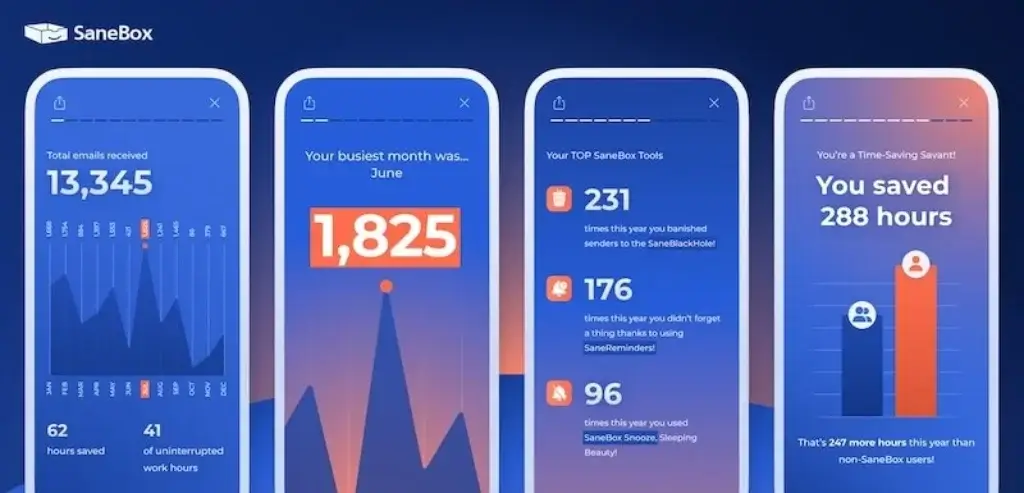
SaneBox includes several features that work together to make your inbox easier to manage. Some are focused on filtering, others on follow-up reminders, and others on reducing interruptions during deep work.
Smart Filtering with @SaneLater
@SaneLater is the core SaneBox feature. It moves non-urgent emails out of your inbox and into a separate folder so your main inbox stays focused on important messages.
This is useful when your inbox is full of newsletters, automated updates, project notifications, partner messages, social alerts, and promotional emails. Instead of reading or deleting each one manually, you can review them later in one batch.
The more you train SaneBox, the better this filtering becomes. If an important email is moved to @SaneLater, move it back to your inbox. If a low-priority message stays in your inbox, move it into @SaneLater. SaneBox uses those actions to improve future sorting.
@SaneNews for Newsletters and Subscriptions
@SaneNews is designed for newsletters, marketing emails, blog updates, and subscription-based messages. This is one of the most practical folders if your inbox is crowded with content you may want to read, but not during work hours.
For example, instead of letting newsletters interrupt client work or sales follow-ups, you can check @SaneNews once or twice a week and process everything in one session.
SaneReminders for Follow-Ups
SaneReminders helps you remember emails that need future action. You can use it to remind yourself about a message later or to follow up if someone does not reply.
This is one of the strongest productivity features in SaneBox because email overload is not only about receiving too many messages. It is also about forgetting which emails still need action.
For freelancers, consultants, sales teams, and partnership managers, this can be a major benefit. You can use reminders to track proposals, client approvals, invoice follow-ups, vendor responses, and internal decisions.
SaneNoReplies for Tracking Unanswered Emails
SaneNoReplies helps you see which sent emails have not received a response. This is useful when you send many outbound emails and do not want important conversations to disappear into your sent folder.
Instead of manually checking old threads, you can use SaneBox to surface conversations that still need attention. For anyone managing sales conversations, partnerships, hiring, or client projects, this can reduce missed opportunities.
SaneDoNotDisturb for Focus Time
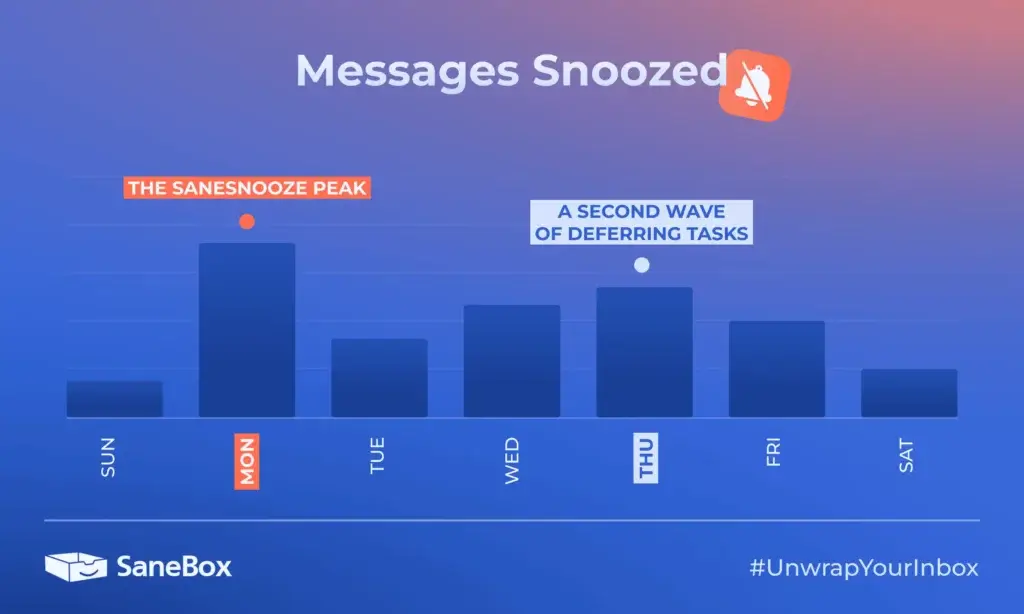
SaneDoNotDisturb helps you pause inbox interruptions when you need uninterrupted work time. Instead of letting new emails constantly pull you back into your inbox, you can temporarily keep incoming messages away from your main view.
This is valuable for deep work, meetings, writing sessions, strategy work, and any task where context switching is expensive. You still receive your emails, but they do not constantly compete for your attention.
SaneDigest for Batch Processing
SaneDigest gives you a summary of emails that SaneBox filtered out of your inbox. This is important because automation is only useful if you still feel in control.
Rather than checking every SaneBox folder manually, you can use the digest to scan less urgent emails, move anything important back to your inbox, delete messages, or train SaneBox more accurately.
SaneAttachments for File Management
SaneAttachments can help you manage email attachments by connecting with cloud storage services. If you regularly receive contracts, invoices, creative files, reports, or large documents, this feature can make your inbox easier to maintain.
For users who collaborate with clients or external partners, attachment management can reduce clutter and make it easier to find files when you need them.
@SaneBlackHole for Unwanted Senders
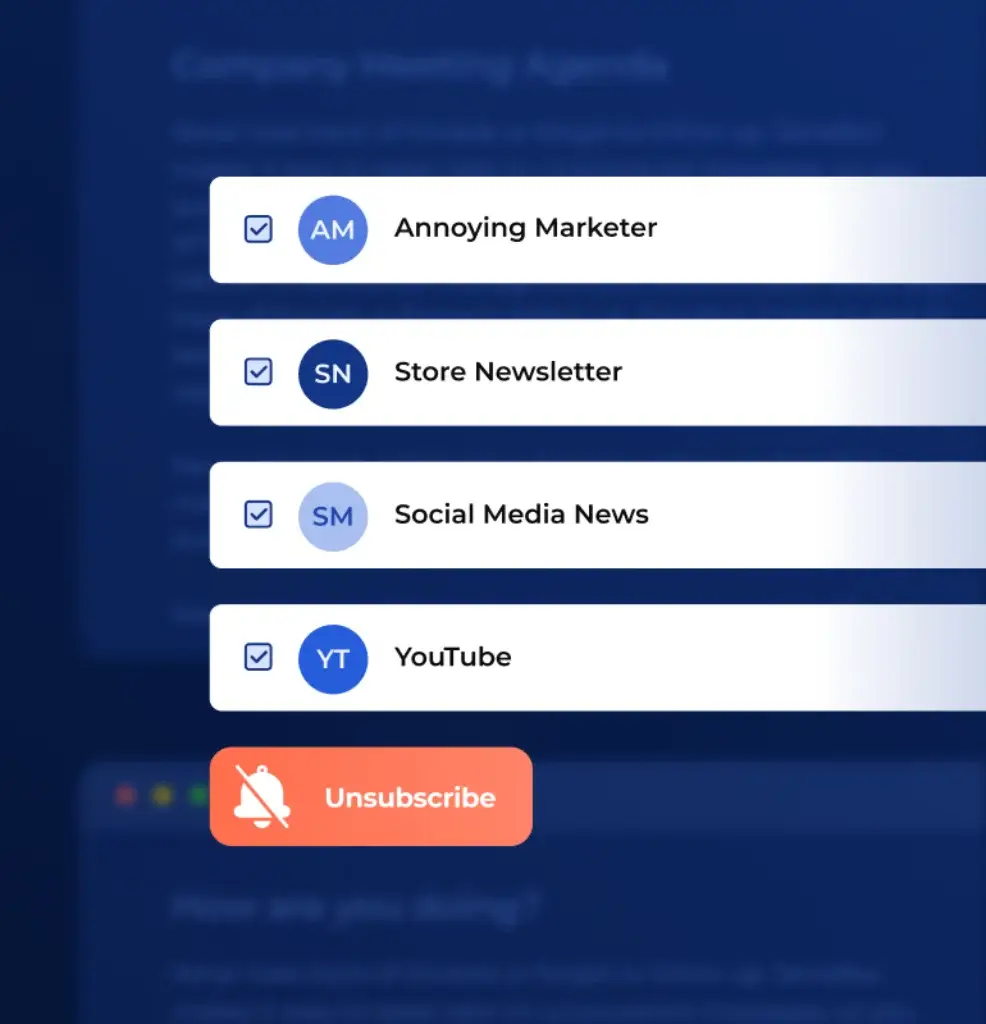
@SaneBlackHole helps you stop seeing emails from senders you no longer want in your inbox. When you move a message into this folder, SaneBox learns that future messages from that sender should stay out of your way.
This is especially helpful for persistent promotional senders, recurring outreach emails, and low-value mailing lists that continue to reach you even after you try to clean up your inbox.
It is best to think of @SaneBlackHole as an inbox-blocking workflow rather than a full replacement for every unsubscribe process. The practical benefit is simple: once you send something there, you should not keep seeing that sender in your primary inbox.
Custom Training Folders
SaneBox also allows you to create custom training folders. This is useful if you want specific types of emails to follow a consistent workflow.
For example, you might create folders for receipts, clients, travel, reports, hiring, or vendor updates. Once you train SaneBox, similar emails can be routed more consistently in the future.
💡 Best practice: Start with the core folders first. Once SaneBox understands your inbox behavior, add custom folders for more specific workflows.
SaneBox Benefits
What Makes It So Effective?
SaneBox works because it targets the real problem behind email overload: too much low-value email reaches the same place as urgent, important communication.
Most inboxes treat every email as equal. A client request, a newsletter, a cold pitch, a software notification, and a social update all appear in the same inbox. SaneBox helps separate those signals so your attention goes to the right place first.
It Saves Time on Inbox Triage
The biggest benefit of SaneBox is time savings. Instead of manually scanning every message, deciding whether it matters, archiving it, deleting it, or creating rules, you let SaneBox handle much of that sorting automatically.
This does not eliminate email work completely, but it reduces the number of decisions you need to make every day.
It Reduces Distractions
Email distraction is not only about volume. It is about interruption.
When low-priority emails constantly appear in your inbox, they pull your attention away from valuable work. SaneBox helps by keeping routine messages in separate folders until you are ready to review them.
It Works Without Changing Your Email Client
Many email productivity tools require you to adopt a new interface. SaneBox takes a different approach. It works inside the email setup you already use.
That makes adoption easier. You do not need to train your team on a new email client, rebuild your workflow, or move away from Gmail, Outlook, or Apple Mail.
It Helps You Follow Up More Reliably
Follow-ups are one of the easiest things to miss when your inbox is crowded. SaneBox gives you tools to remind yourself about future action and track conversations that have not received a reply.
This is especially valuable for revenue-related communication, such as sales conversations, affiliate partnerships, sponsorship requests, client projects, and vendor negotiations.
It Makes Inbox Zero More Realistic
Inbox zero is hard to maintain when every low-priority message lands in the same place. SaneBox makes the idea more practical by keeping your main inbox focused on what actually requires attention.
You may still need to review email regularly, but you are not starting from a chaotic inbox every time.
Pros and Cons
Advantages and Limitations of Using Sanebox
Positive
✅ Works with your current inbox
✅ Strong automatic filtering
✅ Helpful follow-up reminders
✅ No new email client required
✅ Good fit for high-volume email users
Negatives
❌ No forever-free plan
❌ Requires inbox access permissions
❌ Not a full email client
❌ Takes some training at first
❌ Less ideal for bulk historical cleanup
SaneBox is a strong email management tool, but it is not the right fit for every user. Here is a balanced look at where it performs well and where you may feel limitations.
SaneBox Pros
- Easy to adopt: You can keep using your existing email client.
- Strong inbox filtering: SaneBox moves less important messages out of your main inbox.
- Useful reminders: Follow-up tools help prevent missed replies.
- Flexible folders: You can train and customize folders based on your workflow.
- Good for focus: Do Not Disturb and digest features reduce interruption.
SaneBox Cons
- No free plan: SaneBox requires a paid subscription after the trial.
- Permission sensitivity: You need to be comfortable connecting an inbox tool.
- Not a full email app: It organizes email but does not replace Gmail or Outlook.
- Training period: You may need to correct folders at first for best results.
- Not mainly a bulk cleaner: Tools like Clean Email may be better for mass cleanup.
Overall, SaneBox is strongest when used as an ongoing email management assistant. It is less useful if you only want to delete thousands of old emails once and then move on.
User Experience
Setup, Dashboard, and Daily Use
SaneBox has a simple user experience because most of the work happens inside your existing inbox. After setup, you interact mainly with folders, reminders, digest emails, and the web dashboard.
Setup and Onboarding
Getting started is straightforward. You connect your email account, choose the features you want to use, and let SaneBox begin filtering your inbox.
The onboarding experience is designed for users who do not want to configure complex rules. SaneBox creates smart folders, then you train the system through normal inbox actions.
Dashboard and Customization
The SaneBox dashboard gives you control over features, folders, reminders, and connected accounts. It is not meant to be a replacement email interface. Instead, it functions as the control center for how SaneBox behaves behind the scenes.
You can enable or disable folders, manage reminders, configure Do Not Disturb, and adjust how aggressively SaneBox filters your email.
Daily Workflow
In daily use, SaneBox is mostly invisible. Important emails stay in your inbox. Less important emails move into Sane folders. You review the digest or visit folders when you are ready.
This workflow works best if you make folder training part of your routine. When SaneBox gets something wrong, move the email to the correct place. Over time, that feedback improves the experience.
Mobile Experience
Because SaneBox works inside your inbox, its folders appear in your email app across devices. That means you can still benefit from SaneBox when checking email on mobile.
However, users looking for a complete mobile email app may prefer a dedicated email client. SaneBox is better understood as a background email management service, not a full mobile inbox replacement.

Pricing and Plans
How Much Does SaneBox Cost?
SaneBox offers a 14-day free trial and then uses paid plans based on the number of email accounts and available features. It does not offer a permanent free plan.
Because SaneBox pricing can change, you should always confirm the latest price on the official pricing page before subscribing. The most important thing to understand is the plan structure: Snack is designed for lighter individual use, Lunch gives more flexibility for most users, and Dinner is designed for power users who need more accounts and all features.
| Plan | Best For | Email Accounts | Feature Access |
| Snack | Individuals who want essential inbox filtering | 1 email account | Limited feature selection |
| Lunch | Most users who want more inbox control | 2 email accounts | Wider feature access |
| Dinner | Power users managing multiple inboxes | Up to 4 email accounts | All SaneBox features |
Which SaneBox Plan Should You Choose?
Choose Snack if you mainly want core filtering for one email account and do not need the full feature set.
Choose Lunch if you manage more than one inbox or want access to more SaneBox features. This is likely the best fit for many professionals.
Choose Dinner if email is central to your work and you want all features across several accounts.
💡 Pricing tip: Use the 14-day trial to test how much email SaneBox removes from your main inbox before choosing a long-term plan.
Security and Privacy
Is SaneBox Safe?
Security is one of the most important factors when reviewing any email management tool. After all, email often contains client details, invoices, private conversations, account notifications, and business documents.
SaneBox positions itself as a privacy-conscious service. It states that it focuses on basic email signals such as sender, subject line, and date, and that it does not store full emails or attachments. It also supports OAuth where available, which means you can grant and revoke access through your email provider.
What Data Does SaneBox Use?
SaneBox needs enough information to decide which messages matter. That generally includes email metadata such as sender, subject line, date, and how you interact with messages.
This allows SaneBox to filter email without acting like a full email client that stores and displays your entire mailbox.
Why Permissions Still Matter
Even with strong privacy practices, SaneBox still requires inbox permissions to work. That means you should review its privacy and security documentation before connecting business-critical accounts.
If your company has strict compliance rules, legal retention policies, or internal restrictions on third-party inbox access, check with your IT or security team first.
Who Should Be Extra Careful?
You may want extra review before using SaneBox if you handle highly sensitive legal, medical, financial, or regulated information. The tool may still be suitable, but the decision should match your organization’s security policy.
For most independent professionals, small business owners, and standard business users, SaneBox offers a more privacy-focused approach than many tools that require you to fully migrate into a new email platform.
Best Use Cases
Who Should Use SaneBox?
SaneBox is best for people who receive enough email that manual sorting becomes a real productivity cost. It is not only for inbox zero enthusiasts. It is also useful for anyone who needs email to become less reactive and more structured.
Founders and Executives
Founders and executives often receive a mix of team updates, investor emails, vendor messages, newsletters, automated reports, and cold outreach. SaneBox helps keep the primary inbox focused on messages that deserve fast attention.
Freelancers and Consultants
Freelancers need to avoid missing client messages, proposals, invoices, and project approvals. SaneBox can help by filtering noise while reminders keep follow-ups visible.
Sales and Partnership Teams
If your work depends on outbound conversations, SaneReminders and SaneNoReplies are useful. They help you track who has not replied and when you should follow up.
Remote Workers
Remote workers often rely heavily on email for async updates. SaneBox can reduce interruption by moving lower-priority messages away from the main inbox until it is time to review them.
Newsletter-Heavy Inboxes
If you subscribe to many newsletters, reports, product updates, and industry digests, SaneBox can separate useful reading material from urgent work communication.
Who Should Avoid SaneBox?
SaneBox is useful, but it is not the best option for every email problem.
- You want a free tool: SaneBox is paid after the trial.
- You need mass deletion: A bulk cleanup tool may be better for old inbox cleanup.
- You want a new email interface: SaneBox is not a full email client.
- You need advanced team inbox features: Help desk or shared inbox software may be more suitable.
- You cannot connect third-party tools: Some companies restrict inbox access permissions.
If your main goal is to redesign your email experience, tools like Superhuman, Spark Mail, or Shortwave may be more relevant. If your main goal is to clean thousands of old emails, Clean Email or Mailstrom may be better. If your goal is ongoing automatic filtering, SaneBox is a stronger fit.
SaneBox vs Gmail Filters and Outlook Rules
Many users wonder whether they really need SaneBox when Gmail and Outlook already include filters, labels, folders, and rules.
The answer depends on how much manual setup you are willing to manage.
| Category | SaneBox | Gmail Filters / Outlook Rules |
| Setup | Automatic setup with training over time | Manual rule creation required |
| Learning | Adapts based on your behavior | Rules stay static unless you edit them |
| Best For | Ongoing inbox prioritization | Simple routing based on clear conditions |
| Maintenance | Lower maintenance after training | Rules can become outdated |
| Cost | Paid subscription | Included with email provider |
Gmail filters and Outlook rules are excellent for predictable workflows, such as sending invoices from one vendor into a specific folder. SaneBox is better when you want a more adaptive system that learns from how you treat email over time.
Alternative
SaneBox vs Competitors
SaneBox is not the only email management tool worth considering. The best alternative depends on whether you want ongoing filtering, bulk cleanup, a new email client, or more AI writing features.
| Tool | Best For | How It Compares to SaneBox |
| SaneBox | Automatic inbox filtering and email prioritization | Best if you want to keep your current email client |
| Clean Email | Bulk cleanup, unsubscribe workflows, and inbox organization | Better for cleaning large existing inboxes |
| Mailstrom | Batch processing and mass email cleanup | More manual and cleanup-focused |
| Mailbutler | Email tracking, signatures, notes, and productivity add-ons | Better for email productivity features beyond filtering |
| Canary Mail | Secure email client with AI features | Better if you want to replace your email app |
| Spike | Conversational email and team communication | Better for users who want email to feel more like chat |
If your main issue is inbox noise, SaneBox is one of the better options. If your issue is an old inbox with thousands of emails that need to be deleted or archived, a bulk cleanup tool may be a better first step.
Setup Guide
Getting Started with SaneBox
One of SaneBox’s biggest advantages is that setup is relatively simple. You do not need to migrate email accounts, learn a new inbox, or install a complicated desktop tool.
Quick Setup Guide
- Go to SaneBox
- Start the free trial.
- Connect your email provider.
- Choose the SaneBox features you want to test.
- Review the smart folders created inside your inbox.
- Train SaneBox by moving emails into the right folders.
- Check your SaneDigest regularly during the first week.
Tips to Get Better Results
- Train early: Correct folder mistakes during the first few days.
- Use the digest: Review filtered messages in batches instead of checking constantly.
- Start simple: Use core folders before adding too many custom folders.
- Set reminders: Use follow-up reminders for emails tied to revenue or deadlines.
- Review permissions: Make sure SaneBox fits your privacy and compliance needs.
With the right setup, SaneBox becomes a low-maintenance email assistant. It will not eliminate email completely, but it can make your inbox feel much more manageable.
Conclusion
Final Thoughts – Should You Try SaneBox?
SaneBox is worth trying if your inbox is busy enough to affect your focus, response time, or productivity. Its biggest advantage is that it improves your current email workflow instead of forcing you into a new one.
The tool is especially strong for professionals who want automatic email filtering, fewer distractions, smarter follow-ups, and a cleaner main inbox. It is not the cheapest option, and it is not a full email client, but it solves a specific problem very well.
If you already use Gmail filters or Outlook rules and feel they are enough, SaneBox may be unnecessary. But if your inbox still feels noisy despite your best manual setup, SaneBox can give you a more adaptive system that learns from your behavior.
Our Recommendation
Try SaneBox if you receive a high volume of daily emails and want to spend less time sorting, archiving, and remembering follow-ups. The 14-day trial is enough time to see whether it meaningfully reduces your inbox noise.
For most professionals, the value comes from the combination of automatic filtering, follow-up reminders, digest-based review, and no need to switch email clients.
🔗 Want to explore even more ways to improve email productivity? Check out our full Best Email Tools Guide for alternatives and complementary tools.
Have more questions?
Frequently Asked Questions
Is SaneBox worth it?
SaneBox is worth it if you receive a high volume of email and spend too much time sorting, archiving, or following up manually. It is most valuable for professionals who want automated inbox filtering without switching email clients.
Is SaneBox safe to use?
SaneBox is designed with privacy and security in mind, but it still requires inbox permissions to work. Review its security documentation before connecting sensitive business, legal, medical, or financial email accounts.
Can SaneBox read my emails?
SaneBox says it focuses on basic email information such as sender, subject line, and date rather than storing full emails or attachments. This allows it to filter messages while reducing the amount of email data it needs to process.
Does SaneBox work with Gmail?
Yes. SaneBox works with Gmail and Google Workspace. It creates smart folders inside your existing inbox, so you can keep using Gmail while SaneBox filters lower-priority messages.
Does SaneBox work with Outlook and Microsoft 365?
Yes. SaneBox works with Microsoft 365, Outlook, Exchange, and other supported email setups. It is designed to work wherever you already check email.
What is @SaneLater?
@SaneLater is the main SaneBox folder for non-urgent emails. It moves lower-priority messages out of your inbox so you can review them later without losing access to them.
What is @SaneBlackHole?
@SaneBlackHole helps you stop seeing emails from unwanted senders. When you move a message there, SaneBox learns to keep future messages from that sender away from your main inbox.
Does SaneBox delete emails?
SaneBox mainly moves emails into smart folders rather than deleting them automatically. You can review, restore, or train messages if something lands in the wrong place.
Does SaneBox have a free plan?
SaneBox does not offer a forever-free plan. It offers a 14-day free trial, then users choose a paid plan based on the number of email accounts and features they need.
What is the best SaneBox alternative?
The best SaneBox alternative depends on your goal. Clean Email is better for bulk cleanup, Mailstrom is useful for batch processing, Mailbutler adds productivity features, and Canary Mail or Spike may fit users who want a new email client.