Introduction
If you’re looking for a professional way to record, edit, and publish podcasts or video interviews without building your own studio, Riverside is one of the most robust options on the market. The platform lets you capture high‑resolution audio and video directly from guests’ devices, then uses AI‑powered tools to speed up editing and repurposing. This review breaks down Riverside’s feature set, pricing, pros and cons, and how it compares to competitors so you can decide if it’s the right choice for your content‑creation workflow.
What Is Riverside?
Riverside is a browser‑based recording and live‑streaming platform designed for podcasters, YouTubers, marketers, educators, and businesses. Launched in 2019 by the Keyson brothers, the platform’s focus is on local recording: audio and video are captured on each participant’s computer or mobile device, preserving high quality regardless of internet stability. Separate tracks for each participant give editors flexibility in post‑production, while cloud uploads ensure files are backed up as you record.
Besides recording, Riverside includes a web‑based video editor, AI‑assisted transcription, automatic clip generation, brand templates, live streaming, and a built‑in podcast hosting service. These elements combine to create an end‑to‑end workflow from recording to publication.

Recording and Production
Key Features for Recording and Production
Local‑First Multi‑Track Recording
Riverside records each participant’s audio and video locally, then uploads those files to the cloud in real time. This local‑first architecture ensures high‑resolution exports even if your live call stutters. You’ll receive separate audio and video files for each speaker, making it easy to remove background noise or adjust levels in post‑production.
- High‑quality files: up to 4K video and uncompressed 48 kHz WAV audio, with optional 1080p and 720p settings for smaller file sizes.
- Progressive upload: files begin uploading as soon as recording starts. If a guest’s connection drops, their local recording continues and finishes uploading when they reconnect.
- Hybrid setups: you can mix remote and in‑person guests by connecting a second camera or audio interface, handy for panel discussions or on‑site interviews.
Mobile and Desktop Apps
While Riverside runs in Chrome or Edge, the company offers native mobile apps for iOS and Android. Guests can join from their phones and still record separate high‑quality tracks. There’s also a dedicated Mac desktop app that supports local screen recording, virtual backgrounds and improved hardware utilization for smoother 4K capture.
Producer Mode and Screen Sharing
When you’re hosting a complex session, you can invite a team member to act as a producer. Producers have full control over the studio without appearing on the recording, allowing them to manage guests, troubleshoot issues, and trigger media without interrupting the flow. Screen sharing is available for demos or presentations and is recorded as a separate track so you can adjust its layout in the editor later.
Live Streaming and Audience Interaction
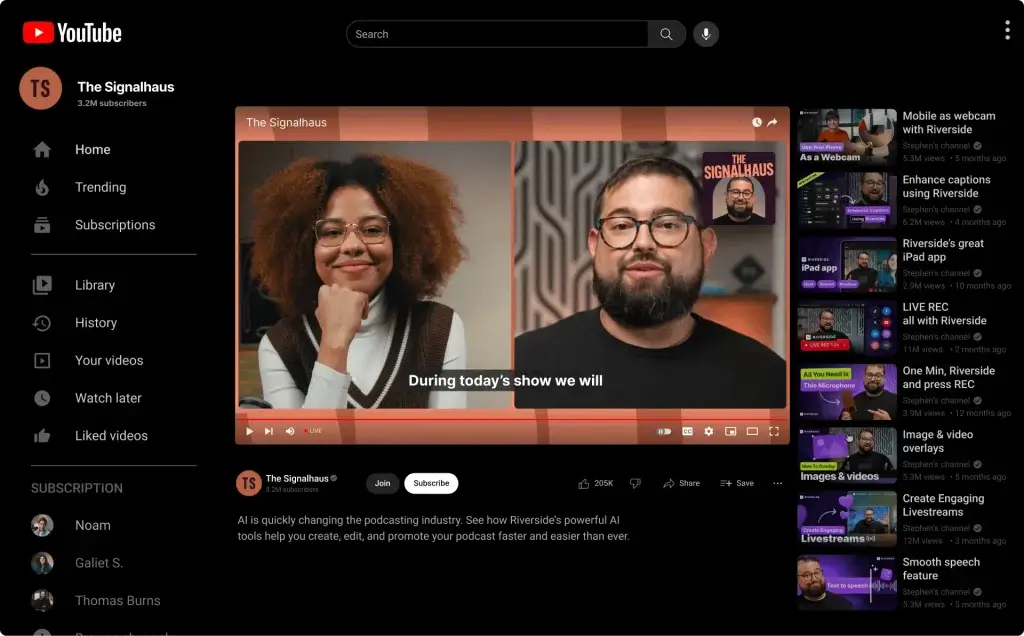
Riverside can live stream your session to multiple destinations simultaneously, including YouTube, LinkedIn, Facebook, Twitter, Twitch, or any platform that accepts custom RTMP. During a live stream, you can display different layouts (grid, split screen, picture‑in‑picture), show lower‑thirds, and consolidate chat messages from multiple platforms into a single interface. There’s also a call‑in feature, letting viewers join the broadcast as guests for Q&A or commentary.
Webinar Capabilities
For B2B marketers and educators, Riverside supports webinars. You can schedule sessions, send invites, set up registration pages, and host up to 10 speakers and 10,000 attendees. Attendees can engage via chat, polls, and Q&A, and you can record separate tracks for each speaker while streaming the event. Afterward, use Riverside’s AI tools to create recap videos, show notes, and highlight clips.

AI‑Powered Editing
AI‑Powered Editing and Repurposing Tools
Text‑Based Editor
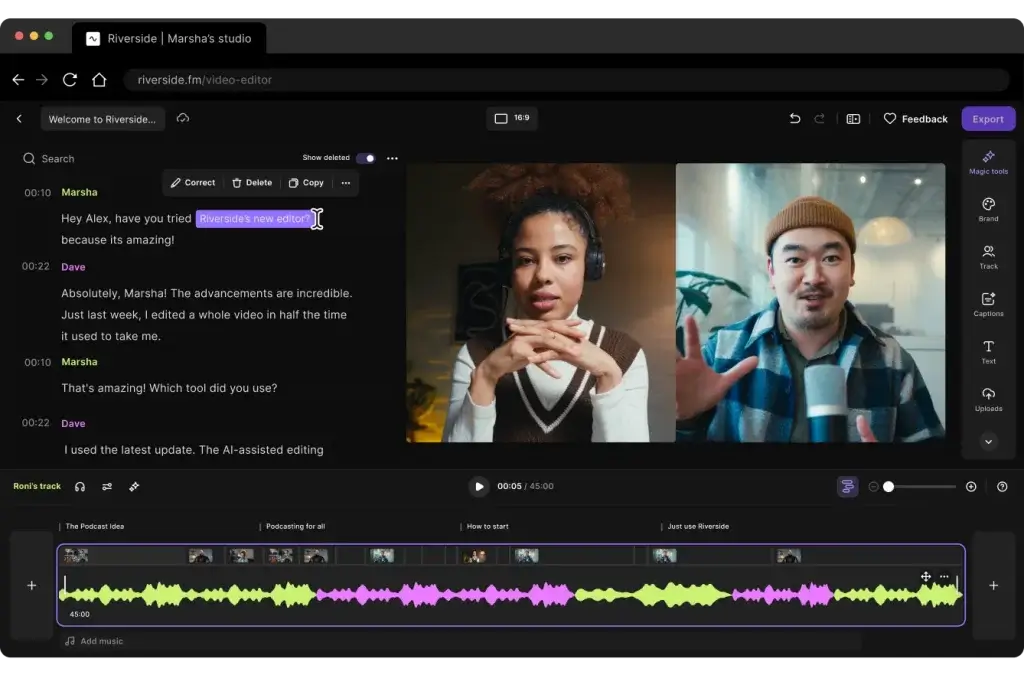
Riverside’s web‑based editor lets you edit video like a document. The platform automatically transcribes your recording and displays the transcript alongside the timeline. Cutting, rearranging or removing sentences in the transcript applies the same edits to the audio and video tracks. Deleted segments are non‑destructive, you can restore them later if needed.
AI Tools Inside the Editor
Riverside bundles several AI assistants within the editor to reduce manual polishing:
- Remove Pauses: automatically detects long silences and shortens or removes them to tighten pacing.
- Remove Filler Words: trims “uhs,” “ums” and similar speech fillers while keeping a backup in case you need to restore natural cadence.
- Find Fluff: flags side conversations and technical chatter so you can cut them quickly.
- Magic Audio: applies noise reduction and audio leveling on a per‑track basis with adjustable intensity.
- Smart Mute: mutes silent participants to minimize mic bleed and cross‑talk.
These tools streamline rough cuts; you should still review the episode before publishing to avoid jarring edits.
Automatic Assets
After you finish a recording, Riverside generates several derivative assets:
- AI Transcription: provides speaker‑labeled transcripts in over 100 languages. You can download the transcript in SRT or VTT format or search the transcript to navigate the recording.
- Show Notes and Summaries: AI produces episode titles, summaries, takeaways, and suggested hooks. Treat these suggestions as drafts, you can refine them for accuracy and tone.
- Magic Clips: Riverside’s AI identifies compelling moments based on keywords and speaker energy, creating social‑ready clips with customizable ratios (vertical, square, widescreen). You can adjust start and end points and add your brand kit.
- Magic Segments: extracts longer standalone sections for republishing, such as a key interview or demonstration. These segments are useful for bonus episodes or as content for social channels.
Captions, Overlays, and Brand Kit
Riverside’s captions feature turns transcripts into on‑screen captions with customizable fonts, sizes, colors, and animations. You can burn captions into your export or download separate SRT/VTT files for platforms like YouTube and LinkedIn. Text overlays allow you to add titles, names or calls‑to‑action anywhere on the screen.
The Brand Kit lets you upload logos, set color palettes, choose caption styles and define intro/outro assets. Once configured, your brand kit can be applied to multiple edits and Magic Clips with one click to ensure consistent branding across social channels.
AI Co‑Creator
Co‑Creator is Riverside’s AI assistant that can generate thumbnails, captions, social posts or summaries on demand. You can prompt it to create a 150‑word blog post, brainstorm episode titles, or produce multiple social captions. While still maturing, Co‑Creator acts as a productivity booster, use it as an initial draft rather than a finished product.
Media Library and Stock Content
Within each studio, you get a Media Library for uploading intros, outros, music, and b‑roll. Riverside also offers a limited stock library of royalty‑free images and videos, along with mood‑tagged music tracks. You can add these assets to your timeline and adjust their volume, fades, and placement. Note that advanced AI‑generated b‑roll or stock assets require additional AI credits.
Additional Tools and Use Cases
Teleprompter
For scripted recordings or structured interviews, Riverside includes a built‑in teleprompter. You can paste your script, control the scrolling speed, adjust font size, and share the script with guests (Business plans). This helps hosts stay on track and maintain eye contact with the camera.
Media Board
The Media Board functions as a soundboard for playing audio or video clips during a recording or live stream. You can upload jingles, intros, sponsor messages, or B‑roll, preview them, and trigger them live. These clips are recorded to separate tracks, simplifying post‑production and ensuring you capture everything.
Async Recording
Busy teams can use async recording (Business tier) to record segments at different times. The host shares a recording link and guidelines; guests record when convenient, and the host receives the completed files. This workflow is helpful for testimonial videos, product pitches, or pre‑recorded webinar sections.
In‑Person and Hybrid Recording
Creators can integrate in‑person guests by connecting additional microphones or cameras. This hybrid recording mode allows you to blend local and remote participants while preserving separate tracks for each source. Use this setup for panel discussions, event coverage or studio interviews with remote call‑ins.
Podcast Hosting and Distribution
Riverside recently introduced a podcast hosting feature. Once your episode is edited, you can publish it directly from Riverside to major directories like Spotify, Apple Podcasts, and YouTube. The hosting plan provides an RSS feed, podcast analytics, and the ability to import existing shows. This eliminates the need for a separate hosting service and streamlines your workflow.
Webinars and Live Events
In addition to standard live streaming, Riverside supports webinars with registration pages, up to 10 speakers, and large audiences. You can run polls, Q&A sessions, and chat, and the platform integrates with CRM tools like HubSpot to capture registration data. After the event, repurpose the recording with Magic Clips and summaries.
Pros and Cons
Advantages and Limitations
Positive
✅ Professional quality recording
✅ End‑to‑end workflow
✅ AI‑powered editing
✅ User‑friendly guest access
Negative
❌ Browser limitations
❌ Learning curve
❌ Resource heavy
❌ AI imperfections
✅ Pros
- Professional quality recording: Local multi‑track capture ensures broadcast‑quality audio and up to 4K video.
- End‑to‑end workflow: You can record, edit, repurpose, live stream, host, and distribute podcasts without switching tools.
- AI‑powered editing: Automated transcription, clip generation, filler‑word removal, and audio enhancement significantly reduce production time.
- User‑friendly guest access: Guests join via a link with no downloads; the platform works on mobile and desktop.
- Brand consistency: The brand kit, captions, and overlay tools make it easy to keep your assets on‑brand.
- Scalable for teams: Pro and Teams plans allow multiple hosts, producers, and shared workspaces.
❌ Cons
- Browser limitations: The best experience requires Chrome or Edge; Safari and Firefox are not fully supported.
- Learning curve: Advanced features like producer mode, media board, and AI editing require some practice.
- Resource heavy: Recording in 4K demands modern hardware and significant local storage; uploads can tax slower networks.
- AI imperfections: Show notes, Magic Clips, and Co‑Creator suggestions often need human refinement before publishing.
- Higher cost: Compared with basic recording tools like Zoom, Riverside’s pricing may feel steep, especially if you exceed hour caps.
Pricing and Plans
How much does Riverside cost?
Summary of Plans
| Plan | Monthly price (annual billing) | Best For | Key Features |
| Free | $0 | Beginners testing Riverside | 2 hours recording, up to 720p video, watermark |
| Standard | $19/month | Solo creators & small teams | Unlimited recording hours, 1080p video, separate audio/video tracks, live streaming, 2 guests |
| Pro | $29/month | Professional podcasters & video creators | Everything in Standard + 4K video, 15 hrs/month transcription, advanced editing, screen sharing & media board |
| Teams | $24/user/month | Small & mid‑size teams | All Pro features + shared workspace, pooled transcription hours, role‑based access |
| Business | Custom | Enterprises & agencies | All Teams features + SSO, SLA, dedicated account manager, API, unlimited hours & studios |
Free plan: Allows you to test the platform with limited hours and watermarked exports. Great for proof‑of‑concept recordings.
Standard plan: Includes unlimited recording hours, HD video and basic live streaming. Ideal for hobby podcasters or individual creators.
Pro plan: Adds 4K recording, Magic Editor features, more transcription hours and access to advanced tools like screen sharing and the media board. This tier strikes the best balance of value and capability for most professionals.
Teams plan: Allows collaborative editing with shared workspaces and pooled transcription hours. If your team produces multiple shows or runs an agency, this plan supports role‑based access control.
Business plan: Offers custom pricing for large organizations that need Single Sign‑On (SSO), service‑level agreements (SLAs), API access, advanced security and dedicated support. It’s appropriate for enterprises, media companies or marketing teams with demanding requirements.
Annual billing saves up to 35% compared with monthly subscriptions. Paid plans remove the Riverside watermark and include unlimited guests (depending on plan). AI‑generated assets such as Magic Clips and stock content may incur additional usage credits.
Best Use Cases
Who Should Use Riverside
Riverside is designed for creators and teams that care deeply about recording quality, production efficiency, and content reuse. If audio or video is a core part of how you communicate, educate, or market, Riverside fits naturally into your workflow.
Podcasters Recording Remote Interviews
Riverside is especially well-suited for podcast hosts who regularly record remote guests. The platform records audio locally on each participant’s device, which means your final episode is not affected by unstable internet connections.
You benefit from separate audio tracks, high sample rates, and automatic transcripts, making editing faster and more precise. If your podcast includes interviews, co-hosted episodes, or panel discussions, Riverside helps you maintain consistent audio quality across every episode.
Video Creators and YouTubers
If you publish long-form video content such as interviews, talk shows, or educational videos, Riverside gives you more control than standard video conferencing tools. You can record up to 4K video, manage individual video tracks, and apply layouts that work well for YouTube and other platforms.
Built-in tools like Magic Clips, captions, and branding presets make it easier to repurpose long recordings into short-form content for social media without switching platforms.
Marketing Teams and Content Marketers
Riverside works well for marketing teams that rely on podcasts, webinars, video testimonials, or expert interviews to drive demand. The AI-generated show notes, summaries, and transcripts help you turn recordings into blog posts, landing page content, and social captions faster.
If you are focused on content distribution and ROI, Riverside’s ability to create multiple assets from a single recording can significantly reduce production time while increasing output.
Coaches, Educators, and Course Creators
For coaches and educators, Riverside supports both live and asynchronous recording formats. You can record lessons, workshops, and interviews in high quality, even when participants are not available at the same time.
Features like the teleprompter, screen sharing, and automatic captions are useful for structured educational content. Riverside is a strong fit if you create online courses, training videos, or gated content where clarity and professionalism matter.
Agencies and Distributed Teams
Agencies producing podcasts, branded video content, or client interviews can benefit from Riverside’s team workflows and business plans. Multiple studios, role-based access, and shared projects make collaboration easier without moving files between tools.
If your team needs reliable recordings, consistent branding, and a repeatable production process, Riverside helps standardize how content is created and delivered.
Who Riverside May Not Be Ideal For
Riverside may not be the best choice if your needs are extremely basic, such as casual internal meetings or quick recordings where quality is not critical. It can also feel heavy if you rely on older hardware or unsupported browsers, since high-resolution local recording requires modern devices.
If you need advanced cinematic editing, complex motion graphics, or deep color grading, you may still rely on external editing software after recording.
Set Up and Best Practices
Best Practices for Using Riverside
To get consistent, professional results from Riverside, it helps to follow a few proven best practices. These tips ensure better audio and video quality, smoother sessions with guests, and faster post-production.
How to Get Started with Riverside
Getting started with Riverside is straightforward, even if you are new to podcast or video production.
You begin by creating a studio, which acts as your central workspace. Inside the studio, you can create projects for each podcast episode, interview, or video session. Each project keeps recordings, transcripts, and edits organized in one place.
Once your studio is set up, you generate a recording link and share it with your guests. They join directly through their browser or mobile app, with no account required. Before recording, Riverside automatically checks microphones, cameras, and internet stability to reduce technical issues.
This setup makes Riverside especially effective for remote interviews and recurring shows.
Prepare Your Guests Before Recording
One of the easiest ways to improve recording quality is proper guest preparation. Even though Riverside records locally, guest setup still matters.
Encourage guests to:
- Use headphones to prevent echo
- Choose a quiet room with minimal background noise
- Use Chrome or Edge on desktop for the best performance
Sending a short preparation email before the session helps reduce delays and avoid quality issues during recording.
Optimize Audio and Video Settings
Riverside allows you to control recording quality at the studio level. For most professional use cases, you should enable separate audio and video tracks and select the highest resolution your plan allows.
If you are recording video content for YouTube or repurposing clips, recording in 4K provides more flexibility during editing. For audio-only podcasts, using the WAV format ensures the cleanest sound.
These settings help future-proof your content and give you more control in post-production.
Use Local Recording to Your Advantage
Riverside’s local-first recording is one of its biggest strengths. Each participant’s audio and video are saved directly on their device and uploaded during or after the session.
If a guest disconnects or their internet drops, the recording continues locally. Always allow time after the session for uploads to finish. If needed, Riverside lets guests resume uploads later using a secure link.
This approach drastically reduces the risk of lost recordings compared to traditional video conferencing tools.
Speed Up Editing with AI Tools 💡
Riverside includes several AI-powered editing tools that can save hours per episode. Removing long pauses, filler words, and background noise early in the workflow helps you focus on content instead of technical cleanup.
The text-based editor is especially useful. Editing directly from the transcript allows you to cut mistakes and tighten conversations without scrubbing through timelines.
Always review AI edits before publishing. AI speeds things up, but human oversight ensures natural pacing and avoids awkward cuts.
Repurpose Content Efficiently
To maximize the value of each recording, use Riverside’s Magic Clips and captions features. These tools help you turn long-form episodes into short, shareable videos optimized for social platforms.
Apply branding presets and captions early so all exports stay visually consistent. This is especially useful if you publish content across multiple channels and want a recognizable look.
Export and Publish Strategically
Before exporting, decide where the content will live. Riverside supports audio-only, video, and mixed exports, making it easy to publish podcasts, YouTube videos, or social clips.
If you use Riverside’s built-in podcast hosting, you can publish directly from the platform. Otherwise, exporting high-quality files allows smooth handoff to external editors or hosting services.
Choosing the right export format upfront prevents unnecessary rework later.
Competitors
Alternatives to Riverside
While Riverside.fm is a strong all-in-one solution for high-quality remote recording, it is not the best fit for every use case. Depending on whether you prioritize editing, hosting, live streaming, or AI voice generation, one of the alternatives below may align better with your workflow.
Riverside vs Descript
Best for: Editing-first workflows and audio manipulation
Descript focuses primarily on post-production rather than recording quality. Its biggest strength is text-based editing, where you edit audio and video by editing the transcript. Descript also offers voice cloning and overdub features, which are useful for fixing mistakes without re-recording.
Compared to Riverside:
- Descript is stronger for scripted editing and voice correction
- Riverside delivers better raw audio and video quality through local recording
- Riverside is more reliable for remote interviews with multiple guests
If your priority is editing flexibility and voice manipulation, Descript may be a better fit. If recording quality and guest reliability matter more, Riverside.fm is the stronger option.
Riverside vs PodBean
Best for: Podcast hosting and distribution
PodBean is primarily a podcast hosting and monetization platform. It handles RSS feeds, distribution to podcast directories, analytics, and monetization tools like ads and premium content.
Compared to Riverside:
- PodBean excels at hosting, analytics, and monetization
- Riverside is focused on recording, editing, and production
- Riverside now includes hosting, but PodBean remains more mature in this area
If you already have high-quality recordings and mainly need hosting and distribution, PodBean is sufficient. If you want to record, edit, repurpose, and publish from one platform, Riverside.fm offers a more complete creation workflow.
Riverside vs StreamYard
Best for: Live streaming and real-time broadcasts
StreamYard is built for live streaming rather than post-production quality. It is widely used for live shows, webinars, and social broadcasts, with strong branding overlays and audience interaction tools.
Compared to Riverside:
- StreamYard is easier for live-first content
- Riverside records higher-quality local tracks for later editing
- Riverside offers better post-production and repurposing tools
If your content is primarily live and not heavily edited afterward, StreamYard may be simpler. If you want live streaming plus polished recordings for reuse, Riverside.fm provides more long-term value.
Riverside vs ElevenLabs
Best for: AI voice generation and narration
ElevenLabs is not a recording platform but an AI voice synthesis tool. It is commonly used for voiceovers, narration, dubbing, and synthetic speech generation.
Compared to Riverside:
- ElevenLabs generates voices, not recordings
- Riverside captures real human conversations and video
- ElevenLabs complements Riverside rather than replacing it
If you need AI-generated narration or multilingual voiceovers, ElevenLabs is a strong addition to your stack. For real interviews, podcasts, and video conversations, Riverside.fm remains essential.
How to Choose the Right Alternative
Choosing between Riverside.fm and its alternatives depends on where most of your effort goes:
- Choose Riverside if recording quality, remote interviews, and repurposing matter
- Choose Descript if editing and transcript control come first
- Choose PodBean if hosting and monetization are your main goals
- Choose StreamYard if you focus on live broadcasts
- Choose ElevenLabs if you need AI-generated voices, not recordings
For many creators and teams, Riverside works best as the core recording platform, supported by one or two specialized tools depending on distribution or narration needs.
Comparison Table
| Feature Type | Riverside | Descript | PodBean | StreamYard | ElevenLabs |
| Primary Use Case | High-quality podcast and video recording | Transcript-based audio and video editing | Podcast hosting and distribution | Live streaming and broadcasts | AI voice generation and narration |
| Recording Method | Local recording per participant | Cloud-based recording | Basic online recording | Browser-based live recording | No recording, AI-generated voices |
| Maximum Video Quality | Up to 4K | Up to 4K | 720p | 1080p | Not applicable |
| Audio Quality | 48kHz WAV | 48kHz WAV | Standard compressed audio | Compressed live audio | Studio-grade synthetic audio |
| AI Editing Tools | Silence removal, Magic Clips, captions | Text-based edits, overdub, filler removal | Limited AI tools | None | Voice cloning, speech synthesis |
| Live Streaming Support | Yes | No | No | Yes (core feature) | No |
| Podcast Hosting | Included on paid plans | No | Core feature | No | No |
| Best For | Podcasters and video creators | Editing-heavy workflows | Distribution and monetization | Live-first creators | Voiceovers and narration |
| Free Plan Available | Yes (with watermark) | Yes (limited) | Yes | Yes | Yes (usage-limited) |
Conclusion
Final thoughts
⭐ Overall Rating: 9.6/10
Riverside stands out as one of the most reliable and versatile platforms for podcast and video recording, especially when quality and consistency matter. Recording audio and video locally on each participant’s device removes many of the technical risks that often come with remote interviews and online production.
What makes Riverside particularly compelling is how well it combines recording, editing, and content repurposing into a single workflow. Features like AI-powered editing, transcript-based cuts, Magic Clips, captions, and built-in hosting allow you to move from recording to publishing faster, without relying on multiple disconnected tools.
Riverside is not only built for podcasters. It also fits well for video creators, marketers, educators, and teams producing webinars, interviews, or branded content at scale. The ability to support high-resolution video, live streaming, asynchronous recording, and analytics gives it flexibility that many competitors lack.
While it may be more than what casual users need, Riverside delivers strong value for creators who take audio and video seriously. If your goal is to produce professional content, streamline production, and maximize the output from every recording session, Riverside.fm is a platform you can confidently build around.
For creators and teams looking to future-proof their podcast or video workflow, Riverside.fm remains a strong and well-rounded choice.
Have more questions
Frequently Asked Questions
What makes Riverside different from Zoom or Google Meet?
Riverside records each participant locally rather than relying on the live stream. This means you get high-resolution audio and video files unaffected by temporary network issues. Zoom and Meet compress audio/video for real-time communication, resulting in lower-quality recordings.
Does Riverside work on Safari or Firefox?
Riverside is optimized for Chrome and Microsoft Edge. Safari and Firefox support is limited, and some features may not work correctly. Guests should use the mobile apps or a supported browser for the best experience.
Is there a free trial of Riverside?
Yes. The free plan allows you to record up to 2 hours with separate tracks and 720p video. Recordings include a watermark, but you can test the workflow before upgrading.
Can I edit my recording outside of Riverside?
Absolutely. Riverside provides separate audio and video files for each participant. You can export these files along with an XML timeline for tools like Adobe Premiere Pro, Final Cut Pro, or DaVinci Resolve.
What is Magic Clips?
Magic Clips is an AI feature that identifies highlight moments in your recording and generates shareable clips optimized for social media. You can adjust clip length, aspect ratio, and captions, and then export them for TikTok, Instagram, or LinkedIn.
How accurate are Riverside’s transcripts?
The AI transcription is highly accurate but not perfect. It supports over 100 languages and includes speaker labeling. Always review and correct transcripts before publishing to ensure accuracy and professionalism.
What happens if the internet drops during recording?
Riverside’s local-first recording means each participant’s device continues recording even if the connection is lost. When the guest reconnects, their file uploads. You can also send a resume link if they leave before completing the upload.
Does Riverside support multi-destination live streaming?
Yes. You can stream simultaneously to multiple platforms such as YouTube, Facebook, LinkedIn, Twitter, Twitch, and custom RTMP endpoints. Chat messages from supported platforms appear in one interface.
Are there hidden costs?
Paid plans cover recording hours and core features, but some advanced AI tools (like stock video or generative assets) require additional credit packs. Exceeding your monthly hour limit also incurs overage charges.
Is Riverside suitable for enterprise use?
Riverside offers a Business plan with Single Sign-On, dedicated account managers, service-level agreements, API access, and custom security controls. Enterprises can negotiate pricing and add unlimited users or hours, making it suitable for high-volume production teams.