
Introduction
Meetings, interviews, lectures, and customer calls contain valuable information, but turning every conversation into clear documentation can take almost as long as the conversation itself. Manual note-taking also creates another problem: when you concentrate on writing, you may miss important details, changes in tone, follow-up questions, or decisions that need further discussion.
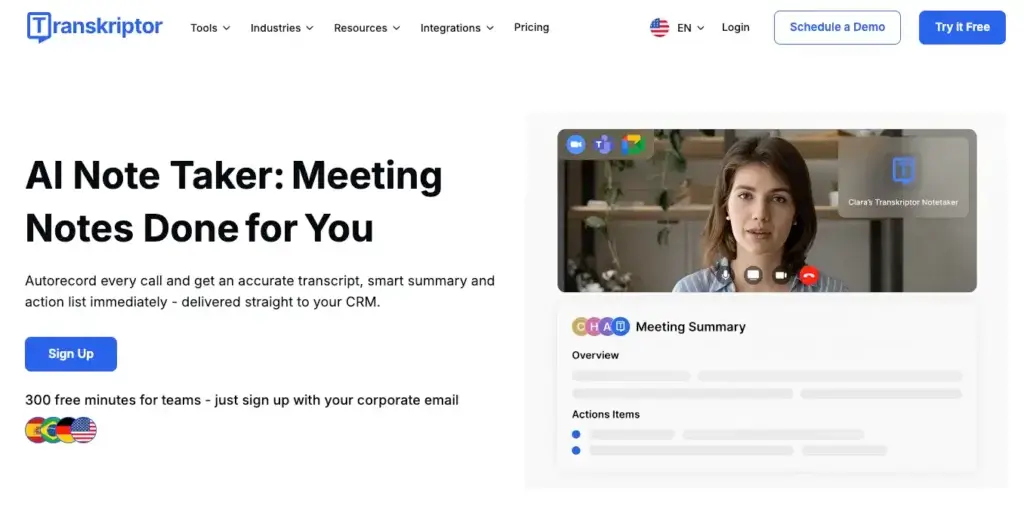
Transkriptor is an AI transcription and note-taking platform designed to reduce that manual work. It can capture online meetings, record in-person conversations, transcribe uploaded audio and video files, generate AI summaries, identify speakers, extract action items, and organize transcripts in a searchable workspace.
Unlike AI note takers built exclusively for scheduled video calls, Transkriptor covers a broader range of transcription workflows. You can use it for Zoom, Google Meet, and Microsoft Teams meetings, but you can also upload recordings, transcribe voice notes, document interviews, create subtitles, and build a searchable knowledge base from multiple transcripts.
In this Transkriptor review, you will learn how its AI note-taking features work, what the platform costs, where it performs well, which limitations you should consider, and how it compares with ClickUp AI Notetaker, Granola, and Krisp. By the end, you should have a clear understanding of whether Transkriptor fits your meeting documentation and transcription needs.
Core Features
Main Features Breakdown
AI transcription for meetings, audio, and video
Transkriptor converts spoken content into searchable text. You can upload an existing audio or video file, record directly through the platform, or connect the service to an online meeting. This makes it more flexible than note takers that only work with scheduled calendar calls.
The platform supports common audio and video formats, including MP3, MP4, WAV, M4A, MOV, and WebM. It can also produce subtitle files in formats such as SRT and VTT, which makes it useful for content teams, researchers, podcasters, trainers, and video editors as well as conventional business users.
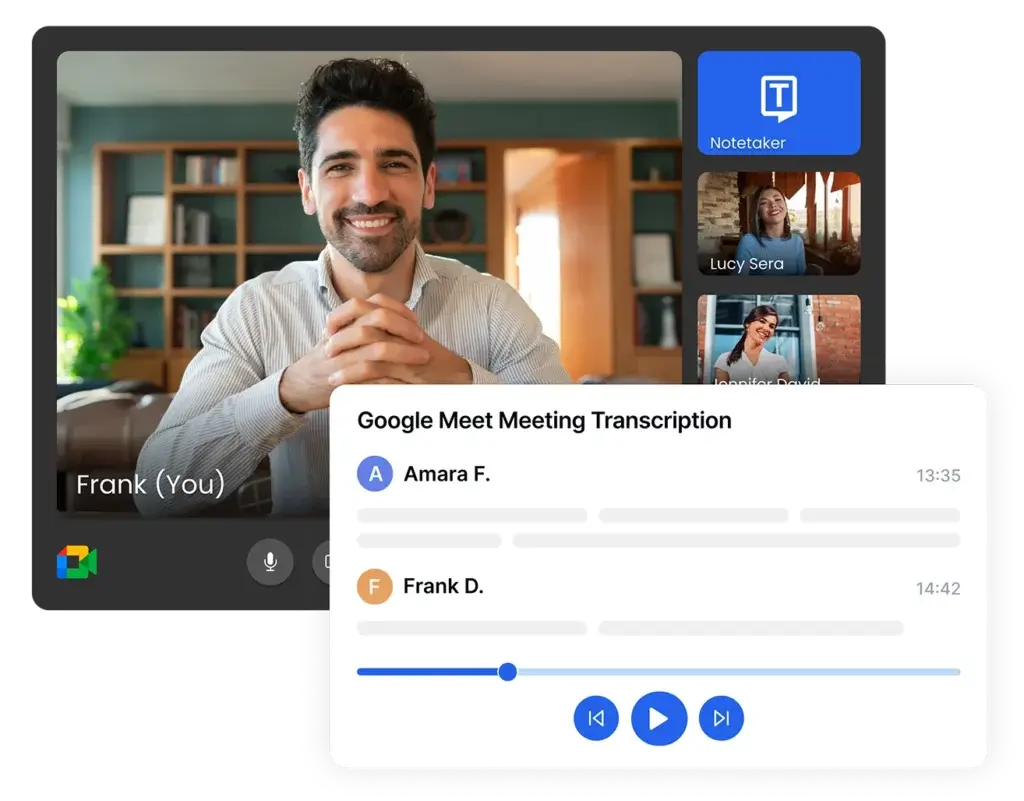
Speaker identification and timestamps help you follow a multi-person conversation. Selecting a section of the transcript can take you back to the corresponding part of the recording, reducing the need to replay an entire meeting to verify one statement.
Why it matters: Transkriptor is not limited to meeting summaries. It can act as a central transcription workspace for calls, interviews, lectures, webinars, voice notes, podcasts, and recorded research sessions.
AI meeting assistant for Zoom, Teams, and Google Meet
For virtual meetings, Transkriptor can capture conversations from Zoom, Microsoft Teams, and Google Meet. You can connect your calendar and configure the meeting assistant to join scheduled calls, creating a transcript and summary after the conversation ends.
Transkriptor also promotes bot-free capture for users who do not want another visible participant joining the meeting. This gives you more control over how the assistant is introduced and can create a less distracting experience during external calls.
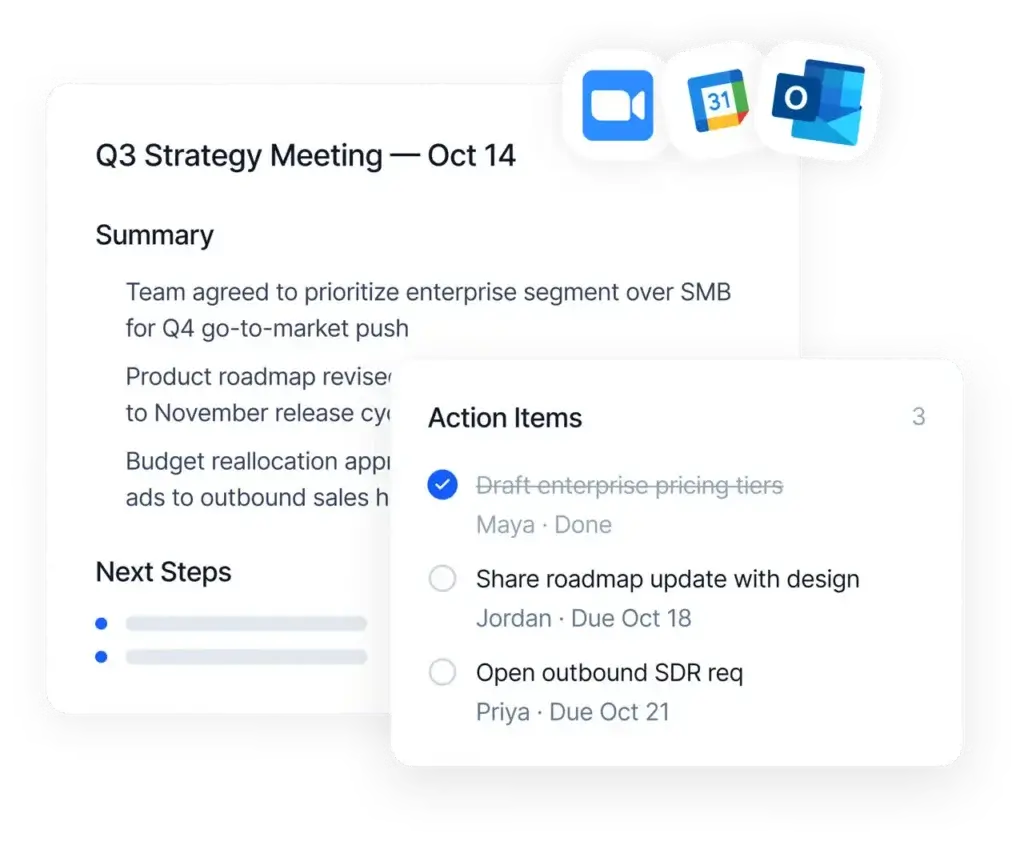
The meeting assistant can organize the discussion into key points, decisions, questions, action items, and follow-up topics. You can then share the resulting notes with participants or people who could not attend.
As with any recording tool, you remain responsible for informing participants and following applicable consent requirements. A bot-free experience may feel less intrusive, but it should not be treated as permission to record people without appropriate notice.
AI summaries and custom meeting templates
After processing a recording, Transkriptor can generate a shorter summary of the conversation. This gives you a faster way to understand the main discussion without reading a long word-for-word transcript.
Custom templates allow you to adapt the output to different meeting types. A sales discovery call might require sections for pain points, budget, objections, competitors, and next steps. A project meeting might focus on decisions, blockers, owners, and deadlines. An interview might need questions, candidate responses, strengths, and follow-up topics.
This flexibility is important because generic summaries often miss the information that matters most to a specific department. A structured template makes the output more predictable and easier to copy into a CRM, project management platform, research repository, or client record.
However, AI-generated summaries should still be reviewed. Names, numerical details, technical terminology, deadlines, and sensitive commitments can be misheard or interpreted incorrectly, especially when the original audio contains cross-talk or poor microphone quality.
Ask AI and transcript analysis
Transkriptor includes an AI chat interface that lets you ask questions about a transcript. Instead of searching manually through a long conversation, you can request the main decisions, outstanding questions, customer objections, key quotations, or assigned follow-up tasks.
This is particularly useful when reviewing interviews, research sessions, lengthy webinars, or client calls. You can use the chat interface to extract targeted information while keeping the full transcript available for verification.
The usefulness of AI chat depends heavily on the source transcript. When speakers are mislabeled or a technical term is transcribed incorrectly, the generated answer may repeat that mistake. For important business, legal, medical, or financial information, the original audio and transcript should remain the primary reference.
Knowledge bases built from transcripts
Transkriptor can bring multiple transcripts into a knowledge base. This changes the workflow from analyzing one meeting at a time to searching across a larger collection of recorded conversations.
For example, a product team could combine customer interviews and ask which feature requests appear repeatedly. A sales manager could review recurring objections across prospect calls. A training team could search a collection of recorded workshops for explanations of a particular process.
This capability gives Transkriptor broader value than a basic audio-to-text converter. As your transcript library grows, it can become a source of searchable organizational knowledge rather than a folder of disconnected files.
The system is most effective when you use clear folders, descriptive file names, consistent templates, and appropriate access permissions. Without organization, even an AI-searchable knowledge base can become difficult to manage.
Multilingual transcription and translation
One of Transkriptor’s most notable strengths is its extensive language coverage. The platform supports transcription and translation across more than 100 languages, which makes it relevant for international organizations, multilingual interviews, global research, education, localization, and distributed customer-facing teams.
You can use it to transcribe a conversation in its original language and then translate the transcript for colleagues or clients. This can reduce the time required to prepare multilingual meeting notes, subtitles, research material, and internal documentation.
Language support does not guarantee identical accuracy across every dialect, accent, or audio environment. Results may vary when speakers switch languages, use regional expressions, speak over one another, or rely on highly specialized vocabulary.
Team plans include custom vocabulary tools that can improve recognition of product names, acronyms, industry terminology, and other frequently used words.
Editing, exporting, and sharing transcripts
After transcription, you can edit the text, correct speaker names, adjust timestamps, highlight important sections, and organize files within the workspace. This editing layer is necessary because even strong automated transcription requires occasional corrections.
Transcripts can be exported in document, text, spreadsheet, and subtitle formats, depending on the intended workflow. This helps you move content into reports, video-production processes, research files, client records, and knowledge-management systems.
You can also distribute transcripts and summaries through shareable links. Permission controls help determine whether recipients can only view the content or make changes.
For collaborative teams, sharing a reviewed summary is usually more useful than distributing an unedited transcript. The transcript provides evidence and context, while the summary gives stakeholders a faster path to the important information.
Integrations and workflow automation
Transkriptor offers integrations that help move meeting information into other systems. Available connections include Google Docs, Google Sheets, calendars, cloud storage services, communication tools, and selected business applications.
For example, Google Docs integration can create documents containing transcripts, meeting summaries, and insights. Google Sheets integration can add transcript data or meeting outputs to spreadsheet rows. Aircall integration can automatically transcribe calls and voicemails after they end.
These integrations are useful, but Transkriptor is not as deeply embedded in task and project execution as a platform such as ClickUp. You may still need to review an action item and manually assign it in your work management system.
Expert assessment: Transkriptor is strongest when transcription is the central requirement. It is less comprehensive when the primary goal is to automate every downstream task generated by a meeting.
Security, privacy, and compliance
Meeting transcripts can include confidential customer details, employee information, product plans, legal discussions, and other sensitive material. Security controls therefore matter as much as transcription quality.
Transkriptor states that its business offering aligns with security and privacy standards including GDPR, SOC 2, ISO 27001, and HIPAA. Paid plans also state that customer data is not used to train AI models.
Organizations should still evaluate the service against their own policies. Important questions include where recordings are stored, how long files remain available, whether users can permanently delete data, who can access shared workspaces, and whether particular meeting categories should be excluded from transcription.
Consent procedures are equally important. Teams should establish clear rules for notifying participants before capturing customer calls, interviews, healthcare conversations, legal discussions, or internal meetings.
User Experience and Interface
How Does Everyday Work with Transkriptor Look?
Setting up your transcription workflow
Getting started is relatively straightforward. You create an account, choose whether to upload a file, record directly, or connect a calendar, and select the language of the conversation. For online meetings, you can configure how Transkriptor captures scheduled calls.
The initial workflow is accessible even if you have never used transcription software. Uploading a recording is especially simple: select the file, choose the appropriate language and settings, and allow the platform to process it.
Team deployments require more planning. Administrators should decide which meetings can be captured automatically, how transcripts are organized, who can access shared spaces, and how long sensitive recordings should be retained.
Reviewing and editing transcripts
The transcript editor keeps the written text connected to the source recording. Timestamps and speaker labels make it easier to review unclear sections and correct mistakes without repeatedly searching through the entire audio file.
For clean recordings with distinct speakers, the first draft can reduce a significant amount of manual work. Poor recordings will require more editing, particularly when participants interrupt each other, speak from distant microphones, or use specialized terminology.
The editing workflow is more practical for full transcription than minimalist meeting apps that only emphasize polished summaries. If you need access to the complete spoken record, Transkriptor offers more control than a summary-first product.
Organizing files and knowledge
Transcripts can be grouped into folders or shared workspaces. This helps separate customer calls, interviews, training material, research, internal meetings, and personal recordings.
Good organization becomes increasingly important as usage grows. A clear naming convention that includes the meeting type, customer or project, and date will make the archive easier to search and maintain.
The knowledge-base capability adds another layer by allowing information to be retrieved across several files. This is useful for thematic analysis, but it should not replace responsible information management and access controls.
Mobile and cross-device use
Transkriptor is available through web and mobile experiences, allowing you to capture voice notes and in-person conversations away from your main computer. This can be valuable for field research, lectures, conferences, client visits, and face-to-face interviews.
Mobile recording broadens the product beyond scheduled online meetings. However, recording quality will depend on the phone’s placement, surrounding noise, room acoustics, and distance between participants.
Overall ease of use
The core workflow is easy to understand, but the platform contains more options than a lightweight personal note taker. Users who only want a short summary after occasional meetings may not need its file conversion, subtitle exports, knowledge bases, language tools, and transcript editing capabilities.
For users who regularly work with recorded material, the additional controls are an advantage. The interface brings recording, transcription, editing, summarization, translation, and export into one environment instead of requiring separate tools.
Pros And Cons
Advantages and Disadvantages
Positive
✅ Broad transcription workflow coverage
✅ Extensive multilingual support
✅ Flexible AI summaries and templates
✅ Useful transcript editing and exports
Negative
❌ Monthly transcription limits
❌ Accuracy depends on recording quality
❌ Limited native task execution
❌ Meeting consent still requires management
✅ Pros
- Broad transcription workflow coverage: Transkriptor can capture online meetings, in-person conversations, voice notes, and uploaded audio or video files.
- Extensive multilingual support: Support for more than 100 languages makes it suitable for international teams, research, translation, and localization workflows.
- Flexible AI summaries and templates: Custom templates help produce structured notes for sales calls, interviews, projects, research sessions, and other meeting types.
- Useful transcript editing and exports: You can correct transcripts, review timestamps, identify speakers, and export content in several document and subtitle formats.
❌ Cons
- Monthly transcription limits: Paid plans include defined minute allowances, so high-volume users need to monitor usage or consider a larger plan.
- Accuracy depends on recording quality: Background noise, overlapping speech, weak microphones, accents, and specialized terminology can increase editing requirements.
- Limited native task execution: Transkriptor can identify action items, but it does not provide the same direct connection between meeting notes, assigned tasks, and project workflows as ClickUp.
- Meeting consent still requires management: Bot-free capture may be less visible, but organizations still need clear notification, recording, access, and retention policies.
Pricing and Tiers
How Much Does Transkriptor Cost?
Transkriptor uses a subscription model with monthly transcription allowances. Its public plans include Lite, Pro, Team, and Enterprise options. Prices and allowances can change, so confirm the current terms on the official pricing page before purchasing.
Lite Plan
- Price: Commonly listed at approximately $9.99 per month, with a lower effective monthly price for annual billing.
- Transcription allowance: 300 minutes per month.
- Core features: Audio and video transcription, speaker identification, recording tools, editing, and supported exports.
- Best for: Individuals who transcribe occasional meetings, lectures, interviews, or voice recordings.
- Main limitation: The monthly allowance can be consumed quickly if you attend several long meetings each week.
Pro Plan
- Price: Commonly listed at approximately $19.99 per month, with discounted annual billing available.
- Transcription allowance: 2,400 minutes per month.
- Core features: Everything in Lite plus AI summaries, custom meeting summary templates, AI chat, and knowledge-base capabilities.
- Best for: Consultants, researchers, students, recruiters, content professionals, and frequent meeting participants.
- Why upgrade: The higher allowance and AI analysis tools make this the most balanced option for regular individual use.
Team Plan
- Price: Commonly listed at $30 per seat with monthly billing or about $20 per seat per month with annual billing.
- Transcription allowance: Up to 3,000 minutes per seat per month.
- Core features: Everything in Pro plus shared workspaces, centralized collaboration, user management, and custom vocabulary.
- Best for: Sales, research, recruiting, customer success, education, and content teams that share transcripts.
- Why upgrade: Team administration and shared spaces provide a more structured environment than maintaining separate personal accounts.
Enterprise Plan
- Price: Custom pricing.
- Core features: Larger-scale deployment support, advanced security requirements, tailored allowances, administrative controls, and negotiated service terms.
- Best for: Larger organizations with substantial transcription volume, compliance requirements, or procurement processes.
Pricing table
| Plan | Key Features | Best For | Published Price |
| Lite | 300 minutes, transcription, speaker identification, editing, and exports | Occasional individual transcription | Approximately $9.99/month |
| Pro | 2,400 minutes, AI summaries, templates, AI chat, and knowledge bases | Frequent individual users | Approximately $19.99/month |
| Team | 3,000 minutes per seat, shared spaces, admin tools, and custom vocabulary | Collaborative business teams | $30/seat monthly or about $20 annually |
| Enterprise | Custom usage, deployment, security, and support terms | Large organizations | Custom |
The main pricing consideration is volume. A 300-minute allowance represents only five hours of content, while 2,400 minutes represents 40 hours. Estimate how many meetings and recordings you expect to process before selecting a plan.
Who Is It Best For?
Is Transkriptor The Right Fit For Your Workflow?
For consultants and professional services
Consultants can use Transkriptor to document discovery calls, workshops, stakeholder interviews, and client updates. Custom templates can organize each transcript into goals, concerns, recommendations, decisions, and next steps.
The full transcript remains useful when preparing reports or verifying precisely what a stakeholder said. Sharing controls also make it easier to distribute an approved summary without sending the complete recording.
For researchers and interviewers
Researchers often need more than a brief meeting recap. They need a searchable transcript, timestamps, speaker separation, quotations, and the ability to compare themes across several interviews.
Transkriptor’s upload tools, transcript editor, AI chat, and knowledge bases fit this workflow well. Multilingual support is another advantage for international research projects.
For students and educators
Students can transcribe lectures, seminars, study recordings, and interviews. Educators can turn recorded lessons into notes, summaries, subtitles, and accessible written resources.
However, users should obtain permission before recording classes or private discussions. AI-generated notes should also support active learning rather than replace reviewing the source material.
For sales and customer success teams
Sales teams can document discovery calls, demos, objections, competitor mentions, and next steps. Customer success teams can use transcripts to review onboarding calls, renewal discussions, support issues, and expansion opportunities.
Transkriptor can capture and summarize these conversations effectively, but dedicated revenue intelligence tools may provide deeper CRM automation, deal analysis, coaching, and forecasting capabilities.
For content creators and media teams
Podcasters, video editors, marketers, and journalists can upload recordings, generate full transcripts, find quotations, prepare articles, and export subtitles. This broader media workflow is an important advantage over meeting-only tools.
For journalism or other work requiring precise quotations, the transcript should always be checked against the source recording. Automated text can speed up the process, but it should not be considered an infallible record.
For multilingual and distributed teams
Organizations operating across languages can use Transkriptor to create transcripts and translations for meetings, training, interviews, and internal communications.
The combination of language coverage, custom vocabulary, and shared workspaces makes the Team plan particularly relevant for distributed departments that need consistent documentation.
Who should avoid it?
Transkriptor may not be the best fit if:
- You need unlimited transcription at a predictable flat rate.
- You only want minimal personal notes and do not need full transcripts.
- Your priority is converting action items directly into project tasks.
- You want advanced sales coaching and revenue intelligence.
- Your organization prohibits recording or storing meeting audio.
- You need guaranteed human transcription for legal or publication-grade accuracy.
Transkriptor VS Alternatives
Comparison With Other AI Note Takers
Transkriptor stands out for combining online meeting notes with broad audio and video transcription. The right alternative depends on whether you prioritize task management, discreet personal notes, audio quality, or a comprehensive transcription workspace.
1. ClickUp AI Notetaker – Best for turning meetings into tasks
ClickUp AI Notetaker is the stronger choice when meeting documentation needs to connect directly with project execution. It can create meeting notes, transcripts, summaries, recordings, and action items inside the same platform used to manage tasks, Docs, projects, calendars, and team workflows.
This reduces the gap between discussing work and assigning it. A project decision can become a task, an action item can receive an owner, and meeting notes can remain connected to the workspace where the project is managed.
Why choose ClickUp AI Notetaker instead of Transkriptor?
- Meeting notes connect directly to tasks, Docs, and projects.
- It fits teams already managing work inside ClickUp.
- Action items can move into execution with less manual copying.
- It combines note-taking with a complete work management platform.
Where Transkriptor wins:
- Broader support for uploaded audio and video transcription.
- More suitable for interviews, lectures, media, and subtitles.
- Wider multilingual transcription and translation workflows.
- More focused transcript editing and file-export capabilities.
2. Granola – Best for a lightweight bot-free notepad
Granola is designed as an AI notepad for professionals with frequent meetings. It captures meeting audio through the user’s device without adding a visible bot and combines AI-generated information with notes typed manually during the call.
The result is a quieter, more personal workflow. Granola is particularly attractive to executives, consultants, founders, and individual professionals who want polished notes without building a large recording archive.
Why choose Granola instead of Transkriptor?
- Clean bot-free meeting experience.
- Strong combination of manual notes and AI enhancement.
- Minimal interface for people attending back-to-back meetings.
- Unlimited meeting notes are available on paid plans.
Where Transkriptor wins:
- Stores source recordings for review and verification.
- Handles uploaded media, lectures, interviews, and voice recordings.
- Provides subtitle exports and broader media workflows.
- Offers more extensive multilingual transcription capabilities.
3. Krisp – Best for noise cancellation and bot-free notes
Krisp combines an AI note taker with real-time noise cancellation. It works across meeting platforms without relying on a visible bot and can record, transcribe, and summarize online and in-person conversations.
Krisp is a compelling alternative for remote workers, call-heavy teams, and people who regularly join meetings from noisy environments. Its core advantage is improving the incoming and outgoing audio experience while also producing documentation.
Why choose Krisp instead of Transkriptor?
- Industry-leading background noise and echo cancellation.
- Bot-free capture across communication platforms.
- Unlimited AI note-taking on the paid Core plan.
- Strong fit for remote calls and noisy work environments.
Where Transkriptor wins:
- Broader language coverage and translation tools.
- More extensive uploaded-file and subtitle workflows.
- Knowledge bases for analyzing collections of transcripts.
- More suitable for research, education, interviews, and media production.
Features comparison table
| Tool | Main Strength | Best For | Key Limitation |
| Transkriptor | Multilingual transcription for meetings and uploaded media | Researchers, consultants, educators, content teams, and international users | Plans include monthly minute limits |
| ClickUp AI Notetaker | Connecting meeting notes with tasks and project workflows | Teams already managing work in ClickUp | Less specialized for media transcription |
| Granola | Lightweight bot-free personal meeting notes | Executives, founders, consultants, and individual professionals | Does not focus on stored audio recordings |
| Krisp | Noise cancellation with bot-free AI notes | Remote workers and call-heavy teams | Less focused on transcript knowledge bases and media exports |
Choose Transkriptor when you need the most versatile transcription workflow. Choose ClickUp when meetings must immediately become tasks and project updates. Choose Granola for a clean personal note-taking experience, or Krisp when improving call audio is as important as documenting the conversation.
Setup Guide
Getting Started with Transkriptor
Creating an account and choosing a workflow
- Create your account: Register through the Transkriptor website or mobile app.
- Select a transcription method: Upload a file, record directly, paste a supported media link, or configure a meeting assistant.
- Choose the source language: Selecting the correct language improves recognition and reduces editing.
- Configure speakers and settings: Enable speaker identification and other available processing options.
- Start the transcription: Allow the platform to process the recording and create the initial text.
Connecting online meetings
- Connect your calendar: Link the calendar containing your scheduled calls.
- Review upcoming meetings: Decide which meetings should be captured.
- Select your capture method: Use the meeting assistant or an available bot-free workflow.
- Notify participants: Make sure everyone understands that transcription or recording is active.
- Review the output: Check the transcript, summary, speakers, decisions, and action items after the call.
Reviewing and distributing notes
- Correct important details: Check names, figures, dates, technical terms, and commitments.
- Apply an AI template: Generate notes appropriate for the meeting type.
- Ask targeted questions: Use AI chat to find decisions, concerns, quotations, or next steps.
- Export or share: Download the content or create a controlled sharing link.
- Move actions into your work system: Add approved tasks and deadlines to your project management or CRM platform.
Tips & Best Practices for Using
How To Get The Most Out of Transkriptor
Improve the original recording
Transcription quality begins with audio quality. Use reliable microphones, reduce background noise, avoid placing the recording device too far from participants, and ask people not to speak over each other.
For uploaded content, use the clearest available source file rather than a heavily compressed copy. Better source audio reduces editing time and improves the accuracy of summaries and AI answers.
Create separate templates for each meeting type
A single generic template will not capture the right information from every conversation. Build separate formats for customer discovery, sales demos, candidate interviews, research sessions, project updates, and training calls.
Consistent templates also make transcripts easier to compare. When every customer interview includes the same sections, recurring needs and objections become easier to identify.
Add custom vocabulary for recurring terminology
Product names, acronyms, technical concepts, surnames, and industry terms are common sources of transcription errors. Team users should add frequently used terminology to the custom vocabulary.
This will not eliminate every error, but it can improve consistency across recordings and reduce repetitive corrections.
Organize transcripts before the library grows
Create folders and naming conventions early. Include meaningful details such as the project, account, meeting category, and date instead of relying on generic file names.
Strong organization also improves knowledge-base analysis because you can create focused collections rather than mixing unrelated meetings into one source.
Verify critical information
AI transcription and summarization should be treated as an efficient first draft. Review legal statements, medical information, pricing commitments, deadlines, financial figures, technical requirements, and direct quotations against the original recording.
The more consequential the information, the more important human verification becomes.
Control recording access and retention
Do not give every workspace member unrestricted access to every transcript. Separate sensitive customer, employee, legal, or healthcare material and apply the minimum access required.
Establish a retention policy so recordings are not stored indefinitely without a business reason. Remove obsolete files and shared links when they are no longer required.
Move action items into an execution platform
Transkriptor can identify next steps, but a meeting summary is not a substitute for an assigned task. Transfer approved actions into a system such as monday.com, ClickUp, Asana, or your CRM.
Each action should have a clear owner, deadline, status, and connection to the relevant project or customer record.
Conclusion
Final Thoughts – Is Transkriptor Worth It in 2026?
Transkriptor is a capable AI note taker and transcription platform for users who work with more than scheduled online meetings. Its strongest advantage is versatility: the same workspace can handle Zoom calls, Microsoft Teams meetings, Google Meet conversations, uploaded recordings, lectures, interviews, podcasts, voice notes, and video subtitles.
The Pro plan is likely to provide the best balance for most frequent individual users because it adds 2,400 monthly transcription minutes, AI summaries, custom templates, AI chat, and knowledge bases. The Team plan becomes more relevant when several people need shared workspaces, centralized administration, larger per-seat allowances, and custom vocabulary.
The primary limitation is usage-based capacity. Transcription allowances require more planning than the unlimited note-taking offered by some alternatives. The platform also does not connect notes with task execution as directly as ClickUp, while Krisp offers a stronger combination of note-taking and real-time audio enhancement.
Granola remains the cleaner choice for professionals who want a minimalist bot-free notepad and do not require stored recordings or extensive export tools. Krisp is more attractive when noisy calls are a recurring problem. ClickUp is better when every decision and action item should move immediately into a project workflow.
Transkriptor is the strongest choice among these options when you need a flexible, multilingual transcription system rather than only a meeting recap tool. Its combination of full transcripts, AI summaries, translation, media uploads, subtitle formats, knowledge bases, and meeting capture makes it particularly suitable for consultants, researchers, educators, interviewers, content professionals, and international teams.
Have more questions?
Frequently Asked Questions
What is Transkriptor?
Transkriptor is an AI transcription and note-taking platform that converts meetings, interviews, lectures, voice recordings, and uploaded audio or video files into searchable text. It can also generate summaries, action items, translations, and structured meeting notes.
Can you use Transkriptor for free?
A limited free trial or free transcription allowance may be available for testing, but regular usage requires a paid subscription. Paid plans provide larger monthly transcription allowances and access to features such as AI summaries, templates, chat, and knowledge bases.
How many languages does the AI note taker support?
The platform supports transcription and translation across more than 100 languages. Accuracy can vary according to the language, dialect, accent, terminology, speaker clarity, and quality of the original recording.
Does it work with Zoom, Google Meet, and Microsoft Teams?
Yes. The meeting assistant can capture conversations from Zoom, Google Meet, and Microsoft Teams. Calendar connections help manage scheduled meetings, and bot or bot-free capture options may be available depending on the workflow.
Can it transcribe existing audio and video files?
Yes. You can upload common audio and video formats for transcription. This makes the platform useful for interviews, lectures, podcasts, webinars, voice notes, research recordings, and video content in addition to live meetings.
How accurate is Transkriptor?
Accuracy depends on audio clarity, microphone quality, accents, background noise, overlapping speech, and specialized vocabulary. Clean recordings can produce useful first drafts, but important names, figures, quotations, and commitments should always be verified.
Can it create meeting summaries and action items?
Yes. Paid plans can generate AI summaries, key points, decisions, and action items. Custom templates can adapt the output for sales calls, interviews, project meetings, research sessions, and other recurring conversation types.
Is Transkriptor better than Granola?
Transkriptor is better for full recordings, uploaded media, multilingual transcription, subtitle exports, and detailed transcript editing. Granola is better for professionals who want a lightweight, bot-free notepad that enhances notes without maintaining a large recording archive.
How does it compare with ClickUp AI Notetaker?
Transkriptor provides broader transcription and media-processing capabilities. ClickUp AI Notetaker is stronger when meeting notes, action items, Docs, tasks, and project workflows need to remain inside one work management platform.
Who is Transkriptor best for?
It is best for consultants, researchers, educators, students, recruiters, interviewers, content creators, journalists, sales teams, and international organizations that need searchable transcripts and structured notes from several types of recorded content.