Introduction
Meetings create a lot of important information, but most teams still struggle to turn conversations into clear action. You may leave a call with good ideas, but then lose time rewriting notes, chasing owners, checking recordings, or asking teammates what was agreed.
ClickUp AI Notetaker is designed to solve that gap. Instead of treating meeting notes as a separate workflow, it connects your calls directly to the place where your team already manages tasks, docs, projects, and follow-ups.
This ClickUp AI Notetaker review is updated for 2026 and looks at how the tool works, what it includes, where it performs well, where it still has limitations, and whether it is the right AI meeting assistant for your team.
The most important thing to understand is that ClickUp AI Notetaker is not just a transcription app. Its strongest value is workflow integration. It records meetings, creates searchable transcripts, generates summaries, identifies next steps, and can help turn discussion points into assigned work inside ClickUp.
That makes it especially useful if your team already uses ClickUp for project management, task tracking, client work, product planning, or internal operations. If you want every meeting to end with clearer ownership, better documentation, and fewer missed follow-ups, ClickUp AI Notetaker deserves serious consideration.
Quick Overview
What Is ClickUp AI Notetaker?
ClickUp AI Notetaker is ClickUp’s AI meeting assistant for capturing virtual meetings, generating summaries, creating searchable transcripts, and turning meeting outcomes into action items inside your ClickUp workspace.
It works with Zoom, Google Meet, and Microsoft Teams. To use it, you need to connect ClickUp Planner with Google Calendar or Outlook Calendar. Once connected, ClickUp can send the AI Notetaker to eligible meetings and create a private meeting notes Doc after the call.
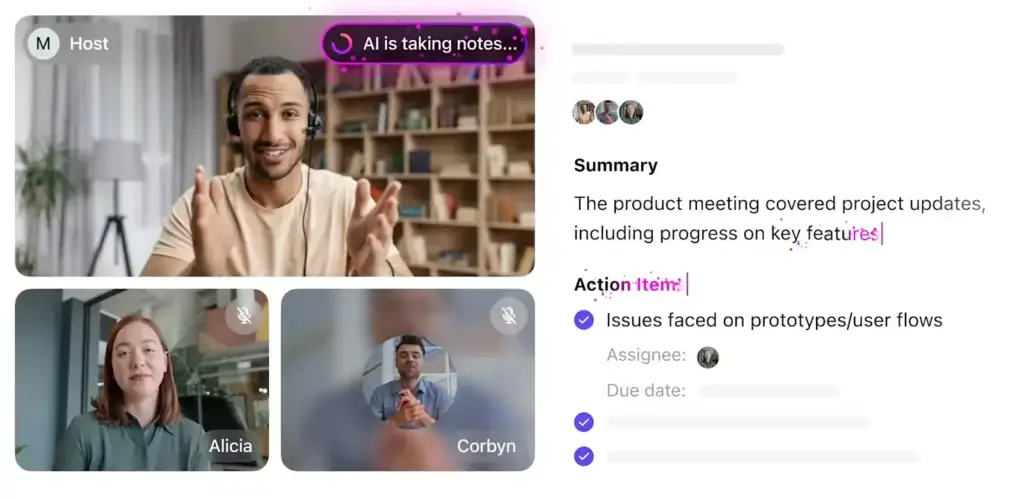
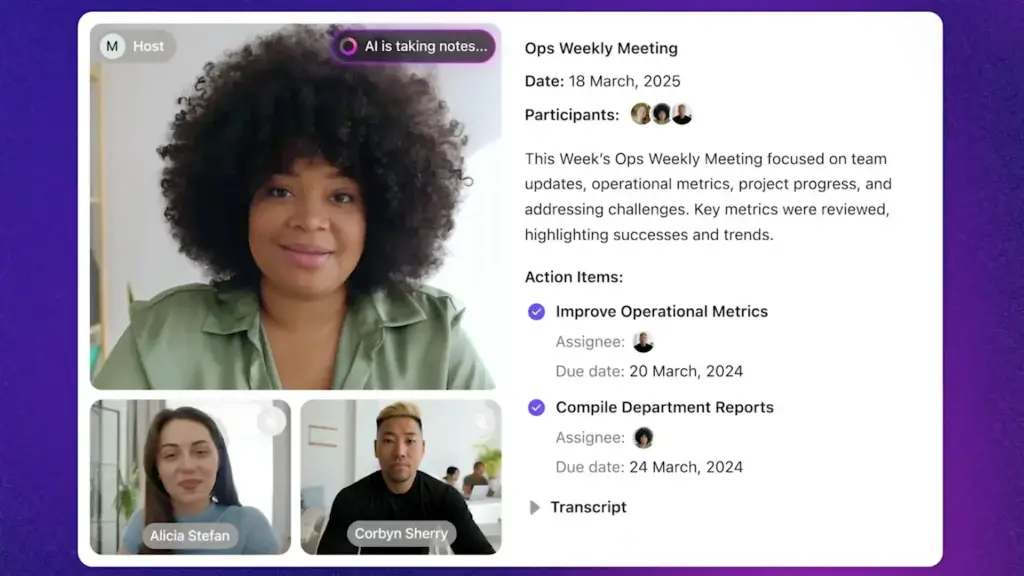
Each meeting Doc can include the meeting name, date, attendees, recording, summary, key takeaways, next steps, key topics, and transcript. That structure makes it easier to review what happened without digging through a raw recording or relying on someone’s manual notes.
How ClickUp AI Notetaker Fits Into ClickUp Brain
ClickUp AI Notetaker is part of ClickUp’s broader AI ecosystem. ClickUp now separates its AI offering into options such as Brain AI, Everything AI, and standalone add-ons.
For this review, the most relevant detail is simple: AI Notetaker is included in Everything AI and can also be purchased as an add-on. This is important because older reviews may describe it as available only through an “AI Autopilot” package, which is no longer the clearest way to explain ClickUp’s current AI pricing.
In practical terms, ClickUp AI Notetaker is best understood as a meeting intelligence layer built into ClickUp. It is not trying to be only a transcript archive. It is trying to help you move from conversation to execution.
ClickUp AI Notetaker’s Position in the AI Note-Taking Space
Standalone tools like Fireflies, Fathom, Otter, and Krisp focus mainly on meeting capture, transcription, summaries, recordings, and call libraries. ClickUp AI Notetaker takes a different approach because the notes live inside your broader work management system.
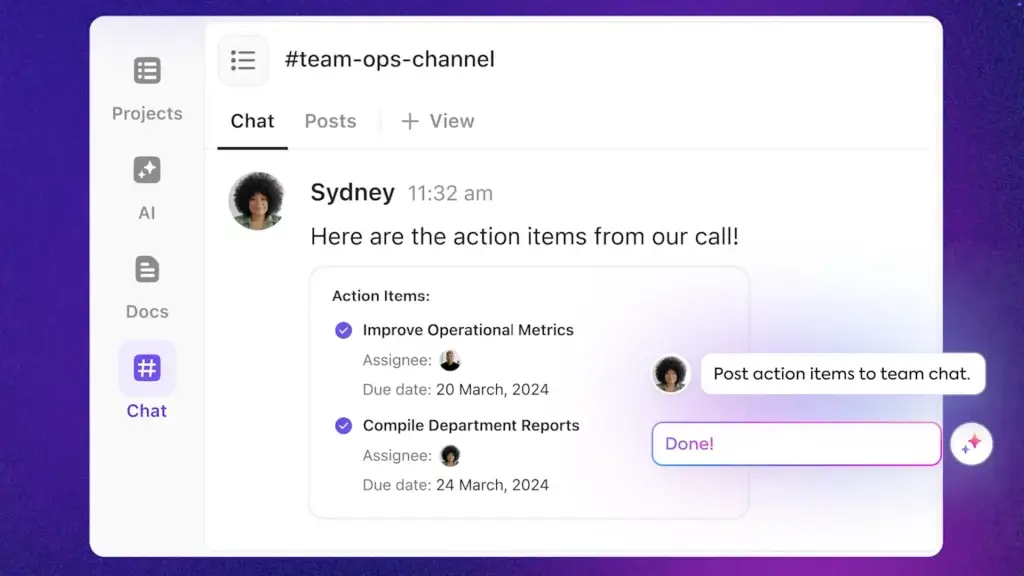
That difference matters. After a project meeting, the summary can become tasks. After a sales call, the next steps can be assigned. After a client sync, the decisions can be stored in a shared project Doc. You are not just storing meeting information, you are making it easier to act on it.
This makes ClickUp AI Notetaker especially useful for:
- Project managers running sprint reviews, standups, and planning calls
- Agencies managing client calls and internal production workflows
- Sales and customer success teams tracking commitments and follow-ups
- Operations teams that need meeting decisions documented clearly
- Remote teams working across time zones and departments
If your team already lives in ClickUp, the AI Notetaker can feel like a natural extension of your workspace. If your team does not use ClickUp, you should compare it carefully against lighter, dedicated AI meeting tools.
Core Features of ClickUp AI Notetaker
Main Features Breakdown
ClickUp AI Notetaker combines meeting capture, AI summaries, searchable transcripts, recordings, and task-oriented follow-ups. The feature set is strongest when you use it as part of a larger ClickUp workflow rather than as a basic recording tool.
Meeting Recording and Searchable Transcripts
ClickUp AI Notetaker joins supported virtual meetings as an attendee and captures the discussion. After the meeting, it creates a transcript that you can review inside ClickUp.
This is useful when you need to confirm what was said, revisit a decision, or check a detail that did not make it into the summary.
Key transcription-related capabilities include:
- Searchable transcripts stored in ClickUp meeting notes
- Speaker context to make conversations easier to review
- Automatic language detection for supported languages
- Private ClickUp Docs for meeting notes and transcripts
One important note: ClickUp promotes transcripts and summaries, but it is better to position the feature as post-meeting documentation rather than a full live transcription interface. If your top priority is live transcript visibility during the call, Otter or similar transcription-first tools may be a better fit.
AI Summaries, Key Takeaways, and Next Steps
The real value of ClickUp AI Notetaker appears after the meeting ends. Instead of giving you only a raw transcript, ClickUp organizes the conversation into a more usable meeting record.
Your meeting notes can include:
- A short overview of the discussion
- Key takeaways and important decisions
- Next steps with action-oriented follow-ups
- Key topics grouped for easier review
- A full transcript for deeper reference
This is where ClickUp becomes more useful than a simple recorder. You can review the summary quickly, turn follow-ups into tasks, and share the meeting outcome with the people who need it.
Action Items That Connect to Workflows
ClickUp’s biggest advantage is that meeting outputs can connect to actual work. If a client asks for a deliverable, a manager assigns an owner, or a product team agrees on a next step, that information does not have to stay buried inside notes.
You can use ClickUp to connect those outcomes to tasks, Docs, projects, goals, and team workflows. This makes the tool particularly strong for teams that already depend on ClickUp for execution.
For example, after a weekly project sync, you can use the AI-generated next steps to create tasks, assign owners, add due dates, and keep the meeting connected to the project board.
Supported Meeting Platforms and Calendar Setup
ClickUp AI Notetaker works with Zoom, Microsoft Teams, and Google Meet. To use it properly, you need to connect your Planner to Google Calendar or Outlook Calendar.
This calendar dependency is important. AI Notetaker is not a standalone recorder that you launch independently from any context. It is designed to work through ClickUp Planner and calendar-connected meetings.
You can enable it for individual scheduled meetings, automatically send it to selected calendars, or send it to an ad hoc meeting by pasting a supported meeting link.
Supported Languages
ClickUp AI Notetaker supports automatic language detection and transcription in nearly 100 languages. This is a major improvement over older descriptions that mention only a small number of supported languages.
Supported languages include major business languages such as English, Spanish, French, German, Italian, Portuguese, Dutch, Hindi, Japanese, Chinese, Korean, Hebrew, Arabic, and many more.
If your team works across regions, this makes ClickUp more relevant for international collaboration, distributed teams, multilingual client calls, and global operations.
Recording Limits and Video Availability
ClickUp can include meeting recordings in your notes, but there is an important limitation. For shorter calls or smaller files, the meeting notes may include a full video recording. For longer or larger calls, the notes may include the full audio recording instead.
This distinction matters for teams that rely heavily on video review. If you need every meeting saved as a full video regardless of length, you should test this carefully before moving all meeting documentation into ClickUp AI Notetaker.
Privacy and Security
Meeting recordings and transcripts can contain sensitive information, so privacy should be part of your buying decision. ClickUp states that its AI is not trained on workspace data and that third-party AI providers do not store or learn from your information.
ClickUp also promotes enterprise-grade privacy and compliance, including GDPR, ISO, and HIPAA-related positioning on its AI Notetaker page. For regulated teams, this is a meaningful advantage, but you should still review your own compliance requirements before recording client, patient, legal, or employee conversations.
For Zoom meetings, participant notification behavior depends largely on Zoom’s recording notification settings. That means meeting hosts should review Zoom recording disclaimers, audio prompts, and in-meeting recording indicators to make sure participants are properly informed.
User Experience and Setup
Is ClickUp AI Notetaker Easy to Use?
ClickUp AI Notetaker is easy to use once your workspace is already set up, but it is not completely frictionless for new users. The experience depends heavily on whether your team already understands ClickUp, Planner, Docs, tasks, and calendar sync.
If you are already using ClickUp, the setup feels logical. If you are brand new to the platform, the learning curve is not really caused by AI Notetaker itself, but by the wider ClickUp workspace around it.
Clean Meeting Notes Inside ClickUp Docs
After a meeting, ClickUp creates a private Doc that stores the meeting record. This is a strong design choice because Docs already connect naturally with tasks, projects, comments, and team knowledge.
Your team can review the meeting summary, check the transcript, edit the notes, comment on key points, and link relevant sections to active work.
You can usually access meeting notes from Planner or Docs Hub, which makes it easier to find past calls without searching through separate recording libraries or email threads.
Planner-Based Workflow
The Planner dependency is both a strength and a limitation. It is a strength because meetings are connected to your calendar and workspace context. It is a limitation because you cannot use ClickUp AI Notetaker independently from Planner.
This means you should connect your calendar properly before expecting the tool to work smoothly. For Google Meet and Microsoft Teams, setup is relatively straightforward. For Zoom, meeting hosts may need to review recording permissions and Zoom settings.
Ad Hoc Meeting Support
ClickUp AI Notetaker is not limited only to pre-scheduled meetings. You can send the Notetaker to an ad hoc Zoom, Google Meet, or Microsoft Teams call by pasting the meeting link into Planner.
This is useful for spontaneous client calls, quick internal syncs, or unplanned troubleshooting sessions. However, you still need to work through ClickUp’s meeting workflow rather than treating it like a generic desktop recorder.
Web, Desktop, and Mobile Experience
ClickUp is available through web, desktop, and mobile apps. For AI Notetaker, most serious setup and review work will usually happen in the web or desktop experience because you need access to Planner, Docs, tasks, and workspace settings.
Mobile access is useful for quickly reviewing notes, checking action items, or sharing summaries after a meeting. However, if your workflow depends on editing transcripts, organizing Docs, or converting notes into structured tasks, desktop is the better experience.
Overall Ease of Use
ClickUp AI Notetaker is easy for existing ClickUp users and moderately complex for new users. The meeting notes themselves are well structured, but the full value comes from understanding how ClickUp connects Docs, tasks, comments, projects, and calendars.
If you are already managing work in ClickUp, this is one of the more practical AI meeting tools available. If you only need a simple AI note taker with minimal setup, Fathom, Fireflies, Krisp, or Otter may feel faster to adopt.
Pros and Cons
Real-World Advantages and Disadvantages
No AI note-taking tool is perfect. ClickUp AI Notetaker has a strong advantage when meeting notes need to become tasks, but it is not the best fit for every team or every meeting style.
Positive
✅ Excellent ClickUp workflow integration
✅ Strong AI summaries and next steps
✅ Searchable transcripts and meeting records
✅ Works with Zoom, Teams, and Google Meet
✅ Useful for turning meetings into tasks
Negative
❌ Requires ClickUp Planner and calendar setup
❌ Not ideal if you do not use ClickUp
❌ No breakout room support
❌ Long calls may get audio instead of full video
❌ Pricing can be confusing for new buyers
Pros
1. Excellent integration with ClickUp Tasks and Docs
This is the biggest reason to choose ClickUp AI Notetaker. Meeting notes do not sit in a separate app. They become part of your project management system, where your team can create tasks, assign owners, and connect decisions to real work.
2. Strong summaries and practical next steps
ClickUp does a good job organizing meeting information into summaries, key takeaways, and next steps. This helps you avoid rereading long transcripts just to understand what changed after a call.
3. Searchable transcripts for better accountability
The transcript gives your team a reference point when details matter. This is useful for client commitments, sales conversations, project decisions, hiring interviews, and internal planning sessions.
4. Works with the main virtual meeting platforms
Support for Zoom, Google Meet, and Microsoft Teams covers the most common business meeting environments. That makes it easier to roll out across teams without forcing everyone onto one meeting platform.
5. Strong fit for remote and async teams
If someone misses a meeting, they can review the summary, key takeaways, and next steps later. This is especially useful for teams working across different time zones.
Cons
1. It is not the simplest option for non-ClickUp users
If you only want a quick AI meeting summary tool, ClickUp may feel heavy. The Notetaker is most valuable when you use the broader ClickUp workspace.
2. Planner and calendar setup are required
You need to connect Planner with Google Calendar or Outlook Calendar. This is not a major issue, but it does add setup steps compared with simpler tools.
3. No breakout room support
ClickUp AI Notetaker is not currently supported in breakout rooms. Teams that rely heavily on workshops, training rooms, or group exercises should keep this limitation in mind.
4. Recording behavior depends on meeting length and file size
Shorter or smaller meetings may include full video recording, while longer or larger calls may include audio recording instead. This matters if video review is essential to your workflow.
5. Pricing requires careful review
ClickUp’s AI pricing has changed over time, and AI Notetaker can be accessed through different purchasing paths. Before upgrading, check whether your team needs the standalone AI Notetaker add-on or the broader Everything AI package.
Overall, ClickUp AI Notetaker is strongest for teams that already use ClickUp as their work hub. It is less compelling if you want a lightweight, standalone AI note-taking app.
Pricing and Plan Availability
How Much Does ClickUp AI Notetaker Cost?
ClickUp AI Notetaker pricing is one of the most important parts of this review because older information can be misleading. ClickUp AI Notetaker is not best described as a standalone free tool, and it is not only tied to an older “AI Autopilot” label.
Based on ClickUp’s current pricing structure, there are two main ways to think about access:
- It is included in the Everything AI package
- It can also be purchased as a standalone AI Notetaker add-on
ClickUp also says AI Notetaker can be purchased on all plans, but availability, limits, and pricing can change. Always confirm the final cost inside your ClickUp billing page before purchasing.
ClickUp AI Pricing Overview
| Plan or Add-On | Current Price | What It Includes | AI Notetaker Access |
| Free Forever | $0/user/month | Core ClickUp features with trial access to some AI features | Not included as full access |
| Brain AI | $9/user/month when billed yearly | AI assistant, AI writing, AI chat, workspace search, and AI credits | Not the main AI Notetaker package |
| Everything AI | $28/user/month when billed yearly | Broader AI suite with unlimited AI Notetaker and additional AI features | Included |
| AI Notetaker Add-On | Starts at $12 for 60 hours/month | Meeting video recording, smart summaries, searchable transcripts, and action items | Standalone add-on option |
| Enterprise | Custom pricing | Advanced governance, permissions, security, and enterprise-scale management | Available depending on configuration |
Is There a Free Trial?
ClickUp’s free AI Notetaker access is limited and should not be described as a simple universal 14-day free trial unless you verify that offer inside your account or affiliate dashboard.
ClickUp currently describes a limited-time free trial where workspaces receive free AI Notetaker usage based on the number of admins. These free hours are shared across admins and do not reset.
For accuracy, I recommend saying that ClickUp may offer limited AI Notetaker trial access, but teams should check the current offer in their workspace billing settings.
Is ClickUp AI Notetaker Worth the Price?
ClickUp AI Notetaker is worth the price if your team already uses ClickUp and wants meeting outcomes to connect directly to tasks, Docs, and projects.
If you only need meeting transcription and summaries, tools like Fireflies, Fathom, Otter, or Krisp may be cheaper or easier to adopt. But if your goal is to reduce the gap between meetings and execution, ClickUp offers a stronger operational workflow.
The key question is not only “How much does the note taker cost?” It is “Will this help your team turn conversations into completed work faster?” For ClickUp-heavy teams, the answer is often yes.
Who Is It Best For?
Is ClickUp AI Notetaker The Right Fit For Your Workflow?
ClickUp AI Notetaker is best for teams that want meeting notes connected to action. It is less useful if your meeting notes only need to live in a searchable library.
Best For Project Managers and Team Leads
If you manage projects, deadlines, dependencies, and owners, ClickUp AI Notetaker can help you reduce post-meeting admin work. Instead of manually translating discussion points into tasks, you can use the meeting summary and next steps as a starting point.
Best For Agencies and Client Services Teams
Agencies often run many client calls each week. ClickUp AI Notetaker can help capture client requests, clarify responsibilities, and keep internal production teams aligned after each call.
This is especially useful if your agency already uses ClickUp to manage deliverables, campaigns, approvals, and client projects.
Best For Sales and Customer Success Teams
Sales and customer success teams can use ClickUp AI Notetaker to capture objections, next steps, product feedback, renewal risks, onboarding tasks, and promised follow-ups.
It is not a full conversation intelligence platform like Gong, but it is practical for teams that want meeting outcomes connected to their work process.
Best For Remote and Async Teams
Remote teams often have people missing meetings due to time zones, conflicting schedules, or deep work blocks. ClickUp AI Notetaker helps absent teammates catch up without asking someone to rewrite the meeting summary.
Not Best For Everyone
You may want another AI note-taking tool if you need bot-free recording, offline meeting capture, in-person meeting notes, dedicated sales call coaching, or live transcript collaboration during calls.
ClickUp AI Notetaker is not the lightest tool. It is the strongest option when your meetings need to connect directly to project execution.
ClickUp AI Notetaker vs Alternatives
Comparison With Other AI Note Takers
ClickUp AI Notetaker competes with several strong AI meeting tools, but the best choice depends on what you need most: task integration, transcription quality, free meeting summaries, audio cleanup, bot-free capture, or live note collaboration.
Here is a practical comparison for 2026.
| Tool | Best For | Task Management | Meeting Support | Pricing Snapshot |
| ClickUp AI Notetaker | Teams that want meeting notes tied to tasks and projects | Native ClickUp Tasks, Docs, Planner, and workflows | Zoom, Google Meet, Microsoft Teams | Everything AI at $28/user/month yearly, or AI Notetaker add-on from $12 for 60 hours/month |
| Krisp | Bot-free meeting notes, noise cancellation, and in-person meetings | Integrations, but not a full project management system | Online, offline, and in-person meeting workflows | Core listed at $16/user/month monthly or $8/user/month annually |
| Fireflies.ai | Affordable meeting transcription, summaries, and searchable meeting history | Integrates with CRM and project tools | Zoom, Google Meet, Teams, and more | Pro listed at $18 monthly or $10 annually, Business at $29 monthly or $19 annually |
| Fathom | Simple meeting summaries for individuals and teams | Integrations, but less native work management depth | Bot and bot-free capture options depending on plan and setup | Free plan available, Team listed from $15 annually or $19 monthly |
| Otter.ai | Live transcription and collaborative meeting notes | Not built as a project management platform | Popular for Zoom, Meet, and Teams transcription workflows | Pro pricing varies by billing and current offers |
ClickUp AI Notetaker vs Fireflies.ai
Fireflies is one of the better standalone AI meeting assistants for teams that want transcription, summaries, search, and integrations without moving their work management into ClickUp.
Choose Fireflies if you want a flexible AI meeting library with strong integrations and simpler adoption. Choose ClickUp if your main goal is to convert meeting outcomes into tasks, Docs, and project updates.
👉🏼 Read Full Fireflies AI review or visit Fireflies AI here
ClickUp AI Notetaker vs Fathom
Fathom is excellent if you want a simple, user-friendly AI meeting assistant with a generous free plan. It is especially attractive for individuals, consultants, and small teams that want fast summaries without managing a complex workspace.
ClickUp is better when your meetings are part of larger projects and you want the notes to connect directly to work. Fathom is simpler, while ClickUp is more operational.
👉🏼 Read Full Fathom review here or visit Fathom website
ClickUp AI Notetaker vs Krisp
Krisp is stronger if you care about noise cancellation, bot-free meeting capture, in-person meetings, and audio quality. It is a great option for professionals who take calls in noisy environments or want AI notes without a visible meeting bot.
ClickUp is stronger if your team wants meeting notes to become tasks and project updates. Krisp improves the call experience, while ClickUp improves the post-meeting workflow.
👉🏼 Read full Krisp review or visit Krisp here
ClickUp AI Notetaker vs Otter.ai
Otter is stronger for live transcription, collaborative notes, and users who want a transcription-first meeting experience. It is often a better fit for education, interviews, live note review, and teams that need immediate transcript visibility.
ClickUp is stronger if you want meeting outputs linked to ClickUp Tasks, Docs, and project workflows. The choice depends on whether you care more about live transcription or post-meeting execution.
Which Tool Should You Choose?
Choose ClickUp AI Notetaker if your team already uses ClickUp or wants to manage meeting outcomes inside a full work management platform.
Choose Fireflies if you want a dedicated, searchable AI meeting assistant with broad integrations. Choose Fathom if you want simplicity and a strong free option. Choose Krisp if bot-free notes and noise cancellation matter most. Choose Otter if live transcription is your top priority.
Setup Guide
Getting Started with ClickUp AI Notetaker
Getting started with ClickUp AI Notetaker is straightforward if your workspace is already organized. The setup process mainly involves enabling the right ClickApp, connecting your calendar, and choosing how the Notetaker should join meetings.
Step 1: Enable the AI Notetaker ClickApp
An admin or workspace owner needs to activate the AI Notetaker ClickApp. This makes the feature available inside the workspace and allows eligible users to start using it for meetings.
Before rolling it out to your whole team, decide which users actually need AI Notetaker access. This helps control cost and keeps meeting capture policies clear.
Step 2: Connect Planner to Google Calendar or Outlook Calendar
ClickUp AI Notetaker requires Planner to be connected to Google Calendar or Outlook Calendar. This is how ClickUp detects meetings and allows the Notetaker to join.
Once connected, you can enable AI Notetaker for specific meetings, selected calendars, or ad hoc calls.
Step 3: Enable AI Notetaker for a Meeting
For a scheduled meeting, open the event in Planner and turn on the AI Notetaker toggle. The Notetaker joins the meeting as an attendee and creates a private meeting notes Doc after the call ends.
You can also choose automatic joining for selected calendars if you want ClickUp to capture meetings without enabling the Notetaker manually each time.
Step 4: Send AI Notetaker to an Ad Hoc Meeting
For an unscheduled meeting, open AI Notes in Planner and paste the Zoom, Google Meet, or Microsoft Teams meeting link. ClickUp can then send the Notetaker to the meeting.
This is useful for quick client calls, spontaneous team syncs, or urgent project discussions.
Step 5: Review the Meeting Notes Doc
After the meeting ends, ClickUp creates a private Doc with the meeting information. You can review the summary, key takeaways, next steps, key topics, transcript, and recording if available.
From there, the best workflow is to clean up the summary, confirm responsibilities, and turn action items into tasks while the meeting is still fresh.
Step 6: Convert Follow-Ups Into ClickUp Tasks
The biggest productivity gain comes from turning meeting notes into execution. Assign owners, add due dates, link tasks to projects, and make sure next steps are visible to the right people.
This is where ClickUp AI Notetaker moves beyond documentation. It helps your meetings become part of your operating system.
Tips and Best Practices
How To Get The Most Out of ClickUp AI Notetaker
ClickUp AI Notetaker works best when your team uses it consistently. AI can capture and summarize a meeting, but your workflow determines whether those notes actually improve productivity.
1. Prepare a Clear Agenda Before Every Meeting
AI summaries are better when meetings have structure. Add a short agenda to the calendar invite, ClickUp task, or meeting Doc before the call.
This helps participants stay focused and makes the final notes easier to interpret.
2. Review Summaries Immediately After the Meeting
Do not treat AI notes as perfect. Review the summary while the conversation is still fresh. Correct unclear statements, refine action items, and remove anything that is not useful.
This small habit improves trust in the notes and prevents confusion later.
3. Turn Every Action Item Into a Trackable Task
The value of ClickUp AI Notetaker comes from follow-through. If the meeting summary identifies next steps, assign them inside ClickUp.
Add owners, deadlines, priorities, and project links. Otherwise, even the best AI summary becomes another forgotten document.
4. Create a Standard Meeting Notes Workflow
For recurring meetings, define a repeatable process. For example, assign one person to review the AI notes, clean up the summary, and convert action items within 15 minutes after each call.
This creates consistency and makes the Notetaker more valuable over time.
5. Review Recording Consent and Privacy Rules
Before using any AI meeting recorder, make sure your team understands consent requirements. This is especially important for client calls, HR meetings, legal discussions, healthcare conversations, and external interviews.
For Zoom meetings, review Zoom’s recording notification settings so participants receive the appropriate disclaimer, prompt, or recording indicator.
6. Connect Notes to Existing Workflows
ClickUp integrates with many tools, including Slack, Google Drive, HubSpot, Salesforce, and more. Use these integrations carefully to make sure meeting notes reach the right workflow.
For example, you can connect follow-ups to CRM activity, push important updates to team channels, or link decisions to project documentation.
You can also connect to Salesforce if your workflow depends on CRM context.
Conclusion
Final Thoughts – Is ClickUp AI Notetaker Worth It in 2026?
ClickUp AI Notetaker is worth it if your team already uses ClickUp or wants meeting notes to connect directly to tasks, Docs, and project execution.
Its biggest advantage is not that it replaces every AI note-taking tool. It is that it connects meeting intelligence with the work your team needs to complete after the meeting ends.
That makes it a strong choice for project managers, agencies, operations teams, sales teams, remote departments, and ClickUp-heavy organizations. You get meeting summaries, searchable transcripts, recordings, next steps, and a clear path from discussion to execution.
However, it is not the best fit for every user. If you need bot-free capture, in-person meeting notes, offline recording, live transcription, or a lightweight meeting assistant, you may prefer Krisp, Otter, Fathom, or Fireflies.
My recommendation is simple: choose ClickUp AI Notetaker if your meetings already create work inside ClickUp. Choose a standalone AI note taker if you only need notes and do not want to manage a full work platform.
Final Recommendation
If you are a ClickUp user, ClickUp AI Notetaker is one of the most practical AI meeting tools you can add to your workflow. It helps you stay focused during calls, reduces manual note-taking, and makes it easier to turn conversations into tasks.
If you are not using ClickUp yet, evaluate the wider platform first. The Notetaker is powerful, but its real value comes from the ClickUp ecosystem around it.
Frequently Asked Questions
Have more questions?
What is ClickUp AI Notetaker?
ClickUp AI Notetaker is an AI meeting assistant that records supported virtual meetings, creates searchable transcripts, generates summaries, identifies key takeaways, and helps turn meeting follow-ups into action items inside ClickUp.
How does ClickUp AI Notetaker work?
ClickUp AI Notetaker works through ClickUp Planner. You connect Google Calendar or Outlook Calendar, enable the Notetaker for supported meetings, and receive a private ClickUp Doc with the meeting summary, transcript, recording, key takeaways, and next steps after the call.
Which meeting platforms does ClickUp AI Notetaker support?
ClickUp AI Notetaker supports Zoom, Google Meet, and Microsoft Teams. You need a connected Google Calendar or Outlook Calendar to use it with scheduled meetings through ClickUp Planner.
Does ClickUp AI Notetaker support live transcription?
ClickUp AI Notetaker creates searchable transcripts and meeting notes, but it is better positioned as a post-meeting documentation and workflow tool than a dedicated live transcription interface. If live transcript collaboration is your top priority, Otter may be a stronger fit.
How much does ClickUp AI Notetaker cost?
ClickUp AI Notetaker is included in Everything AI and can also be purchased as a standalone add-on. ClickUp currently lists Everything AI at $28 per user per month when billed yearly, while the AI Notetaker add-on starts at $12 for 60 hours per month. Pricing may change, so check your ClickUp billing page before upgrading.
Is ClickUp AI Notetaker available on the Free Forever plan?
ClickUp says AI Notetaker can be purchased on all plans, but full access is not simply included in the Free Forever plan. Some workspaces may receive limited trial usage, especially for admins, but you should confirm current availability inside your account.
Can ClickUp AI Notetaker record long meetings?
Yes, but recording format can vary. ClickUp says shorter calls or smaller files may include full video recording, while longer or larger calls may include full audio recording instead.
Does ClickUp AI Notetaker support multiple languages?
Yes. ClickUp AI Notetaker supports automatic language detection and transcription in nearly 100 languages, including English, Spanish, French, German, Portuguese, Dutch, Hindi, Japanese, Chinese, Korean, Hebrew, Arabic, and many more.
Is ClickUp AI Notetaker secure?
ClickUp states that ClickUp AI is not trained on workspace data and that third-party AI providers do not store or learn from customer information. However, teams should still review consent, compliance, and recording policies before using any AI meeting recorder.
What is the best ClickUp AI Notetaker alternative?
The best alternative depends on your needs. Fireflies is strong for searchable meeting notes, Fathom is excellent for simple summaries and a generous free plan, Krisp is better for bot-free notes and noise cancellation, and Otter is stronger for live transcription. ClickUp is best when meeting notes need to become tasks and project work.