
Introduction
CapCut has moved far beyond its original reputation as a quick mobile editor for TikTok videos. It is now a cross-platform creative suite with mobile, desktop, and browser editors, a large template library, cloud workspaces, automatic captions, text-to-speech, background removal, social resizing, AI video generation, and tools for turning long recordings into short clips.
Its strongest advantage is speed. You can move from raw footage to a polished vertical video without learning a traditional professional editing suite. Captions, effects, transitions, music, motion tracking, and social formats are close to the timeline, while many repetitive jobs can be automated.
The tradeoff is growing complexity around subscriptions, premium assets, AI credits, commercial licensing, and platform-specific availability. CapCut remains highly capable, but the experience is no longer as simple as “everything you need is free.”
This CapCut review examines its editing tools, AI features, pricing, usability, commercial-use limits, privacy considerations, and best alternatives in 2026.
What Is CapCut?
CapCut is a video and image editing platform controlled by ByteDance. It is available through mobile apps, Windows and macOS desktop software, and a browser-based editor. The product is designed primarily for social media content, creator videos, marketing clips, tutorials, product demonstrations, and other fast-turnaround visual projects.
You can trim and arrange clips, build multi-layer timelines, add text and captions, adjust speed, create keyframe animations, remove backgrounds, improve audio, apply filters, generate voiceovers, and export content for platforms such as TikTok, Instagram, YouTube, Facebook, and other channels.
How CapCut Has Evolved
CapCut first became popular because it combined approachable mobile editing with effects and templates that matched short-form social trends. The desktop and web versions later expanded the platform into longer projects, multi-device workflows, shared spaces, more detailed timeline editing, and AI-assisted creation.
The platform is now broad enough to compete with beginner desktop editors and browser-based marketing tools. However, it still prioritizes speed, visual effects, and social output over the deep media management, color pipelines, audio engineering, and production controls found in professional post-production software.
Who CapCut Is Designed For
- Short-form creators – Produce TikTok videos, Instagram Reels, YouTube Shorts, and fast social edits.
- Social media marketers – Create campaign variations, captions, product clips, promotional videos, and platform-specific formats.
- YouTube creators – Edit talking-head videos, tutorials, reaction content, intros, and repurposed clips.
- Small businesses – Build simple ads, product demonstrations, announcements, and branded social content.
- Beginner editors – Learn timeline-based editing without starting with a complex professional interface.
- Fast-moving content teams – Share projects, assets, and feedback through cloud workspaces.
CapCut is less suitable for large productions that require advanced collaboration, formal review controls, detailed color management, complex audio post-production, or long-term archival workflows.
Key Features
Editing, AI, and Social Creation
CapCut’s feature set is built around removing friction from everyday video production. The platform combines conventional timeline controls with templates, stock materials, and AI shortcuts, so you can decide how much of the edit should be manual.
Multi-Track Timeline Editing
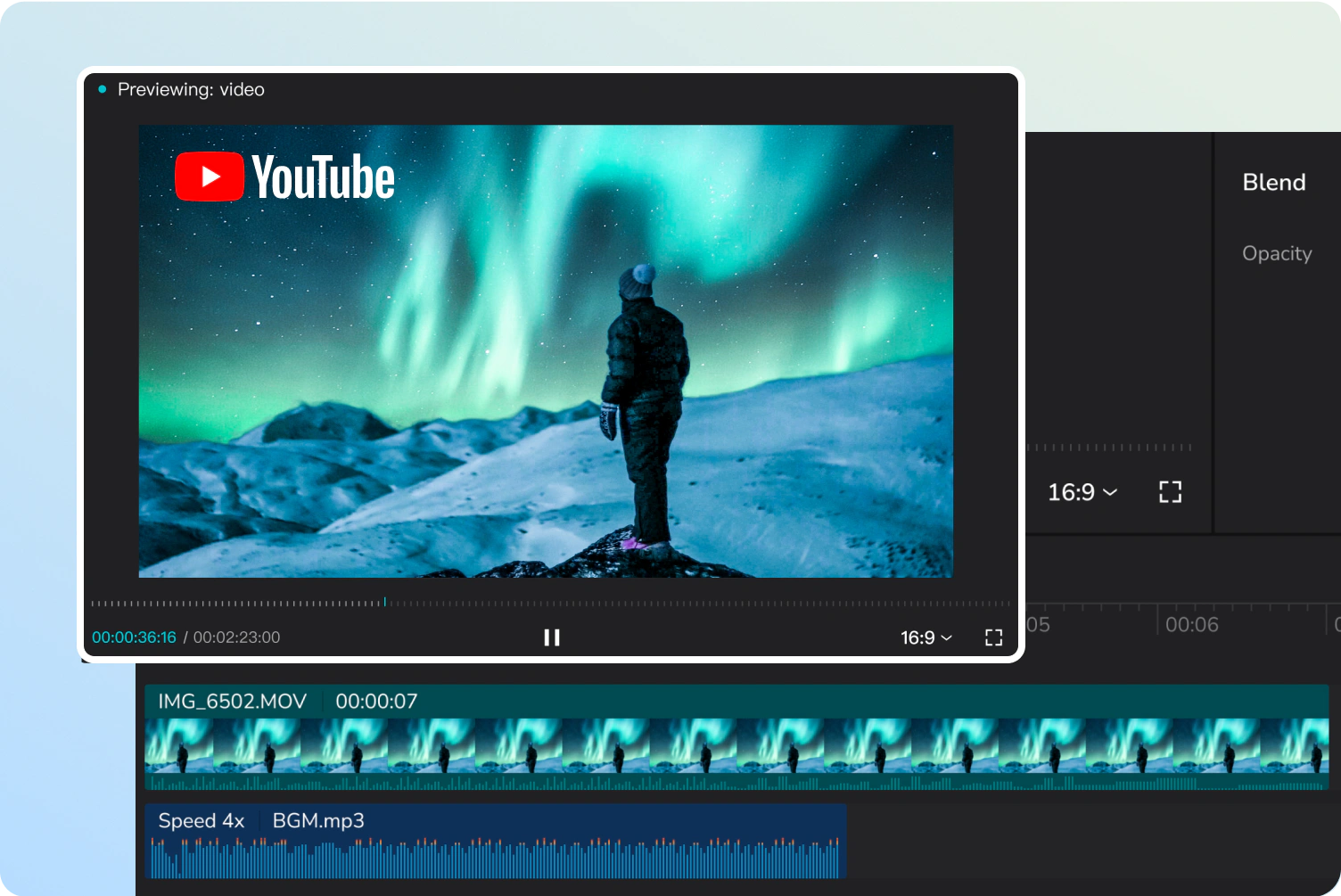
CapCut supports trimming, splitting, cropping, overlays, transitions, speed changes, keyframes, masks, blend modes, chroma key, stabilization, motion tracking, and multiple video, text, and audio layers. This is enough for most social videos, tutorials, product clips, and creator content.
The interface is more approachable than a traditional professional editor because frequently used tools remain close to the selected clip. You can animate position, scale, opacity, and other properties without navigating through a large effects system.
Templates, Effects, Filters, and Stock Assets
Templates are central to the CapCut experience. You can replace media inside prebuilt layouts, then adjust text, timing, music, effects, and colors. The library is particularly useful when you need to react quickly to a visual trend or create several campaign variations.
CapCut also includes filters, transitions, stickers, animated text styles, sound effects, music, and visual effects. The selection is large, but free and premium assets are mixed together. It is easy to add a Pro element without noticing until the export stage.
Auto Captions and Text-Based Workflows
Automatic captions are one of CapCut’s most useful tools. The software can recognize speech, create timed subtitles, and let you correct the words, timing, line breaks, font, color, animation, and position. Caption templates make it easy to produce the large, animated subtitles commonly used in short-form videos.
CapCut also supports transcript-based editing in selected workflows. Instead of finding every pause or unwanted sentence on the timeline, you can review the transcript and remove sections through text. This is especially effective for interviews, tutorials, podcasts, and talking-head content.
AI Video Creation and Generative Tools

CapCut’s AI tools now extend beyond basic automation. Available features can include script-to-video, text-to-video, image-to-video, AI avatars, AI voices, background generation, relighting, image generation, smart cutouts, video upscaling, and automated storyboarding.
Many advanced AI features consume credits. A Pro subscription may include a recurring allowance, but generated video can use credits quickly. You should treat the subscription as access to the editing platform and the credits as a separate production budget.
Long Video to Shorts and Auto Reframing
CapCut can identify moments in longer videos and convert them into shorter clips. It can also reframe content for vertical, square, and horizontal layouts while attempting to keep the main subject visible.
Background Removal, Retouching, and Visual Cleanup
Background removal can isolate a person or object without a green screen. CapCut also provides noise reduction, stabilization, beauty and retouching controls, object removal, relighting, and visual enhancement tools.
Audio Editing, Voice Tools, and Music
CapCut includes volume controls, fades, noise reduction, vocal enhancement, voice effects, sound effects, music, text-to-speech, and AI voice generation. You can separate audio from video, align narration, and create voiceovers without recording every line.
Commercial users should be particularly careful with music. CapCut’s Commercial Sounds license permits use on specified CapCut and TikTok-related platforms, while distribution elsewhere can require separate rights.
Cross-Platform Projects and Team Spaces
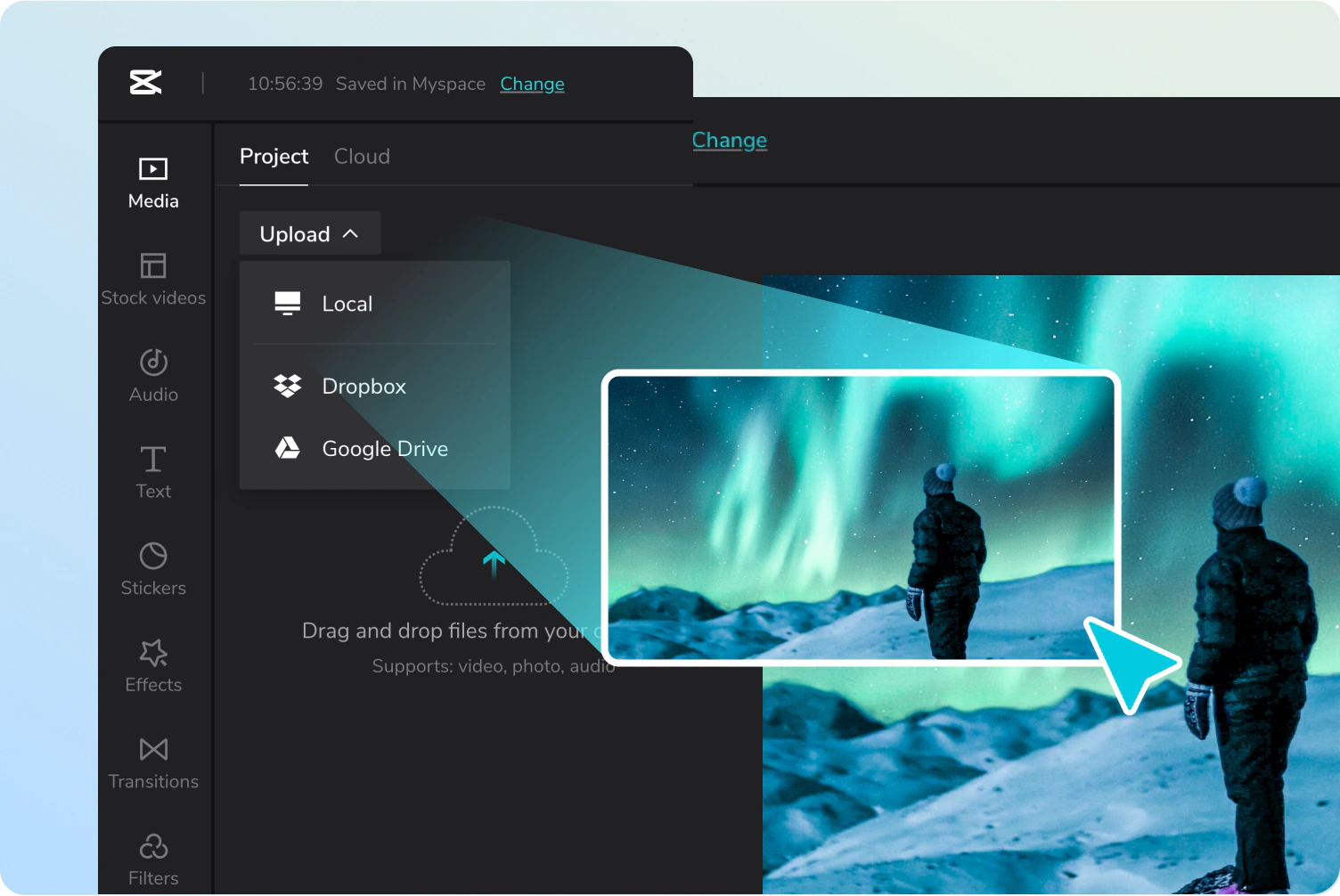
CapCut lets you work across mobile, desktop, and web when you use the same account and a compatible subscription. Cloud spaces can hold projects and media, while team members can share assets, access drafts, and collaborate on edits.
The workflow is convenient for small content teams, but access is not identical across every platform. Some features are mobile-only, desktop-only, web-only, or unavailable in certain regions. CapCut Standard is also more limited across devices than Pro in markets where the plan is offered.
Usability, Export, and Reliability
Editing Experience and Performance
Ease of Use
CapCut is one of the easiest editors to learn if your goal is to create social video quickly. Importing media, trimming clips, adding captions, applying effects, and changing aspect ratios are straightforward. The preview and timeline provide enough control for a beginner without presenting every professional setting at once.
Desktop, Mobile, and Web Differences
The mobile app is strongest for quick capture, templates, trend-driven effects, and editing directly from a phone. Desktop provides a larger timeline, keyboard shortcuts, stronger media handling, and a more comfortable workflow for longer projects. The web editor is useful for browser access and collaboration, but cloud processing and browser limits can make it less predictable for demanding exports.
Export Quality and Watermarks
CapCut Desktop can export up to 4K at 60 frames per second on compatible systems and source footage. Available resolutions, frame rates, codecs, and quality settings depend on the device, platform, project, and subscription.
Basic free projects can often export without a permanent editor watermark, but templates may include an ending clip and Pro materials can block free export. Check every asset before the final render.
Performance on Longer Projects
Performance depends heavily on resolution, effects, AI processing, device memory, graphics hardware, and available storage. Short 1080p social projects generally match CapCut’s strengths. Multi-layer 4K projects, long recordings, heavy effects, and generated media can increase preview lag and export times.
Service Availability and Platform Risk
CapCut is currently available to U.S. users, but its temporary interruption in January 2025 demonstrated that access can be affected by legal and distribution decisions beyond the editing workflow. This does not make CapCut unusable, but businesses should avoid keeping their only project copy or source library inside one cloud service.
Pros and Cons
Benefits and Limitations of CapCut
Positive
✅ Fast social video workflow
✅ Strong captions and templates
✅ Useful AI automation
✅ Mobile, desktop, and web access
✅ Capable free editing tools
Negative
❌ Confusing plan structure
❌ Premium surprises at export
❌ AI credits add usage costs
❌ Music licensing needs caution
❌ Weaker for complex production
Strengths and Benefits
- Fast social video workflow – CapCut reduces the steps between importing footage and publishing a platform-ready clip.
- Strong captions and templates – Automatic subtitles and trend-aware layouts make short-form production much faster.
- Useful AI automation – Background removal, reframing, voice tools, rough cuts, and generative features reduce repetitive work.
- Mobile, desktop, and web access – You can choose the device that matches the project and continue through cloud-connected workflows.
- Capable free editing tools – Core trimming, layering, text, effects, and many social editing features remain accessible without paying.
Limitations and Drawbacks
- Confusing plan structure – Free, Standard, Pro, Teams, legacy accounts, and regional differences make direct comparisons difficult.
- Premium surprises at export – A project can include paid effects, templates, or settings that only become a problem when you try to export.
- AI credits add usage costs – A subscription does not necessarily provide unlimited generative video, images, voices, or advanced AI processing.
- Music licensing needs caution – Commercial Sounds may not cover distribution outside CapCut and specified TikTok platforms.
- Weaker for complex production – Professional editors provide better project organization, color, audio, codecs, review, and finishing controls.
Free, Standard, Pro, and Teams
CapCut Pricing & Plans
CapCut pricing varies by region, device, app store, account history, and rollout stage. Official pages also show different storage allowances for older and upgraded Pro subscriptions, so confirm the live checkout page before purchasing. The figures below reflect published U.S. guidance checked in July 2026.
| Plan | Typical Price | Cloud Storage | AI Access | Best For |
| Free | $0 | Limited and account-dependent | Selected tools with limits | Basic social editing and testing |
| Standard | Varies by region | Often around 100GB | Essential AI and premium materials | Casual mobile creators |
| Pro | $19.99/month or $179.99/year | Up to 1TB on upgraded plans | Subscription credits, published as 1,200 for upgraded plans | Frequent creators and marketers |
| Teams | Typically $15-$30 per seat/month when billed annually | Shared plan allowance | Plan and seat dependent | Agencies and small content teams |
CapCut Free
The Free plan remains useful for trimming, splitting, overlays, text, basic effects, captions, speed controls, and many standard exports. It is a realistic option for beginners and occasional creators.
The main limitation is uncertainty. Some tools can be previewed but require Pro for export, while popular effects and templates may move between free and paid access. Free users should build a short test project using the intended features before investing hours in a larger edit.
CapCut Standard
Standard is a lower-cost paid tier available only in selected regions. It is positioned for casual and everyday creators who want more templates, materials, storage, and basic premium tools without paying for the full Pro package.
CapCut Pro
Pro is the main individual subscription. CapCut currently lists an individual price of $19.99 per month or $179.99 per year in its U.S.-focused comparison content, although checkout prices can vary.
The upgraded Pro plan is advertised with more professional tools, 1TB of cloud storage, and 1,200 AI credits. Other official help pages still mention 100GB, which suggests legacy entitlements, regional differences, or documentation that has not been updated consistently.
CapCut Teams
Teams adds shared workspaces, assets, templates, storage, and member management. Pricing is dynamic and depends on location, seat count, and billing period. CapCut’s help center describes typical annual-billing rates of approximately $15 to $30 per seat per month.
AI Credits and Hidden Costs
CapCut uses subscription, activity, and purchased credits for eligible AI tools. Subscription credits refresh with the billing cycle, promotional credits follow their own expiration rules, and purchased credits can remain available longer.
Best Use Cases
Who Should Use CapCut?
Best for Short-Form Social Creators
CapCut is strongest when speed, captions, effects, trends, and vertical output matter more than formal post-production. TikTok, Reels, and Shorts creators can complete most projects inside one interface.
Best for Social Media Marketing Teams
Marketing teams can create product clips, testimonials, announcements, educational videos, and campaign variations without sending every edit to a specialist. Templates and resizing help one idea travel across several channels.
Best for Beginner Video Editors
CapCut teaches useful timeline concepts without forcing you to learn a professional editing environment immediately. Keyframes, overlays, masking, captions, speed curves, and audio layers provide room to grow.
Best for Repurposing Long Content
Podcasters, webinar hosts, and YouTube creators can use transcripts, automatic highlights, reframing, and caption templates to convert long recordings into social clips.
Not Ideal for Film, Broadcast, or Complex Agency Work
CapCut is not the best foundation for productions that require deep color grading, advanced audio, extensive camera formats, large shared projects, formal approvals, or precise delivery specifications. Adobe Premiere and DaVinci Resolve are stronger for those workflows.
What Businesses Should Check
Privacy, Licensing, and Commercial Use
Data Collection and AI Processing
CapCut’s privacy policy covers account details, uploaded and generated content, metadata, prompts, and files submitted to AI tools. Some processing can occur outside your jurisdiction, so businesses should review sensitive uploads carefully.
User Content and Backup Responsibility
CapCut states that user-generated work belongs to the user, while its terms still grant permissions needed to host, process, and provide platform features. Keep local copies of source files and final masters.
Commercial Music and Asset Licensing
Commercial licensing needs careful review. CapCut’s Commercial Sounds can be used on CapCut, TikTok, and TikTok for Business, while use on YouTube, Instagram, websites, paid networks, or client channels may require separate permission.
CapCut Commerce Pro Is Now Pippit
Businesses may still encounter older references to CapCut Commerce Pro. That product was rebranded as Pippit and now operates as a separate AI content platform for product videos, ads, avatars, images, publishing, and ecommerce workflows.
Competitors
Best CapCut Alternatives
Adobe Premiere – Best for Professional Video Production
Adobe Premiere is the strongest alternative for professional editors, agencies, production teams, and creators who need precise media management, color, audio, formats, collaboration, and delivery controls.
CapCut is faster for short social content, while Premiere provides a deeper environment for long-form, branded, commercial, documentary, and client production.
When CapCut Is Better
CapCut is easier to learn, faster for captions and trends, stronger on mobile, and more practical for daily short-form output. Templates, social ratios, effects, and AI shortcuts require less setup.
When Adobe Premiere Is Better
Premiere is better for complex timelines, professional codecs, multicamera work, media organization, color workflows, audio mixing, reusable graphics, formal review through Frame.io, and integration with After Effects, Photoshop, and the wider Adobe ecosystem.
| Feature | CapCut | Adobe Premiere |
| Primary focus | Fast social and creator video | Professional post-production |
| Learning curve | Beginner-friendly | Moderate to advanced |
| Mobile workflow | Core strength | Available, but desktop remains central |
| Templates and trends | Extensive and social-first | Professional templates and plugins |
| Color and audio | Good for everyday content | Much deeper controls |
| AI tools | Broad creator automation | Professional editing and Firefly tools |
| Best for | Creators, marketers, and quick output | Editors, agencies, and complex production |
DaVinci Resolve – Best Free Professional Editor
DaVinci Resolve is the best alternative when you want professional editing, color, visual effects, and audio without a recurring subscription for the core version.
Resolve has a much steeper learning curve and requires stronger hardware, but its free edition is more suitable for ambitious long-form and cinematic work.
VEED – Best for Browser-Based Team Editing
VEED is better for teams that want browser editing, brand kits, subtitles, review, AI creation, and shared marketing workflows without installing desktop software.
CapCut provides a stronger mobile experience and a larger trend-driven effects ecosystem. VEED is generally easier to standardize across a marketing team. Read the complete VEED review for a closer look at its editing tools, AI features, pricing, and team workflows.
Descript – Best for Transcript-Based Editing
Descript is the better choice for podcasts, interviews, tutorials, screen recordings, and talking-head videos where editing the transcript is more important than visual effects.
CapCut is stronger for motion, templates, social styling, and mobile production. Descript offers a more focused workflow for spoken content and collaborative review. Read the complete Descript review to explore its transcript editing, AI audio tools, pricing, and podcast features.
Canva – Best for Design-Led Marketing Content
Canva is better when video is one part of a larger design workflow that includes presentations, social graphics, documents, ads, brand templates, and team approvals.
CapCut is the stronger dedicated video editor, while Canva makes it easier to maintain visual consistency across many marketing formats. Read the complete Canva review for a detailed comparison of its visual suite, AI tools, pricing, and business features.
Best Practices
Getting the Most Out of CapCut
Build a Clean Master Before Adding Effects
Complete the main story, timing, and audio before applying heavy templates and effects. This makes the edit easier to revise and prevents style from hiding weak pacing.
Check Pro Assets Before Export Day
Scan the timeline, cover, captions, effects, filters, music, and templates for Pro labels early. Replace anything unnecessary before the final deadline.
Proofread Every Caption
Automatic captions should be treated as a first draft. Review names, numbers, product claims, punctuation, and line breaks on a phone-sized preview.
Separate Platform Masters
Create dedicated 9:16, 1:1, and 16:9 versions instead of relying entirely on automatic cropping. Reposition text, demonstrations, faces, and calls to action for each layout.
Keep Local Backups
Store source media and final masters outside CapCut. Export reusable captions, logos, music records, and brand assets so the project can be rebuilt in another editor if necessary.
Verify Commercial Rights
Do not confuse “available in CapCut” with “licensed for every channel.” Confirm music and asset rights for the exact countries, platforms, paid placements, clients, and duration of the campaign.
Conclusion
Final Thoughts
CapCut is one of the strongest video editors for creators and marketers who need to publish social content quickly. Its combination of timeline editing, captions, templates, effects, mobile production, desktop control, browser access, and AI automation makes it unusually versatile for a tool that remains approachable to beginners.
The best reason to choose CapCut is production speed. You can create a polished short video, add readable captions, adapt it to several ratios, improve the audio, and export it without building a complicated software stack.
The main concern is predictability. Pricing varies by region and platform, official storage documentation is inconsistent, Standard and Pro do not provide identical cross-device access, AI credits introduce usage limits, and commercial music rights require careful review. The free plan is still useful, but you should expect more premium prompts than in CapCut’s earlier years.
Overall, CapCut is recommended for short-form creators, social teams, beginner editors, small businesses, and anyone repurposing spoken content. Pro is worth paying for when premium tools save time every week. Professional, transcript-led, browser-team, and mixed-design workflows may be better served by the alternatives below.
Frequently Asked Questions
Have more questions?
What is CapCut used for?
CapCut is used to edit social videos, YouTube content, product clips, tutorials, ads, podcasts, and short-form content. It combines timeline editing, captions, templates, effects, audio tools, cloud projects, and AI features.
Is CapCut free?
Yes. CapCut has a free version with core editing, text, overlays, captions, effects, and standard export tools. Premium assets, advanced AI features, cloud storage, and some export options require a paid plan.
How much does CapCut Pro cost?
CapCut lists Pro at $19.99 per month or $179.99 per year in its U.S. comparison content. Prices can vary by region, device, app store, promotion, and account.
Is CapCut Pro worth paying for?
CapCut Pro is worth paying for when you regularly use premium effects, AI tools, 4K exports, background removal, caption styles, cloud projects, and paid templates. Occasional editors may be satisfied with the free plan.
Does CapCut add a watermark?
Basic free projects can often export without a permanent watermark. Templates may include an ending clip, and projects using Pro materials or premium settings can require an upgrade or asset removal.
Can CapCut export 4K video?
Yes. CapCut Desktop can export up to 4K at 60 frames per second on compatible systems and source footage. Availability can vary by device, platform, project, and subscription.
Can CapCut be used for commercial videos?
Yes, but you must confirm the license for every music track, template, font, stock element, and effect. CapCut Commercial Sounds may require separate rights when videos are distributed outside permitted CapCut and TikTok platforms.
Is CapCut safe for business use?
CapCut provides security and privacy controls, but its policy covers uploaded content, metadata, prompts, and AI files. Businesses should review data requirements, avoid confidential uploads, and keep local project backups.
Is CapCut better than Adobe Premiere?
CapCut is better for fast social editing, templates, mobile workflows, captions, and beginner usability. Adobe Premiere is better for complex timelines, professional formats, color, audio, collaboration, and advanced production.
What is the best CapCut alternative?
Adobe Premiere is best for professional production, DaVinci Resolve for free advanced editing, VEED for browser teams, Descript for transcript-based content, and Canva for design-led marketing workflows.