
Introduction
Canva is no longer just a quick graphic design tool for social media posts. It has developed into a broad visual communication platform covering graphics, presentations, documents, whiteboards, video, websites, spreadsheets, email design, brand management, printing, and AI-assisted content creation.
Its core advantage is accessibility. You can move from an idea to a polished visual without learning professional design software, hiring a specialist for every asset, or switching between several applications. Templates, stock content, drag-and-drop editing, Brand Kits, collaboration, and Canva AI make the platform especially useful for marketers, creators, educators, freelancers, and small business teams.
The tradeoff is depth. Canva is excellent for producing attractive content quickly, but it does not replace Photoshop, Illustrator, InDesign, Premiere Pro, Figma, or a full website builder when you need precise professional control. Its expanding product range can also feel crowded, and the licensing rules around stock elements, logos, templates, and music deserve careful attention.
This Canva review examines its most useful features, Canva AI capabilities, pricing, collaboration tools, licensing limitations, security, and best alternatives in 2026.
What Is Canva?
Canva is a browser-based visual communication platform for creating social graphics, presentations, documents, videos, advertisements, infographics, websites, email layouts, print materials, whiteboards, and data visualizations.
Its editor combines templates, pages, layers, drag-and-drop elements, stock media, uploaded assets, and reusable brand settings. Desktop and mobile apps are available, although the browser remains the center of the workflow.
Who Canva Is Designed For
- Creators and freelancers – Social posts, thumbnails, media kits, lead magnets, videos, and client assets.
- Marketing and sales teams – Campaigns, proposals, reports, presentations, brand templates, and scaled variations.
- Small businesses – Advertising, menus, flyers, websites, documents, and print without a full creative department.
- Educators and enterprises – Learning resources, controlled templates, approved assets, permissions, and organization-wide administration.
Canva is less suitable when your work depends on advanced vector drawing, professional photo retouching, complex video post-production, pixel-perfect product design, or complete control over website code.
Key Features
Design, AI, and Content Production
Canva is most valuable when you use it as a connected production system rather than a collection of isolated templates. A campaign can begin in a Doc or Whiteboard, move into a presentation or social design, draw data from Sheets, use AI to generate variations, and finish as published digital content or printed material.
Templates, Stock Content, and Drag-and-Drop Design
Templates remain Canva’s strongest entry point. You can start with a prepared layout for social media, advertising, presentations, documents, posters, resumes, invitations, reports, videos, and many other formats. The editor lets you replace text, colors, images, video, icons, and other elements without rebuilding the composition.
Free users receive a useful selection of templates and media. Pro and higher plans unlock a much broader premium library, including stock photography, video, audio, graphics, fonts, and premium templates. This reduces the need for separate stock subscriptions, particularly for teams producing frequent marketing content.
The downside is visual sameness. Popular templates are used by many businesses, so a design can look generic when you change only the text and colors. The strongest results come from treating templates as starting structures, then changing typography, hierarchy, imagery, spacing, and composition.
Canva AI 2.0 and Magic Studio
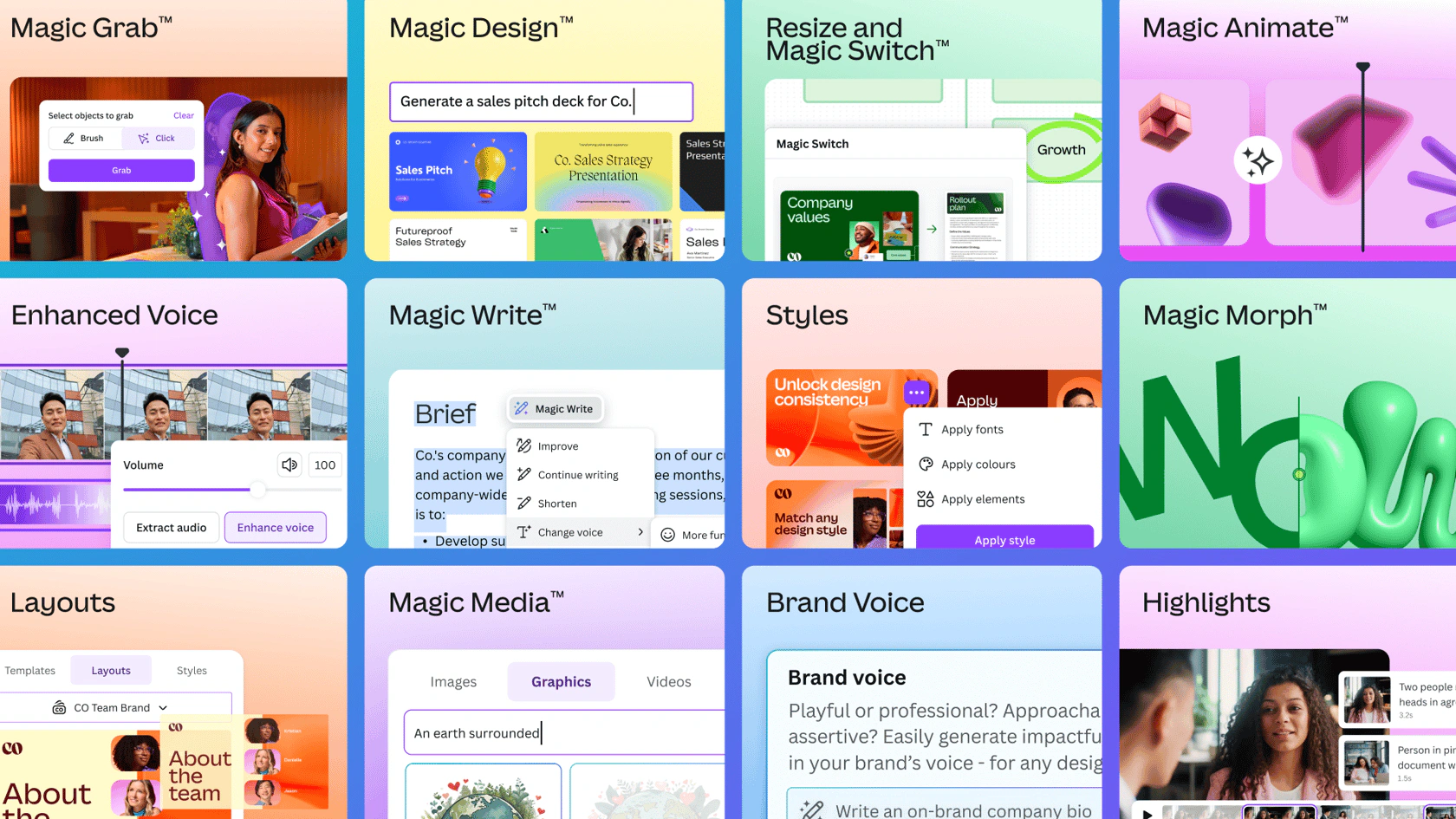
Canva AI has evolved from a set of individual Magic Studio tools into a more conversational creative assistant. You can ask it to generate designs, text, images, video concepts, charts, and editable layouts, then refine the result inside the standard editor.
Useful tools include Magic Write, AI-powered templates, image and video generation, background creation, Magic Resize, style matching, shape generation, photo editing, translation, and Canva Code. Brand Intelligence can apply approved fonts, colors, logos, and style rules so AI-generated outputs begin closer to your visual identity.
Canva Code is particularly interesting because it can create interactive experiences, calculators, simple apps, quizzes, landing pages, and web components from a prompt. Canva Code 2.0 also supports HTML importing and allows generated experiences to connect with Canva Sheets for response collection.
The practical advantage is editability. Canva’s AI output usually enters an editable design environment instead of remaining a flattened image. However, AI allowances vary by plan, generated copy still requires review, and visual output can be inconsistent when the prompt, brand context, or source material is weak.
Photo and Video Editing
Canva provides enough photo editing for routine marketing work. You can crop, adjust color, remove backgrounds, erase or replace objects, blur areas, add filters, create mockups, and place images into frames. These tools are fast and approachable, especially when the final image will be used inside another Canva design.
The video editor uses a timeline for arranging clips, audio, transitions, text, captions, effects, and animations. It works well for short social videos, explainers, presentations, ads, reels, and simple branded content. You can also record yourself, capture a screen, add stock footage, generate captions, and resize a project for different channels.
Canva does not match professional editors for advanced masking, color grading, audio mixing, multicamera editing, motion graphics, or large productions. It is strongest when speed and consistency matter more than technical post-production depth.
Presentations, Docs, Whiteboards, and Sheets
Canva Presentations combines templates, animations, collaborative editing, presenter tools, recording, and web sharing. It is easier than traditional slide software for non-designers, although PowerPoint remains safer when perfect file compatibility and complex corporate slide systems are required.
Canva Docs provides a visual document editor for briefs, reports, plans, proposals, and collaborative writing. Whiteboards add an open canvas for brainstorming, workshops, diagrams, mapping, and planning. You can expand a presentation into a Whiteboard or transform a Doc into a deck, reducing the friction between planning and presentation.
Canva Sheets adds spreadsheet structure to the visual suite. It includes formulas, charts, AI-assisted insights, and Magic Studio at Scale, which can turn rows of data into batches of personalized visual content. It is useful for campaign calendars, content operations, simple reports, and bulk design production, but it is not a replacement for Excel or Google Sheets in complex financial modeling and operational analysis.
Websites, Email Design, and Interactive Content
Canva Websites is useful for simple landing pages, portfolios, event pages, and link-in-bio sites, while Email Design helps teams plan branded campaigns. Canva Code can add interactive components. These tools are convenient for lightweight publishing, but specialist website and email platforms remain stronger for technical SEO, ecommerce, automation, deliverability, and advanced reporting.
Brand Kits, Templates, and Content at Scale
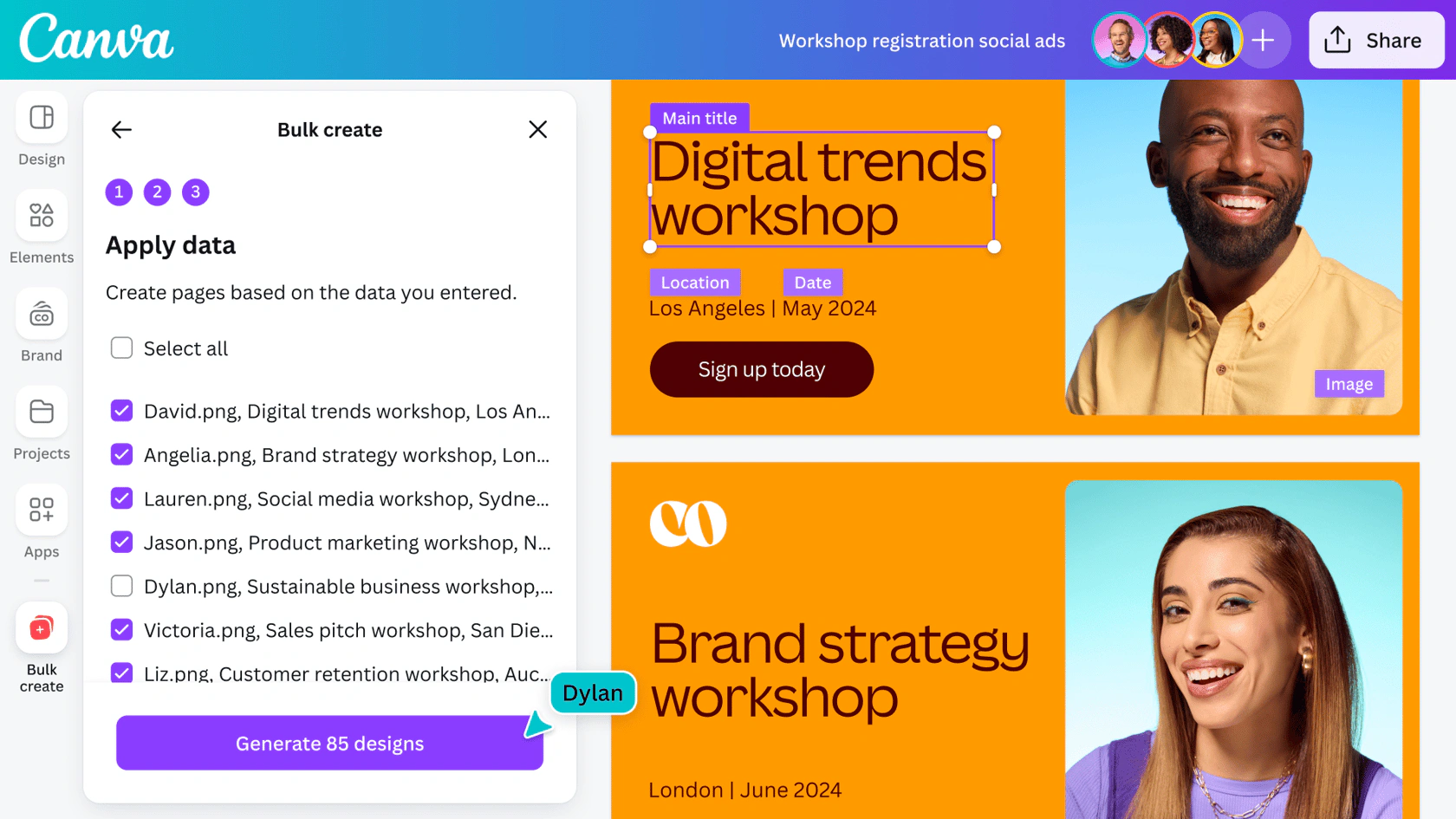
Brand Kits store logos, colors, fonts, imagery, and guidance. Brand Templates give teams approved layouts, while Magic Resize, translation, and Bulk Create adapt one concept across channels and markets. Canva Business also adds marketing insight tools for analyzing creative performance and developing new variations.
This is where Canva becomes a lightweight creative operations platform, especially for small teams producing repeated campaigns from shared brand rules.
Collaboration, Approvals, and Team Administration
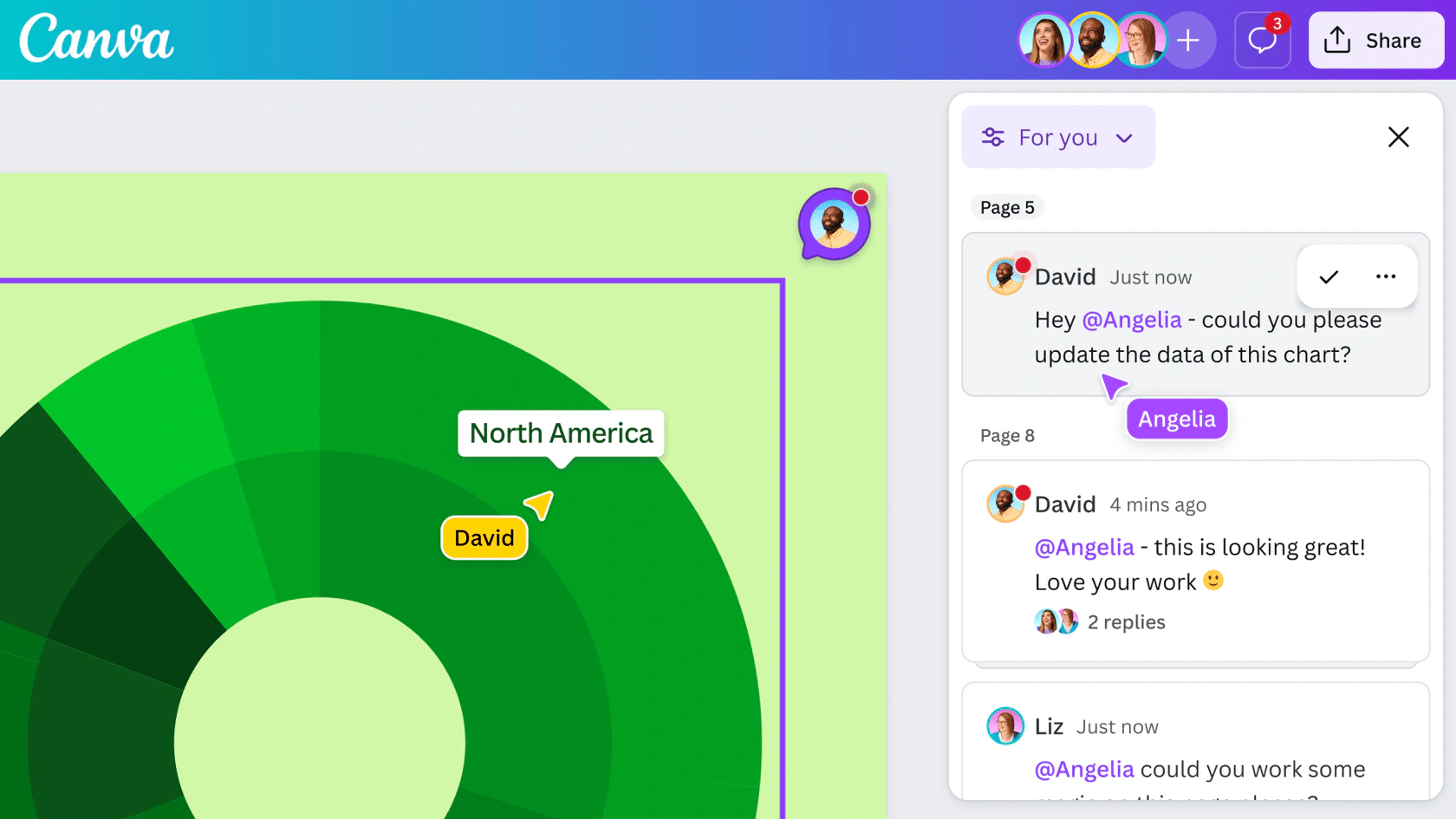
Teams can edit together, comment, share folders, and reuse templates from one source design. Pro supports basic collaboration, Business adds shared workspaces, stronger brand tools, higher AI allowances, and team administration, while Enterprise adds SSO, SCIM, audit logs, domain controls, and organization-level governance.
Existing Canva Teams subscribers can remain on their legacy plan, but new team sign-ups are generally directed toward Business.
User Experience
Ease of Use and Workflow Quality
Editor and Learning Curve
Canva remains one of the easiest design platforms to learn. Most users can understand templates, text editing, uploads, pages, and exports quickly. Contextual toolbars reduce clutter, while search makes templates and assets easier to find.
The learning curve increases when you move into Brand Kits, Bulk Create, Sheets, websites, video timelines, apps, permissions, and AI controls. Canva has become more capable, but the interface now contains enough products that occasional users may struggle to locate a specific feature.
Export and Handoff
Canva supports common outputs such as PNG, JPG, PDF, GIF, MP4, and selected editable formats. Export is straightforward when the final asset will be published as an image, document, or video.
Handoff becomes more difficult when another professional needs fully editable layers in Adobe or specialist design software. Fonts, effects, animations, layouts, and advanced elements may not transfer perfectly. Canva is strongest when the design is created, approved, and exported within Canva rather than moved repeatedly between creative ecosystems.
Pros and Cons
Benefits and Limitations of Canva
Positive
✅ Very easy to learn
✅ Broad content format support
✅ Excellent template and asset library
✅ Strong brand and scaling tools
✅ Useful free plan
Negative
❌ Limited professional editing depth
❌ Licensing rules need attention
❌ Team pricing scales per person
❌ Interface is increasingly crowded
❌ Editable handoff can be difficult
Strengths and Benefits
- Accessible design – Non-designers can create polished content with little training.
- Broad visual suite – Graphics, presentations, documents, video, whiteboards, websites, and print share one workspace.
- Strong production tools – Templates, Brand Kits, resize, translation, Bulk Create, and AI reduce repetitive work.
- Useful free plan – You can complete real projects before paying for premium features.
Limitations and Drawbacks
- Less professional depth – Specialist tools remain stronger for advanced photo, vector, video, UI, and publishing work.
- Licensing complexity – Stock assets, logos, music, and resale products require careful review.
- Per-person pricing – Business costs can rise quickly across larger teams.
- Weak editable handoff – Final exports are easy, but continuing detailed work in other creative tools can be difficult.
Pricing
Canva Pricing and Plans
Canva currently offers Free, Pro, Business, Enterprise, Education, and nonprofit options. Pricing is localized and can change according to country, currency, tax, promotions, and billing frequency, so confirm the final amount in your own checkout.
The prices below reflect publicly listed US pricing reviewed in 2026.
| Plan | Reference Price | Best For | Key Value | Main Limitation |
| Free | $0 | Occasional users and testing | Core editor, free templates, free content, limited AI | Premium assets and advanced tools are restricted |
| Pro | $18/month or $144/year | Solo creators, freelancers, and marketers | Premium content, Brand Kits, resize, background removal, broader AI access | Designed mainly for one user |
| Business | $25/person/month or $250/person/year | Individuals and growing teams | Pro features plus shared workspaces, higher AI limits, brand controls, and marketing tools | Per-person cost grows quickly |
| Enterprise | Custom quote | Large organizations | SSO, SCIM, audit logs, advanced administration, security, and support | Sales process and negotiated contract |
| Education and Nonprofits | Free for eligible organizations | Approved schools and nonprofit teams | Access to many premium capabilities | Eligibility and usage restrictions apply |
Canva Free
Free supports finished designs, free templates and assets, collaboration, exports, and limited AI access. It is suitable for occasional graphics, presentations, and early evaluation, but premium content and automation limits become restrictive for regular production.
Canva Pro
Pro is the best-value plan for most solo professionals. It adds premium media, Brand Kits, Magic Resize, Background Remover, broader AI access, and stronger export options. It makes the most sense when Canva replaces several lightweight creative subscriptions.
Canva Business
Business adds shared workspaces, higher AI usage, brand controls, team administration, and marketing tools. It has no large seat minimum, but the per-person structure can become expensive when many occasional contributors need editing access.
Canva Enterprise
Enterprise focuses on governance through identity management, provisioning, permissions, audit logs, multiple teams, AI controls, security documentation, and negotiated support.
Important Buyer Considerations
Licensing, Security, and Commercial Use
Can You Use Canva Designs Commercially?
Canva allows many commercial uses, but library assets remain subject to its Content License Agreement and third-party rights. You cannot redistribute a stock element as a standalone asset, resell Canva content as your own library, or assume that shared elements are exclusive.
Logo, Trademark, and Music Limitations
Canva logo templates and library graphics are non-exclusive, so a registrable logo should use original artwork, commissioned assets, fonts, and simple shapes. Popular Music is generally not licensed for commercial advertising or promotional campaigns, and Education content has separate non-commercial restrictions.
Security and Enterprise Controls
Canva states that it is ISO 27001 certified and SOC 2 Type II compliant. Enterprise includes SSO, SCIM, permissions, audit logs, and encryption. Organizations should also review connected apps, public links, offboarding, AI privacy settings, and internal approval policies.
Best Use Cases
Who Should Use Canva?
Best for Creators, Freelancers, and Small Marketing Teams
Canva Pro is an excellent fit when you regularly produce social posts, thumbnails, lead magnets, presentations, videos, proposals, and client graphics. Canva Business is better when several people need shared templates, brand controls, higher AI allowances, and faster campaign production.
Best for Brand-Controlled Self-Service
Canva is especially valuable when designers create the brand system and reusable templates, then marketers, sales teams, educators, and other employees customize approved content without submitting every small request to a creative department.
Not Ideal for Specialist Creative Production
Professional photographers, illustrators, publication designers, video editors, UI designers, and web developers will usually need specialist tools alongside Canva. It is an accelerator for templated production, not a complete replacement for deep creative software.
Competitors
Best Canva Alternatives
Adobe Express – Best for Adobe Ecosystem Users
Adobe Express is the closest mainstream alternative for quick graphics, social content, video, templates, brand assets, and AI-assisted creation. It is especially attractive when you already use Adobe Creative Cloud, Photoshop, Illustrator, Lightroom, or Adobe Fonts.
Canva offers the broader all-in-one visual suite and a stronger template-led workflow for many non-designers. Adobe Express is more appealing when Firefly, Adobe assets, and the wider Creative Cloud ecosystem are part of your production process.
VistaCreate – Best for Fast Social Media Content
VistaCreate provides templates, animations, stock content, brand tools, and social-focused design in a familiar drag-and-drop interface. It is a practical option for small businesses that mainly create promotional and social assets.
Canva is more complete across documents, whiteboards, spreadsheets, presentations, websites, and enterprise administration. VistaCreate can be simpler when your needs are narrower and social-first.
Visme – Best for Data-Rich Business Content
Visme focuses on presentations, infographics, reports, charts, interactive content, and business communication. It is a stronger alternative when data storytelling and interactive business assets matter more than Canva’s broad creator ecosystem.
Canva remains easier for general content production, social media, stock-driven design, and cross-format campaigns.
Pitch – Best for Collaborative Business Presentations
Pitch is better suited to teams that primarily create and share business presentations. It offers polished templates, collaborative editing, sharing controls, engagement analytics, and pitch-room workflows.
Canva is broader, while Pitch is more focused on presentation collaboration and distribution. Read the complete Pitch review or compare more options in our best AI presentation makers guide.
Gamma – Best for AI-First Presentations and Pages
Gamma is stronger when you want AI to create a complete presentation, document, or web-style page from a prompt with minimal manual design. Canva gives you more format variety and detailed visual control, while Gamma prioritizes speed and structured storytelling.
The full Gamma review explains where its AI-first workflow is more efficient than a traditional slide editor.
Miro – Best for Workshops and Visual Collaboration
Miro is the stronger choice for collaborative workshops, process mapping, product discovery, diagrams, research synthesis, and large visual workspaces. Canva Whiteboards are easier for content teams already working inside Canva, but Miro provides more depth for structured collaboration.
Read our Miro review for a detailed look at its collaboration and planning capabilities.
Best Practices
Getting the Most Out of Canva
Build a Controlled Template System
Create approved templates for recurring formats such as social posts, reports, presentations, thumbnails, ads, and lead magnets. Keep logos, fonts, core colors, and master templates separate from temporary campaign files.
Use AI for Drafting, Not Final Approval
Use Canva AI to accelerate concepts, copy, layouts, and variations, then check accuracy, originality, accessibility, and brand consistency before publishing.
Check Licensing and Back Up Important Work
Inspect licenses for music, stock media, logos, and resale products. Use original assets for trademarks, and download final versions of important campaigns, presentations, and brand materials to a separate archive.
Conclusion
Final Thoughts
Canva is one of the strongest general-purpose creative platforms in 2026 because it makes visual communication accessible without limiting you to one content type. You can plan, design, collaborate, resize, translate, publish, and print from a connected workspace that remains easier to learn than most professional creative suites.
Its best feature is not a single AI tool or template library. The real value is workflow compression. A small team can produce social graphics, presentations, documents, videos, websites, reports, and print materials without coordinating several specialist applications for every request.
The limitations are equally important. Canva does not offer the technical depth of dedicated creative software, exports are not always ideal for editable handoff, team costs rise with seat count, and the licensing rules can create risk when users assume every library element is exclusive or commercially unrestricted.
Overall, Canva Pro is recommended for solo creators and marketers who produce visual content regularly. Canva Business is the better choice for growing teams that need shared brand systems, higher AI allowances, and scalable production. Enterprise becomes relevant when organization-wide governance, identity management, auditability, and controlled AI deployment matter more than basic design access.
Adobe Express is better for teams invested in Adobe, Pitch and Gamma are more focused for presentations, Visme is stronger for data-rich business content, and Miro provides deeper visual collaboration. Canva remains the best all-around option when ease of use, breadth, templates, and fast branded production are your main priorities.
Frequently Asked Questions
Have more questions?
What is Canva mainly used for?
Canva is used to create graphics, presentations, documents, videos, websites, whiteboards, email designs, reports, social content, and printed materials through templates and drag-and-drop editing.
Is Canva free?
Yes. Canva Free provides the core editor, free templates, free stock content, collaboration, exports, and limited AI access. Paid plans unlock premium assets, brand tools, higher AI usage, and advanced features.
Is Canva Pro worth paying for?
Canva Pro is worth paying for when you create content regularly and use premium assets, Brand Kits, Magic Resize, Background Remover, advanced exports, and AI tools often enough to save meaningful time.
What is the difference between Canva Pro and Canva Business?
Canva Pro is primarily designed for one creator. Canva Business includes Pro features plus shared workspaces, stronger brand controls, higher AI allowances, team administration, and additional marketing capabilities.
Can Canva replace Adobe software?
Canva can replace basic design, presentation, social, and video tools for many users. It does not fully replace Photoshop, Illustrator, InDesign, Premiere Pro, or other specialist software for advanced professional production.
Can you use Canva designs commercially?
Yes, many Canva designs can be used commercially, but library content remains subject to Canva’s license. You cannot resell standalone assets, assume exclusivity, or ignore restrictions attached to music, templates, and stock media.
Can you trademark a logo made in Canva?
A logo created with Canva library graphics or logo templates is generally not suitable for exclusive trademark registration. Use original artwork, commissioned assets, fonts, and simple shapes for a distinctive mark.
Does Canva support team collaboration?
Yes. Teams can edit together, comment, share folders, reuse Brand Templates, and manage access. Canva Business and Enterprise add stronger workspace, brand, permission, and administration features.
Is Canva secure for business use?
Canva states that it is ISO 27001 certified and SOC 2 Type II compliant. Enterprise adds SSO, SCIM, audit logs, permissions, encryption, and organization-level administration.
What is the best Canva alternative?
Adobe Express is the closest general alternative. Pitch and Gamma are better for focused presentation workflows, Visme is stronger for data-rich business content, and Miro provides deeper visual collaboration.