
Managing email can easily become one of the most time-consuming parts of your workday. You write replies, chase follow-ups, check whether important messages were received, and try to stay organized across dozens of open conversations.
That is where Mailbutler comes in. It is an email productivity extension that adds tracking, scheduling, AI writing, templates, notes, tasks, and signature tools directly into the inbox you already use.
Instead of replacing Gmail, Outlook, or Apple Mail, Mailbutler improves them. You keep your familiar email client, but gain extra tools that help you communicate faster, follow up more consistently, and manage email-driven work with less friction.
In this Mailbutler review, you will see how the platform works, which features matter most, how the pricing is structured, where it performs well, and where other email management tools may be a better fit.
Mailbutler is best for professionals, consultants, small teams, sales users, founders, and client-facing teams that rely heavily on email. It is less ideal if your main problem is bulk inbox cleanup, newsletter filtering, or privacy-first encrypted email hosting.
Quick Overview
Mailbutler Review Summary
Mailbutler is a strong choice if email is a core part of your daily workflow. It gives you practical productivity features without forcing you to migrate to a new email app or change the way your team communicates.
The platform works best when you want to improve the email process around sending, replying, tracking, following up, and collaborating. It is not a complete CRM, and it is not mainly built for deep inbox cleanup.
| Category | Mailbutler Review Summary |
| Best For | Professionals and teams that want email tracking, AI writing, send later, templates, notes, tasks, and signatures inside Gmail, Outlook, or Apple Mail |
| Not Best For | Bulk inbox cleanup, encrypted email hosting, advanced CRM pipelines, or users who mostly work from mobile |
| Supported Email Clients | Gmail, Apple Mail, and Outlook |
| Free Plan | Yes, Starter plan with limited features and Mailbutler watermark |
| Free Trial | 14-day free trial with all features and no credit card required |
| Starting Paid Price | From $9 per user/month on monthly billing, with yearly discounts available |
| Best Feature | The combination of tracking, scheduling, AI writing, and inbox collaboration in one email extension |
| Overall Rating | 4.4 out of 5 |
In my opinion, Mailbutler’s biggest advantage is balance. It is more complete than simple email tracking tools, more practical than standalone AI writing tools, and easier to adopt than switching your entire team to a new email client.
How Mailbutler Works
Mailbutler is an email extension that adds productivity features to your existing inbox. You can use it with Gmail, Apple Mail, or Outlook, depending on your setup.
Unlike a full email client, Mailbutler does not replace your inbox. Instead, it adds an extra layer of tools inside the interface you already know. That makes adoption easier, especially for professionals who do not want to move their contacts, folders, or existing email workflow to a new platform.
How Mailbutler Works
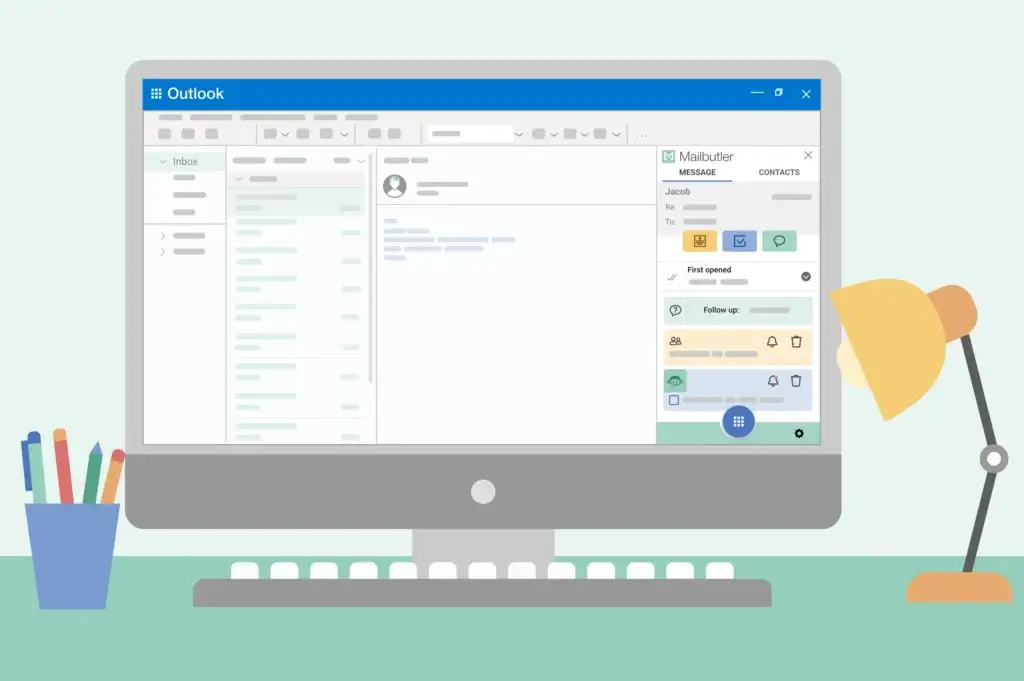
After installation, Mailbutler adds new options to your email composer, message view, sidebar, contact profiles, and sent email activity. From there, you can track opens, schedule messages, use AI writing tools, create templates, add notes, assign tasks, and manage signatures.
For example, when writing an email, you can choose whether to track it, schedule it for later, use a template, or improve the wording with AI. After sending, you can see whether the email was opened or whether a tracked link was clicked.
This makes Mailbutler especially useful for sales conversations, client follow-ups, recruiting, partnerships, consulting, project coordination, and any workflow where email context matters.
How We Evaluated Mailbutler
For this Mailbutler review, I focused on the areas that matter most for business email productivity:
- Email tracking and link tracking depth
- AI writing, summarization, and task extraction
- Scheduling, reminders, and follow-up workflows
- Templates, signatures, and personalization
- Team collaboration features
- Pricing transparency and plan value
- Security, privacy, and GDPR considerations
- How Mailbutler compares with SaneBox, Clean Email, Boomerang, Mailtrack, Right Inbox, and Superhuman
This review is written for buyers who want practical guidance, not only a feature list.
Core Features Breakdown
Mailbutler Features
Mailbutler’s feature set is broad, but the platform is built around one clear idea: helping you manage email-driven work without leaving your inbox.
Here are the key Mailbutler features that matter most.
Email Tracking and Link Tracking
Email tracking is one of Mailbutler’s strongest features. It helps you see whether a message was opened, when it was first opened, and whether links inside the email were clicked.
This is valuable when you send proposals, sales emails, invoices, partnership messages, recruiting emails, or customer follow-ups. Instead of guessing whether someone saw your message, you get more context before deciding when to follow up.
Mailbutler also supports link tracking, so you can see if a recipient clicked a link in your email. That is especially useful when sending calendar links, pricing pages, proposals, onboarding resources, or product demos.
That said, email tracking is not perfect. Like any tool that relies on tracking pixels or tracked links, results can be affected by recipient privacy settings, image blocking, Apple Mail privacy features, and corporate security filters.
Send Later and Smart Scheduling
Mailbutler’s Send Later feature lets you write an email now and schedule it to send at a better time. This is useful when you work across time zones, write outside business hours, or want your message to arrive when the recipient is more likely to respond.
For example, you can write a client update at night but schedule it for the next morning. You can also prepare follow-ups in advance without manually remembering to send them later.
For business users, this feature helps create a more consistent communication rhythm. It also prevents the common problem of sending emails at poor times simply because that is when you happened to write them.
Smart Assistant for AI Email Writing
Mailbutler’s Smart Assistant is designed to help you write, improve, reply to, and summarize emails. It is especially helpful when you handle many repetitive or context-heavy email conversations.
You can use the AI assistant to draft a new message, rewrite an existing paragraph, adjust tone, summarize a long thread, or create a reply based on the conversation context.
This is where Mailbutler becomes more than a basic email tracker. Instead of only showing activity after an email is sent, it helps you improve the quality and speed of the message before it goes out.
In my opinion, the AI assistant is most useful for three workflows:
- Summarizing long threads before replying
- Turning rough notes into polished client emails
- Improving tone, clarity, grammar, and structure
It is not a replacement for your judgment. You still need to review the output, especially for sensitive client communication, pricing, legal wording, or sales promises. But as a productivity layer, it can save meaningful time.
Smart Summaries and Task Finder
Mailbutler can help identify important information inside email conversations, including action items and tasks. This is useful when your inbox doubles as your task list, which is common for consultants, founders, customer success managers, and project managers.
Instead of leaving an important next step buried in a thread, you can turn it into a task and keep it connected to the original email. This gives you better context than copying tasks manually into a separate tool.
For teams that manage client communication, this helps reduce dropped follow-ups and missed responsibilities.
Notes, Tasks, and Email Templates
Mailbutler allows you to add internal notes and tasks to email threads. This helps you keep context attached to the actual conversation instead of spreading information across Slack, spreadsheets, task apps, and memory.
Templates are another important time-saver. If you send similar messages repeatedly, such as follow-ups, introductions, onboarding instructions, support replies, or meeting recaps, templates help you respond faster while keeping messaging consistent.
For solo users, templates reduce repetitive typing. For teams, shared templates help maintain a consistent tone and process across multiple people.
Mail Merge and Personalized Outreach
Mailbutler includes mail merge functionality, which can help you send personalized emails at scale. This is useful for small outreach campaigns, client updates, event invitations, partner communication, and lightweight sales workflows.
However, Mailbutler should not be confused with a dedicated cold email platform. If your main need is large-scale outbound sequencing, deliverability management, inbox rotation, and campaign analytics, a dedicated sales engagement tool will usually be more appropriate.
Mailbutler is better suited for personalized business communication from your regular inbox.
Email Signatures and Signature Marketing
Mailbutler includes professional email signature tools. You can create branded signatures, use pre-designed templates, add social links, include marketing elements, and keep your email identity consistent.
This is valuable for teams because email signatures are often overlooked. A consistent signature can support brand trust, promote a webinar, highlight a product page, or drive traffic to a key resource.
For agencies, consultants, and small businesses, this is a practical feature because every outbound email becomes a small brand touchpoint.
Team Collaboration Features
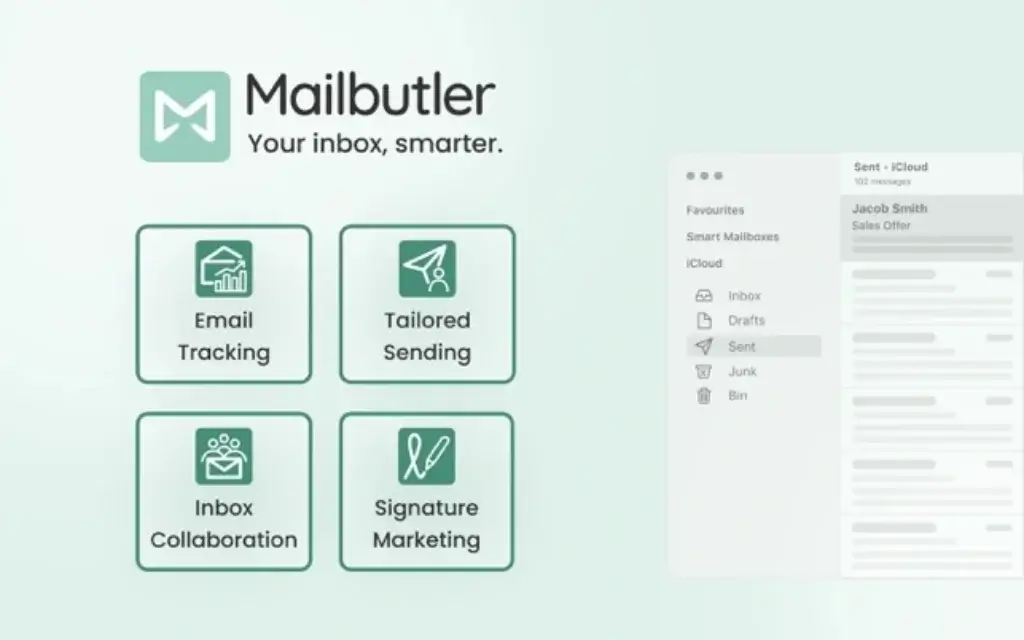
Mailbutler also supports collaboration through shared notes, tasks, templates, and signatures. This makes it useful for teams that work together around customer conversations but do not want to manage every email interaction inside a full CRM.
For example, a sales manager can create shared templates, a customer success team can leave internal notes on client conversations, and an agency can assign follow-ups connected to specific email threads.
The collaboration features are not as advanced as a help desk or CRM. But for lightweight inbox collaboration, they add useful structure without adding another platform to check.
Pros and Cons
What Works Well and What to Consider
Mailbutler is a capable email productivity tool, but it is not perfect for every user. The main question is whether you need a full inbox productivity layer or only one specific feature, such as tracking or cleanup.
Here is a balanced look at the main strengths and limitations.
Positive
✅ Works inside Gmail, Outlook, and Apple Mail
✅ Combines tracking, scheduling, AI, templates, and signatures
✅ Useful for sales, consulting, client service, and small teams
✅ Strong AI assistant for drafting, replies, and summaries
✅ Notes and tasks keep context connected to email threads
✅ Easier to adopt than switching to a new email client
Negatives
❌ Email tracking can be blocked by privacy tools
❌ Best AI features require the Smart or Business plan
❌ Not a full CRM or sales engagement platform
❌ Not ideal for bulk inbox cleanup
❌ Business pricing is not fully public
❌ Mobile experience is not as complete as desktop
Where Mailbutler Performs Best
Mailbutler performs best when your work depends on timely email communication. If you need to know whether a proposal was opened, schedule replies across time zones, reuse polished templates, or summarize long threads, the platform solves real workflow problems.
It also works well for small teams that need lightweight collaboration inside email without moving everything to a CRM or help desk.
Where Mailbutler Falls Short
Mailbutler is not the strongest option if your main goal is inbox decluttering. Tools like SaneBox and Clean Email are more focused on filtering, sorting, bulk cleanup, and reducing inbox overload.
It is also not a complete replacement for CRM tools like HubSpot or Salesforce. Mailbutler can support follow-ups and relationship management, but it does not replace pipeline management, deal stages, forecasting, or advanced reporting.
User Experience
What It Is Like Using Mailbutler Daily
Mailbutler’s user experience is one of its main advantages. It feels like an added productivity layer rather than a separate platform you need to manage.
The tools appear inside the places where you naturally work: the compose window, the sent folder, the sidebar, and message threads. That makes the learning curve relatively low.
Clean Interface Inside Your Existing Inbox
Whether you use Gmail, Outlook, or Apple Mail, Mailbutler adds buttons and panels without making the inbox feel overloaded. You do not need to open a separate dashboard for every action.
For example, you can write an email, choose a template, enable tracking, schedule it for later, and add a follow-up reminder from the same workflow.
Best on Desktop
Mailbutler is strongest on desktop. That is where the full value of tracking, AI writing, templates, notes, scheduling, and signature management becomes clear.
Mobile support exists for certain functions, but the experience is not as complete as desktop. If you mostly manage email from your phone, you should test the workflow carefully during the free trial.
Practical for Daily Business Email
After a few weeks of use, the biggest benefit is not one single feature. It is the combination of small workflow improvements that reduce friction throughout the day.
You spend less time wondering whether someone opened an email, less time rewriting similar responses, and less time digging through threads for action items.
That makes Mailbutler useful for people who manage many conversations but do not want to build a complicated email operating system.
Pricing and Plans
How Much Does Mailbutler Cost?
Mailbutler offers a free Starter plan, a 14-day free trial with all features, and several paid plans for individuals and teams. No credit card is required for the trial.
The plan names are now Starter, Professional, Smart, and Business. This is important because older Mailbutler reviews may still mention outdated plan names or older prices.
Here is the current pricing structure to use as a practical guide. Always check the official pricing page before publishing because SaaS pricing can change.
| Plan | Monthly Price | Best For | Key Features |
| Starter | $0 | Basic email productivity | Starter features, basic tracking, signatures, and visible Mailbutler watermark |
| Professional | From $9/user/month | Professionals who need tracking, templates, and scheduling | Email tracking, real-time notifications, message templates, mail merge, notes, tasks, tags, and tailored sending |
| Smart | From $14/user/month | Power users who want AI email productivity | Smart Assistant, AI writing, AI replies, email improvement, summaries, task detection, and advanced productivity tools |
| Business | Custom pricing | Teams that need advanced controls and collaboration | Team collaboration, CRM-related tracking, signature management, UTM tracking, and business-level features |
Which Mailbutler Plan Should You Choose?
The Starter plan is useful if you only want to test basic functionality. However, the watermark and feature limits mean most serious business users will outgrow it quickly.
The Professional plan is the best starting point for freelancers, consultants, and client-facing professionals who want tracking, templates, scheduling, and practical productivity features.
The Smart plan is the better fit if you want Mailbutler mainly for AI. If summarizing threads, writing replies, improving tone, and extracting action items are important to you, this plan will usually make more sense.
The Business plan is for teams that need collaboration, signature control, CRM-related activity, and more advanced business workflows.
Is Mailbutler Worth the Price?
Mailbutler is worth considering if email directly affects your revenue, client experience, or team coordination. For example, if better follow-ups help you close one more client, renew one more account, or avoid one missed deadline, the cost can be easy to justify.
However, if you only need simple Gmail open tracking, Mailbutler may be more than you need. In that case, a lighter tool like Mailtrack or Right Inbox may be more cost-effective.
Is Mailbutler Safe?
Mailbutler Security, Privacy, and GDPR
Security and privacy matter when reviewing any email productivity tool because the product connects to one of your most sensitive workspaces: your inbox.
Mailbutler is developed in Germany and positions itself as a privacy-focused email extension. The company states that it does not sell, rent, loan, or lease personal information, and that its service is designed with privacy in mind.
Mailbutler also states that it is GDPR compliant and that its servers are located in the EU. For businesses operating in Europe, or for companies that handle EU customer data, this is an important trust factor.
What About Mailbutler’s AI Assistant?
Mailbutler’s Smart Assistant uses OpenAI technology. That means some email content may need to be processed when you actively use AI functions such as generating a reply, summarizing an email, or improving the text.
The practical point is simple: do not treat any AI email assistant as a place to paste highly sensitive information without reviewing your company’s data policies first.
For most everyday business emails, the AI features can be very helpful. For legal, medical, financial, HR, or confidential client communication, you should be more careful and review your internal compliance requirements.
Email Tracking Privacy Considerations
Email tracking is useful, but it also comes with privacy limitations. Some recipients may block images, use privacy-focused email clients, or have security tools that prevent tracking pixels from loading.
That means Mailbutler tracking should be treated as a helpful signal, not a perfect source of truth.
For example, if an email is marked as opened, that is useful context. But if an email is not marked as opened, it does not always mean the recipient never saw it.
Best Use Cases
Who Should Use Mailbutler?
Mailbutler is best for professionals who use email as a daily work hub. If your inbox is where deals, projects, client updates, approvals, and follow-ups happen, Mailbutler can make that workflow more organized.
Best for Sales Professionals
Sales users can use Mailbutler to track opens, monitor link clicks, schedule follow-ups, and reuse templates. This helps when managing warm leads, proposals, demos, and partner communication.
It is not a full sales engagement platform, but it is useful for personalized one-to-one email workflows.
Best for Consultants and Freelancers
Consultants and freelancers often manage client relationships directly from email. Mailbutler helps by making follow-ups, reminders, templates, and professional signatures easier to manage.
If you frequently send proposals, reports, onboarding emails, meeting recaps, or project updates, the tool can save time and reduce missed actions.
Best for Customer Success and Account Management
Customer success teams can use notes, tasks, templates, and follow-up reminders to keep client conversations organized.
This is helpful when you need context around renewals, onboarding steps, product questions, or support handoffs.
Best for Small Teams
Small teams can use Mailbutler to create shared templates, keep signature branding consistent, and collaborate around email tasks without implementing a heavier CRM or help desk system.
This is especially useful for agencies, service businesses, and small B2B teams that need better email coordination but do not want another complex platform.
Who Should Not Use Mailbutler?
Mailbutler is probably not the right choice if you only check email occasionally, mostly work from mobile, or mainly need to delete, archive, and organize thousands of old emails.
If your primary goal is inbox cleanup, compare it with the best email management tools, especially tools focused on filtering and bulk organization.
Alternatives and Competitors
Mailbutler vs Other Email Productivity Tools
Mailbutler competes with several different types of email tools. Some focus on email tracking, some on inbox cleanup, some on AI writing, and some on replacing the email client entirely.
The best Mailbutler alternative depends on the problem you want to solve.
| Tool | Best For | How It Compares to Mailbutler |
| Mailbutler | Email tracking, AI writing, scheduling, templates, signatures, and inbox collaboration | Best all-around add-on for professionals who want to improve Gmail, Outlook, or Apple Mail |
| SaneBox | AI inbox filtering and prioritization | Better for reducing inbox noise, but weaker for tracking, AI writing, and team workflows |
| Clean Email | Bulk cleanup and email organization | Better for cleaning large inboxes, but not built for sales follow-ups or message writing |
| Boomerang | Email scheduling and reminders | Strong for Gmail scheduling, but Mailbutler offers a broader feature set |
| Mailtrack | Simple Gmail email tracking | More focused and lightweight, but much narrower than Mailbutler |
| Right Inbox | Gmail productivity features | Useful for Gmail users, but Mailbutler supports Gmail, Outlook, and Apple Mail |
| Superhuman | Premium email client experience | Better if you want to replace your email interface, while Mailbutler enhances your existing inbox |
Mailbutler vs SaneBox
SaneBox is better if your biggest problem is inbox overload. It uses filtering and prioritization to move less important emails out of the way so you can focus on what matters.
Mailbutler is better if your biggest problem is managing outgoing communication. It helps you write, track, schedule, and follow up more effectively.
In simple terms, SaneBox helps you receive fewer distractions. Mailbutler helps you send and manage better emails.
👉🏼 Read the FULL Review Here
Mailbutler vs Clean Email
Clean Email is better for bulk inbox cleanup. If you need to delete, archive, unsubscribe, group, or automate cleanup rules across thousands of messages, Clean Email is the more focused option.
Mailbutler is better for active business communication. It helps with email writing, tracking, scheduling, templates, and follow-ups.
If your inbox is messy, start with Clean Email. If your daily email workflow needs better productivity tools, Mailbutler is the stronger fit.
👉🏼 Read the FULL Review Here
Mailbutler vs Boomerang
Boomerang is a natural comparison because it is known for send later, reminders, and email productivity features. It is a good option if your needs are mainly around scheduling and follow-up reminders.
Mailbutler is broader. It adds scheduling, but also includes tracking, AI writing, templates, notes, tasks, signatures, and collaboration features.
Choose Boomerang if you want a simpler scheduling-focused tool. Choose Mailbutler if you want a more complete inbox productivity extension.
Mailbutler vs Mailtrack
Mailtrack is a lightweight email tracking tool, especially popular with Gmail users. It is a better fit if your main need is simple open tracking and you do not want a large feature set.
Mailbutler is better if you want tracking as part of a broader workflow that includes AI, scheduling, templates, notes, and tasks.
Choose Mailtrack for simplicity. Choose Mailbutler for a more complete business email workflow.
Mailbutler vs Right Inbox
Right Inbox is another Gmail productivity extension with useful features such as reminders, recurring emails, templates, and scheduling.
The main difference is platform breadth and feature positioning. Right Inbox is mainly Gmail-focused, while Mailbutler supports Gmail, Outlook, and Apple Mail.
If your whole workflow is inside Gmail, Right Inbox may be worth comparing. If your team uses different email clients, Mailbutler has the advantage.
Mailbutler vs Superhuman
Superhuman is not just an extension. It is a premium email client built around speed, keyboard shortcuts, inbox focus, and a redesigned email experience.
Mailbutler takes a different approach. It improves your existing inbox instead of replacing it.
Choose Superhuman if you want a faster, premium email client and are comfortable changing your daily email interface. Choose Mailbutler if you want to keep Gmail, Outlook, or Apple Mail while adding productivity features.
👉🏼 Read the FULL Review Here
Getting Started with Mailbutler
Setup Guide
Getting started with Mailbutler is straightforward. You choose your email client, install the relevant extension or plugin, create an account, and configure the features you want to use.
The exact setup may vary depending on whether you use Gmail, Apple Mail, or Outlook, but the general process is similar.
Step-by-Step Setup Instructions
- Visit the Mailbutler website: Go to mailbutler.io and start the free trial or free Starter plan.
- Choose your email client: Select Gmail, Apple Mail, or Outlook.
- Install the extension or plugin: Gmail users can install the browser extension, Apple Mail users can install the macOS plugin, and Outlook users can connect through the supported Outlook setup.
- Create or log in to your Mailbutler account: This connects your settings, preferences, templates, signatures, and activity.
- Grant the required permissions: Review the access requests carefully so Mailbutler can add features such as tracking, scheduling, AI assistance, and templates.
- Customize your settings: Decide whether tracking should be enabled by default, set up signatures, create templates, and review notification settings.
- Test your first workflow: Send a tracked email, schedule a message, create a template, and try the AI assistant during the trial.
Setup Tips
Start by enabling only the features you will actually use. For example, if you mainly need tracking and templates, configure those first before exploring AI, notes, tasks, and signature management.
If you use Apple Mail, pay close attention after macOS updates because email plugins sometimes require re-approval or reconfiguration.
If you work in a team, set up shared templates and signatures early. These features can improve consistency across the entire team.
Conclusion
Final Recommendation: Is Mailbutler Worth It?
Mailbutler is worth considering if email is a serious part of your workday. It gives you a practical mix of email tracking, scheduling, AI writing, templates, notes, tasks, signatures, and collaboration without asking you to leave Gmail, Outlook, or Apple Mail.
Its strongest value is not only one feature. The real benefit comes from combining several small productivity improvements into one inbox workflow.
You can write better emails faster, follow up with more confidence, schedule messages at better times, reuse polished templates, and keep action items connected to the original conversation.
Choose Mailbutler If
- You send business emails every day
- You need tracking, scheduling, and follow-up reminders
- You want AI help for replies, summaries, and message improvement
- You use Gmail, Outlook, or Apple Mail and do not want to switch clients
- You work with clients, leads, partners, candidates, or customer accounts
- You want lightweight collaboration without a full CRM
Consider an Alternative If
- You mainly need to clean thousands of old emails
- You want a full CRM with pipelines and forecasting
- You only need simple email open tracking
- You mostly manage email from mobile
- You need privacy-first encrypted email hosting
In my opinion, Mailbutler is one of the best email productivity extensions for professionals who want to improve the inbox they already use. It is especially strong for users who want more control over outgoing communication, follow-ups, and email-driven tasks.
For inbox cleanup, compare it with SaneBox or Clean Email. For simple tracking, compare it with Mailtrack. For a premium email client replacement, compare it with Superhuman.
But if you want one practical add-on that makes Gmail, Outlook, or Apple Mail more powerful, Mailbutler is a strong option to test in 2026.
FAQ
Frequently Asked Questions
What is Mailbutler?
Mailbutler is an email productivity extension for Gmail, Outlook, and Apple Mail. It adds features such as email tracking, send later, AI writing, templates, notes, tasks, mail merge, and professional signatures to your existing inbox.
Is Mailbutler free?
Yes. Mailbutler offers a free Starter plan. It includes basic functionality, but emails sent on the free plan include a visible Mailbutler watermark. Paid plans unlock more advanced productivity, AI, and collaboration features.
How much does Mailbutler cost?
Mailbutler has a free Starter plan, while paid plans start from $9 per user per month on monthly billing. The Smart plan starts from $14 per user per month, and Business pricing is custom. Yearly discounts may be available.
Does Mailbutler work with Gmail?
Yes. Mailbutler works with Gmail and adds productivity features such as email tracking, send later, templates, AI assistance, notes, tasks, and signatures directly into the Gmail workflow.
Does Mailbutler work with Outlook?
Yes. Mailbutler supports Outlook, although some features and notifications may behave differently depending on whether you use Outlook.com, desktop Outlook, or the supported integration method.
Does Mailbutler work with Apple Mail?
Yes. Mailbutler works with Apple Mail through its macOS integration. Apple Mail users should check compatibility after macOS updates because email plugins may sometimes require re-approval or setup changes.
Can Mailbutler track email opens?
Yes. Mailbutler can track when an email is opened and can also track link clicks. However, tracking accuracy can be affected by image blocking, privacy settings, Apple Mail privacy features, and corporate security filters.
Is Mailbutler safe?
Mailbutler positions itself as a privacy-focused email extension developed in Germany. It states that it is GDPR compliant and does not sell, rent, loan, or lease personal information. Businesses should still review permissions, AI usage, and internal compliance needs before adoption.
Does Mailbutler read your emails?
Mailbutler needs certain access to provide features such as tracking, scheduling, Smart Assistant, notes, tasks, and templates. When using AI features, selected email content may be processed to generate replies, summaries, or improvements. Review Mailbutler’s privacy policy before using it with sensitive data.
What is the best Mailbutler alternative?
The best Mailbutler alternative depends on your goal. SaneBox is better for inbox filtering, Clean Email is better for bulk cleanup, Mailtrack is better for simple Gmail tracking, Boomerang is strong for scheduling, and Superhuman is better if you want a premium email client replacement.