
Introduction
Kapwing sits between a lightweight social video maker and a full collaborative content production platform. You can use it to edit footage in a browser, generate videos from prompts, create subtitles, translate and dub speech, remove silences, clean audio, resize content, build branded templates, and collect feedback without installing traditional desktop software.
Its strongest advantage is workflow compression. A marketing team can move from a podcast, webinar, product recording, script, or rough idea to several publishable video formats inside one shared workspace. Its main limitations are equally practical: paid plans are priced per member, advanced AI features consume credits, browser performance depends on your device and connection, and the Free plan is too restricted for consistent production.
This Kapwing review examines the editor, AI tools, subtitles, localization, collaboration, pricing, privacy, export limits, and best alternatives in 2026.
What Is Kapwing?
Kapwing is a cloud-based video and content editor designed for creators, marketers, educators, agencies, and distributed teams. Its Studio combines a multi-layer timeline with templates, stock media, screen and camera recording, automatic subtitles, transcript editing, translation, dubbing, audio enhancement, background removal, resizing, and generative AI.
You can begin with uploaded footage, a public media link, a script, a document, an image, or a text prompt. Kapwing then lets you assemble or generate a first draft and refine every layer in the standard editor. This editability is important because AI-generated video rarely arrives publication-ready without changes to pacing, visuals, captions, claims, or brand styling.
Who Kapwing Is Designed For
- Social media teams – Create vertical clips, captions, memes, ads, and channel-specific versions quickly.
- Marketing teams – Produce product videos, explainers, campaign assets, customer stories, and localized content.
- Podcasters and YouTube creators – Turn long recordings into shorter clips, subtitles, transcripts, and social cutdowns.
- Agencies – Share branded workspaces, reuse templates, organize clients, and collect timestamped feedback.
- Educators and internal communication teams – Create accessible lessons, training videos, announcements, and translated updates.
- Solo creators – Access editing, AI generation, subtitles, audio cleanup, and stock assets without a complex software stack.
Kapwing is less suitable for feature films, advanced color grading, detailed sound design, very large source files, offline editing, or projects longer than two hours.
Core Capabilities
Kapwing Video Editing and AI Features
Browser-Based Timeline Editor
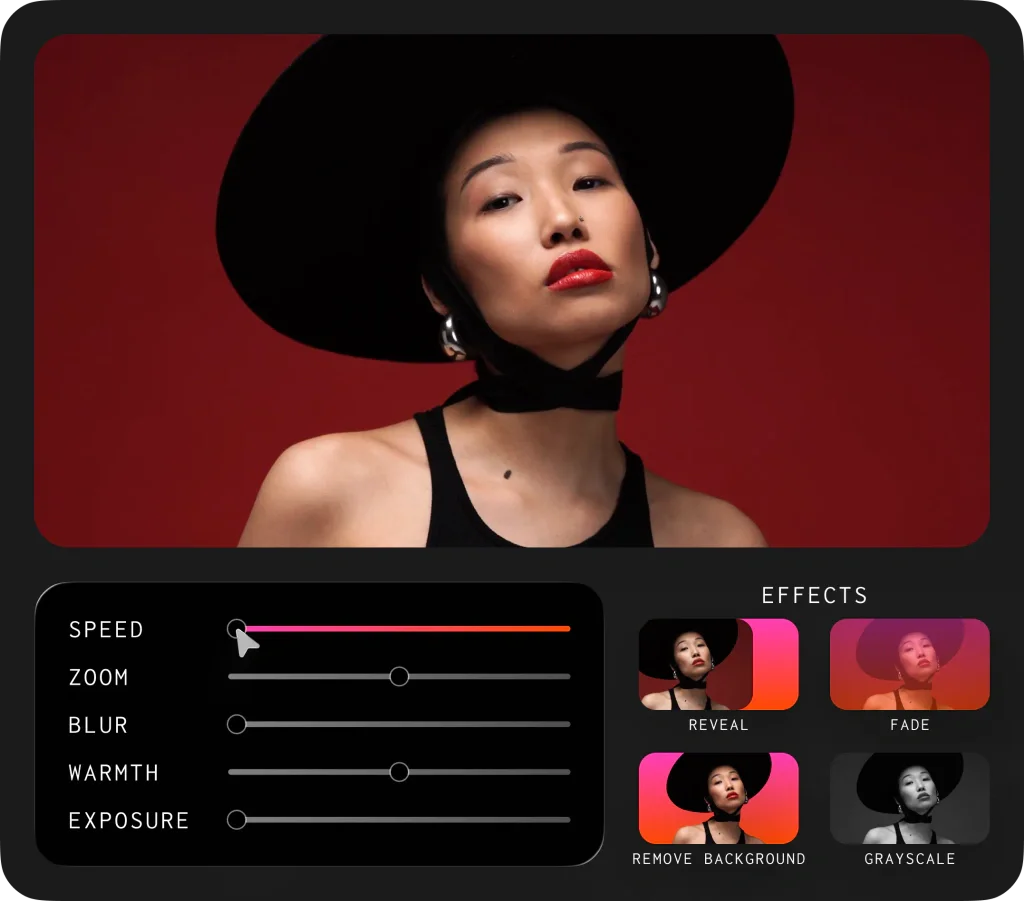
The main Studio uses a drag-and-drop, multi-layer timeline. You can trim and split clips, arrange scenes, add overlays, animate text, insert transitions, adjust timing, mix audio, crop media, change speed, apply effects, and position elements on a flexible canvas.
Kapwing AI Video Generator and Kai Assistant
Kapwing AI can generate short scenes or complete first drafts from a prompt, script, PDF, document, image, or existing footage. A generated draft can include a script, voiceover, subtitles, B-roll, music, scene timing, and multiple visual layers.
The conversational assistant, commonly presented as Kai, lets you request changes through prompts before moving into the standard Studio. You can ask it to shorten a scene, change the visual direction, add captions, generate B-roll, resize the project, or create a different voiceover. Kapwing currently connects its workflow with several external generative video and voice models, so output quality and credit consumption can vary by model and task.
The key advantage is that generated projects remain editable. You can replace weak stock choices, correct factual errors, rewrite narration, adjust timing, restyle captions, and remove unnecessary scenes instead of accepting a locked video.
Automatic Subtitles and Transcript Editing
Subtitles are one of Kapwing’s strongest and most mature features. You can generate captions automatically, edit the transcript, correct timing, change line breaks, and apply animated styles designed for social video. The editor offers more than 100 subtitle presets, while paid plans add custom fonts and stronger brand control.
Automatic captions should still be treated as a first draft. Names, product terminology, numbers, accents, punctuation, and fast overlapping speech require human review.
Translation, Dubbing, and Lip Sync
Kapwing can translate subtitles into more than 60 languages and dub spoken audio into more than 40 languages. You can review the source transcript and translated text before generating a voice, select stock voices, and on eligible plans use custom voice cloning.
Localization is credit-intensive. Each target language consumes additional allowances, and regenerating audio after script changes can use more credits. Finalize the source edit and terminology before creating several language versions.
Repurpose Studio, Clip Maker, and Resizing
Kapwing can identify potentially useful moments in long recordings and turn them into shorter clips for TikTok, Instagram Reels, YouTube Shorts, LinkedIn, and other channels. It can add captions, keep speakers centered, and adapt the canvas to vertical, square, or widescreen formats.
Audio Cleanup, Smart Cut, and Recording
Clean Audio reduces background noise, balances loudness, improves speech clarity, and minimizes common recording problems. Smart Cut identifies silent sections and can remove pauses automatically, while transcript tools make filler-word cleanup faster.
Brand Kit, Templates, and Media Library
Paid workspaces can store logos, colors, fonts, reusable media, and brand settings. Teams can create recurring templates for podcast clips, customer testimonials, product announcements, ads, and social formats rather than rebuilding the same structure for every campaign.
Team Collaboration and Review
Kapwing supports shared workspaces, project links, comments, folders, and real-time collaborative editing. Teammates can open the same project without exchanging large local project files, while timestamped comments make feedback more precise.
The pricing model matters here because Pro and Business are billed per member. Give paid seats to regular creators and editors, then test whether occasional reviewers can use shared links without increasing the workspace cost unnecessarily.

User Experience
Ease of Use, Performance, and Export Quality
Learning Curve and Interface
Kapwing is easier to learn than Adobe Premiere Pro, DaVinci Resolve, or other professional editors. Users familiar with Canva or browser design tools should understand the basic canvas, timeline, layers, uploads, and export process quickly.
Browser Performance and Device Requirements
Kapwing runs in a browser, which makes it accessible across Windows, macOS, Chromebooks, and mobile browsers. The tradeoff is dependence on memory, processor capacity, browser performance, internet speed, file size, and project complexity.
Kapwing recommends a current Chromium-based browser, with Chrome generally offering the strongest compatibility. Its troubleshooting guidance suggests that demanding projects benefit from at least 30 Mbps upload speed and 60 Mbps download speed, fewer open applications, and sufficient free memory.
Export Quality, Upload Limits, and Project Length
The Free plan exports at 720p with a watermark and limits each finished video to one minute. Paid plans remove the watermark, support exports up to 4K, allow unlimited monthly exports, and increase the maximum project length to 120 minutes.
Paid workspaces accept files up to 6GB. Kapwing’s public documents are currently inconsistent about the Free upload limit: the pricing comparison lists 2GB, while a recently updated help article lists 250MB. Check the limit shown inside your own workspace before planning a large upload.
Storage, Project Retention, and Mobile Access
Free projects are subject to deletion after three days, so the Free plan should not be used as the only archive for important work. Pro includes 100GB of cloud storage, Business includes 500GB, and paid projects remain available for the duration of the subscription, subject to the storage quota and platform policies.
Pros and Cons
Benefits and Limitations of Kapwing
Positive
✅ Approachable browser editor
✅ Excellent subtitles and repurposing
✅ Strong team collaboration
✅ Useful localization tools
✅ Editable AI-generated projects
Negative
❌ Per-member paid pricing
❌ AI tools consume credits
❌ Browser performance can vary
❌ Free projects expire quickly
❌ Two-hour export limit
Strengths and Benefits
- Approachable browser editor – You can produce polished social and marketing video without installing or learning a complex professional suite.
- Excellent subtitles and repurposing – Captions, transcript edits, clip generation, resizing, and safe zones support high-volume multi-channel publishing.
- Strong team collaboration – Shared projects, comments, folders, brand assets, and real-time editing reduce handoff friction.
- Useful localization tools – Subtitle translation, dubbing, voice options, and lip sync help teams adapt content for global audiences.
- Editable AI-generated projects – Generated scenes, narration, subtitles, and visuals can be refined in the main editor instead of remaining locked.
Limitations and Drawbacks
- Per-member paid pricing – Costs grow when many contributors require editing access, even if some use the platform infrequently.
- AI tools consume credits – Generation, dubbing, translation, lip sync, and other premium actions require careful allowance planning.
- Browser performance can vary – Large projects depend on your device, browser memory, connection, and cloud processing.
- Free projects expire quickly – Three-day retention makes the Free plan suitable for testing, not dependable production storage.
- Two-hour export limit – Long podcasts, courses, webinars, and event recordings may need to be split or edited elsewhere.
Pricing
Kapwing Pricing and Plans
Kapwing offers Free, Pro, Business, and Enterprise plans. Pro and Business are priced per workspace member and can be billed monthly or annually. Kapwing does not currently offer a free trial of its paid plans, so you should test the Free plan before subscribing.
The pricing below was reviewed in July 2026. Features, credits, and allowances can change.
| Plan | Monthly Billing | Annual Equivalent | AI Credits | Cloud Storage | Best For |
| Free | $0 | $0 | 10 credits | Limited, three-day retention | Testing short projects |
| Pro | $24/member/month | $16/member/month | 1,000/month | 100GB | Solo creators and small teams |
| Business | $64/member/month | $50/member/month | 4,000/month | 500GB | High-volume teams and localization |
| Enterprise | Custom | Custom contract | Custom | Custom | Security, support, and large organizations |
Kapwing Free
Free supports unlimited watermarked exports, but total exports are limited to 30 minutes per month and each finished video can be only one minute long. Resolution is limited to 720p. You receive a small set of stock assets and 10 credits for selected AI tasks, including limited subtitles and text-to-speech.
Kapwing Pro
Pro is the best-value plan for most solo creators, freelancers, and small marketing teams. It removes the watermark, enables unlimited monthly exports up to two hours, supports 4K, allows 6GB uploads, includes unlimited projects, and adds 100GB of cloud storage.
You also receive a Brand Kit, custom fonts, shared workspace features, unlimited stock assets, and 1,000 monthly credits. Published allowances include up to 1,000 minutes of auto-subtitling, 500 minutes of subtitle translation, 50 minutes of dubbing, 50 minutes of text-to-speech, 500 minutes of Clean Audio, and 30 minutes of lip sync.
Kapwing Business
Business targets teams that produce more content, localize frequently, or rely on advanced voice features. It includes 4,000 monthly credits, 500GB of storage, custom voice cloning, lip sync, and the ability to buy additional credits.
Usage allowances rise to as much as 4,000 minutes of auto-subtitling, 2,000 minutes of subtitle translation, 200 minutes of dubbing, 200 minutes of text-to-speech, 2,000 minutes of Clean Audio, and 130 minutes of lip sync.
Kapwing Enterprise
Enterprise adds custom AI usage, storage, billing, onboarding, priority support, a dedicated account manager, and SAML single sign-on. It is the relevant plan for larger organizations that need centralized procurement, training, identity controls, and negotiated allowances.
Hidden Costs and Buyer Considerations
The headline subscription does not show the full operating cost. Pro and Business are charged per member, AI credits are shared with many premium workflows, and localization multiplies usage across target languages.
Paid subscriptions renew automatically. Kapwing states that it does not issue refunds after an upgrade, and there is no paid-plan trial. Start with one production cycle on Free, then use monthly billing until your team understands export volume, credit consumption, storage growth, and seat requirements.
Buyer Considerations
Security, Privacy, and Commercial Use
Project Privacy and Data Storage
Kapwing states that it stores video processing data on Google Cloud Platform and account information through MongoDB Atlas. The company states that data is encrypted at rest and in transit, while payments are handled by Stripe rather than stored directly by Kapwing.
Project sharing requires attention. Projects may be unlisted by default, which means they are not publicly searchable but can be viewed by someone who has the unique link. Files uploaded while signed out may also be accessible through their unique URL. Sign in before uploading confidential content and use private projects, folders, and workspace controls where available.
AI Data and Enterprise Controls
Kapwing states that it does not train its own models on customer data. For Enterprise customers, it says subprocessors are also prevented from using customer data for model training. Because generative features can involve third-party providers, organizations should review the current subprocessor list and contract terms before uploading sensitive material.
Copyright and Commercial Publishing
Kapwing provides stock media and AI-generated assets, but availability inside an editor does not remove your responsibility to verify rights. Check music, images, video, fonts, uploaded source files, voice cloning consent, recognizable people, trademarks, and AI-generated claims before commercial publication.
Best Use Cases
Who Should Use Kapwing?
Best for Collaborative Social Video Teams
Kapwing is an excellent fit when several people create, review, and repurpose short-form content. Shared browser projects, comments, captions, templates, folders, and brand assets are easier to standardize than disconnected desktop files.
Best for Podcast and Webinar Repurposing
Transcript editing, automatic clips, subtitles, resizing, audio cleanup, and safe-zone previews help you turn one long recording into several channel-ready assets. Kapwing is especially useful when repurposing is a repeatable content operation rather than an occasional task.
Best for Multilingual Marketing Content
Translated subtitles, dubbing, voice cloning, and lip sync give marketing and learning teams a practical localization workflow. Business provides the allowances required for higher volume, although you must calculate credit use across every target language.
Best for Agencies and Distributed Teams
Agencies can organize work by client, reuse templates, centralize assets, and collect timestamped comments. The main requirement is seat discipline, since per-member pricing can become expensive when every stakeholder receives editing access.
Not Ideal for Advanced or Offline Post-Production
Professional editors should choose another platform when projects require detailed color workflows, sophisticated motion graphics, multicamera control, advanced audio mixing, offline access, large 4K or higher-resolution source files, or timelines longer than two hours.
Competitors
Best Kapwing Alternatives
VEED – Best All-Around Browser Video Alternative
VEED is the closest alternative for browser-based editing, subtitles, AI generation, dubbing, avatars, recording, brand tools, and team review. Read the complete VEED review for a deeper look at its workflow and pricing.
Kapwing and VEED target many of the same users. Kapwing is particularly strong for collaborative social editing, flexible canvas work, memes, repurposing, and approachable team production. VEED feels more focused on a broad business video suite with stronger emphasis on AI presenters, localization, recording, and video marketing workflows.
When Kapwing Is Better
Choose Kapwing when your team creates highly varied social assets, needs flexible multi-format editing, collaborates closely in browser projects, and frequently turns one source video into several branded versions.
When VEED Is Better
Choose VEED when you want a more video-centric business platform with strong recording, AI avatars, dubbing, translation, hosting, and structured review in one environment.
| Feature | Kapwing | VEED |
| Primary focus | Collaborative social and marketing editing | All-around browser business video |
| Timeline editing | Flexible multi-layer editor | Strong browser timeline |
| Subtitles and translation | Excellent with clear allowances | Excellent localization workflow |
| AI generation | Prompt, script, document, and editable drafts | Broad generation, avatars, and AI editing |
| Collaboration | Real-time editing and comments | Review mode, comments, and team spaces |
| Best for | Social teams, agencies, repurposing | Marketing, training, and localized business video |
Descript – Best for Transcript-Based Editing
Descript is the better choice when your content is driven by speech. It provides a more focused transcript-first workflow for podcasts, interviews, tutorials, screen recordings, and talking-head video. The complete Descript review covers its recording, editing, AI, and pricing in detail.
CapCut – Best for Mobile and Trend-Driven Social Editing
CapCut offers a stronger mobile workflow, a large effects and template ecosystem, and editing features closely aligned with TikTok, Reels, Shorts, and trend-led creator content. Read the full CapCut review to compare its plans, AI tools, and licensing considerations.
Canva – Best for Design-Led Marketing Teams
Canva is better when video is one part of a wider visual workflow covering social graphics, presentations, documents, ads, websites, print, and brand templates. The complete Canva review explains its broader creative suite.
Adobe Express – Best for Adobe Ecosystem Users
Adobe Express combines templates, quick video editing, captions, resizing, Adobe Stock, brand libraries, and Firefly-powered creation. Read the complete Adobe Express review for more detail.
Best Practices
Getting the Most Out of Kapwing
Create a Master Before Making Variations
Complete the core story, approved script, audio, captions, and brand styling in one master project. Duplicate it only after the main version is stable, then create vertical, square, widescreen, and localized variants.
Build Reusable Caption and Brand Templates
Save approved caption styles, fonts, colors, logo placements, intro cards, and outro layouts as reusable templates. This reduces repetitive setup, shortens production time, and helps every editor create consistent content across channels.
Review AI Output Before Publishing
Check scripts, generated visuals, captions, translations, voices, lip sync, product claims, names, and statistics. AI can accelerate the first draft, but the final responsibility for accuracy, rights, accessibility, and brand quality remains with your team.
Finalize Source Content Before Localization
Approve the original transcript and edit before generating several dubbed versions. Script changes after localization can require repeated translation, voice, and lip-sync processing.
Monitor Seats, Credits, and Storage
Track which members need paid editing access, which AI tools consume the most credits, and how quickly your media library grows. A simple monthly usage review can prevent unnecessary seat costs and last-minute credit shortages.
Keep External Backups
Download final masters, source footage, subtitles, transcripts, scripts, brand assets, and important project versions. Kapwing should make production easier, but it should not be the only copy of valuable content.
Conclusion
Final Thoughts
Kapwing is one of the most practical browser-based video editors for collaborative social and marketing production in 2026. Its combination of timeline editing, subtitles, transcript tools, AI generation, repurposing, translation, dubbing, brand assets, and shared workspaces covers the work that slows many content teams down.
The best reason to choose Kapwing is not that it contains the most advanced editor. It is that it shortens the path from source material to several publishable outputs. A podcast can become clips, a product recording can become an ad and tutorial, and one approved video can become several language and aspect-ratio versions without rebuilding the workflow.
The limitations become more important at scale. Per-member pricing can increase quickly, Business is expensive for occasional collaborators, AI credits require planning, browser performance is less predictable than desktop editing, and two-hour exports exclude some long-form projects. Free is useful for testing but too restricted for serious production.
Overall, Kapwing is recommended for social teams, agencies, creators, educators, and marketers that value speed, accessibility, collaboration, captions, and repurposing. VEED is the strongest direct browser alternative, Descript is better for transcript-led spoken content, CapCut is stronger for mobile and trend-driven editing, Canva is broader for mixed visual marketing, and Adobe Express fits teams already invested in Adobe.
Have more questions?
Frequently Asked Questions
What is Kapwing used for?
Kapwing is used to edit, generate, subtitle, translate, dub, resize, repurpose, and collaborate on video and visual content in a browser-based workspace.
Is Kapwing free?
Yes. Kapwing has a Free plan with watermarked 720p exports, a one-minute limit per video, 30 monthly export minutes, limited AI credits, and short project retention.
How much does Kapwing Pro cost?
Kapwing Pro costs $24 per member per month with monthly billing or $16 per member per month when billed annually. Prices and allowances can change.
Does Kapwing add a watermark?
Free exports include a Kapwing watermark. Pro, Business, and Enterprise remove the watermark while the paid subscription is active.
Can Kapwing export 4K video?
Yes. Eligible paid plans support exports up to 4K. The Free plan is limited to 720p exports.
Can Kapwing edit long videos?
Paid plans can export projects up to 120 minutes. Longer podcasts, webinars, courses, and events must be split into shorter projects or edited in another platform.
Does Kapwing support team collaboration?
Yes. Kapwing supports shared workspaces, project links, comments, folders, Brand Kits, and real-time collaborative editing. Paid plans are billed per member.
Can Kapwing translate and dub videos?
Yes. Kapwing can translate subtitles into more than 60 languages and dub audio into more than 40 languages. Usage depends on plan credits and monthly allowances.
Is Kapwing safe for business content?
Kapwing states that data is encrypted in transit and at rest and that it does not train its models on customer data. Businesses should still use private workspace controls and review subprocessors before uploading sensitive content.
What is the best Kapwing alternative?
VEED is the closest all-around browser alternative. Descript is better for transcript-led editing, CapCut for mobile social video, Canva for mixed design content, and Adobe Express for Adobe users.