Introduction
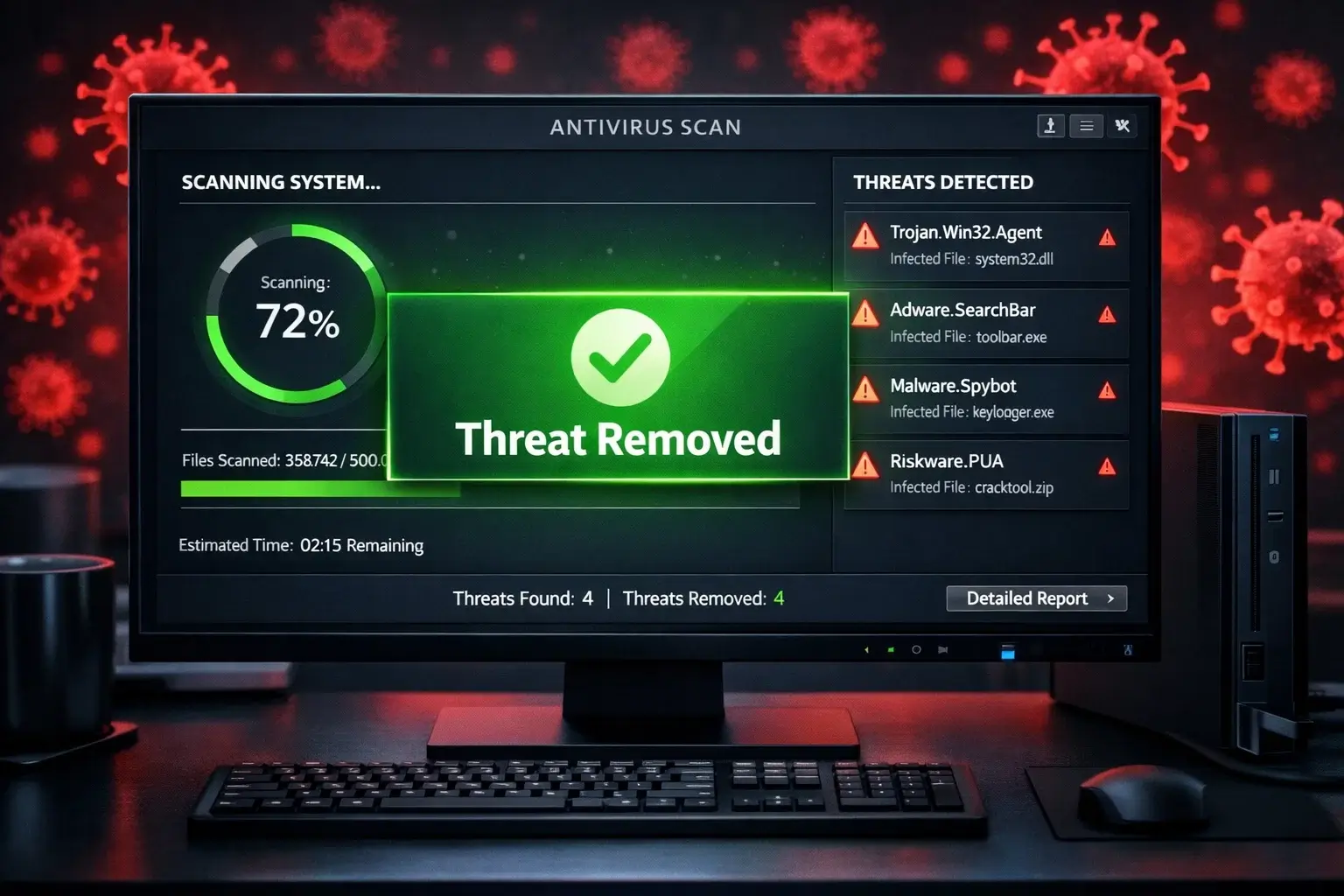
Computer virus threats are on the rise, and protecting your computer from these malicious threats is crucial. A computer virus can disrupt your system, compromise your personal data, and lead to significant losses. In this article, we will discuss how to recognize the signs of a computer virus, identify the type of virus, and remove it effectively. By following these steps, you can keep your computer safe and secure. Learn more about protecting your computer by exploring the best antivirus software.
Cyberattacks have surged in recent years. Industry reports estimate that a cyber attack now occurs every 39 seconds and that 90% of cyber incidents result from human error or behaviour. Another study found that 75% of targeted attacks begin with a phishing email. These statistics highlight why learning how to detect and remove viruses, protect your data, and prevent infections is vital in 2026.
Common Signs Your Computer is Infected with a Virus
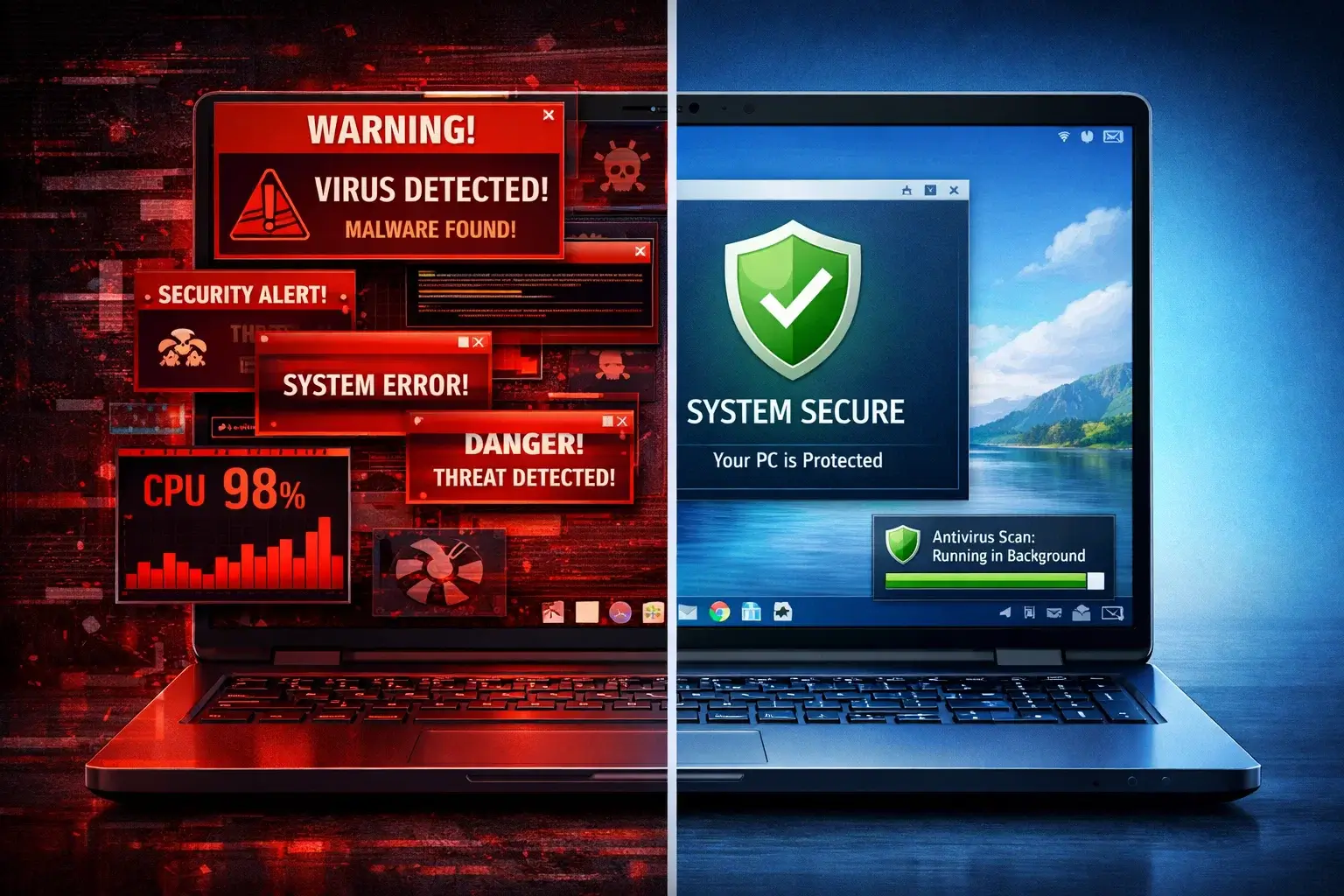
Recognizing the signs of a computer virus is crucial in taking prompt action to protect your system. Here are some common indicators that your computer might be infected:
- Unexpected system behaviour and slow performance: programs crash, the operating system freezes or restarts unexpectedly, or new toolbars and icons appear.
- High CPU or memory usage: malicious processes often consume excessive CPU and RAM resources, causing the computer to heat up and run loudly. Check your Task Manager for unknown processes.
- Disabled security software or changed settings: malware may disable antivirus software, firewalls, or User Account Control to avoid detection.
- Unusual network activity: sudden spikes in data usage, unknown devices on your network or connections to unfamiliar IP addresses indicate infection.
- Unauthorized user accounts or file changes: new accounts, missing files, or altered system settings can signal a compromise.
Types of Computer Viruses
Computer viruses come in various forms, each with unique characteristics and methods of infecting systems. Understanding the different types of viruses can help you identify and remove them effectively. Here are some common types of computer viruses:
Malware
Malware is a broad term that encompasses various malicious software, including viruses, spyware, adware, and more. These programs are designed to infiltrate your computer and cause harm, such as stealing sensitive information or damaging your system files.
Trojans
Trojans, named after the Greek mythological story of the Trojan Horse, are deceptive programs that masquerade as legitimate software. They often trick users into downloading or installing them, giving the attackers unauthorized access to their system.
Worms
Worms are self-replicating programs that spread across computer networks without any user interaction. They exploit vulnerabilities in software or network protocols to infect as many computers as possible.
Ransomware
Ransomware is a particularly malicious type of virus that encrypts your files and demands a ransom for their release. It can cause significant data loss and financial damage if not dealt with promptly.
Rootkits and Fileless Malware
Rootkits hide deep within the operating system to maintain persistent access. They often use fileless techniques, running entirely in memory to evade traditional scanners. Removing them typically requires offline scanning or specialized tools.
Spyware, Adware, and Cryptojacking
Spyware and adware secretly collect browsing habits, login credentials, and financial data. Cryptojacking malware hijacks your CPU or GPU to mine cryptocurrency, resulting in sluggish performance and high electricity costs.
How to Detect a Virus on Your Computer
Identifying a virus is the first step towards removing it from your computer. Here are some methods you can use to identify a virus infection:
- Antivirus Software: Installing reputable antivirus software is essential for detecting and removing viruses from your computer. These software programs scan your system for known virus signatures and suspicious activities. Consider checking out the best antivirus software for reliable protection.
- Malware Scans: Performing regular malware scans can help identify any infections on your computer. These scans thoroughly examine your files, programs, and system memory for signs of malware.
- Suspicious Files and Programs: If you come across unfamiliar files or programs on your computer, especially in unexpected locations, they could be potential viruses. Exercise caution when dealing with such files and consider scanning them with antivirus software.
- Unusual Network Traffic: Monitoring your network traffic can help identify any suspicious activities indicating a virus infection. Unexplained outbound connections, unusual port activity, or a sudden increase in data transfer can be signs of a virus.
- Boot into Safe Mode and run an antivirus scan. Safe Mode disables non‑essential processes and services, making it easier to detect malware that hides during normal operation.
- Use a second‑opinion malware scanner (e.g., Norton Power Eraser, ESET Online Scanner, Malwarebytes) to catch threats that your primary antivirus might miss.
- Inspect the Task Manager or Activity Monitor for unknown processes or high resource usage and research any unfamiliar entries.
- Scan external devices, including USB drives and external hard drives, before opening files.
- Monitor your network using a network inspector tool (available in Avast and other suites) to identify unknown devices and unusual traffic.
How to Remove and Fix a Virus on Your Computer
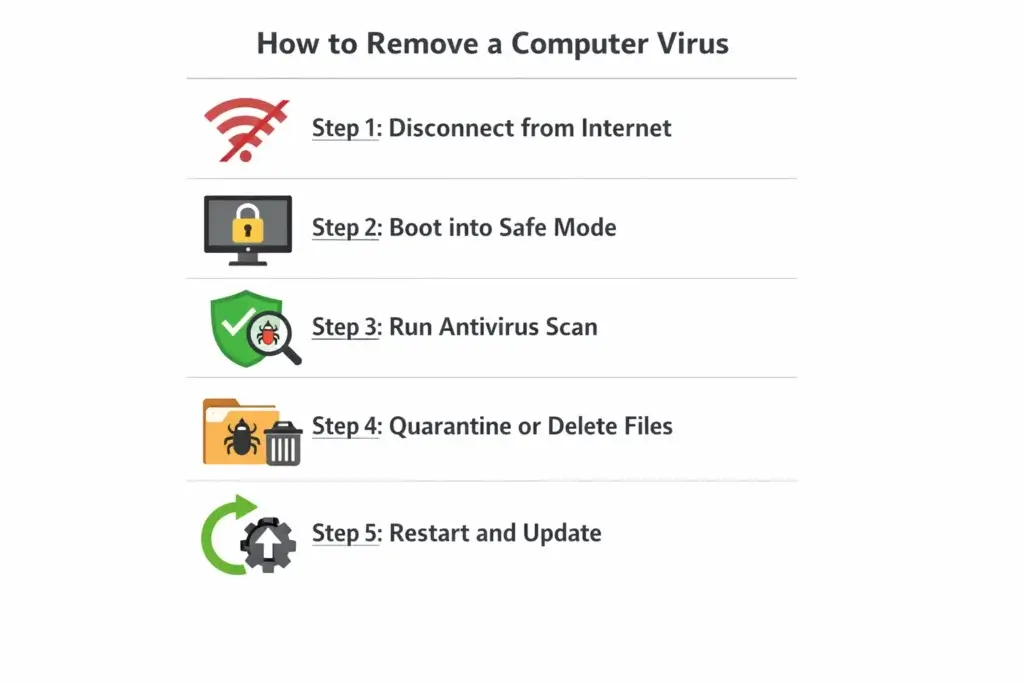
Once you have identified a virus on your computer, it’s essential to take immediate action to remove it. Here are the steps to remove a virus effectively:
- Disconnect from the Internet and back up data: unplug Ethernet cables or disable Wi‑Fi to stop malware from communicating with command‑and‑control servers. Create an offline backup of essential files before cleaning your system.
- Boot into Safe Mode and run antivirus scans: booting into Safe Mode with Networking prevents many malware services from starting. Run a full system scan with your primary antivirus and, if possible, a second‑opinion scanner.
- Use offline or rescue‑environment scans: some malware hides during normal scans. Tools such as Microsoft Defender Offline and Bitdefender’s Rescue Environment can detect and remove stubborn threats.
- Quarantine and delete infected files: follow the antivirus prompts to isolate or delete threats. Do not attempt to open suspicious files. If the malware has encrypted your data (ransomware), do not pay the ransom; instead, restore from your backup.
- Update software and change credentials: after cleaning the system, update Windows/macOS and all applications. Change passwords for critical accounts and enable multi‑factor authentication.
- Monitor and repeat: monitor for recurring symptoms; run additional scans over the next few days. If infections persist, consult a professional or consider restoring the system from a clean backup.
Preventing Future Infections
While removing viruses is essential, preventing future infections is equally important. Here are some preventive measures to keep your computer safe:
- Keep your OS, browsers and applications updated: install security patches promptly to close vulnerabilities.
- Use strong, unique passwords and enable multi‑factor authentication: password managers can generate and store complex credentials.
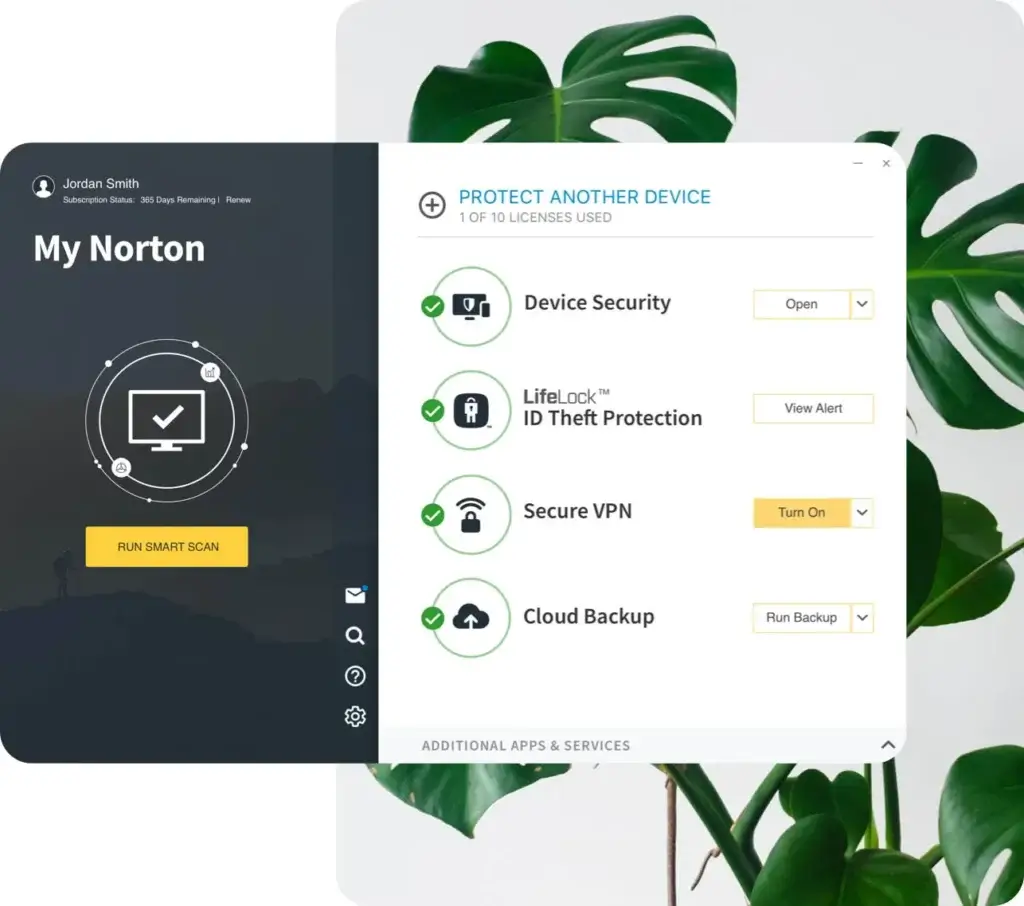
- Install a comprehensive security suite: choose products that include antivirus, firewall, password manager, VPN and identity‑theft monitoring.
- Be cautious with email attachments and links: phishing emails initiate 75 % of targeted attacks. Verify the sender and scan attachments before opening.
- Avoid downloading software from untrusted websites: use official app stores and verify developer reputations.
- Scan USB drives and external devices before use.
- Regularly back up your data to offline or cloud storage and encrypt sensitive files.
- Educate yourself and others about social engineering: since 90 % of cyber incidents result from human error, awareness is a key defence.
Recommended Antivirus Tools (2026)
To effectively protect your computer, pair good security habits with a reliable antivirus suite. Below are some of the top solutions in 2026:
Norton 360 – Combines signature‑based detection with machine learning and heuristic analysis. Offers a robust firewall, intrusion‑prevention system, anti‑phishing tools, and ransomware protection. Extra features include a secure VPN, password manager, parental controls, cloud backup, and identity‑theft protection. Read full review.
ESET Premium – Uses advanced heuristics and machine‑learning to detect encrypted malware and zero‑day threats, and includes a Host‑based Intrusion Prevention System (HIPS). Its Premium plan adds a password manager and data‑encryption tool, while Essential provides basic malware scanning and a firewall. Read full review.
Avast Premium Security – Offers a user‑friendly interface with real‑time malware detection, ransomware shield, network inspector for scanning network vulnerabilities, firewall, bank mode for secure online banking, email guard, and browser/webcam shields. Read full review.
Bitdefender Total Security – Provides multi‑layer ransomware protection, real‑time protection via the Bitdefender Shield (leveraging a global threat network), various scan types (quick, system, and rescue), a firewall, anti‑tracker, built‑in VPN, password manager, anti‑theft tools, and optional digital identity monitoring. Read full review.
Conclusion
Staying protected from computer viruses in 2026 requires more than a basic antivirus scan. Cyber threats have evolved, becoming faster, more sophisticated, and harder to detect. From ransomware that locks your files to stealthy spyware that tracks your activity, viruses can cause serious harm to both personal and business systems.
By learning how to detect and remove viruses early, you can reduce the risk of data breaches, performance issues, and financial loss. Use real-time antivirus protection, schedule weekly malware scans, and keep your software and operating system updated. Enabling firewalls and avoiding suspicious downloads are essential daily habits.
The best way to fix a virus on your computer is to combine proactive prevention with powerful antivirus software like Norton, ESET, Bitdefender, or Avast. These tools offer real-time detection, zero-day exploit blocking, and cloud-assisted scanning to eliminate threats before they spread.
Protecting your computer is not a one-time task. It’s an ongoing strategy. Follow the steps outlined in this guide to keep your system secure, fix infections quickly, and prevent future virus threats.
👉 For tailored software recommendations, explore our best antivirus for personal use and top antivirus solutions for businesses to find the right protection for your needs.
FAQ
How can I tell if my computer has a virus?
Common signs include slow performance, unexpected pop-ups, frequent crashes, and unusual network activity. Running a full antivirus scan can confirm an infection.
What is the best antivirus software to remove a computer virus?
Top options include Norton, McAfee, and Bitdefender. These tools offer real-time protection, malware removal, and advanced security features for both personal and business use.
Can I remove a computer virus without antivirus software?
It is possible using safe mode, manual removal, and system restore, but it is risky. Using reputable antivirus software is the safest and most effective method.
How often should I scan my computer for viruses?
Run a quick scan daily and a full system scan at least once a week. Real-time protection should always be enabled for continuous monitoring.
Can a computer virus steal my personal data?
Yes. Many viruses and malware types are designed to steal passwords, financial data, and personal files. This is why early detection and removal are critical.
What should I do after removing a virus?
Update all software, change your passwords, review security settings, and run another scan to ensure your system is fully clean.
Are Mac computers immune to viruses?
No. While less targeted than Windows, Mac devices can still be infected by malware, adware, and phishing attacks. Antivirus protection is still recommended.
Can mobile devices get viruses?
Yes. Android devices are more commonly targeted, but iOS can also be affected. Avoid untrusted apps and use mobile security tools for protection.
Is free antivirus software enough?
Free antivirus tools provide basic protection, but paid versions offer stronger security features like ransomware protection, VPNs, and advanced threat detection.
How can I prevent computer viruses in the future?
Keep your system updated, avoid suspicious downloads, use strong passwords, enable a firewall, and install reliable antivirus software for ongoing protection.