Introduction
Choosing a password manager is no longer just about storing passwords in one secure place. You need a tool that can help you create stronger credentials, fill logins safely, protect passkeys, share access securely, monitor weak passwords, and reduce the risk of account takeovers.
That’s where 1Password comes in.
1Password is one of the most established password managers on the market, used by individuals, families, startups, developers, and enterprise teams. It combines encrypted vaults, password generation, autofill, secure sharing, Watchtower alerts, passkey support, and business access controls in a clean, easy-to-use platform.
In this 1Password review, you’ll get a practical breakdown of how the platform performs in 2026, including:
- How 1Password works for personal users, families, and businesses
- Its core password manager features and security tools
- How Secret Key protection improves account security
- Where 1Password stands out compared to NordPass, Bitwarden, and Keeper
- Whether 1Password is worth the price for your needs
For personal users, 1Password is one of the best password managers if you want strong security with a polished interface. It helps you stop reusing passwords, store sensitive information safely, and access your logins across all major devices.
For families, it provides private vaults for each person and shared vaults for household accounts. That makes it much safer than sharing passwords through messages, notes apps, spreadsheets, or browser sync.
For businesses, 1Password has moved beyond basic password storage. It now supports team permissions, admin controls, reporting, identity integrations, developer workflows, and a broader Extended Access Management direction for securing apps, devices, credentials, and secrets.
If you’re still comparing options, you can also explore our full guide to the Best Password Managers to see how 1Password compares to other leading tools.
Overview
What Is 1Password?
1Password is a password manager that stores your passwords, passkeys, secure notes, payment cards, identities, documents, SSH keys, and other sensitive information inside encrypted vaults.
Instead of remembering dozens of passwords or reusing the same login across multiple websites, you only need to remember your 1Password account password. The platform then helps you generate, save, autofill, and share strong credentials across your devices.
1Password is available for Windows, macOS, Linux, iOS, Android, and major browsers such as Chrome, Safari, Firefox, Edge, and Brave.
At a basic level, 1Password helps you solve three major problems:
- You no longer need to reuse weak passwords across accounts
- You can safely access logins across all your devices
- You can share credentials without exposing them through insecure channels
But 1Password is not only for individual password storage. Its family and business plans make it useful for shared access, team permissions, guest accounts, admin oversight, and secure onboarding.
For developers and technical teams, 1Password also supports SSH keys, command-line workflows, secrets management, Git signing, and safer handling of infrastructure credentials.
| Category | 1Password Details |
| Product type | Password manager and access security platform |
| Best for | Individuals, families, businesses, developers, and remote teams |
| Main strengths | Security, usability, sharing, business controls, developer tools |
| Free plan | No permanent free plan, free trial available |
| Platforms | Windows, macOS, Linux, iOS, Android, and major browsers |
Software Specification
Core Features
1Password’s feature set is broader than basic password storage. It is designed to help you protect credentials, improve login habits, share access safely, and manage sensitive information across personal and business environments.
Password Vaults and Secure Storage
Vaults are the foundation of 1Password. You can create different vaults for personal accounts, work logins, shared family items, client credentials, developer keys, or financial records.
This gives you better organization and stronger access control. For example, you can keep your private banking credentials in a personal vault while sharing streaming, Wi-Fi, or travel logins in a family vault.
For businesses, vaults are even more important. Teams can create vaults by department, client, project, role, or sensitivity level. This helps reduce unnecessary access and makes credential management easier to audit.
Password Generator and Autofill
1Password includes a password generator that creates strong, unique passwords for every account. This is one of the most important password manager features because reused passwords remain one of the biggest risks in personal and business security.
Once a password is saved, 1Password can autofill it when you visit the relevant website or app. This makes strong password habits easier because you do not need to memorize or manually type complex credentials.
The autofill experience is one of 1Password’s biggest strengths. It works smoothly across browsers and mobile devices, and the browser extension makes saving new accounts and updating passwords simple.
Watchtower Password Health Alerts
Watchtower is 1Password’s password health dashboard. It helps you identify weak passwords, reused passwords, compromised credentials, missing two-factor authentication, and other risks inside your vault.
This is valuable because a password manager should not only store credentials. It should also help you improve the quality of your security over time.
Watchtower is especially useful after importing passwords from a browser or another password manager. It helps you quickly see which accounts need attention first.
Passkey Support
1Password supports passkeys, which are becoming an important part of passwordless authentication. Passkeys can reduce phishing risk because they are tied to the legitimate website or app and cannot be reused like traditional passwords.
For personal users, passkey support makes 1Password more future-ready. For businesses, it helps teams transition gradually toward passwordless login while still managing the passwords and credentials they already rely on.
Secure Password Sharing
Secure sharing is one of the most practical reasons to use 1Password. Instead of sending passwords through email, Slack, WhatsApp, spreadsheets, or notes apps, you can share items through vault permissions or secure links.
Families can use shared vaults for household accounts. Businesses can use shared vaults for department credentials, client access, software tools, and vendor accounts.
This reduces one of the most common password management problems: people often know they should not share passwords insecurely, but they still do it because they lack a simple alternative.
Travel Mode
Travel Mode lets you temporarily remove selected vaults from your devices while traveling. When you turn it off, the vaults can be restored.
This is a unique feature that can be useful for executives, journalists, consultants, privacy-conscious professionals, and frequent travelers who want to limit what sensitive data is stored locally during travel.
Developer Tools and SSH Key Management
1Password is stronger than many consumer password managers because it offers tools for developers and technical teams.
You can store and manage SSH keys in 1Password, use the SSH Agent, authorize Git and SSH workflows, manage secrets, and avoid storing sensitive credentials in plain text inside code, configuration files, or chat threads.
This makes 1Password especially valuable for software teams, DevOps teams, agencies, and companies that need to protect more than browser logins.
Pros and Cons
Advantages and Disadvantages
1Password is one of the strongest password managers overall, but it is not the perfect fit for every user. Its biggest strengths are security, usability, business depth, and sharing. Its main limitations are price and the lack of a permanent free plan.
Positive
✅ Excellent security architecture
✅ Polished apps and browser extensions
✅ Strong sharing for families and teams
✅ Great developer tools and SSH support
Negatives
❌ No permanent free plan
❌ More expensive than budget tools
❌ Secret Key requires careful backup
❌ Some business tools may feel advanced for small teams
1Password Pros
1. Excellent security architecture
1Password uses a strong security model built around encrypted vaults, your account password, and a unique Secret Key. This gives it a stronger foundation than basic password managers that rely only on one master password.
2. Polished apps and browser extensions
The product feels refined across desktop, mobile, and browser environments. This matters because a password manager only works if people actually use it consistently.
3. Strong sharing for families and teams
Shared vaults make 1Password practical for households and businesses. You can share credentials without sending them through insecure channels.
4. Great developer tools and SSH support
1Password is one of the best password managers for developer workflows. SSH key management, CLI support, secrets management, and Git-related use cases give it an advantage over more consumer-only tools.
1Password Cons
1. No permanent free plan
1Password offers a free trial, but it does not have a permanent free tier. If you want a free password manager, Bitwarden or Proton Pass may be more appealing.
2. More expensive than budget tools
1Password is priced as a premium password manager. The value is strong, but users who only need basic storage may prefer a cheaper alternative.
3. Secret Key requires careful backup
The Secret Key improves security, but it also creates responsibility. You need to store your Emergency Kit safely because losing access can create recovery challenges.
4. Some business tools may feel advanced for small teams
Small teams may not need every admin, reporting, identity, or access management feature. 1Password is easy to use, but businesses should still plan vaults, permissions, and onboarding carefully.
Security
Encryption, Secret Key, and Vault Protection
Security is the most important part of any password manager review. If a password manager is difficult to trust, its usability and pricing do not matter.
1Password has one of the strongest security reputations in the category because it combines end-to-end encryption, zero-knowledge design, Secret Key protection, two-factor authentication, biometrics, and business-grade access controls.
End-to-End Encryption
1Password encrypts your vault data before it leaves your device. This means your passwords and sensitive items are not stored as readable text on 1Password’s servers.
The practical benefit is simple: even if someone gained access to stored encrypted data, they should not be able to read your vault contents without the required encryption keys.
Secret Key Protection
The Secret Key is one of 1Password’s most important differentiators. It works with your account password to protect your data.
Your account password protects access on your devices, while the Secret Key adds another layer of protection when your data is off your devices. This makes brute-force attacks significantly harder than attacking a password-only vault.
The trade-off is that the Secret Key must be protected carefully. You should save your Emergency Kit in a secure location because 1Password cannot simply recover the Secret Key for you.
Two-Factor Authentication and Biometrics
1Password supports two-factor authentication and biometric unlocking. Depending on your device, you can unlock 1Password with Face ID, Touch ID, Windows Hello, or Android biometrics.
This improves convenience without removing the need for strong account security. It also helps make the product easier to use daily, which is important for long-term password hygiene.
Watchtower and Credential Risk Monitoring
Watchtower helps you identify weak, reused, vulnerable, or exposed credentials. This is especially valuable if you imported passwords from a browser, where reused passwords are common.
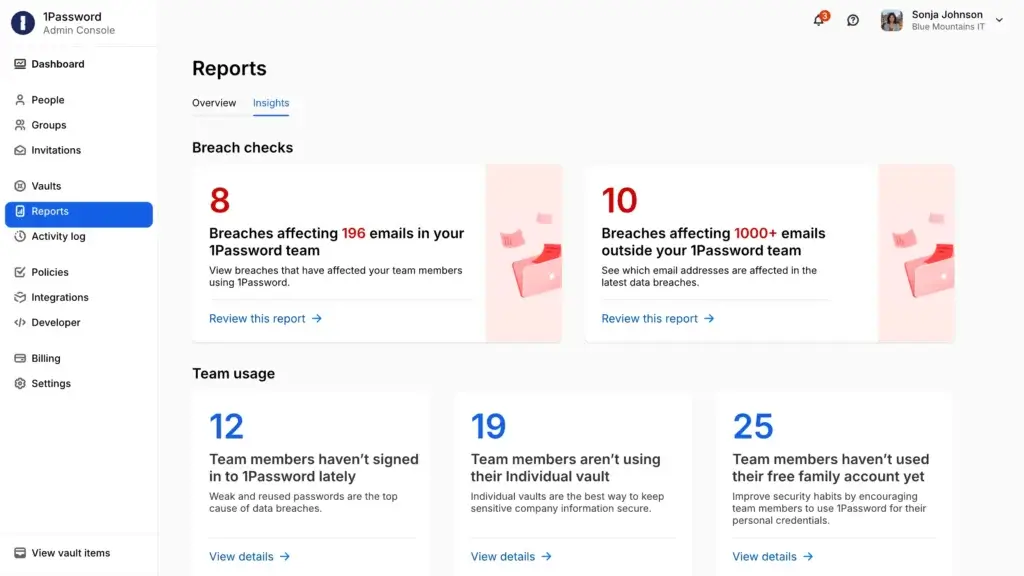
For businesses, password health visibility can help administrators understand where credential risk exists across the organization.
Business Security Controls
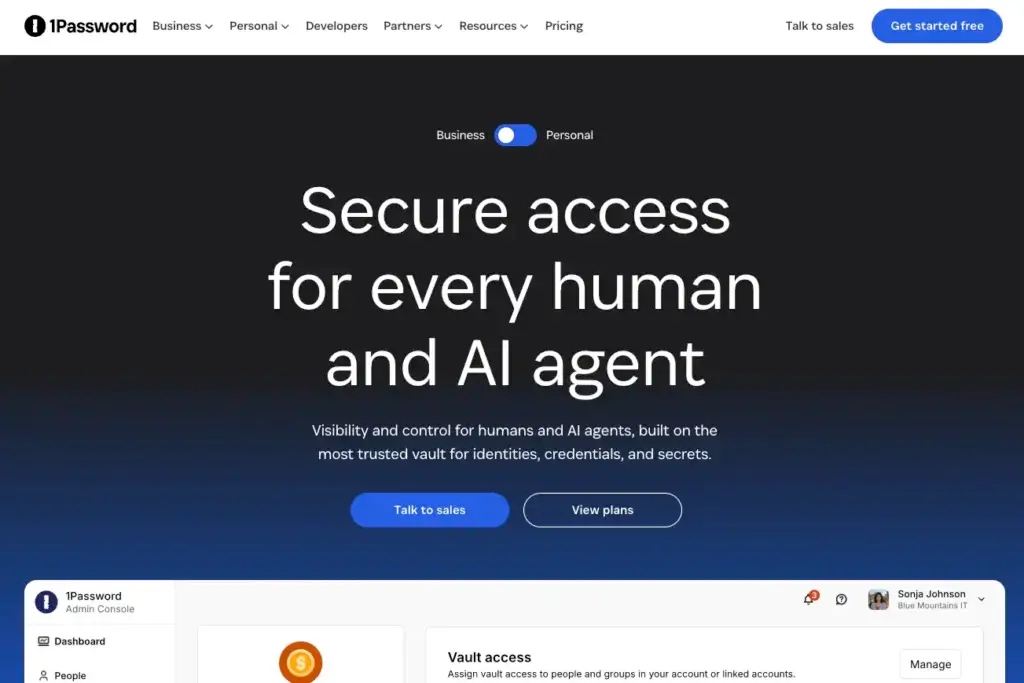
1Password Business includes security controls that go beyond personal password storage. Admins can manage users, assign vault permissions, invite guests, enforce policies, review activity, and integrate with identity providers.
This makes 1Password a strong option for companies that want better password governance without giving employees a tool that feels too technical.
Security Limitations to Consider
1Password is highly secure, but no password manager removes every risk. You still need to protect your account password, store your Emergency Kit safely, use two-factor authentication, and avoid approving suspicious login requests.
For businesses, the biggest risk is usually not the software itself. It is poor implementation, such as messy vault permissions, unused accounts, weak onboarding, or incomplete offboarding.
Use Cases
Who 1Password Is Best For
1Password works well across several different use cases. Its biggest advantage is that it can support a single user, a family, a small team, and a larger business without feeling like a completely different product.
1Password for Personal Use
For individuals, 1Password is best for replacing weak password habits with strong, unique credentials. You can store logins, payment cards, identity details, secure notes, software licenses, and sensitive documents.
The daily experience is smooth. You install the app and browser extension, save your logins, and let 1Password suggest and fill credentials when needed.
Personal users will benefit most from:
- Password generation and autofill
- Watchtower alerts
- Passkey support
- Secure storage for cards, notes, and documents
- Access across all major devices
1Password is especially good for professionals, remote workers, executives, freelancers, and privacy-conscious users who want a password manager that feels reliable and premium.
1Password for Families
1Password Families is one of the strongest family password manager plans because it balances shared access with individual privacy.
Each family member gets their own private vault. You can also create shared vaults for household accounts such as streaming services, Wi-Fi passwords, insurance portals, travel details, and shared financial tools.
This is much safer than keeping household passwords in a shared spreadsheet or sending them through messages.
The Families plan is best for households that want:
- Private vaults for each person
- Shared vaults for household accounts
- Simple family admin controls
- Safer access recovery options
- One subscription for multiple users
1Password for Business
1Password Business is designed for teams that need to control credential access across employees, contractors, departments, and shared tools.
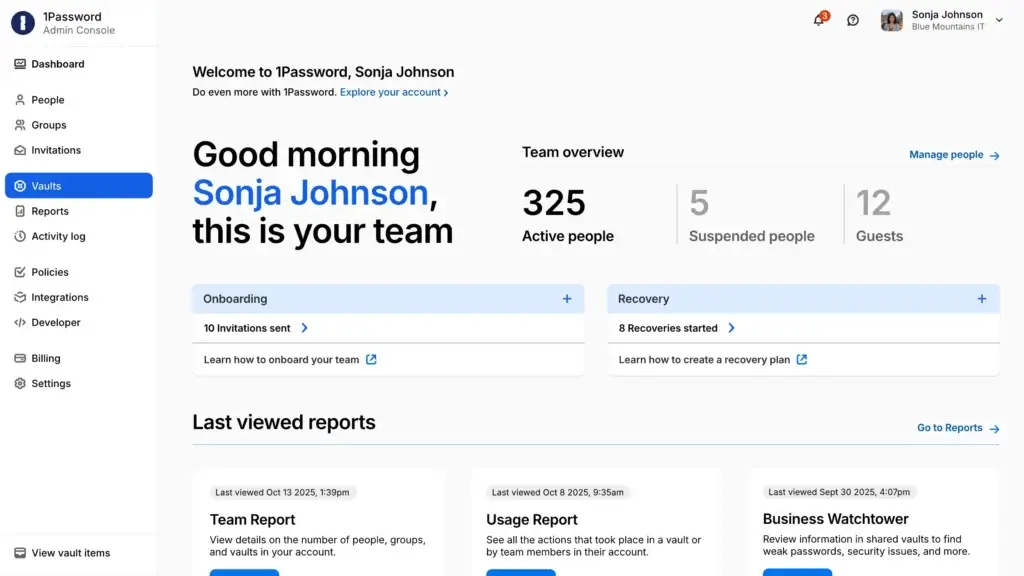
Instead of every employee storing passwords individually, businesses can use shared vaults, groups, roles, permissions, reporting, and admin policies.
This is especially useful for companies with remote teams, SaaS-heavy workflows, agency clients, developer environments, and frequent employee onboarding or offboarding.
Business users will benefit most from:
- Shared vaults and permissions
- Admin controls and reports
- Guest access
- Identity provider integrations
- Employee onboarding and offboarding support
- Developer and secrets management tools
1Password for Developers
1Password is one of the most developer-friendly password managers available.
Developers can manage SSH keys, authorize SSH workflows, sign Git commits, work with the 1Password CLI, and store secrets more safely. This helps reduce the risk of sensitive credentials being left in code, local files, documentation, or team chats.
If your team works with cloud infrastructure, Git repositories, APIs, CI/CD workflows, or internal tools, 1Password offers more technical depth than many basic password managers.
User Experience
How 1Password Feels in Daily Use
1Password’s user experience is one of its biggest competitive advantages. It feels secure without feeling heavy, and it gives both technical and non-technical users a clean way to manage sensitive information.
Browser Extension Experience
The browser extension is central to the 1Password experience. It helps you save new logins, fill existing credentials, generate passwords, create passkeys, and access vault items while browsing.
Compared with browser-native password storage, 1Password gives you better cross-platform control, stronger vault organization, secure sharing, and password health visibility.
The extension is also less confusing than many enterprise security tools, which makes it easier for everyday users to adopt.
Desktop and Mobile Apps
1Password’s desktop and mobile apps are polished and consistent. You can access vaults, edit items, create new passwords, use biometrics, manage notes, and search saved credentials quickly.
The mobile apps are especially important because many users now manage banking, work apps, email, social accounts, and travel accounts from their phones.
Autofill performance may still depend on the operating system and app permissions, but 1Password is one of the better options for cross-device password management.
Importing Passwords from Other Tools
1Password supports importing passwords from browsers and other password managers. This makes migration easier if you currently store passwords in Chrome, Safari, Edge, LastPass, Dashlane, Bitwarden, Keeper, or another tool.
After importing, Watchtower can help you identify which passwords are weak, reused, or potentially exposed.
Ease of Setup
For personal users, setup is straightforward. You create an account, save your Emergency Kit, install the app and browser extension, and start saving or importing logins.
For families, setup requires a little more planning because you should decide which vaults are private and which vaults are shared.
For businesses, setup should be more intentional. Admins should plan groups, permissions, vault ownership, guest access, onboarding, and offboarding before rolling it out broadly.
Pricing
Plans and Value
1Password is a premium password manager. It is not the cheapest option, and it does not offer a permanent free plan. However, its pricing is reasonable if you value strong security, polished apps, secure sharing, business controls, and developer-friendly tools.
Pricing may vary by region, billing cycle, promotions, and plan changes, so you should always check the official 1Password pricing page before buying.
Personal and Family Pricing
| Plan | Typical Starting Price | Best For |
| Individual | About $3.99/month, billed annually | One user who wants premium password protection |
| Families | About $5.99/month, billed annually | Families of up to 5 people needing private and shared vaults |
The Individual plan is best if you want secure password storage, autofill, Watchtower alerts, passkeys, secure notes, and access across all your devices.
The Families plan is one of 1Password’s best-value offers. It covers up to five people and gives you shared vaults while keeping each person’s private vault separate.
Business Pricing
| Plan | Typical Starting Price | Best For |
| Teams Starter Pack | $19.95/month for up to 10 users, billed annually | Small teams that need shared vaults and basic admin controls |
| Business | About $7.99/user/month, billed annually | Growing teams that need stronger policies, reporting, and integrations |
| Enterprise | Custom pricing | Larger organizations with advanced access management needs |
The Teams Starter Pack is a practical entry point for small teams, agencies, startups, and departments that need to stop sharing passwords informally.
The Business plan is better if you need stronger admin features, custom policies, reporting, guest access, identity integrations, and broader team management.
Enterprise pricing is designed for larger organizations that need more advanced controls, security review, support, and access management workflows.
Is 1Password Worth the Price?
1Password is worth the price if you want a premium password manager that combines security, usability, sharing, and business readiness.
It is less compelling if you only want a free password manager or if you need the cheapest possible option for basic password storage.
In my opinion, 1Password’s best-value plans are Families for households and Business for growing teams. The Individual plan is excellent, but budget-conscious solo users may compare it more closely with Bitwarden or Proton Pass.
Alternatives Comparison
1Password vs Other Password Managers
1Password is one of the strongest password managers overall, but the best option depends on your budget, security needs, privacy preferences, and whether you need personal, family, business, or developer features.
Instead of looking at alternatives only by feature lists, it is more useful to compare them by decision criteria.
Best 1Password Alternatives by Use Case
| Use Case | Best Option | Why |
| Best overall premium password manager | 1Password | Best balance of security, usability, sharing, business controls, and developer tools |
| Best simple alternative | NordPass | Clean interface and easy setup for users who want less complexity |
| Best free password manager | Bitwarden | Excellent free plan, low pricing, and open-source transparency |
| Best for security-heavy businesses | Keeper | Strong admin controls, compliance features, and enterprise security add-ons |
Alternative 1: NordPass
NordPass is a strong alternative if you want a modern password manager that feels simple, clean, and beginner-friendly.
NordPass is easier to recommend for users who want straightforward personal password management without many advanced business or developer features.
Choose NordPass if: you want a simpler password manager with a very clean interface.
Choose 1Password if: you want a more complete tool for personal, family, business, and developer use.
Alternative 2: Bitwarden
Bitwarden is the best 1Password alternative if pricing is your main concern.
Bitwarden offers a generous free plan and strong open-source credibility. It is a great fit for technical users, budget-conscious individuals, and teams that value transparency.
Choose Bitwarden if: you want the best free or low-cost password manager.
Choose 1Password if: you want a smoother premium experience with stronger sharing, business usability, and developer features.
Alternative 3: Keeper
Keeper is a strong business-focused password manager with deep security controls, compliance-oriented features, and advanced add-ons.
Keeper may be better for organizations that want more enterprise-heavy controls and security administration depth.
Choose Keeper if: you want a security-heavy business password manager with advanced enterprise controls.
Choose 1Password if: you want a better balance of usability, security, family plans, business controls, and developer workflows.
Comparison Summary
| Feature Area | 1Password | NordPass | Bitwarden | Keeper |
| Ease of use | Excellent | Excellent | Good | Good |
| Free plan | No | Limited free option | Excellent | Limited trial-focused model |
| Family sharing | Excellent | Good | Good | Good |
| Business controls | Strong | Good | Good | Very strong |
| Developer tools | Excellent | Limited | Good | Good |
| Best fit | Premium all-around use | Simple personal use | Free and budget users | Security-heavy businesses |
Overall, 1Password is the best choice if you want the most balanced password manager across personal, family, business, and developer use cases. Bitwarden is better for free users, NordPass is better for simplicity, and Keeper is better for more security-heavy business environments.
Conclusion
Is 1Password Right for You?
1Password remains one of the best password managers in 2026. It combines strong security, clean usability, reliable autofill, passkey support, secure sharing, family vaults, business controls, and developer tools in a way few competitors match.
It is not the cheapest option, and it is not ideal if you need a permanent free plan. But if you want a premium password manager that can grow from individual use to family sharing and business credential management, 1Password is one of the safest recommendations in the category.
Who Should Use 1Password?
You should use 1Password if you want a secure, polished, and reliable password manager for everyday use.
It is especially strong for:
- Individuals who want better password habits
- Families that need private and shared vaults
- Remote workers who manage many online accounts
- Businesses that need team password sharing and access controls
- Developers who manage SSH keys, secrets, and Git workflows
1Password may not be the best fit if you only want a free password manager, prefer fully offline-only storage, or need the cheapest possible way to save basic passwords.
Is 1Password Worth It?
Yes, 1Password is worth it for most users who want a premium password manager. Its value is strongest when you care about both security and usability.
For individuals, it gives you a safer way to manage passwords, passkeys, payment details, secure notes, and important documents.
For families, it is one of the best tools for replacing unsafe password sharing with private and shared vaults.
For businesses, it helps reduce credential risk, simplify access sharing, improve onboarding and offboarding, and support better security habits across teams.
⭐ Overall Rating: 9.4/10
1Password earns a high rating because it does the most important things extremely well: it is secure, easy to use, reliable across devices, strong for sharing, and flexible enough for personal users, families, businesses, and developers.
Have more questions?
Frequently Asked Questions
Is 1Password safe to use?
Yes. 1Password is considered one of the safest password managers because it uses end-to-end encryption, Secret Key protection, secure vaults, and strong account security features. You still need to protect your account password and Emergency Kit carefully.
Does 1Password have a free plan?
No. 1Password offers a free trial, but it does not provide a permanent free plan. If you need a free password manager, Bitwarden or Proton Pass may be better options.
What is the 1Password Secret Key?
The Secret Key is a unique security key generated for your account. It works with your account password to protect your encrypted vault data, especially when signing in on a new device.
Is 1Password good for families?
Yes. 1Password Families is one of the best family password manager plans because it supports private vaults, shared vaults, and simple family admin controls for up to five people.
Is 1Password good for businesses?
Yes. 1Password is a strong business password manager with shared vaults, role-based permissions, reporting, identity provider integrations, Watchtower alerts, and developer tools.
Does 1Password support passkeys?
Yes. 1Password supports passkeys, which can help reduce reliance on traditional passwords and improve protection against phishing-style login attacks.
Is 1Password better than Bitwarden?
1Password is usually better for users who want a polished interface, family sharing, business controls, and developer tools. Bitwarden is better if you want a strong free plan, lower pricing, and open-source transparency.
Is 1Password better than NordPass?
1Password is stronger for families, businesses, developers, and advanced security workflows. NordPass is a good alternative if you want a simpler password manager with a very clean interface.
Can 1Password store more than passwords?
Yes. 1Password can store passkeys, payment cards, secure notes, identities, documents, bank details, software licenses, SSH keys, and other sensitive information.
Is 1Password worth it in 2026?
Yes. 1Password is worth it if you want a premium password manager with strong security, excellent usability, secure sharing, passkey support, Watchtower alerts, and business-ready controls.