Introduction
If you manage a remote team, field crew, agency, or hourly workforce, you probably need more than a simple start-and-stop timer. You need a reliable way to understand where time goes, how work is progressing, and whether projects are staying profitable.
That is where Hubstaff stands out.
Hubstaff is one of the most complete time tracking and workforce management tools in 2026. It combines time tracking, screenshots, activity levels, app and URL tracking, GPS location tracking, timesheet approvals, scheduling, payroll, invoicing, and workforce analytics in one platform.
That makes it especially useful if you manage remote employees, contractors, field workers, BPO teams, or client-facing teams that bill by the hour.
However, Hubstaff is not the right fit for every business. Its monitoring features are powerful, but they need to be introduced carefully. Screenshots, app tracking, URL tracking, and GPS data can improve accountability, but they can also feel intrusive if your team does not understand why they are being used.
In this Hubstaff review, you will learn:
- What Hubstaff does well and where it falls short
- How its time tracking, GPS, screenshots, and payroll features work
- How much Hubstaff costs in 2026
- Which teams benefit most from Hubstaff
- How Hubstaff compares with Toggl Track, Atto, Clockify, Time Doctor, and other alternatives
By the end, you will know whether Hubstaff is the right time tracking software for your team or whether a lighter alternative would be a better fit.
Overview
What Is Hubstaff and How It Works
Hubstaff is a time tracking, employee productivity, and workforce management platform designed to help businesses track work hours, monitor productivity, manage projects, approve timesheets, automate payroll, and understand how teams spend their time.
Unlike basic time tracking apps, Hubstaff gives you context around tracked hours. You can see which projects people worked on, how active they were, which apps or websites were used, where mobile employees were located, and whether tracked time is ready for payroll or client billing.
This makes Hubstaff useful for businesses that need visibility across people, projects, locations, and costs.
Hubstaff Overview & Core Purpose
At its core, Hubstaff helps you track work accurately and turn that data into better operational decisions.
You can use Hubstaff to:
- Track time by project, task, client, or team member
- Review activity levels based on keyboard and mouse input
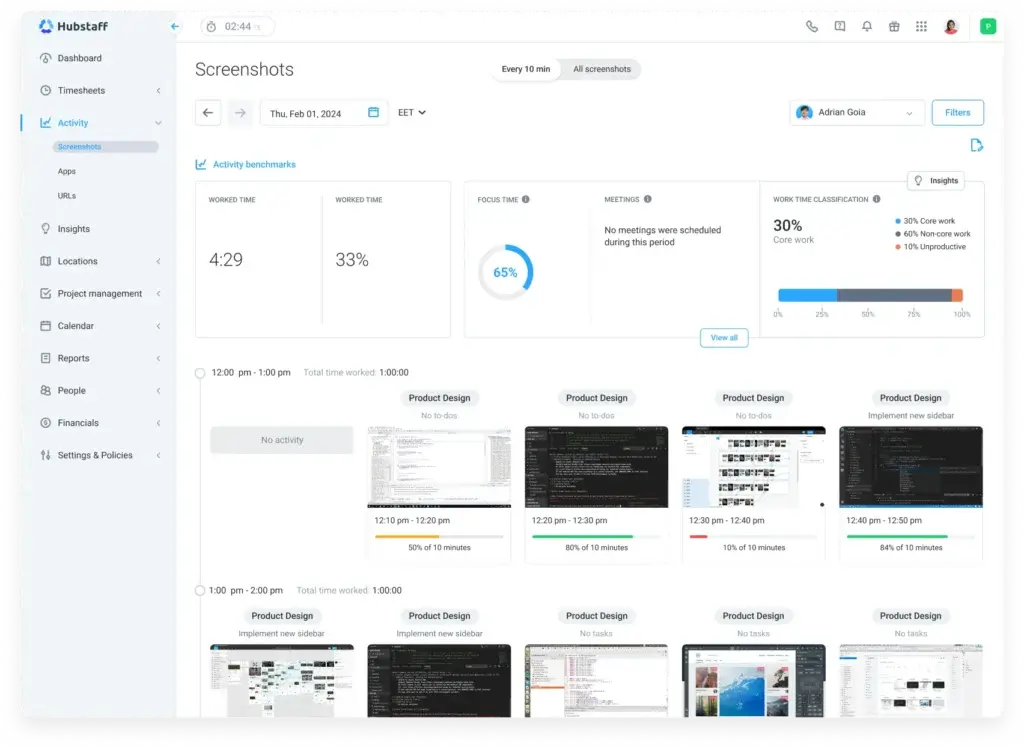
- Capture optional screenshots during tracked work sessions
- Monitor apps and websites used during work time
- Track GPS locations for field and mobile employees
- Approve timesheets before payroll or invoicing
- Automate payments and create invoices based on tracked hours
This combination makes Hubstaff a strong fit for remote teams, field service companies, agencies, consultants, virtual assistant businesses, and BPO teams that need more accountability than a basic timer provides.
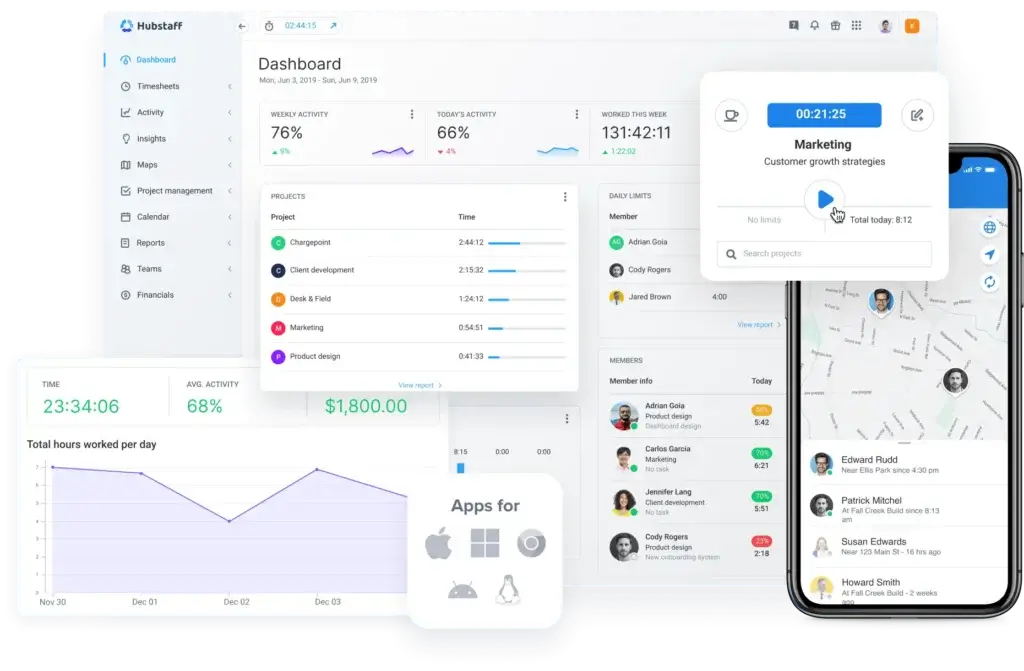
Platforms Supported: Desktop, Web, Mobile & Browser Extensions
Hubstaff works across the main platforms your team is likely to use:
- Desktop apps: Windows, macOS, and Linux
- Mobile apps: iOS and Android for field teams and mobile workers
- Browser extensions: Useful for tracking work from web-based task tools
- Web dashboard: Admin portal for projects, reports, payroll, schedules, and settings
This multi-platform support is one of Hubstaff’s biggest strengths. It can support remote employees working from laptops, field workers using mobile devices, and managers reviewing reports from the web dashboard.
Time Tracking Methods: Timer, Idle Detection, Screenshots, GPS, Offline Mode
Hubstaff gives you several ways to track and validate work time:
- One-click timer: Start and stop tracking with a simple button
- Idle detection: Identify inactive periods and reduce inaccurate timesheets
- Screenshots: Capture visual proof of work at configured intervals
- Activity levels: Measure keyboard and mouse activity during tracked time
- App and URL tracking: See which apps and websites were used while working
- GPS tracking: Track mobile work locations, routes, and job sites
- Offline tracking: Track time without internet and sync later
This makes Hubstaff flexible enough for desk-based teams, field workers, freelancers, agencies, and hybrid businesses.
🔐 Note: Hubstaff’s monitoring features should be configured carefully. Screenshots, activity levels, app tracking, URL tracking, and GPS tracking can be adjusted depending on your team, role, privacy expectations, and local requirements.
Core Features
Main Features Breakdown
Hubstaff is not just a timer. It is a complete productivity and operations toolkit for teams that need to connect time, people, projects, locations, budgets, and payments.
Here is a detailed look at Hubstaff’s most important features and how they work in real business scenarios.
Time Tracking & Auto Tracker
Hubstaff’s time tracking is built for accuracy and accountability. Users can start a timer manually, select a task or project, add notes, and track time across desktop, web, mobile, and browser workflows.
You can:
- Track time manually with one click
- Use idle detection to identify inactive time
- Track time offline and sync later
- Add notes to explain work sessions
- Assign time to specific clients, projects, or tasks
- Review tracked time in daily, weekly, or project-based reports
This is ideal for freelancers, remote teams, agencies, consultants, and businesses that need accurate records for payroll or client billing.
Timesheets, Calendar View, Templates, Approvals
Hubstaff turns tracked time into structured timesheets that managers can review before payroll or invoicing. This helps reduce manual corrections and makes it easier to control labor costs.
You can:
- Review hours by day, week, user, project, or client
- Approve or reject timesheets before payroll
- Use calendar views to understand work patterns
- Set daily and weekly limits on higher-tier plans
- Export timesheets for accounting or payroll workflows
For teams with contractors, hourly employees, or field workers, approvals are especially useful because they create a quality-control step before money moves.
Project & Task Tracking, Rate and Budget Management
Hubstaff helps you connect tracked hours to project performance. You can create projects, assign tasks, set budgets, define rates, and monitor whether work is staying within scope.
You can:
- Set hourly rates by user or project
- Track time against specific clients and tasks
- Monitor budget usage in real time
- Set alerts when projects approach budget limits
- Separate billable and non-billable work
This is one of the reasons Hubstaff is strong for agencies and service businesses. It helps you understand not only how many hours were worked, but whether those hours were profitable.
Reporting and Dashboards: Export and Filter Options
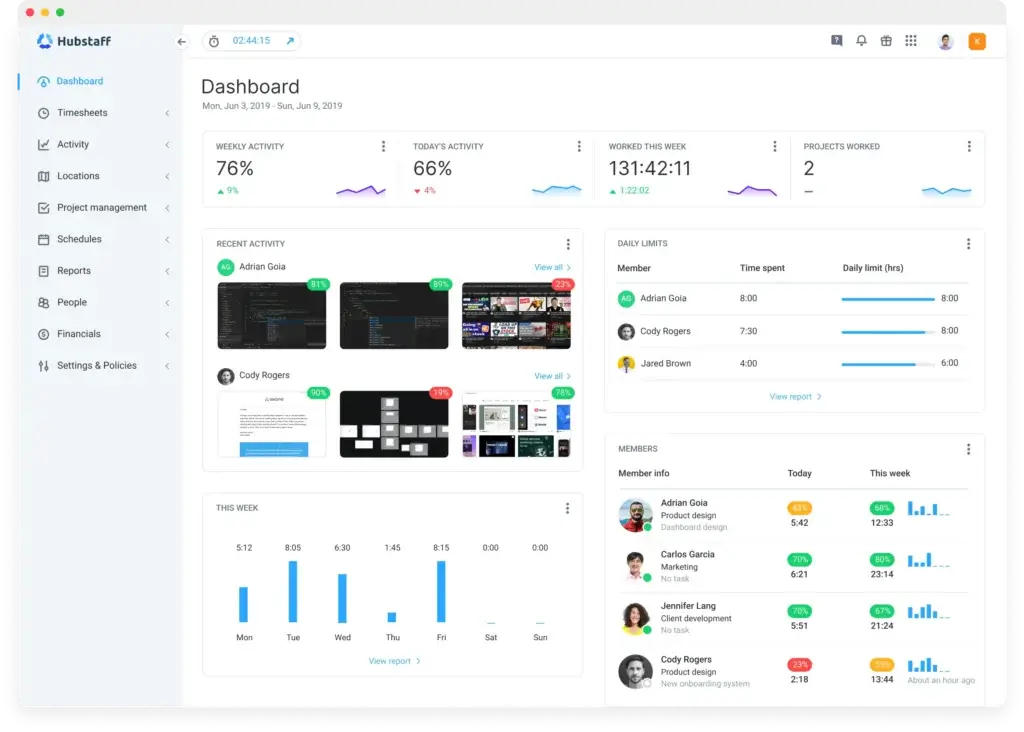
Hubstaff’s reporting tools give managers detailed visibility into hours, activity, projects, locations, budgets, payments, and productivity trends.
Reports can include:
- Time worked by user, project, client, or task
- Activity levels and productivity trends
- Apps and websites used during tracked time
- GPS locations and job-site activity
- Billable and non-billable hours
- Budget usage and project cost data
- Export options for payroll, accounting, and client reporting
The reporting depth is useful, but it may feel heavier than what you need if your team only wants simple weekly timesheets.
Hubstaff Insights: Workforce Analytics and Productivity Benchmarks
Hubstaff Insights is one of the most important Hubstaff features to understand in 2026. It adds a workforce analytics layer on top of time tracking.
With Hubstaff Insights, you can compare activity benchmarks, define productive and unproductive apps and URLs, review engagement trends, and compare productivity across remote, office, and hybrid work locations.
Hubstaff Insights can help you answer questions like:
- Which teams are overloaded or underutilized?
- Which tools support core work and which create distraction?
- How does remote work compare with office work?
- Are employees working too many after-hours sessions?
- Where are productivity dips or unusual activity patterns appearing?
This feature is most useful for remote-first companies, hybrid teams, BPOs, customer support operations, and growing companies that need better workforce visibility.
Still, Insights should be used carefully. It is best for identifying trends and improving workflows, not for judging employees based on one activity score.
Other Features: Expense Tracking, Invoicing, Scheduling, GPS, Kiosk Mode, Activity Monitoring
Hubstaff goes beyond time tracking with additional business tools that make it more useful for distributed and operations-heavy teams.
- Expense tracking: Log and categorize expenses for projects or teams
- Invoicing: Generate client invoices from tracked billable hours
- Employee scheduling: Create shifts, manage attendance, and reduce missed check-ins
- Payroll: Use tracked and approved hours for payment workflows
- GPS & geofencing: Track mobile employees, job sites, and location history
- Kiosk mode: Allow multiple employees to clock in from a shared device
- Activity monitoring: Review screenshots, activity levels, apps, URLs, and productivity patterns
These extras make Hubstaff especially useful for field services, construction crews, agencies, BPOs, virtual assistant teams, and remote-first companies.
User Experience and Interface
What’s It Like to Use Hubstaff?
Hubstaff is a time tracking, employee productivity, and workforce management platform designed to help businesses track work hours, monitor productivity, manage projects, approve timesheets, automate payroll, and understand how teams spend their time.
Unlike basic time tracking apps, Hubstaff gives you context around tracked hours. You can see which projects people worked on, how active they were, which apps or websites were used, where mobile employees were located, and whether tracked time is ready for payroll or client billing.
This makes Hubstaff useful for businesses that need visibility across people, projects, locations, and costs.
Hubstaff Overview & Core Purpose
At its core, Hubstaff helps you track work accurately and turn that data into better operational decisions.
You can use Hubstaff to:
- Track time by project, task, client, or team member
- Review activity levels based on keyboard and mouse input
- Capture optional screenshots during tracked work sessions
- Monitor apps and websites used during work time
- Track GPS locations for field and mobile employees
- Approve timesheets before payroll or invoicing
- Automate payments and create invoices based on tracked hours
This combination makes Hubstaff a strong fit for remote teams, field service companies, agencies, consultants, virtual assistant businesses, and BPO teams that need more accountability than a basic timer provides.
Platforms Supported: Desktop, Web, Mobile & Browser Extensions
Hubstaff works across the main platforms your team is likely to use:
- Desktop apps: Windows, macOS, and Linux
- Mobile apps: iOS and Android for field teams and mobile workers
- Browser extensions: Useful for tracking work from web-based task tools
- Web dashboard: Admin portal for projects, reports, payroll, schedules, and settings
This multi-platform support is one of Hubstaff’s biggest strengths. It can support remote employees working from laptops, field workers using mobile devices, and managers reviewing reports from the web dashboard.
Time Tracking Methods: Timer, Idle Detection, Screenshots, GPS, Offline Mode
Hubstaff gives you several ways to track and validate work time:
- One-click timer: Start and stop tracking with a simple button
- Idle detection: Identify inactive periods and reduce inaccurate timesheets
- Screenshots: Capture visual proof of work at configured intervals
- Activity levels: Measure keyboard and mouse activity during tracked time
- App and URL tracking: See which apps and websites were used while working
- GPS tracking: Track mobile work locations, routes, and job sites
- Offline tracking: Track time without internet and sync later
This makes Hubstaff flexible enough for desk-based teams, field workers, freelancers, agencies, and hybrid businesses.
🔐 Note: Hubstaff’s monitoring features should be configured carefully. Screenshots, activity levels, app tracking, URL tracking, and GPS tracking can be adjusted depending on your team, role, privacy expectations, and local requirements.
Pros And Cons
Real-World Advantages and Disadvantages
Hubstaff is powerful, but it is not lightweight. Its biggest strengths come from visibility, automation, and accountability. Its biggest drawbacks come from the same areas, especially if your team is sensitive to monitoring.
Here are the real advantages and disadvantages to consider before choosing Hubstaff.
Positive
✅ Strong time tracking and timesheets
✅ Screenshots, activity levels, and app/URL tracking
✅ GPS tracking and geofencing for field teams
✅ Payroll, invoicing, budgets, and approvals
✅ Useful for remote, hybrid, agency, and BPO teams
Negative
❌ Monitoring can feel intrusive
❌ Starter and Grow have meaningful limits
❌ Mobile GPS can affect battery life
❌ Reporting may feel heavy for simple use cases
❌ Not a full project management platform
✅ Pros
1. Powerful Time Tracking with Activity Monitoring
Hubstaff tracks more than hours. It can show activity levels, screenshots, apps used, websites visited, idle time, and project allocation.
This helps you understand how time is being used, not just when people were clocked in.
2. GPS and Location Tracking for Mobile Teams
If you manage workers in the field, Hubstaff’s GPS tracking and geofencing are major advantages. You can see where time was logged, which job sites were visited, and how long team members spent at each location.
3. Payroll, Invoicing, and Budgeting in One Place
Hubstaff can connect tracked time to payments, invoices, project budgets, and pay rates. This is useful for agencies, consultants, contractors, and companies that manage hourly staff.
4. Works Across Remote, Office, and Field Teams
Hubstaff is flexible enough to support multiple work environments. A remote employee can track desktop time, a field employee can track GPS time, and a manager can review both from the same dashboard.
5. Strong Integrations for Work Management
Hubstaff integrates with tools like Trello, Asana, Jira, ClickUp, GitHub, QuickBooks, Slack, Deel, Wise, PayPal, Gusto, Salesforce, Zendesk, and Xero.
This makes it easier to connect tracked time with your existing workflows.
❌ Cons
1. Monitoring Tools Can Feel Intrusive
Screenshots, activity tracking, app usage, URL tracking, and GPS monitoring can create resistance if they are not explained clearly.
Hubstaff works best when you introduce it as a tool for accurate billing, payroll, capacity planning, and project visibility, not as a surveillance tool.
2. Lower Plans Have Important Limits
The Free, Starter, and Grow plans can be useful, but they include limits on screenshots, app and URL tracking, reports, clients, payments, and integrations.
If your team grows or needs payroll, approvals, scheduling, and unlimited integrations, you may need the Team plan sooner than expected.
3. GPS Features Can Drain Mobile Battery
GPS tracking is useful for field teams, but continuous location tracking can affect battery life during long shifts.
Before rolling it out across your workforce, test the mobile app with a small group and define how often location tracking should run.
4. Reporting Can Feel Heavy for Simple Teams
Hubstaff gives you detailed reporting, but not every team needs that much data. If all you need is a simple weekly timesheet, tools like Toggl Track or Clockify may feel easier.
5. It Does Not Replace Full Project Management Software
Hubstaff includes tasks, projects, budgets, and to-dos, but it does not replace full project management platforms with advanced roadmaps, dependencies, workload views, or Gantt charts.
If you need deeper project planning, you will still want tools like ClickUp, Asana, Jira, Trello, or monday.com.
By understanding both sides, you can decide whether Hubstaff’s strengths match your workflow and whether the monitoring trade-offs are acceptable for your team.
Pricing and Tiers
How Much Does Hubstaff Cost?
Hubstaff offers a free plan for one user and several paid plans for teams. The pricing is competitive for a tool that includes time tracking, screenshots, GPS, payroll, scheduling, invoicing, and workforce analytics, but the real cost depends on your seat count and the features you need.
The main thing to know is that Hubstaff uses per-seat pricing on paid plans. Paid plans also have a minimum seat requirement, so you should calculate your expected monthly cost based on all users who need access, not only the employees who actively track time.
Plan Overview
Hubstaff’s pricing is structured across five main tiers:
- Free: Basic time tracking for one user
- Starter: Core tracking for small teams
- Grow: More reporting, budgets, expenses, and productivity features
- Team: Payroll, scheduling, approvals, unlimited integrations, and higher limits
- Enterprise: Advanced security, compliance, deployment, and support features
Here is a practical breakdown of the plans in 2026.
| Plan | Monthly Price | Best For | Included Features |
| Free | $0 | Solo freelancers | 1 user, basic time tracking, limited reports, limited screenshots |
| Starter | $7/user/month | Small teams | Time tracking, timesheets, limited screenshots, limited app and URL tracking, limited payments |
| Grow | $9/user/month | Growing teams | Everything in Starter plus project budgets, expenses, work breaks, scheduled reports, and 1 integration |
| Team | $12/user/month | Scaling operations | Payroll, scheduling, time off, attendance, approvals, unlimited screenshots, unlimited app and URL tracking, unlimited integrations |
| Enterprise | $25/user/month annually | Large organizations | SSO, SCIM, SOC 2 Type II, HIPAA support, Silent App, Locations, higher API limits, and dedicated support |
What Each Tier Adds
Each Hubstaff plan is built for a different level of operational complexity.
- Free: Best if you are tracking your own hours and do not need team management
- Starter: Best for basic time tracking, timesheets, screenshots, and simple reporting
- Grow: Best if you need budgets, expenses, breaks, scheduled reports, and limited integrations
- Team: Best if you need payroll, approvals, scheduling, time off, attendance, and unlimited tracking limits
- Enterprise: Best if you need compliance, SSO, SCIM, deployment support, Silent App, and advanced account management
💡 All paid plans include a free trial, so you can test the workflow before committing.
Plan Limits You Should Know Before Buying
Hubstaff’s pricing can look simple at first, but the plan limits matter. Starter and Grow are useful, but they include limits that growing teams may hit quickly.
Important limits to consider:
- The Free plan is only suitable for one user
- Starter includes limited screenshots and limited app/URL tracking
- Grow increases those limits but still includes only 1 integration
- Team removes many limits and adds payroll, scheduling, approvals, and unlimited integrations
- Enterprise adds security, compliance, deployment, and advanced support features
If you need payroll, unlimited screenshots, unlimited app and URL tracking, time off, attendance, and unlimited integrations, Team is usually the plan to evaluate first.
Is Hubstaff Worth the Price?
Hubstaff is worth the price if your business needs more than basic time tracking. Compared with simpler tools like Toggl Track, Harvest, or Clockify, Hubstaff offers stronger visibility into activity, locations, screenshots, payroll, and project budgets.
Hubstaff is especially valuable if you need:
- Proof of work for client billing
- GPS tracking for field employees
- Timesheet approvals before payroll
- Productivity reports across remote teams
- Project budgets tied to real tracked hours
- Payroll and invoicing connected to time data
If your team only needs simple time entries, Hubstaff may be more than you need. But if accountability, payroll accuracy, and workforce visibility matter, the Grow and Team plans can offer strong value.
Hubstaff VS Alternatives
How Does It Compare?
Choosing the right time tracking tool is not only about features. It is about matching the tool to your team’s workflow, privacy expectations, management style, and reporting needs.
Hubstaff is strongest when you need time tracking plus accountability. Toggl Track is better for simple and privacy-friendly time tracking. Atto is better for mobile-first field teams that mainly need clock-in, GPS, and attendance tracking.
🔍 Feature Comparison Overview
| Feature Type | Hubstaff | Toggl Track | Atto |
| Best For | Remote, hybrid, agency, BPO, and field teams | Freelancers, agencies, and privacy-focused teams | Construction, field service, and mobile crews |
| Time Tracking | Manual, desktop, mobile, offline, idle detection | Manual timer, calendar view, simple project tracking | Mobile-first clock-in/out and attendance |
| GPS Location | Real-time tracking, routes, geofencing, job sites | Not a core feature | GPS tracking and location history |
| Activity Monitoring | Screenshots, activity levels, apps, URLs | No employee monitoring focus | No deep desktop monitoring |
| Task Management | Tasks, projects, budgets, and integrations | Projects, tasks, tags, and reports | Jobs and attendance tracking |
| Reporting | Detailed time, productivity, location, budget, and payroll reports | Clean and simple time reports | Simple timesheets and job reports |
| Payroll | Built-in payroll workflows on higher plans | Requires external workflows | Mostly export-based workflows |
| Pricing Starts At | $7/user/month | $10/user/month | $5.99/user/month |
Hubstaff vs Toggl Track
Toggl Track is known for its clean interface, simple timer, and privacy-friendly approach. It is ideal for freelancers, consultants, agencies, and teams that want accurate time tracking without employee monitoring.
Pros of Toggl Track:
- Simple and intuitive interface
- Strong project, client, and tag organization
- Good visual reports for billable work
- Better fit for privacy-focused teams
Where Hubstaff Wins:
- Screenshots and activity tracking
- App and URL tracking
- GPS and geofencing
- Payroll, scheduling, and approvals
- Better fit for remote and field accountability
Summary:
Choose Toggl Track if you want simple, clean, privacy-friendly time tracking.
Choose Hubstaff if you need accountability, screenshots, GPS, payroll, and workforce visibility.
👉🏼 Read Full Toggl Track review or visit Toggl Track directly here
Hubstaff vs Atto
Atto is designed for simplicity and mobile field tracking. It focuses on clock-ins, attendance, GPS logs, job tracking, timesheets, and field workforce visibility.
Pros of Atto:
- Simple mobile clock-in and clock-out
- GPS history and location maps
- Timesheet approval and job tracking
- Good fit for trades, construction, and on-site teams
Where Hubstaff Wins:
- Desktop time tracking and remote team visibility
- Screenshots, activity levels, and app/URL tracking
- Payroll, invoicing, and project budgets
- Broader integrations and workforce analytics
Summary:
Use Atto if your priority is mobile-first GPS time tracking with minimal complexity.
Use Hubstaff if you need one platform for remote, office, hybrid, and field teams.
👉🏼 Read the Full Atto review here or visit the Atto website
Hubstaff vs Clockify
Clockify is one of the best options if you want affordable time tracking without heavy monitoring. It is easy to use, widely adopted, and often enough for teams that only need timesheets and project reports.
Hubstaff is stronger if you need GPS, screenshots, app usage, URL tracking, payroll, approvals, and deeper workforce visibility.
Summary:
Choose Clockify for low-cost time tracking.
Choose Hubstaff for accountability, monitoring, and operations visibility.
Hubstaff vs Insightful
Insightful is strong for employee monitoring and workforce analytics. It is a good fit for companies that want deep visibility into productivity trends across remote or hybrid teams.
Hubstaff is more operational because it combines productivity monitoring with time tracking, payroll, invoicing, scheduling, GPS, and project budgets.
Summary:
Choose Insightful if workforce analytics is your primary need.
Choose Hubstaff if you need analytics plus time tracking, payroll, and field workflows.
Is Hubstaff For You?
Who Should Use Hubstaff?
Hubstaff is not a one-size-fits-all tool. It is best for teams that need clear visibility into hours, projects, locations, and productivity.
If your business depends on billable work, remote employees, field operations, or contractor accountability, Hubstaff can be a smart addition to your tech stack.
✅ Best for:
- Remote teams that need time tracking, productivity visibility, and fewer manual check-ins
- Field service businesses that need GPS tracking, geofencing, job-site records, and mobile time capture
- Agencies and consultancies that bill clients hourly and need cleaner invoices
- BPOs and virtual assistant companies that manage distributed workers and client accounts
- Software and IT teams that want tracked time connected to Jira, GitHub, ClickUp, or other project tools
- Small and midsize businesses that need scheduling, payroll, approvals, and productivity reporting
🚫 Not ideal for:
- Teams that only need basic time tracking
- Companies with strong concerns around screenshots or employee monitoring
- Businesses that need full project management with Gantt charts and dependencies
- Very small teams that want the simplest possible timer
- Organizations that do not want to manage tracking policies and privacy communication
💡 When to Consider Paid Plans or an Alternative
You should upgrade from the Free plan when:
- You need to add more than one user
- You want screenshots, app tracking, or URL tracking at scale
- You need project budgets, expenses, and scheduled reports
- You want payroll, timesheet approvals, scheduling, or time off
- You need integrations with tools like QuickBooks, Trello, Jira, Slack, or Xero
Consider alternatives like Toggl Track, Clockify, or Atto if your priorities are simplicity, lower cost, privacy, or mobile clock-in/out without deeper analytics.
Tips & Best Practices for Using
How To Get The Most Out of Hubstaff
To get real value from Hubstaff, you need more than a timer. You need a thoughtful setup that supports accurate time tracking, payroll, billing, and team trust.
Here are practical tips to help you use Hubstaff more effectively.
🧭 1. Onboard Your Team with Transparency
Hubstaff includes monitoring features such as screenshots, activity levels, app usage, URL tracking, and GPS tracking. These features can be useful, but they should never be introduced without context.
To reduce resistance:
- Explain why you are using Hubstaff
- Clarify what will and will not be tracked
- Explain who can access the data
- Customize tracking settings by role
- Disable screenshots or GPS where they are not needed
📣 A transparent rollout helps build trust and avoids unnecessary pushback.
📁 2. Set Up Project Hierarchies and Pay Rates
Before your team starts tracking time, define your structure clearly.
Set up:
- Clients and projects for billable work
- Tasks or job types inside each project
- Hourly rates by user, role, or project
- Budgets and project limits
- Approval workflows before payroll or invoicing
This setup helps you turn tracked time into clean reports, accurate invoices, and better profitability insights.
🗓️ 3. Use Templates and Scheduling Tools
If your team works shifts or recurring schedules, use Hubstaff’s scheduling tools to reduce manual coordination.
You can:
- Create schedule templates
- Track attendance and missed shifts
- Use time-off requests
- Set daily and weekly limits
- Review work patterns across teams
This is especially useful for field teams, support teams, and distributed operations.
⚙️ 4. Automate Reminders and Approvals
Hubstaff can reduce the time you spend chasing timesheets and correcting payroll errors.
You can:
- Set reminders to start or stop tracking
- Use timesheet approvals for manager review
- Create budget alerts before projects go over scope
- Review exceptions before running payroll
Automation keeps time tracking consistent and reduces admin work.
🔗 5. Connect Hubstaff to Your Workflow Tools
Hubstaff becomes more valuable when it is connected to the tools your team already uses.
Integrate it with:
- Project tools like Trello, Asana, Jira, ClickUp, and GitHub
- Accounting tools like QuickBooks and Xero
- Payment tools like PayPal, Wise, Gusto, Deel, and Payoneer
- Communication tools like Slack
- Support and CRM tools like Zendesk and Salesforce
Integrations reduce duplicate work and make tracked time more useful across your business.
📊 6. Use Reports Weekly, Not Randomly
Hubstaff gives you a lot of data, but data only helps if you review it consistently.
Set a weekly review process for:
- Tracked hours by user and project
- Budget usage and project profitability
- Activity trends and workload balance
- GPS exceptions or missed job-site check-ins
- Timesheet approvals before payroll
When reports become part of your weekly management process, Hubstaff becomes an operations tool, not just a tracking app.
Conclusion
Final Thoughts – Is Hubstaff Worth It in 2026?
⭐ Overall Rating: 7.6/10
Hubstaff is worth it in 2026 if you need more than basic time tracking. It is one of the strongest tools for teams that need accurate hours, proof of work, GPS tracking, payroll workflows, client billing, and workforce analytics in one platform.
Its best fit is a business where time visibility directly affects performance, profitability, payroll accuracy, or client trust.
That includes remote teams, agencies, BPOs, virtual assistant companies, software teams, field service businesses, and hybrid organizations that need better visibility across distributed work.
⭐ Ideal For:
- Remote-first companies
- Field service teams
- Agencies and consultants billing hourly
- BPOs and virtual assistant companies
- Operations teams managing distributed employees
- SMBs that need scalable workforce visibility
⚠️ Skip It If:
- You only need lightweight time tracking
- You do not want screenshots, app tracking, or GPS tracking
- Your team strongly objects to employee monitoring
- You need full project management with Gantt charts and dependencies
- You want the lowest-cost time tracker available
Hubstaff earns a strong score because it combines time tracking, GPS, screenshots, payroll, scheduling, approvals, and analytics better than most tools in the category.
Its biggest weakness is not feature depth, but rollout sensitivity. If you use Hubstaff transparently and configure monitoring by role, it can improve accountability and reduce admin work. If you roll it out without explaining why, it can feel too intrusive.
My recommendation: choose Hubstaff if you need visibility, payroll accuracy, proof of work, and workforce analytics. Choose a simpler alternative if you only need basic time tracking.
Frequently Asked Questions
Have more questions?
What is Hubstaff?
Hubstaff is a time tracking and workforce management platform. It helps teams track work hours, monitor productivity, manage timesheets, track GPS locations, create invoices, automate payroll workflows, and analyze team performance.
Is Hubstaff free?
Yes. Hubstaff offers a free plan for one user. It includes basic time tracking, limited reports, limited clients and invoices, and limited screenshots. Paid plans are required for larger teams and more advanced features.
How much does Hubstaff cost?
Hubstaff has a free plan and paid plans starting at $7 per user per month. The main paid plans are Starter, Grow, Team, and Enterprise. Prices and plan limits can change, so you should confirm current pricing before purchasing.
Does Hubstaff take screenshots?
Yes. Hubstaff can take screenshots during tracked work sessions, but the feature is configurable. Admins can choose whether screenshots are enabled, how often they are captured, and which users or teams they apply to.
Can Hubstaff track websites and apps?
Yes. Hubstaff can track app and URL usage during tracked time. Starter and Grow plans include usage limits, while Team and Enterprise plans include broader tracking and reporting capabilities.
Is Hubstaff good for remote teams?
Yes. Hubstaff is a strong option for remote teams because it combines time tracking, screenshots, activity levels, app usage, URL tracking, reports, payroll, and workforce analytics. It works best when monitoring settings are introduced transparently.
Is Hubstaff good for field teams?
Yes. Hubstaff is useful for field teams because it supports mobile time tracking, GPS tracking, geofencing, route history, scheduling, attendance, and job-site visibility.
What is Hubstaff Insights?
Hubstaff Insights is a workforce analytics feature that helps teams compare productivity benchmarks, classify productive and unproductive apps and URLs, analyze Remote vs Office work, review engagement trends, and detect unusual activity patterns.
Is Hubstaff too intrusive?
Hubstaff can feel intrusive if screenshots, app tracking, URL tracking, and GPS tracking are enabled without explanation. It works best when companies explain why data is collected, customize settings by role, and use reports for operational improvement rather than surveillance.
What are the best Hubstaff alternatives?
The best Hubstaff alternatives include Toggl Track for simple time tracking, Atto for mobile field teams, Clockify for low-cost tracking, Time Doctor for employee monitoring, Insightful for workforce analytics, and Connecteam for deskless workforce management.