
Introduction
If you are looking for a reliable, easy-to-use time tracking tool, Jibble is probably already on your shortlist.
Jibble is a time-and-attendance platform built around accurate clock-ins, GPS tracking, facial recognition, timesheets, and workforce visibility. It is especially useful when you manage hourly workers, mobile teams, field employees, or multiple job sites where manual timesheets can quickly become unreliable.
But is Jibble still worth using in 2026, or are its strongest features limited by reporting, scheduling, and payroll gaps?
In this Jibble review, you will get a practical breakdown of its features, pricing, pros and cons, user experience, best use cases, and how it compares with alternatives like Clockify, Hubstaff, and Toggl Track.
The short answer: Jibble is one of the best-value time tracking tools for teams that need GPS attendance tracking, facial recognition, kiosk mode, and a strong free plan. However, it is not the best fit if you need built-in payroll, advanced project management, or a full employee scheduling platform.
Who this Jibble review is for
- Freelancers and contractors who need simple time tracking
- Small businesses that want a generous free time clock app
- Field teams that need GPS tracking and geofencing
- Retail, healthcare, logistics, and construction teams using shared kiosks
- Managers who need timesheets, approvals, breaks, overtime, and attendance reports
If your main goal is to replace messy spreadsheets, paper timesheets, or unreliable manual clock-ins, Jibble deserves serious consideration.
| Quick Answer | Jibble Review Summary |
| Best for | Field teams, hourly workers, small businesses, remote teams, and on-site staff |
| Strongest features | GPS tracking, facial recognition, kiosk mode, timesheets, approvals, and free unlimited users |
| Free plan | Very generous, with unlimited users and core time tracking features |
| Paid plans | Best for unlimited geofences, custom policies, approvals, live location, and advanced admin controls |
| Main limitation | Not a full payroll, project management, or advanced workforce scheduling platform |
| Best alternatives | Clockify for project time tracking, Hubstaff for productivity monitoring, Toggl Track for freelancers, Connecteam for workforce operations |
What Is Jibble?
Time Tracking and Attendance Software Overview
Jibble is a cloud-based time tracking and attendance management platform. It helps you record employee hours, verify clock-ins, manage timesheets, track attendance, and monitor work activity across web, desktop, mobile, and kiosk devices.
The platform is best known for combining GPS tracking, facial recognition, geofencing, and automated timesheets. That combination makes Jibble especially useful for teams where attendance accuracy matters, such as construction, healthcare, retail, logistics, manufacturing, hospitality, and field services.
At a basic level, your team members can clock in and out using the web app, desktop app, mobile app, Chrome extension, or a shared kiosk. Managers can then review timesheets, approve hours, track location-based attendance, monitor overtime, and export reports for payroll or accounting.
What Jibble is best at
Jibble is strongest when you need to know who worked, when they worked, where they worked, and whether the clock-in was verified.
That makes it more attendance-focused than a pure productivity tracker. It can track project and client time, but it is not a full project management tool. It can support payroll workflows through exports and integrations, but it is not a payroll processor. It can help with work schedules, but it should not be treated as a complete shift scheduling system.
This distinction matters because Jibble is excellent for time and attendance accuracy, but less powerful if your main priority is invoicing, resource planning, workload management, or advanced project profitability reporting.
Key Features
Time Tracking, GPS, Face Recognition, Kiosk Mode and More
Jibble goes beyond basic start-and-stop time tracking. Its core features are designed to help you manage attendance, reduce time theft, standardize timesheets, and give managers better visibility across distributed teams.
Time and attendance tracking
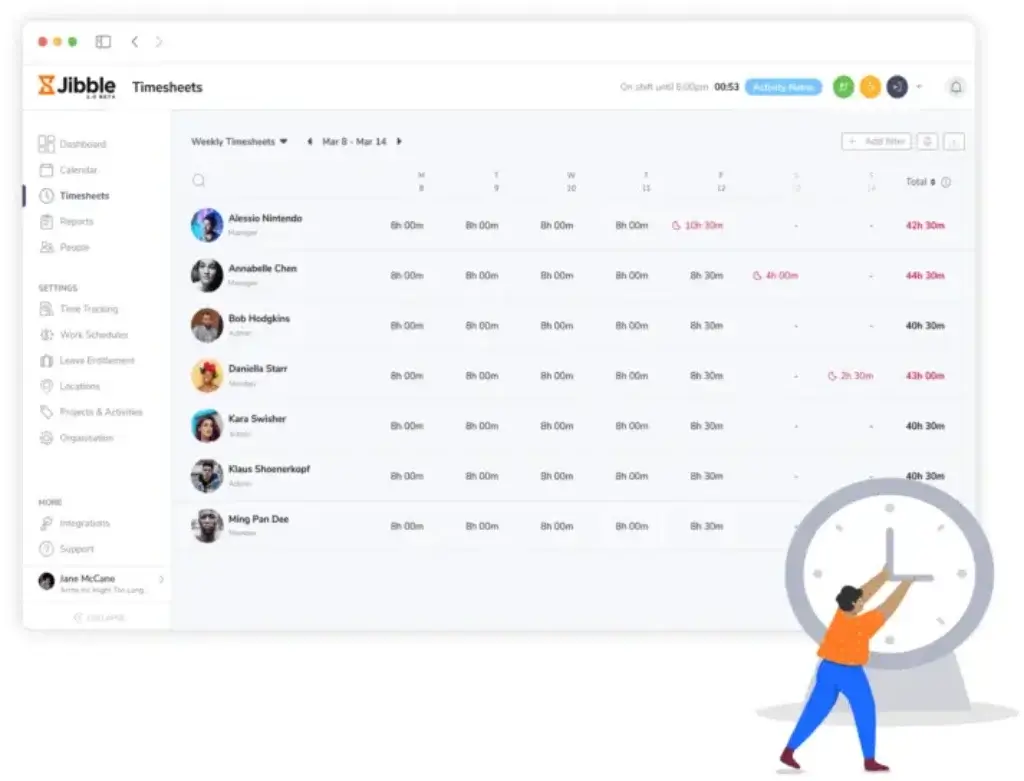
Jibble lets team members clock in and out from the web, desktop, mobile apps for iOS and Android, and shared kiosk devices. Time entries sync across devices, which helps managers avoid scattered timesheets and manual recordkeeping.
You can also apply time tracking policies based on how strict your organization needs to be. For example, office workers may only need reminders and manual edits, while field teams may require GPS and selfie verification at clock-in.
GPS tracking and geofencing
GPS tracking is one of Jibble’s most important features. It allows you to capture the employee’s location when they clock in or out, which is useful if your team works across job sites, client locations, stores, branches, or delivery areas.
Geofencing adds an extra layer of control. You can create approved locations and limit clock-ins to specific areas. This is especially valuable for construction, logistics, healthcare, cleaning services, security teams, and any business where attendance must be tied to a physical location.
One important pricing note: the Free plan includes limited geofence access, while Premium unlocks unlimited geofences. That makes Premium the more practical plan for teams with multiple job sites.
Facial recognition and biometric verification
Jibble’s facial recognition helps reduce buddy punching, which happens when one employee clocks in for another. Employees can clock in with a selfie, and the system helps verify that the correct person is recording time.
This is particularly useful when employees use a shared tablet kiosk at an entrance, warehouse, store, clinic, or worksite. It creates a stronger attendance record than a simple PIN or manual timesheet.
Kiosk mode for shared devices
Jibble’s kiosk mode lets you turn a tablet into a shared time clock station. Employees can clock in and out from the same device using facial recognition, PINs, NFC, or RFID methods depending on your setup.
Kiosk mode is a strong fit for on-site teams because it gives you a controlled clock-in point without requiring every employee to use their own phone. For best results, place the kiosk near the entrance and make sure the lighting and camera angle are consistent.
Automated timesheets and approvals
Jibble automatically turns tracked time into timesheets. Managers can review regular hours, overtime, breaks, and attendance data before approving time for payroll or internal reporting.
This is one of the biggest reasons to use Jibble over spreadsheets. Instead of chasing employees for hours or manually checking time cards, you get a structured approval flow that makes payroll preparation easier.
Projects, activities, and client tracking
Jibble allows you to track time against projects, activities, and clients. This is useful if you need to understand where team hours are going or separate billable and non-billable work.
However, Jibble’s project tracking is relatively lightweight. It is helpful for categorizing hours, but it does not replace a project management system like ClickUp or monday.com.
Breaks, overtime, and time rules
Jibble supports custom breaks, overtime rules, auto clock-out settings, time rounding, alerts, and reminders. These controls help you reduce payroll errors and support more consistent attendance policies.
This is especially important if you manage hourly employees, regulated working hours, or multiple teams with different break rules.
Work schedules, but not full shift scheduling
Jibble supports work schedules, and paid plans unlock more schedule flexibility. However, you should be careful not to confuse this with a full employee scheduling platform.
Jibble is useful for defining work patterns and attendance expectations, but advanced shift scheduling features, such as deeper shift planning, swaps, open shifts, and schedule conflict management, may be better handled by tools built specifically for workforce scheduling.
In Jibble’s current public pricing, shift scheduling is marked as a coming feature, so this is an area to watch if scheduling is central to your workflow.
Screenshot capturing and desktop monitoring
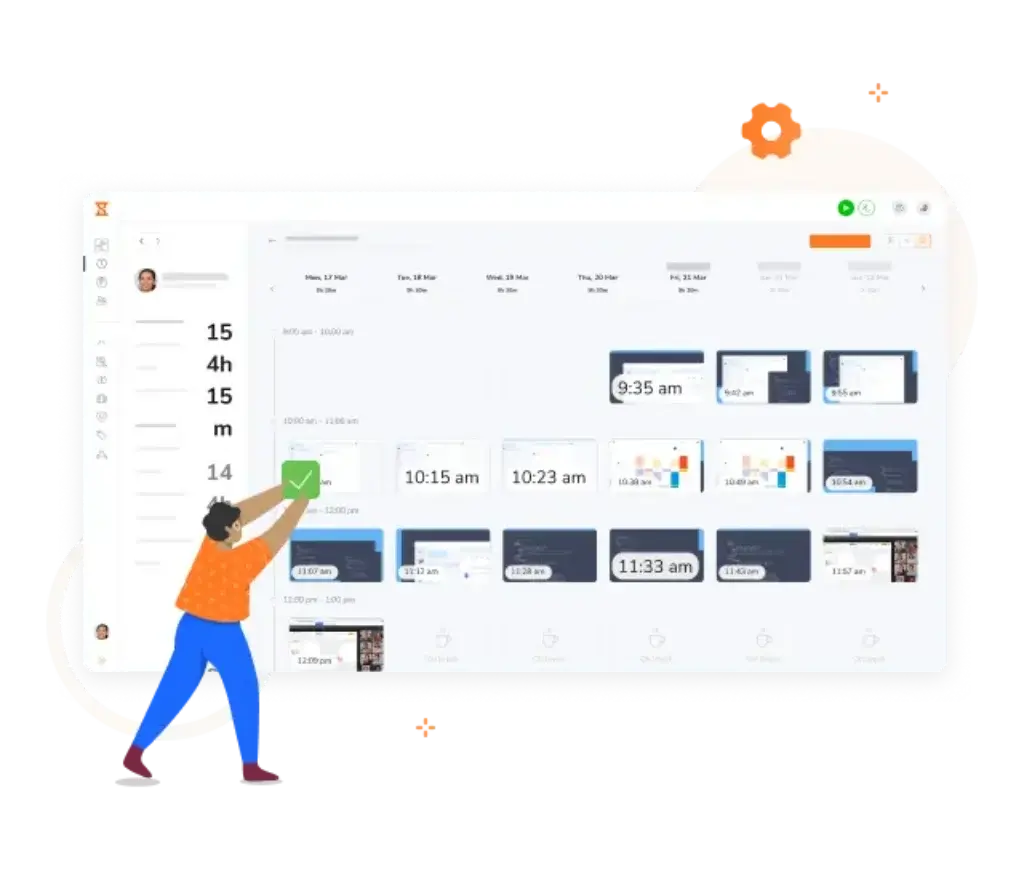
Jibble includes screenshot capturing through the desktop app. This can help managers monitor remote work activity, but it should be used carefully and transparently.
If your team values privacy or works in creative, technical, or knowledge-based roles, screenshot monitoring may feel intrusive. For that use case, it is better to set clear internal policies before enabling it.
Reports and exports
Jibble includes exportable reports that help you prepare timesheets for payroll, billing, or management review. You can use reports to analyze attendance, hours worked, overtime, projects, clients, and time activity.
The reporting is good for standard time and attendance workflows, but it may feel limited if you need advanced dashboards, custom BI reporting, job costing, or deep profitability analysis.
Integrations and API
Jibble integrates with popular tools such as Slack, Microsoft Teams, Xero, QuickBooks, and Zapier. It also offers API access for teams that want to build custom workflows.
This makes it easier to connect time tracking with payroll, accounting, communication, and reporting processes. For example, you can use Xero for accounting workflows or use Zapier to automate time entry data across other business systems.
Security and admin controls
Jibble includes role-based controls, team settings, approvals, and enterprise-level options such as SSO, audit logs, self-hosting, SLA, custom subdomain, white labeling, and dedicated infrastructure on Enterprise.
One detail to note: enforced 2FA is currently listed as a coming feature on Jibble’s public pricing page. If security compliance is a deciding factor for your business, confirm the latest status directly with Jibble before signing a contract.
Pros and Cons
Real-World Advantages and Limitations
Positive
✅ Unlimited users on the free plan
✅ Strong GPS and geofencing features
✅ Facial recognition helps reduce buddy punching
✅ Kiosk mode works well for on-site teams
✅ Easy mobile app for field workers
Negative
❌ No built-in payroll or invoicing
❌ Reporting can feel limited for advanced analytics
❌ Full shift scheduling is still not mature
❌ Offline mode applies mainly to mobile devices
❌ Some advanced controls require paid plans
Pros of using Jibble
1. Unlimited users on the free plan
Jibble’s free plan is one of the strongest reasons to consider it. Many time tracking tools restrict free plans to a small number of users, but Jibble supports unlimited users on its Free plan.
This makes it especially appealing for small businesses, nonprofits, schools, clubs, startups, and distributed teams that need basic time tracking without increasing software costs every time they add a worker.
2. Strong GPS tracking and geofencing
If your team works outside a traditional office, Jibble’s GPS features are very useful. You can see where employees clock in and out, restrict clock-ins to approved locations, and reduce disputes about whether someone was actually on-site.
This is a major advantage for construction, facilities management, delivery, logistics, healthcare, retail, and field service teams.
3. Facial recognition helps prevent buddy punching
Jibble’s selfie-based facial recognition is useful when attendance accuracy matters. It helps prevent one employee from clocking in for another, especially in kiosk environments.
For teams that have struggled with paper timesheets, shared PINs, or loose attendance controls, this feature can improve accountability quickly.
4. Kiosk mode is practical for physical workplaces
Kiosk mode is one of Jibble’s best operational features. Instead of asking every employee to install an app, you can place a shared tablet at the entrance and let staff clock in from one controlled device.
This makes Jibble a strong fit for retail stores, restaurants, warehouses, clinics, manufacturing sites, and construction job sites.
5. Easy to use for employees and managers
Jibble’s interface is simple enough for non-technical teams. Employees can clock in with minimal training, while managers can review timesheets, approvals, and attendance records without digging through complex menus.
This ease of use is important because time tracking software fails when employees avoid it. Jibble keeps the daily workflow straightforward.
Cons of using Jibble
1. No native payroll or invoicing
Jibble can prepare timesheets and export data, but it does not process payroll or generate invoices natively. You will need payroll, accounting, or invoicing tools such as Xero, QuickBooks, or another connected system.
This is not a deal-breaker, but it does mean Jibble is part of your payroll workflow rather than a complete payroll solution.
2. Reporting is useful, but not deeply customizable
Jibble’s reports are good for attendance, hours, projects, overtime, and exports. However, data-heavy teams may want more advanced dashboard customization, profitability analysis, workforce forecasting, or BI-style reporting.
If reporting depth is your top priority, compare Jibble carefully with tools like Hubstaff, Clockify, TimeCamp, or dedicated workforce analytics platforms.
3. Shift scheduling is still a limitation
Jibble supports work schedules, but it is not yet as strong as dedicated scheduling software for shift swaps, open shifts, advanced calendar planning, conflict detection, and team communication.
If scheduling is more important than verified attendance, a workforce management tool like Connecteam may be a better fit.
4. Offline tracking requires realistic expectations
Jibble supports offline time entries on mobile devices, which is helpful for field teams with unstable internet. However, offline entries still need to sync once the connection returns.
If your team regularly works in low-connectivity environments, test offline workflows before rolling Jibble out across the company.
5. Advanced controls require paid plans
Jibble’s free plan is excellent, but several important features sit behind paid plans. For example, unlimited geofences, unlimited work schedules, leave accruals, custom policies, multi-level approvals, live location, and custom permissions require upgrades.
That is reasonable for the price, but you should not assume the free plan will cover every workforce management requirement.
User Experience
Web, Mobile, Desktop and Kiosk Apps
Jibble’s user experience is one of its biggest strengths. The platform feels built for everyday employees first, not only administrators. That matters because time tracking only works when people actually use it consistently.
Web dashboard
The web dashboard gives managers a clear overview of team activity, timesheets, attendance, locations, projects, schedules, and reports. It is simple enough for small business owners, but structured enough for HR and operations managers.
You can quickly check who is clocked in, who missed a clock-in, which timesheets need approval, and where time is being spent.
Mobile app
The mobile app is central to Jibble’s value. Employees can clock in and out, capture selfies, tag locations, track breaks, submit time-off requests, and review their own timesheets from their phones.
For field workers, the mobile app is more important than the web dashboard. It gives you a practical way to record verified attendance without asking employees to return to an office or submit manual logs later.
Desktop app
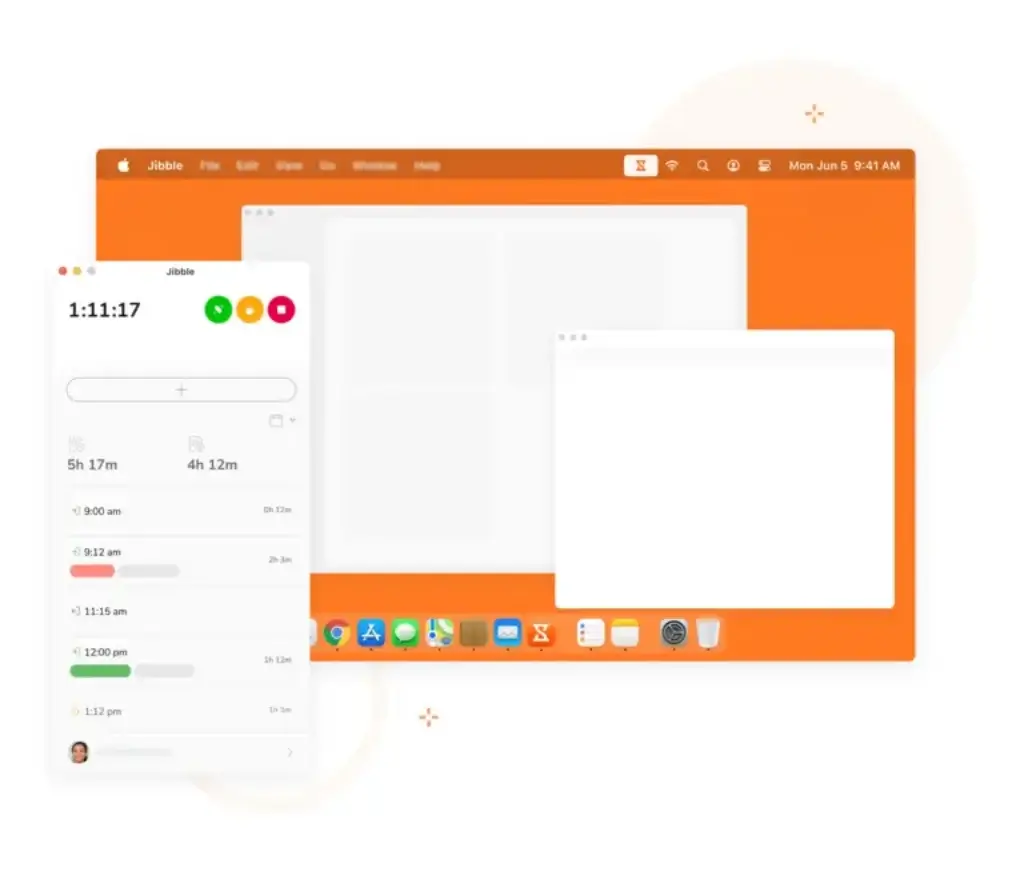
The desktop app is useful for office workers, remote employees, and teams that need screenshot capturing. It can run in the background and help track work time without requiring constant manual updates.
That said, screenshot monitoring should be introduced carefully. It is better suited to teams that need proof of computer activity than teams where trust, privacy, and flexible work are more important.
Kiosk mode
Kiosk mode is one of the best parts of Jibble for physical workplaces. A shared tablet can become a central time clock, and employees can clock in with face recognition, PIN, NFC, or RFID depending on your setup.
This is easier than paper timesheets and more controlled than asking everyone to clock in from personal devices.
Admin setup
From an admin perspective, Jibble is relatively easy to configure. You can set up teams, groups, roles, time tracking policies, geofences, schedules, breaks, approvals, and integrations without needing heavy technical support.
The main setup challenge is deciding how strict your policies should be. Too much control can frustrate employees, while too little control may reduce the value of GPS and facial recognition.
Pricing
Free, Premium, Ultimate and Enterprise Plans
Jibble is one of the more affordable time tracking tools on the market, especially because its free plan supports unlimited users. That makes it attractive for small businesses, nonprofits, startups, and growing teams that need attendance tracking without immediate software costs.
Still, the free plan is not the right plan for every team. If you need unlimited geofences, advanced approvals, custom policies, leave accruals, live location tracking, or enterprise controls, you will likely need a paid plan.
Pricing changes over time. The pricing below is based on Jibble’s public pricing information reviewed for this update. Always check Jibble’s official pricing page before making a purchase decision.
| Plan | Price | Best For | Key Features |
| Free | $0 forever | Freelancers, small teams, nonprofits, and basic attendance tracking | Unlimited users, automated timesheets, GPS, biometric verification, NFC/RFID, projects, clients, reports, integrations, 2 geofences, 1 work schedule |
| Premium | From $4.49/user/month, billed annually | Growing teams that need more control and multiple locations | Everything in Free, plus group management, unlimited admins, unlimited geofences, unlimited work schedules, leave accruals, custom policies, approvals, and time rounding |
| Ultimate | From $7.99/user/month, billed annually | Larger teams that need advanced permissions and location visibility | Everything in Premium, plus custom individual permissions, live location tracking, attendance insights, and prioritized support |
| Enterprise | Custom pricing | Large organizations with advanced security, deployment, and support needs | Everything in Ultimate, plus account management, rollout support, API support, SSO, SLA, self-hosting, audit log, white labeling, custom subdomain, and dedicated infrastructure |
Which Jibble plan should you choose?
Choose Free if you need simple time tracking, core GPS attendance, facial recognition, projects, clients, and basic reports without paying per user.
Choose Premium if your team operates across multiple locations or needs unlimited geofences, custom time policies, leave balances, and multi-level approvals. For most growing teams, Premium is the best-value paid plan.
Choose Ultimate if you need live location tracking, custom individual permissions, attendance insights, and stronger visibility across larger teams.
Choose Enterprise if you need SSO, audit logs, SLA, self-hosting, white labeling, or a more customized deployment.
Is Jibble really free?
Yes, Jibble’s free plan is genuinely useful. It is not just a limited trial. The ability to use unlimited users on the free plan is one of Jibble’s biggest competitive advantages.
However, the free plan has limits. If your team needs unlimited geofences, unlimited schedules, advanced approvals, or live location tracking, you should budget for Premium or Ultimate.
Quick user experience summary
| Interface | Experience | Best For |
| Web dashboard | Clean layout, easy navigation, practical manager controls | Admins, HR managers, operations leads |
| Mobile app | Fast clock-ins, selfie verification, GPS tracking, offline mobile entries | Field workers, remote teams, mobile employees |
| Desktop app | Background tracking and screenshot options | Remote teams, office workers, desk-based employees |
| Kiosk mode | Shared tablet clock-ins with identity verification | Retail, healthcare, warehouses, construction, hospitality |
| Admin settings | Strong controls without overwhelming complexity | Managers, supervisors, business owners |
Customer Feedback and Review Trends
What Users Say About Jibble
User feedback for Jibble is generally positive, especially around ease of use, attendance accuracy, mobile clock-ins, and value for money. Many reviewers describe it as simple to set up and practical for daily attendance tracking.
Across public reviews, the strongest positive themes are:
- Easy clock-in and clock-out experience
- Strong free plan for small teams
- Useful GPS and facial recognition features
- Simple interface for employees
- Helpful attendance records for managers
- Good value compared with more expensive tools
The most common complaints are also worth noting:
- Occasional syncing issues between mobile and web
- Limited report customization for advanced needs
- Some clock-in or approval issues reported by users
- Limited payroll and invoicing functionality
- Advanced controls require paid plans
This feedback supports the main takeaway of this review: Jibble is excellent for simple, verified time and attendance tracking, but it may not be enough if you need deeper workforce planning, payroll execution, or advanced analytics.
Jibble Alternatives
Jibble vs Hubstaff, Toggl Track, Clockify and More
Jibble is not the only strong time tracking tool available. The best alternative depends on what you value most: attendance accuracy, project tracking, productivity monitoring, scheduling, payroll, or field workforce visibility.
Jibble alternatives comparison
| Tool | Best For | Why Choose It Over Jibble? | Why Choose Jibble Instead? |
| Clockify | Project time tracking and free team tracking | Better for project-based hours, reporting, and agencies that need flexible time logs | Jibble is stronger for facial recognition, GPS attendance, geofencing, and kiosk clock-ins |
| Hubstaff | Remote productivity monitoring | Better for screenshots, activity levels, productivity tracking, budgets, and remote oversight | Jibble is simpler, more attendance-focused, and less invasive for many teams |
| Toggl Track | Freelancers, consultants, and creative teams | Better for lightweight project tracking, tags, reporting, and personal productivity | Jibble is better for field teams, GPS tracking, face recognition, and kiosk attendance |
| Connecteam | Deskless workforce management | Better for communication, scheduling, forms, training, and workforce operations | Jibble is more focused and cost-effective for time and attendance tracking |
| Timeero | GPS-heavy field tracking and mileage | Better for route tracking, mileage, and location-heavy field operations | Jibble offers a stronger free plan and biometric attendance tools |
| Workyard | Construction labor tracking and job costing | Better for construction teams that need job costing, labor costs, and field productivity data | Jibble is simpler and often more affordable for general attendance tracking |
Jibble vs Hubstaff
Choose Jibble if your main priority is verified attendance, GPS-based clock-ins, geofencing, facial recognition, and kiosk mode.
Choose Hubstaff if you need stronger employee monitoring, screenshots, activity rates, productivity tracking, budgets, and remote work visibility.
Hubstaff is more powerful for monitoring remote computer-based work, but it can feel heavier and more invasive. Jibble is better when you want employees to clock in accurately without introducing a full surveillance-style workflow.
👉🏼 Read the full Hubstaff review here or visit the Hubstaff website.
Jibble vs Toggl Track
Choose Jibble if you need time and attendance software for mobile workers, hourly teams, field employees, or staff clocking in from physical locations.
Choose Toggl Track if you are a freelancer, consultant, agency, or creative team that needs clean project tracking, billable hours, tags, and reports.
Toggl Track is more elegant for knowledge workers and client-based work. Jibble is more practical for attendance accuracy, GPS verification, and teams that need stronger clock-in controls.
👉🏼 Read the full Toggl Track review or visit Toggl Track directly here.
Jibble vs Clockify
Choose Jibble if location tracking, face recognition, and attendance verification matter more than detailed project reporting.
Choose Clockify if your team mainly tracks billable time by project, client, task, or department and does not need biometric clock-ins or geofencing.
Clockify is a strong alternative for agencies, consultants, and desk-based teams. Jibble is better for physical attendance and field accountability.
👉🏼 Read the full Clockify review or visit Clockify directly here.
Final thoughts on Jibble alternatives
Jibble competes well because it focuses on a clear problem: accurate time and attendance tracking. It should be your first choice if you need GPS, geofencing, facial recognition, kiosk mode, and a generous free plan.
However, if your team needs deeper project profitability, advanced employee monitoring, native payroll, or full workforce scheduling, you should compare Jibble with more specialized tools before deciding.
Best Use Cases and Buyer Fit
Who Should Use Jibble?
Jibble is best for teams that need accurate attendance records without adding too much complexity. It works especially well when your employees are hourly, mobile, deskless, or spread across multiple sites.
Best-fit teams and industries
| Team or Industry | Why Jibble Fits | Watch Out For |
| Construction | GPS, geofencing, kiosk mode, and mobile clock-ins help verify job-site attendance | May need stronger job costing or construction project management tools |
| Retail and hospitality | Kiosk mode, attendance records, work schedules, and break tracking fit hourly teams | May need deeper shift scheduling and team communication |
| Healthcare and home care | Facial recognition and location tracking help verify attendance across sites | Confirm compliance requirements before using it for sensitive workflows |
| Logistics and field services | Mobile GPS clock-ins and live location tracking support mobile operations | Test battery usage, offline workflows, and location accuracy |
| Agencies and consultants | Project, client, and activity tracking can support billable hours | Toggl Track or Clockify may be stronger for detailed project reporting |
| Nonprofits and small businesses | The free plan supports unlimited users and core attendance tracking | Advanced controls still require paid plans |
When to upgrade to a paid plan
You should consider upgrading from Free to Premium or Ultimate if:
- You need unlimited geofences across multiple locations
- You manage several teams, departments, or branches
- You need custom time tracking policies
- You want leave accruals, balances, and multi-level approvals
- You need live location tracking
- You need custom permissions for managers and admins
- You want stronger attendance insights
For most growing teams, Premium offers the best balance between price and functionality. Ultimate makes more sense when you need live location and more granular permission control.
When Jibble might not be enough
Jibble may not be the right tool if your top priorities are:
- Native payroll processing
- Built-in invoicing
- Advanced project management
- Deep employee productivity monitoring
- Full workforce scheduling
- Advanced analytics and custom dashboards
- Complex job costing or project profitability reporting
In those cases, Jibble can still be part of your stack, but it may need to be paired with payroll, accounting, scheduling, or project management software.
Setup Tips and Best Practices
How To Get The Most Out of Jibble
Jibble is easy to start using, but the best results come from setting it up around your team’s real workflows. The more clearly you define policies, locations, approvals, and integrations, the less manual cleanup you will need later.
1. Start with a clear setup checklist
Before inviting your whole team, configure the basics:
- Set your company time zone and workweek
- Create teams, groups, departments, or locations
- Define time tracking policies by role or team
- Add job sites and geofences
- Set break and overtime rules
- Assign admin and manager permissions
- Decide whether employees can edit time manually
This gives you a cleaner launch and reduces confusion once employees start clocking in.
2. Match clock-in rules to each team type
Not every team needs the same level of control. Field workers may need GPS and facial recognition, while office employees may only need basic reminders and desktop tracking.
A good rollout approach is:
- Field teams: Enable mobile clock-ins, GPS, and geofencing
- On-site teams: Use kiosk mode with facial recognition
- Remote workers: Use web, desktop, or Chrome extension tracking
- Managers: Enable approvals and exceptions review
3. Use geofences carefully
Geofencing is powerful, but it needs accurate setup. If a geofence is too small, employees may struggle to clock in. If it is too large, the location control becomes less useful.
Test each location before enforcing strict rules. This is especially important for construction sites, large facilities, hospitals, warehouses, or areas with weak GPS accuracy.
4. Automate reminders and alerts
Reminders can prevent common time tracking mistakes, such as missed clock-ins, forgotten breaks, or late clock-outs.
Useful reminders include:
- Clock-in reminders before shifts begin
- Clock-out reminders near shift end
- Break reminders for compliance
- Alerts for unusual time entries
- GPS reminders when entering or leaving job sites
These small automations can significantly reduce manual corrections.
5. Use projects and clients from the start
If you need billable time, client reporting, or departmental cost visibility, set up projects, clients, and activities before employees begin tracking time.
Even if you do not invoice from Jibble, this structure helps you understand where time is going and makes reporting more useful.
6. Connect Jibble with your existing tools
Jibble can connect with tools such as Slack, Microsoft Teams, Xero, QuickBooks, and Zapier. These integrations help you avoid manual data transfer and keep time records closer to payroll, accounting, and communication workflows.
For example, you can connect Jibble with Xero for accounting workflows or use Zapier to send time tracking data into spreadsheets, dashboards, or other operational tools.
7. Train managers to review exceptions
Jibble becomes more valuable when managers actively review exceptions, not only total hours.
Train managers to check:
- Missed clock-ins and clock-outs
- Location mismatches
- Manual edits
- Late starts and early finishes
- Overtime patterns
- Rejected or pending approvals
This keeps the system accurate and prevents timesheets from becoming another unchecked admin process.
Overall Recommendation
Final Thoughts – Is Jibble Worth It in 2026?
⭐ Overall Rating: 8.0/10
Jibble is worth it in 2026 if you need affordable, accurate, and easy-to-use time tracking software with strong attendance verification.
Its biggest advantage is the combination of unlimited users on the free plan, GPS tracking, facial recognition, geofencing, kiosk mode, and automated timesheets. For many small businesses and field teams, that feature mix is more than enough to replace spreadsheets, paper timesheets, and manual attendance tracking.
Jibble is especially strong for mobile teams, on-site staff, field workers, and organizations that need better accountability without paying enterprise-level prices.
That said, Jibble is not perfect. It is not a native payroll platform, not a full invoicing tool, not a full project management system, and not the deepest reporting solution. Its work scheduling features are useful, but it is not yet a complete shift scheduling platform.
Best reason to choose Jibble
Choose Jibble if your main priority is accurate time and attendance tracking with GPS and biometric verification.
Best reason to choose an alternative
Choose another tool if your priority is advanced project profitability, employee monitoring, payroll processing, invoicing, or workforce scheduling.
Final recommendation
For small to mid-sized businesses, field teams, hybrid teams, and budget-conscious organizations, Jibble is one of the strongest time tracking tools to consider in 2026. It gives you a rare mix of affordability, usability, and attendance accuracy, especially if you need GPS and facial recognition without a complex setup.
Overall, Jibble is highly recommended for teams that need dependable time tracking, verified attendance, and strong free-plan value.
Frequently Asked Questions
Jibble Review FAQs
Is Jibble really free?
Yes. Jibble offers a free plan with unlimited users. It includes core time tracking features such as automated timesheets, GPS tracking, biometric verification, projects, clients, reports, integrations, and limited geofencing. Paid plans unlock more advanced controls such as unlimited geofences, custom policies, approvals, live location, and advanced permissions.
How much does Jibble cost?
Jibble has a free plan, a Premium plan starting from $4.49 per user per month when billed annually, and an Ultimate plan starting from $7.99 per user per month when billed annually. Enterprise pricing is custom and designed for larger organizations with advanced security, support, and deployment needs.
Does Jibble have GPS tracking?
Yes. Jibble includes GPS time tracking and geofencing features. This helps managers verify where employees clock in and out, making it useful for field teams, construction sites, logistics teams, retail locations, healthcare workers, and mobile employees.
Does Jibble support facial recognition?
Yes. Jibble supports selfie-based facial recognition to help verify employee identity during clock-ins. This is especially useful for preventing buddy punching when employees use a shared kiosk or clock in from job sites.
Can Jibble be used offline?
Yes, but with an important limitation. Jibble supports offline time entries on mobile devices. If the internet connection is lost, entries can be saved offline and synced when the device reconnects. Teams working in low-connectivity areas should test this workflow before a full rollout.
Does Jibble include payroll?
No. Jibble is not a native payroll processor. It helps you collect, approve, and export timesheet data, and it integrates with payroll and accounting tools such as Xero and QuickBooks. Payroll processing still happens in your connected payroll or accounting system.
Is Jibble good for construction teams?
Yes. Jibble is a strong fit for construction teams that need GPS clock-ins, geofencing, kiosk mode, facial recognition, and mobile attendance tracking. However, construction companies that need deeper job costing, labor cost analysis, or project management may need a more specialized construction tool alongside Jibble.
Is Jibble good for remote teams?
Yes. Jibble can work well for remote teams that need simple time tracking, desktop tracking, project/client tagging, approvals, and integrations. However, if you need heavy productivity monitoring, screenshots, activity levels, and budgets, Hubstaff may be a stronger alternative.
What are the best Jibble alternatives?
The best Jibble alternatives depend on your use case. Clockify is strong for project time tracking, Hubstaff is better for productivity monitoring, Toggl Track is ideal for freelancers and agencies, Connecteam is stronger for workforce operations, Timeero is useful for GPS-heavy field teams, and Workyard is worth considering for construction labor tracking.
Is Jibble better than Clockify?
Jibble is better than Clockify if you need GPS tracking, geofencing, facial recognition, biometric attendance, and kiosk mode. Clockify is better if you mainly need flexible project time tracking, billable hours, reports, and a simple timer for desk-based teams, agencies, or freelancers.
“`